

Filtering Resources
Scenario
This section describes how to filter resources on the Resource List page of the Config console. This helps you track resource details, including regions and states.

To use the resource list, you must enable the resource recorder. If a resource is missing from the list, verify if the resource recorder is enabled, if the resource type is within the configured monitoring scope, or if the service or resource is supported by Config.
There is a delay in synchronizing data to Config, so if there is a resource change, the change may not be updated in the resource list immediately. If the resource recorder is enabled, Config synchronizes and corrects resource data within 24 hours.
Preparations
- If you already have a Huawei account, skip this step. If you do not have one, follow the following steps to create one:
- Go to Huawei Cloud and click Sign Up.
- Sign up for a Huawei account and enable Huawei Cloud services.
After your account is created, you will be directed to your personal information page.
- Complete real-name authentication by following the instructions in Individual Real-Name Authentication or Enterprise Real-Name Authentication.
- Top up your account.
Config itself is free of charge, but the SMN topic and the OBS bucket that you configured for the resource recorder will be charged. For details, see SMN billing and OBS billing.
Ensure that your account has sufficient balance to avoid unavailability of the resource recorder and other functions. For more details, see Topping up an Account.
- Enabling the Resource Recorder
To use the resource list, the resource recorder must be enabled.
Procedure
- Log in to the Config console.
- On the Resource List page, the resources you own within the monitoring scope of the resource recorder are displayed by default.

- Select a service, resource type, and region to search for resources. For global services, you do not need to set the region.
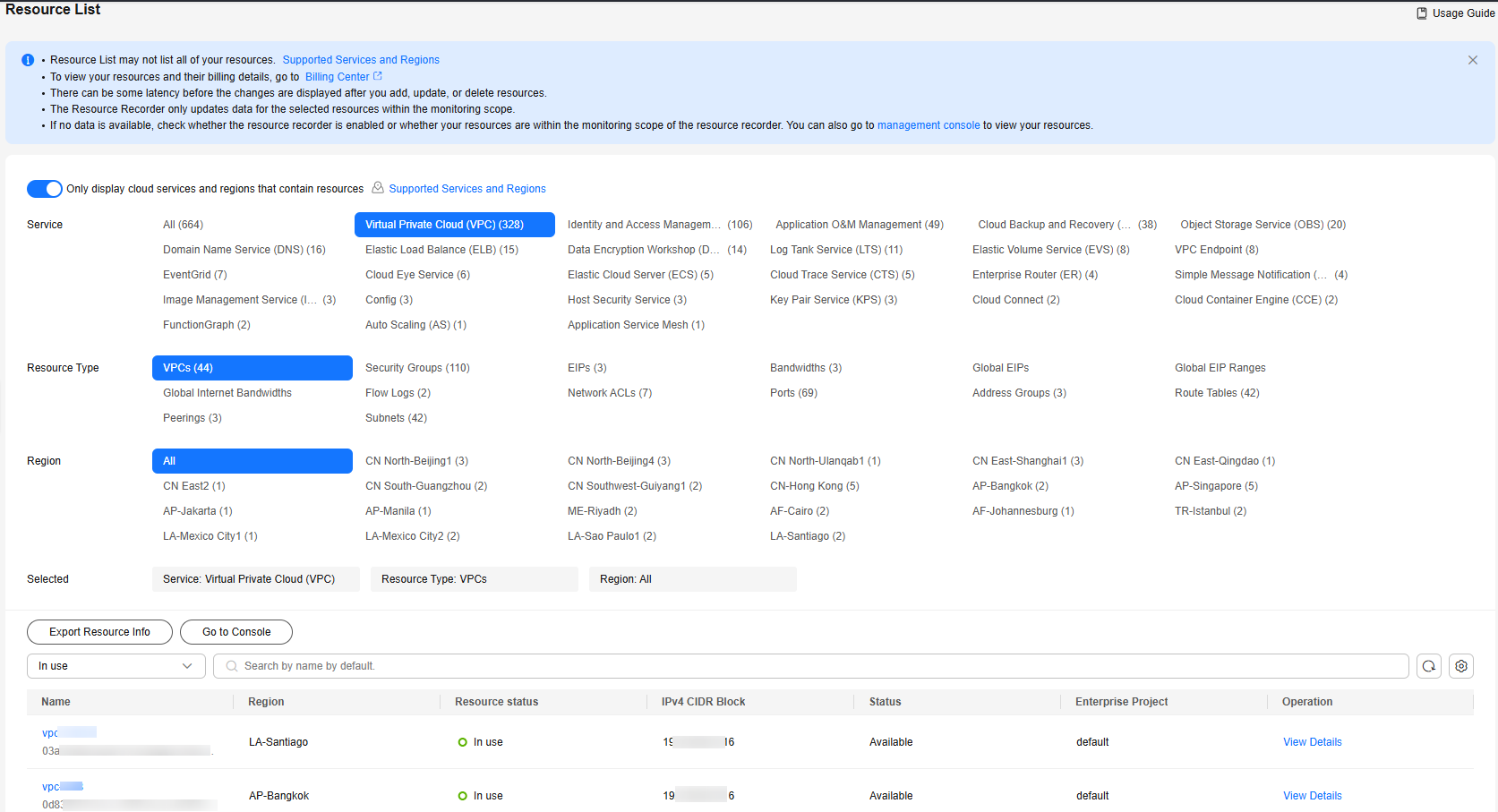
- Use the search box in the middle of the page to apply refined filters.

Filter
Description
Name
Resource name. Fuzzy search is supported. The resource name is case-insensitive.
Resource ID
Resource ID. Fuzzy search is supported. The resource ID is case-sensitive.
Resource status
Resource status.
Possible resource states include:
- In use: A resource is active.
- Deleted: A resource has been deleted.
Tag
Resource tag. You can select a tag key and one or all values of this key to filter resources.
Enterprise project
The enterprise project which resources belong to. If you select an enterprise project, resources in this enterprise project will be displayed.
NOTE:To filter resources by enterprise project, you must first enable Enterprise Project.
Related Information
The resource list allows you to perform the following operations on your resources:
- Querying Details About a Resource
- Exporting the Resource List
- Viewing Resource Compliance Data
- Viewing Resource Relationships
- Viewing Resource Changes
What is your overall rating for this page?
Thank you very much for your feedback. We will continue working to improve the documentation.See the reply and handling status in My Cloud VOC.
For any further questions, feel free to contact us through the chatbot.
Chatbot


