

Configuring the WhatsApp Channel
A tenant administrator can configure the WhatsApp channel for customers to access.
Prerequisites

- This feature applies only to regions outside the Chinese mainland.
- The network between the WhatsApp service provider and the AICC is normal.
You have obtained the following information from the WhatsApp service path supplier:
- infobip
- Phone number for registering a WhatsApp service path provider user
- Username for registering with the WhatsApp service path provider
- Password for registering with the WhatsApp service path provider
- API URL prefix provided by the WhatsApp service path provider. An application has been submitted to the system administrator and approved to add the API URL prefix to the address trustlist.
This information corresponds to the value of BaseUrl in the AICC.
- Account key provided by the WhatsApp service path provider for authentication
- Webhook password, which is the authentication password for the channel to receive messages. The webhook password is customized by channel configuration personnel. After the channel is configured, you need to notify Infobip of the webhook password, which corresponds to the account key of the webhook API in Infobip.
- Authentication certificate. To obtain the authentication certificate, perform the following steps:
- Visit the following website:
- https://api.infobip.com/
- API URL prefix provided by Infobip, for example, https://***.api-us.infobip.com/
- Export a certificate from the browser. The following describes how to export a certificate from https://api.infobip.com/.
- Click
 in the address box. The following information is displayed.
- Choose Connection is secure > Certificate is valid to view certificate information.

- Click Export and select a local path to save the certificate.

Customize the value of File name and set Save as type to DER-encoded binary, single certificate.

- Click Save to export the certificate to the local PC.
- Click
- Repeat the preceding operations to export a certificate from https://***.api-us.infobip.com/.
- Combine the two certificates into a JKS certificate. You can use the certificate combination tool Portecle to combine the certificates.
Download URL: https://sourceforge.net/projects/portecle/
Procedure: The Java running environment must be available.
- Open the CLI and go to the directory where portecle.jar is stored.
- Run the java -jar portecle.jar command to run Portecle.
- Choose , select JKS, and click OK.
- Click
 and upload an obtained browser certificate to Portecle.
 You need to run the command twice.
- Click
 , enter a new certificate password, and click OK.
 - Enter a new certificate name, which is customized, and click Save.
- Upload the authentication certificate by referring to Managing Certificates.
- Visit the following website:
- other: The customer implements the BSP to connect to WhatsApp. The current version supports only ITAU.
When WhatsApp Business Solution Provider is set to other, the options of Verification Method are as follows:
- basic: direct authentication of the WhatsApp service path provider
- oAuth: authentication of the WhatsApp service path provider using an API
The information to be obtained varies according to the value of Verification Method.
- Phone number for registering a WhatsApp service path provider user
This item is not required when Verification Method is set to oAuth.
- Username for registering with the WhatsApp service path provider
When Verification Method is set to oAuth, you need to contact the system administrator to obtain the app key of the app that has subscribed to the sendWhatsappMessage API and bound to the tenant space for which the WhatsApp channel needs to be configured on the page, and enter the app key in the UserName text box.
- Password for registering with the WhatsApp service path provider
When Verification Method is set to oAuth, you need to contact the system administrator to obtain the app secret of the app that has subscribed to the sendWhatsappMessage API and bound to the tenant space for which the WhatsApp channel needs to be configured on the page, and enter the app secret in the Password text box.
- API URL prefix provided by the WhatsApp service path provider
When Verification Method is set to oAuth, the API URL prefix must be https://IP address:Port number/apiaccess/rest/ccmessaging, where IP address:Port number indicates the IP address and port number for signing in to the AICC and can be replaced with a domain name.
- Authentication key provided by the WhatsApp service path provider
This item is not required when Verification Method is set to oAuth.
- Authentication password for the channel to receive messages
- Trust certificate provided by the WhatsApp service path provider. You have uploaded it by referring to Managing Certificates.
- Identity certificate of the current system. You have uploaded it by referring to Managing Certificates.
This item is not required when Verification Method is set to oAuth.
- cloud-api
- Information about the app created on Meta for Developers
- Log in to Facebook using a Meta for Developers account and access https://developers.facebook.com/apps to create an app.
Click Other, select the Business type, customize the app name, and retain other default settings.
- Return to https://developers.facebook.com/apps, find the new app, copy the app ID, access https://developers.facebook.com/apps/App ID/settings/basic, and view the app information. App ID is the copied app ID. Figure 1 Obtaining app information

The app ID corresponds to the value of APP Key in the channel configuration in the AICC.
The app secret corresponds to the value of APP Secret in the channel configuration in the AICC.
- Add the WhatsApp product to the app. Figure 2 Adding the product

- Choose to configure the quick start.
If the advertisement placement function is disabled for the Facebook account, you need to apply for enabling the function.
- Choose and obtain the phone number and base URL.
- The test number corresponds to the value of Phone Number in the AICC.
- The URL in the red box corresponds to the value of BaseUrl in the AICC.
- The recipient number is the mobile number of an object served through the WhatsApp channel and is a mobile number. The recipient number needs to be manually added so that the customer can access the WhatsApp channel.
Figure 3 Obtaining the phone number and base URL

- Access https://business.facebook.com/settings/system-users, select the business of the app, choose , and add an administrator. Customize System user name and set System user role to Employee.Figure 4 Adding an administrator

- Add assets and generate a new token. Figure 5 Adding assets
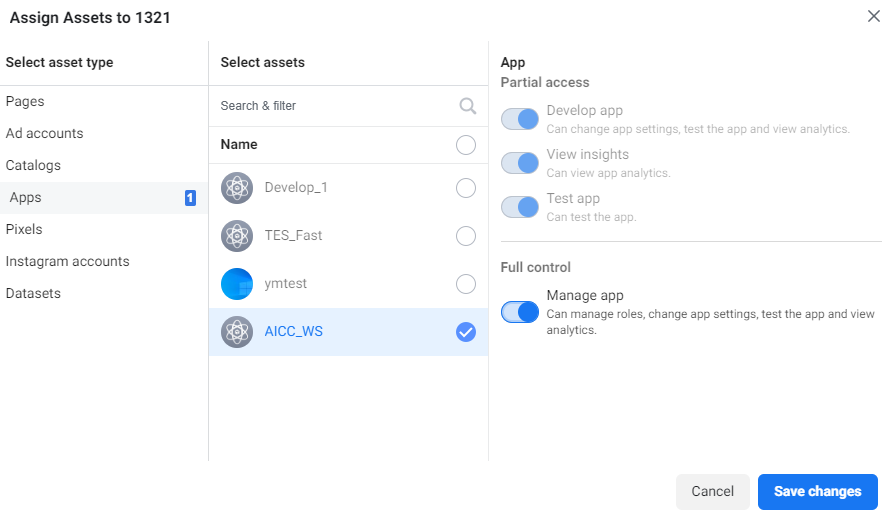 Figure 6 Generating a new token

The generated token must have the whatsapp_business_messaging and whatsapp_business_management permissions.
The generated token corresponds to the value of access token in the channel configuration in the AICC.
When generating the token, you need to select a validity period, which corresponds to the token validity period in the AICC.
- Log in to Facebook using a Meta for Developers account and access https://developers.facebook.com/apps to create an app.
- Trust certificate. You have uploaded it by referring to Managing Certificates.
- In China: Direct access to https://graph.facebook.com/v8.0 is restricted. You need to configure a proxy server and obtain the trust certificate of the proxy server. The certificate must be in .der format.
- Outside China: Access https://graph.facebook.com/v8.0 and export the certificate using a browser. The certificate must be in .der format.
- Identity certificate of the current system. You have uploaded it by referring to Managing Certificates.
Access the current system and export the certificate using a browser.
- Information about the app created on Meta for Developers
- Twilio:
- Phone number for registering a WhatsApp service provider user
- API Key SID for registering a WhatsApp service provider
- API Key Secret for registering a WhatsApp service provider
- API URL prefix provided by the WhatsApp service provider. An application has been submitted to the system administrator and approved to add the API URL prefix to the address trustlist.
This information corresponds to the value of BaseUrl in the AICC, for example, https://api.twilio.com/2010-04-01.
- Account SID provided by the WhatsApp service provider for authentication
- Webhook user, which is the authenticated user for the channel to receive messages. The webhook user is customized by channel configuration personnel. After the channel is configured, you need to notify Twilio of the webhook user, which corresponds to the username of the webhook API in Twilio.
- Webhook password, which is the authentication password for the channel to receive messages. The webhook password is customized by channel configuration personnel. After the channel is configured, you need to notify Twilio of the webhook password, which corresponds to the password of the webhook API in Twilio.
- Authentication certificate. To obtain the authentication certificate, perform the following steps:
- Visit the following website:
- https://api.twilio.com/
- Export a certificate from the browser. The following describes how to export a certificate from https://api.twilio.com/.
- Click
 in the address box. The following information is displayed.
- Choose Connection is secure > Certificate is valid to view certificate information.
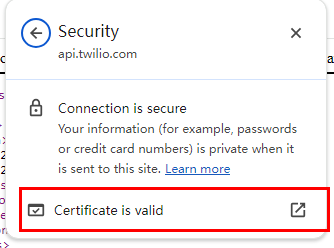
- Click Export and select a local path to save the certificate.

Customize the value of File name and set Save as type to DER-encoded binary, single certificate.

- Click Save to export the certificate to the local PC.
- Click
- Upload the authentication certificate by referring to Managing Certificates.
Access the current system and export the certificate using a browser.
- Visit the following website:
- gupshup
- Phone number for registering a WhatsApp service provider user
- App name of the registered WhatsApp service provider.
- App ID of the registered WhatsApp service provider.
- API URL prefix provided by the WhatsApp service provider. An application has been submitted to the system administrator and approved to add the API URL prefix to the address trustlist.
The value corresponds to the BaseUrl on the AICC, for example, https://api.gupshup.io.
- API key provided by the WhatsApp service provider for authentication.
- Webhook name defined by the channel configuration personnel.
- Webhook password/Webhook confirm password, which is the authentication password for the channel to receive messages and is defined by the channel configuration personnel.
- Identity certificate of the current system. You have uploaded it by referring to Managing Certificates.
- Trust certificate provided by the WhatsApp service path provider.
- Visit the website: https://login.gupshup.io/u/login.
- Export a certificate from the browser.
- Click
 in the address box. The following information is displayed.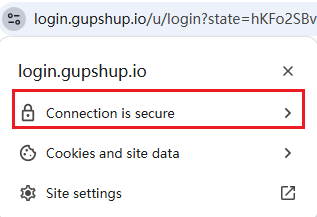
- Choose Connection is secure > Certificate is valid to view certificate information.

- Click Export and select a local path to save the certificate.

Customize the value of File name and set Save as type to DER-encoded binary, single certificate.

- Click Save to export the certificate to the local PC.
- Click
- Upload the authentication certificate by referring to Managing Certificates.
- KooMessage
- The channel configuration personnel have the permission of a Huawei Cloud IAM user and have passed the enterprise authentication.
- You have purchased KooMessage and enabled the service for interconnecting with WhatsApp.
- KooMessage and channel configuration personnel provide the following information:
- Tenant name of the Huawei Cloud enterprise user, that is, Domain in the AICC.
- Huawei Cloud enterprise user name: IAM user name in the AICC.
- The URL for Huawei Cloud enterprise user login authentication, that is, IAM Url in the AICC. The URL has been applied for and approved by the system administrator, and added to the address trustlist.
- Endpoint of Huawei Cloud KooMessage: BaseUrl in the AICC. It has been applied for and approved by the system administrator, and added to the address trustlist.
- Sender number of the user: Phone Number in the AICC.
- Password of the Huawei Cloud enterprise user: IAM user password in the AICC.
- Webhook Password/Webhook Confirm Password, which is the authentication password for the channel to receive messages and is defined by the channel configuration personnel.
- Trust certificate: Obtain the trust certificate in the following way:
- Access the endpoint of Huawei Cloud KooMessage using a browser. An example address is https://koomessage.cn-east-3.myhuaweicloud.com.
- Click
 in the address box. The following information is displayed.
- Choose Connection is secure > Certificate is valid to view certificate information.

- Click Export and select a local path to save the certificate.

Customize the value of File name and set Save as type to DER-encoded binary, single certificate.

- Click Save to export the certificate to the local PC.
- Upload the authentication certificate by referring to Managing Certificates.
- Identity certificate: Access the current system, export the certificate using a browser, and upload the certificate in Managing Certificates.
Context
If the information provided by the WhatsApp service path provider is changed, you need to modify the involved WhatsApp channel as follows: Sign in as a tenant administrator, choose , click Edit in the Operation column corresponding to the involved channel, and update the values of UserName, Password, BaseUrl, and AccountKey.
Procedure
- Sign in to the AICC as a tenant administrator and choose .
- Click New. The Configure Channel page is displayed.
- (Optional) Configure WhatsApp Twilio Webhook.
For the Twilio channel, after the tenant parameter Indicates whether to enable tenant-level WhatsApp Twilio Webhook configuration. is enabled, tenant-level webhook information can be configured independently. For details, see Setting Tenant Parameters.
- On the page, check whether the current user has the Edit WhatsApp Twilio Webhook Configuration permission. If no, add the permission.
- Click WhatsApp Twilio Webhook Configuration.
- Configure webhook information.
Table 1 Webhook configuration information Parameter
Description
Webhook User
Enter a webhook user.
Webhook Password
- These two parameters are user-defined. After changing the value, you need to notify Infobip offline. To set the password validity period, the tenant administrator can choose and change the value of WhatsApp Webhook Password Authentication Validity Period. The value ranges from 7 to 365, in days. The default value is 90.
- This parameter is not displayed on the page when Indicates whether to enable tenant-level WhatsApp Twilio Webhook configuration. is set to Yes.
Webhook Confirm Password
- Click OK.
When the password expires, the tenant administrator receives an internal message indicating that the password has expired.
- Set channel information parameters.
Table 2 Channel information parameters Parameter
Description
Channel Selection
Select WhatsApp.
Business Solution Provider
Value options:
- infobip
- other
- cloud-api
- twilio
- gupshup
- KooMessage
Set other parameters based on the information obtained in Prerequisites.
- Set basic configuration parameters.
Table 3 Basic configuration parameters Parameter
Description
Channel Name
The channel name must be unique. The code can contain a maximum of 64 characters, including only letters, digits, and underscores (_), and can start only with a letter or an underscore (_).
OU Configuration
Select an OU created in Configuring OUs to assign it to channel resources.
Skill Queue
The options are all multimedia called routes of the current tenant space. For details about how to configure a called route, see Configuring Called Routes.
The search criterion All accessible organizations is controlled by the tenant parameter Has the tenant enabled inter-organization data isolation enforcement. When the tenant parameter is set to Yes, the called route can be searched by OU. In addition, a non-administrator account that is not configured with the OU permission can search for only the called routes under the current OU.
Keyword for Transfer to Agent
Keywords for switching from robot service to manual service. After a customer enters any of the keywords on the client, robot service is switched to manual service.
NOTE:If the intelligent robot is enabled, this parameter must be set.
Agent Work Time
- Workday: A maximum of four working time segments (from 00:00 to 24:00) can be configured. By default, a time segment is displayed. You can click New to add a time segment.
- Non-workday: A maximum of four working time segments (from 00:00 to 24:00) can be configured. By default, a time segment is displayed. You can click New to add a time segment.
Non-working days are set on the page.
Non-Working Time Notification
When a customer call is connected to an agent in non-working time, this message is displayed to notify the customer that the agent is in rest state.
Queue Reminder
Queue reminder mode.
- All Reminders
- Queue Reminder
- Queue Progress Reminder
- Close Reminder
Queue Reminder Content
Queue reminder content.
The value can contain a maximum of 256 characters and cannot contain the following special characters: <>'"/\
This parameter is mandatory when Queue Reminder is set to All Reminders or Queue Reminder.
Queue Progress Reminder Content
Queue progress reminder content.
- The value can contain a maximum of 256 characters and cannot contain the following special characters: <>'"/\
- Variables can be set. The bound variables can only be user ID (${userId}), username (${nickName}), queue position (${position}), and estimated waiting time (${waitTime}, in seconds).
- Default value: You are currently in the queue, in position ${position}, and are expected to wait for ${waitTime} seconds
This parameter is mandatory when Queue Reminder is set to All Reminders or Queue Progress Reminder.
Call Transfer Interaction Times
The call transfer function can be used only when the number of messages sent by an agent to a customer reaches the set value.
When the value is 0 or empty, the agent can use the call transfer function at any time.
More
Last Agent Mode
For details, see How Do I Enable the Last Agent Mode?
Session End Due to No Customer Reply
For details, see How Do I Set Session End Due to No Customer Reply?
Session Transfer Due to No Agent Reply
For details, see How Do I Set Session Transfer Due to No Agent Reply?
Session Transfer
For details, see How Do I Set Session Transfer?
Offline Messages
For details, see How Do I Enable Offline Messages?
- Configure electronic name card information. Figure 7 Electronic name card switch

Table 4 Electronic name card configuration parameters Parameter
Description
Electronic name card
Switch indicating whether to enable the electronic name card. It is disabled by default.
Value options: : disabled
 : enabled
Greetings message 1
Customized greeting message 1.
Greetings message 2
Customized greeting message 2.
Greetings message
This field is read-only and contains variable values. It consists of greetings message 1, greetings message 2, and preset variable placeholders for preview by configuration personnel. For example, I'd like to talk to the seat${staffId} (${staffName}) Chat consultation service.
The total length of the field (including the variable values and the parentheses and spaces before and after the variable values) cannot exceed 255 characters.
- Set robot configuration parameters.
Table 5 Robot configuration parameters Parameter
Description
Connecting to the Intelligent Robot
For details, see How Do I Enable Connection to the Intelligent Robot?
Access Robot Assistant
For details, see How Do I Enable Connection to the Robot Assistant?
- Click The next step. The Channel Integration page is displayed.
- If the WhatsApp service provider is infobip, the following page is displayed.
The page varies according to the value of the tenant parameter Whether to enable the infobip API of the new version.
The Infobip API in use is not maintained or updated by Infobip. You are advised to use the new Infobip API.
- When this parameter is set to Yes, the following information is displayed.
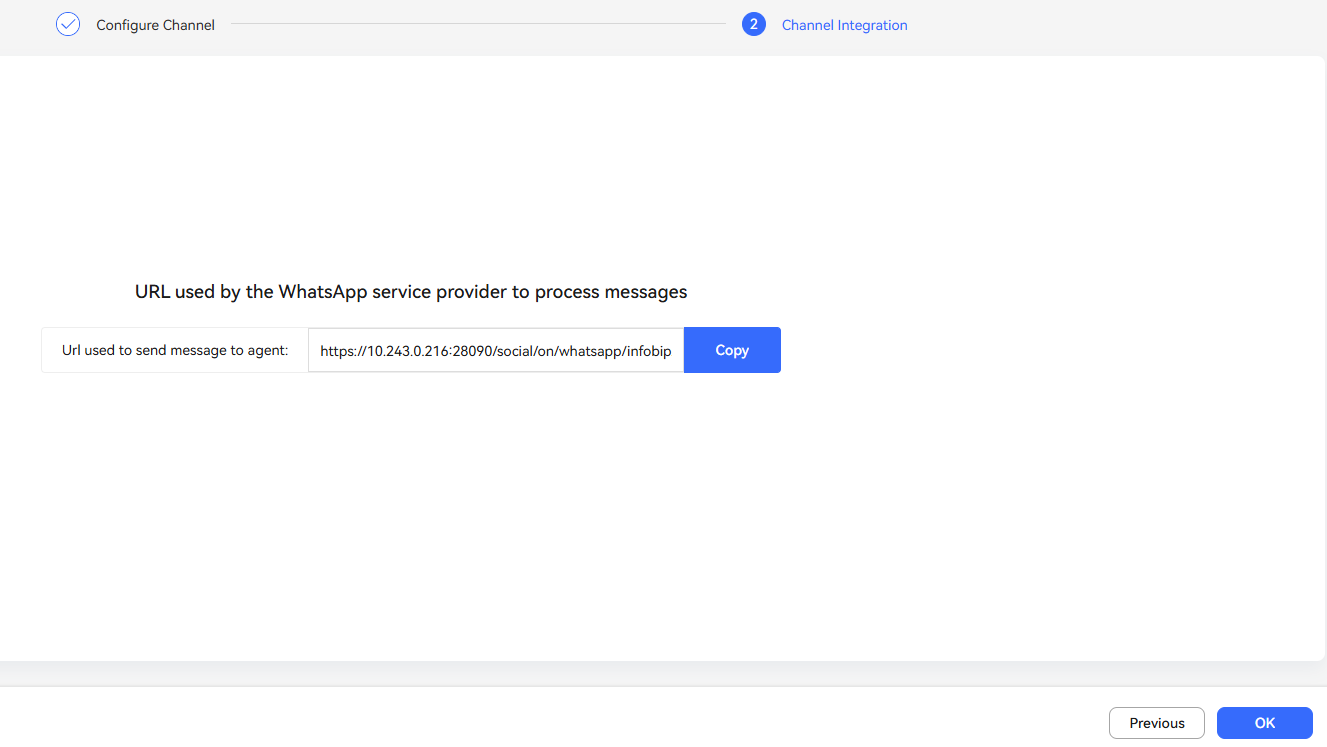
Obtain the values of Url used to send message to agent and Url used to send report to agent generated on the Channel Integration page and notify Infobip of them offline.
- When this parameter is set to No, the following information is displayed.

Obtain the values of Url used to send message to agent and Url used to send report to agent generated on the Channel Integration page and notify Infobip of them offline.
- When this parameter is set to Yes, the following information is displayed.
- If the WhatsApp service provider is other, the following page is displayed.

Obtain the values of url used to send message to agent and url used to send report to agent generated on the Channel Integration page and notify the WhatsApp service provider of them offline.
- If the WhatsApp service provider is cloud-api, the following page is displayed.

Obtain the values of URL and Verification Code and configure them at https://developers.facebook.com/apps/App ID/webhooks.
- If the WhatsApp service provider is Twilio, the following page is displayed.
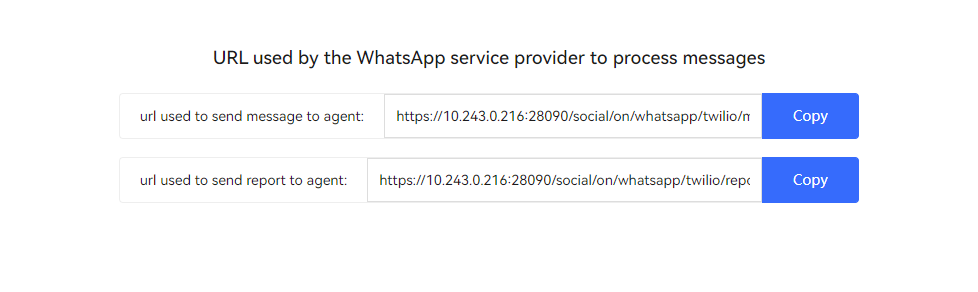
Obtain the values of url used to send message to agent and url used to send report to agent generated on the Channel Integration page and notify the WhatsApp service provider of them offline.
- If the WhatsApp service provider is gupshup, the following page is displayed.

Access Gupshup and check whether the values of Webhook Name (Tag) and Callback URL of the automatically created webhook are the same as those configured and generated in the AICC at https://www.gupshup.io/whatsapp/overview?appId=app ID.
Figure 8 Gupshup

- If the WhatsApp service provider is KooMessage, the following page is displayed.

Access KooMessage, choose Service Console > WhatsApp Messages > Senders, find the sender number configured in the channel configuration, click Set Receipt in the Operation column, and check whether the values of Inbound Message Webhook Address and Outbound Message Status Webhook Address are the same as those configured and generated in the AICC.
- If the WhatsApp service provider is infobip, the following page is displayed.
- If scenario key:NO is displayed, click Generate.
Skip this step if the WhatsApp service provider is cloud-api.
Follow-up Procedure
Export channel information.
- All information under Basic Configuration and Robot Configuration can be exported. Passwords and keys cannot be exported.
- A maximum of 100,000 channel records can be exported at a time, and a maximum of 2000 records are allowed in an exported file.
- If no channel is selected, all channel information is exported by default.
- Enter a compression password and click
 to view the plaintext password.
- Return to the channel list.
- Select the new channel and click
 to export the channel information.
 - Click
 and confirm that Status of the export task is Success.
 - Click Download to obtain the exported channel information.
What is your overall rating for this page?
Thank you very much for your feedback. We will continue working to improve the documentation.See the reply and handling status in My Cloud VOC.
For any further questions, feel free to contact us through the chatbot.
Chatbot


