

Creating a LoadBalancer Service
A LoadBalancer Service adds an external load balancer on the top of a NodePort Service and distributes external traffic to multiple pods within a cluster. A LoadBalancer Service provides higher reliability than a NodePort Service. It automatically assigns an external IP address to allow access from the clients. LoadBalancer Services process TCP and UDP traffic at Layer 4 (transport layer) of the OSI model. They can be extended to support Layer 7 (application layer) capabilities to manage HTTP and HTTPS traffic.
If cloud applications require a stable, easy-to-manage entry for external access, you can create a LoadBalancer Service. For example, in a production environment, you can use LoadBalancer Services to expose public-facing services such as web applications and API services to the Internet. These services often need to handle heavy traffic while maintaining high availability. The access address of a LoadBalancer Service is in the format of {EIP-of-load-balancer}:{access-port}, for example, 10.117.117.117:80.
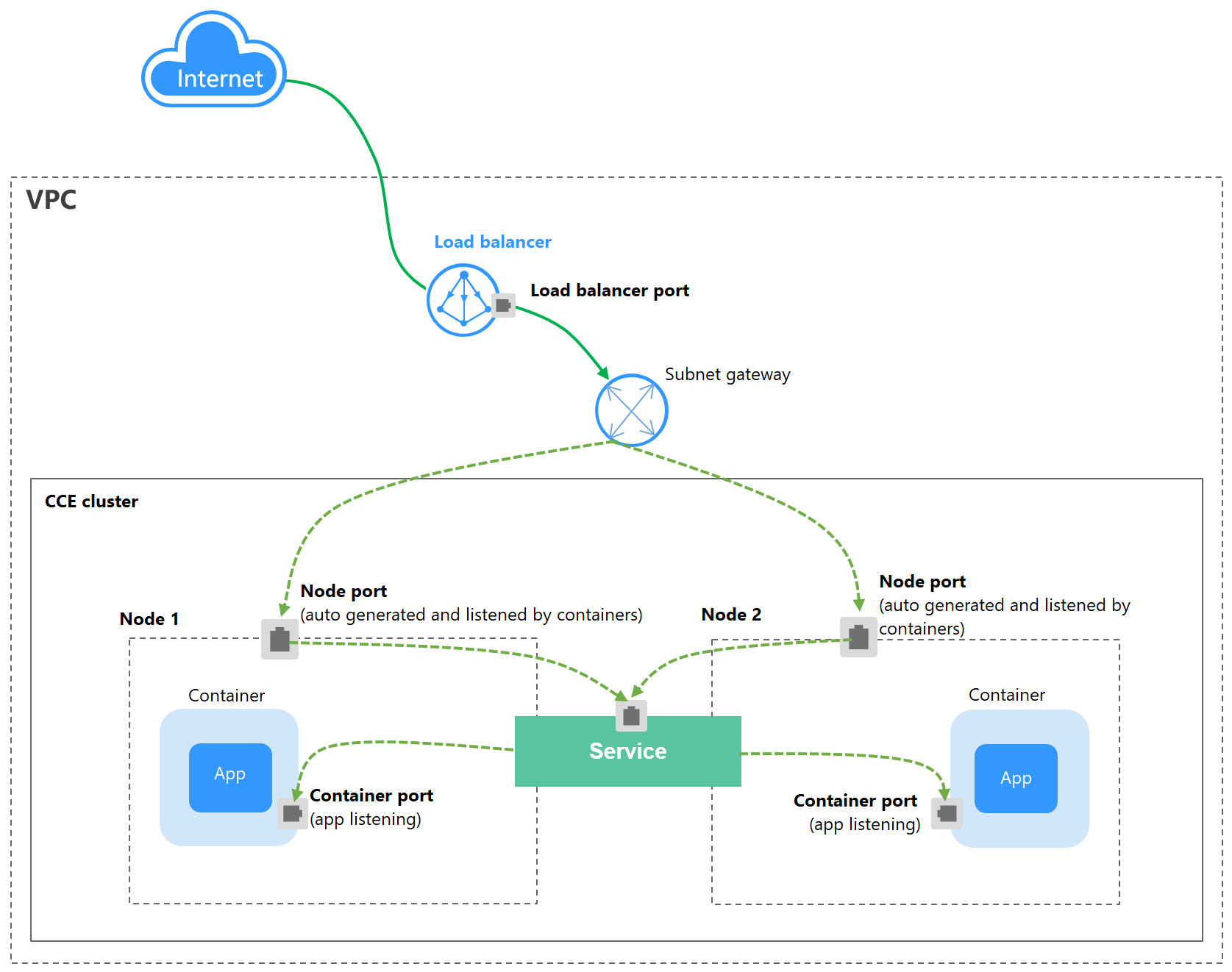
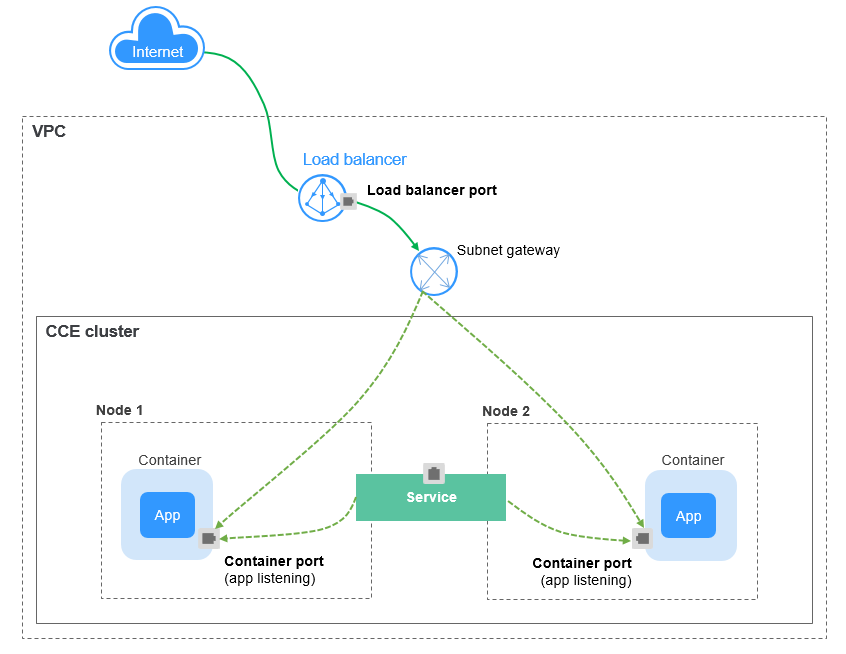
If dedicated load balancers are associated with Services in CCE Turbo clusters, passthrough networking is supported to reduce the network latency and ensure zero performance loss.
External access requests are directly forwarded from a load balancer to pods. Internal access requests can be forwarded to a pod through a Service.
Constraints
- Constraints on load balancers associated with Services:
- The load balancer automatically created based on the Service configuration cannot be associated with other resources. If you associate the load balancer with other resources, the load balancer cannot be automatically deleted when the Service is deleted, resulting in residual resources.
- The names of load balancer listeners for clusters v1.15 or earlier cannot be changed. If you change the names, access to the load balancer may be abnormal.
- Constraints on dedicated load balancers:
- Dedicated load balancers can be used only in clusters v1.17 and later.
- Dedicated load balancers must operate in private networks using private IP addresses.
- For HTTP/HTTPS, dedicated load balancers must support the protocol and clusters must meet version requirements. For details, see Configuring HTTP/HTTPS for LoadBalancer Services.
- Constraints on the service affinity (externalTrafficPolicy) configuration of a Service:
- If the service affinity is set to the node level (externalTrafficPolicy is set to Local), access to the load balancer from within the cluster may be abnormal. For details, see Why a Service Fails to Be Accessed from Within the Cluster.
- After a Service is created, if the affinity setting is switched from the cluster level to the node level, the connection tracing table will not be cleared. Do not modify the Service affinity setting after the Service is created. To modify it, create a Service again.
- In CCE Turbo clusters that use Cloud Native Network 2.0, if DataPlane V2 is not enabled, node-level affinity is supported only for Services whose backend pods use hostNetwork. After DataPlane V2 is enabled, node-level Service affinity is allowed.
- If you have an IPVS-backed cluster, kube-proxy mounts the Service's load balancer address to the ipvs-0 bridge, which will intercept the traffic from within the cluster to the load balancer. In this case, there may be the following access exceptions:
- If you use the same load balancer for both a LoadBalancer ingress and Service, the ipvs-0 bridge will intercept the traffic from the cluster to the ingress and redirect it to the Service, resulting in an access failure.
- If you use the same load balancer for a Service in the current cluster and a Service in another cluster, the ipvs-0 bridge will intercept the traffic to the Service in another cluster and redirect the traffic to the Service in the current cluster, resulting in an access failure.
- If a range of listening ports is configured for a Service (for example, the port range is 30000–30005), only the port (30000) configured in spec.ports can be accessed in the cluster. The other ports (30001–30005) cannot be accessed because the ipvs-0 bridge intercepts the traffic.
You can perform the operations in Configuring Passthrough Networking for a LoadBalancer Service to prevent kube-proxy from forwarding the Service's load balancer traffic from the cluster.
- When the cluster service forwarding (proxy) mode is IPVS, the node IP cannot be configured as the external IP of the Service. Otherwise, the node is unavailable.
Creating a LoadBalancer Service
Use one of the following methods.
- Log in to the CCE console and click the cluster name to access the cluster console.
- In the navigation pane, choose Services and Ingresses. In the upper right corner, click Create Service.
- Configure basic parameters.
Parameter
Description
Service Type
Select LoadBalancer.
Service Name
Enter a name, which can be the same as the workload name.
Namespace
Select the namespace that the workload belongs to.
Selector
Add the key and value of a pod label. The Service will be associated with the workload pods based on the label and direct traffic to the pods with this label.
You can also click Reference Workload Label to use the label of an existing workload. In the dialog box displayed, select a workload and click OK.
- Configure load balancer parameters.
Parameter
Description
Protocol Version
Select the protocol version of the cluster-scoped IP address of the ClusterIP Service. The value can be IPv4, IPv6, IPv4/IPv6 (IPv4 is used by default), or IPv6/IPv4 (IPv6 is used by default) based on the application scenario. The default value is IPv4.
This function is available only when IPv6 is enabled during the creation of clusters v1.15 or later. For details, see Creating an IPv4/IPv6 Dual-Stack Cluster in CCE
Load Balancer
Select a load balance type and how the load balancer will be created.- Use existing: Only the load balancers in the same VPC as the cluster can be selected. If no load balancer is available, click Create Load Balancer to create one on the ELB console.
- Auto create: The load balancer will be created in the VPC that the cluster belongs to. For details, see Table 1.
Listener Hosting
If this option is selected, CCE manages the listener (default behavior). CCE automatically creates, updates, and deletes the listener. If you disable listener hosting when creating a Service, CCE creates only the backend server group, health check, and backend server members, but does not create or manage any listener.
You must manually configure a listener on the ELB console and associate it with the backend server group generated by this Service. Once disabled, you cannot re-enable listener hosting for this Service. For details, see Disabling Listener Hosting for LoadBalancer Services.
Table 1 Load balancer settings Load Balancer Type
Configuration
Dedicated
Dedicated load balancers support network (TCP/UDP/TLS), application (HTTP/HTTPS), and network (TCP/UDP/TLS) & application (HTTP/HTTPS).
- AZ: You can create load balancers in multiple AZs to improve service availability. If disaster recovery is required, select multiple AZs.
- Instance Name: Enter a load balancer name.
- Enterprise Project: This parameter is available only to enterprise users with an enterprise project enabled. Enterprise projects facilitate project-level management and grouping of cloud resources and users.
- Resource Tag: You can add resource tags to classify resources. You can create predefined tags on the TMS console. These tags are available to all resources that support tags. You can use these tags to improve the tag creation and resource migration efficiency.
Network Settings
- Frontend Subnet: This parameter is used to allocate IP addresses to load balancers for external service access.
- Backend Subnet: This parameter is used to allocate IP addresses to load balancers for backend access.
- EIP: If you select Auto assign, you can configure the billing mode and bandwidth for the public network.
Shared
- Instance Name: Enter a load balancer name.
- Enterprise Project: This parameter is available only to enterprise users with an enterprise project enabled. Enterprise projects facilitate project-level management and grouping of cloud resources and users.
- Resource Tag: You can add resource tags to classify resources. You can create predefined tags on the TMS console. These tags are available to all resources that support tags. You can use these tags to improve the tag creation and resource migration efficiency.
Network Settings
EIP: If you select Auto assign, you can configure the billing mode and bandwidth for the public network.
- Configure access parameters.
Parameter
Description
Service Affinity
Whether to route external traffic to a local node or a cluster-wide endpoint. For details, see Service Affinity (externalTrafficPolicy).- Cluster-level: The IP addresses and ports of all nodes in a cluster can access the workload associated with the Service. However, accessing the Service may result in performance deterioration due to route redirection, and the client's source IP address may not be obtainable.
- Node-level: Only the IP address and port of the node where the workload is located can access the workload associated with the Service. Accessing the Service will not result in a performance deterioration due to route redirection, and the client's source IP address can be obtained.
Health Check
Configure health check for the load balancer.- Global: applies only to ports using the same protocol. If you need to configure multiple ports using different protocols, select Custom.
- Custom: applies to ports using different protocols. For details about the YAML configuration for custom health check, see Configuring Health Check on Multiple LoadBalancer Service Ports.
Backend Routing Policy
- Global: All ports use the same backend routing policy. For details about the parameters, see Table 3. CAUTION:
When multiple ports are added, and some of them use different frontend protocols, the global backend routing policy cannot be applied across all protocols simultaneously. For any protocol to which the policy cannot be applied, CCE automatically falls back to the default configuration. For details about the mapping between the frontend and backend protocols of listeners and backend server groups, see Mapping Between Frontend and Backend Protocols for Load Balancing and Configuration Examples. Custom is recommended.
- Custom: Each port can have a unique backend routing policy. You can configure the policy in Port > Backend Routing Policy.
Port
- Protocol: the protocol used by the Service. According to the Kubernetes implementation, if a Service uses a load balancer with a non-UDP protocol, this parameter must be set to TCP and the corresponding listener frontend protocol must be selected. For details, see Protocols for Services.
- Container Port: the port that the workload listens on. For example, Nginx uses port 80 by default.
- Service Port: the port used by the Service.
- Listen on a port: The port ranges from 1 to 65535.
- Listen on ports: ELB allows you to create listeners that listen on ports within specified ranges. Each listener can support up to 10 non-overlapping port ranges.
To configure port ranges for load balancer listeners, ensure the following conditions are met:
- The cluster version must be v1.23.18-r0, v1.25.13-r0, v1.27.10-r0, v1.28.8-r0, v1.29.4-r0, v1.30.1-r0, or later.
- A dedicated load balancer must be used with TCP/UDP/TLS selected.
- This function requires ELB. Before using this function, check whether ELB supports full-port listening and forwarding for layer-4 protocols in the current region.
- Frontend Protocol: specifies the protocol for the load balancer listener used to establish connections with clients. When a dedicated load balancer is selected, HTTP/HTTPS/QUIC can be configured only when Application (HTTP/HTTPS) is selected and TLS can be configured only when Network (TCP/UDP/TLS) is selected.
- Health Check: If Health Check is set to Custom, you can configure health check for ports using different protocols. For details, see Table 2.
- Backend Routing Policy: If Backend Routing Policy is set to Custom, you can configure backend routing policies for ports that use different protocols. For details about the parameters, see Table 3.
NOTE:When a LoadBalancer Service is created, a random node port number (NodePort) is automatically generated.
Table 2 Health check parameters Parameter
Description
Protocol
- If Protocol in Port is set to TCP, TCP, HTTPS, and HTTP are supported. If you select HTTPS, you must use a dedicated load balancer, and the cluster version must be v1.28.15-r90, v1.29.15-r50, v1.30.14-r50, v1.31.14-r10, v1.32.9-r10, v1.33.7-r10, v1.34.3-r0, or later.
Check Path: This parameter is only available for HTTP and HTTPS health checks. It specifies the health check URL. The check path must start with a slash (/) and contain 1 to 80 characters.
- If Protocol in Port is set to UDP, UDP is supported.
Port
- Use Service port: By default, the Service ports (node port and container port of the NodePort Service) are used.
- Use new port: Reassigning a port will add a Service port configuration named cce-healthz to the Service.
- Node Port: If a shared or dedicated load balancer is used without an associated network interface, the node port will be used as the health check port. If the port is not specified, a random port will be used. The value ranges from 30000 to 32767.
- Container Port: When a dedicated load balancer is associated with a network interface, the container port is used for health check. The value ranges from 1 to 65535.
Check Period (s)
The maximum interval between health checks. The value ranges from 1 to 50.
Timeout (s)
The maximum wait time for each health check response. The value ranges from 1 to 50.
Max. Retries
The maximum retry attempts before marking a backend as unhealthy. The value ranges from 1 to 10.
Table 3 Parameters for configuring the backend routing policy Parameter
Description
Backend Protocol
The service protocol used by the load balancer's backend server group. TCP, HTTP, HTTPS, TLS, QUIC, and UDP are supported. For details about the mapping between the frontend and backend protocols of listeners and backend server groups, see Mapping Between Frontend and Backend Protocols for Load Balancing and Configuration Examples.
Load Balancing Algorithm
Load balancers forward requests from clients to the corresponding backend servers based on the configured traffic routing policies.
- Weighted round robin: Requests are forwarded to different backend servers in turn based on the server weights you define in the target group.
- Weighted least connections: Requests are forwarded to the backend server with the smallest connections-to-weight ratio.
- Source IP hash: Requests from the same source IP address are forwarded to the same backend server by hashing the source IP address.
- Connection ID: Requests belonging to the same QUIC connection are forwarded to the same backend server by hashing the QUIC connection ID. This algorithm is available only when the backend protocol is QUIC.
- Hash Factor: the number of leading bytes the load balancer takes from the QUIC destination connection ID to compute the hash that pins a session to a backend server. The sum of the starting position and factor length should be equal to or less than 20.
Offset: 0 to 19 bytes. It defaults to 1.
Length: 1 to 20 bytes. It defaults to 3.
- Hash Factor: the number of leading bytes the load balancer takes from the QUIC destination connection ID to compute the hash that pins a session to a backend server. The sum of the starting position and factor length should be equal to or less than 20.
Sticky Session
This function is disabled by default.
If the listener's frontend protocol is TCP or UDP, sticky sessions can use source IP addresses. This means that access requests from the same IP address will be directed to the same pod.
NOTE:When the distribution policy uses the source IP hash, the sticky session cannot be set.
- Configure listener parameters.
Parameter
Description
Constraint
SSL Authentication
- One-way authentication: Only the backend server is authenticated. If you also need to authenticate the identity of the client, select two-way authentication.
- Two-way authentication: Both the clients and the load balancer authenticate each other. This ensures only authenticated clients can access the load balancer. No additional backend server configuration is required if you select this option.
This parameter is available only when Frontend Protocol is set to HTTPS or TLS.
Dedicated load balancers are available in clusters v1.23.14-r0, v1.25.9-r0, v1.27.6-r0, v1.28.4-r0, or later. Shared load balancers are available in clusters v1.28.15-r60, v1.29.15-r20, v1.30.14-r20, v1.31.10-r20, v1.32.6-r20, v1.33.5-r10, or later.
CA Certificate
If SSL Authentication is set to Two-way authentication, add a CA certificate to authenticate the client. A CA certificate is issued by a Certificate Authority (CA) and is used to verify the issuer of the client's certificate. If HTTPS two-way authentication is enabled, HTTPS connections can be established only if the client provides a certificate issued by a specific CA.
This parameter is available only when Frontend Protocol is set to HTTPS or TLS and SSL Authentication is set to Two-way authentication.
Server Certificate
Select a server certificate. If no certificate is available, create one on the ELB console. For details, see Adding a Certificate.
This parameter is available only when Frontend Protocol is set to HTTPS or TLS.
Access Control
- Inherit ELB Configurations: CCE does not modify the existing access control configurations on the ELB console.
- Allow all IP addresses: No access control is configured.
- Trustlist: Only the selected IP address group can access the load balancer.
- Blocklist: The selected IP address group cannot access the load balancer.
NOTE:For clusters v1.25.16-r10, v1.27.16-r10, v1.28.15-r0, v1.29.10-r0, v1.30.6-r0, v1.31.1-r0, or later, when using a dedicated load balancer, you can select a maximum of five IP address groups at a time for access control.
This function is only available in clusters v1.23.12-r0, v1.25.7-r0, v1.27.4-r0, v1.28.2-r0, or later.
SNI
Determine whether to add an SNI certificate. If an SNI certificate is required, the certificate must contain a domain name. If no certificate is available, create one on the ELB console. For details, see Adding a Certificate.
If the server cannot find an SNI certificate matching the client-requested domain name, it will return the default server certificate.
This parameter is available only when Frontend Protocol is set to HTTPS or TLS.
ProxyProtocol
This function depends on whether the backend server can translate the proxy protocol.
This parameter is available only when Frontend Protocol is set to TLS.
Security Policy
Select an available security policy. The default value is TLS-1-2.
This parameter is available only when the cluster version is v1.23.14-r0, v1.25.9-r0, v1.27.6-r0, v1.28.4-r0, or later and Frontend Protocol is set to HTTPS or TLS.
Transfer Listener Port Number
If this function is enabled, the listening port on the load balancer can be transferred to backend servers through the HTTP header of the packet.
This parameter is available only when Frontend Protocol is set to HTTP or HTTPS for a dedicated load balancer.
Transfer Port Number in the Request
If this function is enabled, the source port of the client can be transferred to backend servers through the HTTP header of the packet.
This parameter is available only when Frontend Protocol is set to HTTP or HTTPS for a dedicated load balancer.
Rewrite X-Forwarded-Host
If this function is enabled, X-Forwarded-Host will be rewritten using the Host field in the client request header and transferred to backend servers.
This parameter is available only when Frontend Protocol is set to HTTP or HTTPS for a dedicated load balancer.
Rewrite X-Real-IP
If this function is enabled, the source IP address of the client will be rewritten into the X-Real-IP header and transferred to backend servers.
This parameter is available only when Frontend Protocol is set to HTTP or HTTPS for a dedicated load balancer.
Data Compression
If this function is enabled, specific files will be compressed. If it is not enabled, files will not be compressed.
This parameter is available only when Frontend Protocol is set to HTTP or HTTPS for a dedicated load balancer.
Idle Timeout (s)
The duration for which a client connection can remain idle before being terminated. If there are no requests reaching the load balancer during this period, the load balancer will disconnect the connection from the client and establish a new connection when there is a new request.
This configuration is not supported when the port of a shared load balancer uses UDP.
Request Timeout (s)
The duration within which a request from a client must be received. There are two cases:
- If the client fails to send a request header to the load balancer during this period, the request will be interrupted.
- If the interval between two consecutive request bodies reaching the load balancer exceeds this period, the connection will be disconnected.
This parameter is available only when Frontend Protocol is set to HTTP or HTTPS.
Response Timeout (s)
Timeout for backend server response. If the backend server does not respond within this period after receiving a request, the load balancer will stop waiting and return an HTTP 504 error.
This parameter is available only when Frontend Protocol is set to HTTP or HTTPS.
Enable HTTP/2
Whether to enable HTTP/2 for HTTPS requests between the client and the load balancer. Request forwarding using HTTP/2 improves access performance between your application and the load balancer. However, the load balancer still uses HTTP/1.x to forward requests to the backend server.
This parameter is available only when Frontend Protocol is set to HTTPS.
Annotation
LoadBalancer Services expose advanced CCE functions via annotations. For details, see LoadBalancer Service Annotations.
N/A
- Click Create.
You can configure LoadBalancer Service access using kubectl when creating a workload. If you already have a load balancer in the same VPC and want to use it as the application access entry when creating a Service in the cluster, follow the following steps to associate the load balancer with the Service:
- Use kubectl to access the cluster. For details, see Accessing a Cluster Using kubectl.
- Create and edit the nginx-deployment.yaml file to configure the sample workload. For details, see Creating a Deployment. nginx-deployment.yaml is an example file name. You can change the file name if you want to.
vi nginx-deployment.yaml
File content:apiVersion: apps/v1 kind: Deployment metadata: name: nginx spec: replicas: 1 selector: matchLabels: app: nginx template: metadata: labels: app: nginx spec: containers: - image: nginx:latest name: nginx imagePullSecrets: - name: default-secret - Create and edit the nginx-elb-svc.yaml file to configure Service parameters. nginx-elb-svc.yaml is an example file name. You can change the file name if you want to.
vi nginx-elb-svc.yaml
File content:
apiVersion: v1
kind: Service
metadata:
  name: nginx
  annotations:
    kubernetes.io/elb.id: <your_elb_id>                         # Load balancer ID. Replace it with the actual value.
    kubernetes.io/elb.class: performance                   # Load balancer type
    kubernetes.io/elb.lb-algorithm: ROUND_ROBIN                   # Load balancer algorithm
    kubernetes.io/elb.session-affinity-mode: SOURCE_IP          # The sticky session type is source IP address.
    kubernetes.io/elb.session-affinity-option: '{"persistence_timeout": "30"}'     # Stickiness duration, which is measured in minutes
    kubernetes.io/elb.health-check-flag: 'on'                   # Enable ELB health check.
    kubernetes.io/elb.health-check-option: '{
      "protocol":"TCP",
      "delay":"5",
      "timeout":"10",
      "max_retries":"3"
    }'
spec:
  selector:
     app: nginx
  ports:
  - name: service0
    port: 80     # Port for accessing the Service, which is also the listener port on the load balancer.
    protocol: TCP
    targetPort: 80  # Port used by a Service to access the target container. This port is closely related to the applications running in a container.
    nodePort: 31128  # Port number of the node. If this parameter is not specified, a random port number ranging from 30000 to 32767 is generated.
  type: LoadBalancer
To enable sticky sessions, ensure anti-affinity is configured for the workload pods so that the pods are deployed onto different nodes. For details, see Configuring Workload Affinity or Anti-affinity Scheduling (podAffinity or podAntiAffinity).
The preceding example uses annotations to implement some advanced functions of load balancing, such as sticky session and health check. For details, see Table 4.
For more annotations and examples related to advanced functions, see LoadBalancer Service Annotations.
Table 4 annotations parameters Parameter
Mandatory
Type
Description
kubernetes.io/elb.id
Yes
String
ID of a load balancer.
This parameter is mandatory when you associate an existing load balancer. The value cannot be changed after the Service is created.
How to obtain:
Log in to the ELB console and click the load balancer name. On the Summary tab of the load balancer details page, find the ID field and copy it.
NOTE:The system preferentially uses the kubernetes.io/elb.id annotation to associate the Service with a load balancer. If this annotation is not specified, it falls back to the spec.loadBalancerIP field. spec.loadBalancerIP may be deprecated in future Kubernetes versions. Therefore, using annotations is recommended. For details, see Deprecation.
kubernetes.io/elb.class
Yes
String
Select a proper load balancer type. This parameter cannot be modified after the Service is created.
Options:
- union: shared load balancer
- performance: dedicated load balancer, which can be used only in clusters v1.17 and later. For details, see Differences Between Shared and Dedicated Load Balancers.
kubernetes.io/elb.lb-algorithm
No
String
Specifies the load balancing algorithm of the backend server group. The default value is ROUND_ROBIN.
Options:
- ROUND_ROBIN: weighted round robin algorithm
- LEAST_CONNECTIONS: weighted least connections algorithm
- SOURCE_IP: source IP hash algorithm
NOTE:If this parameter is set to SOURCE_IP, the weight setting (weight field) of backend servers bound to the backend server group is invalid, and sticky session cannot be enabled.
kubernetes.io/elb.session-affinity-mode
No
String
Source IP address-based sticky session means that access requests from the same IP address are forwarded to the same backend server.
- To disable sticky sessions, leave this parameter unconfigured.
- To enable sticky sessions, ensure the frontend protocol is TCP or UDP and set the sticky session type to SOURCE_IP.
NOTE:When kubernetes.io/elb.lb-algorithm is set to SOURCE_IP (source IP hash), sticky session cannot be enabled.
kubernetes.io/elb.session-affinity-option
No
Table 5 object
Sticky session timeout.
kubernetes.io/elb.health-check-flag
No
String
Whether to enable the ELB health check. If this annotation is not added, the health check is enabled by default.
- Enabling health check: Leave this parameter blank or set it to on.
- Disabling health check: Set this parameter to off.
kubernetes.io/elb.health-check-option
No
Table 6 object
ELB health check configuration option. This parameter is mandatory when the ELB health check is enabled. If this parameter is not set, the default value is used.
Table 5 elb.session-affinity-option data structure Parameter
Mandatory
Type
Description
persistence_timeout
Yes
String
Sticky session timeout, in minutes. This parameter is valid only when elb.session-affinity-mode is set to SOURCE_IP.
Value range: 1 to 60. Default value: 60
Table 6 elb.health-check-option data structure Parameter
Mandatory
Type
Description
delay
No
String
Health check interval (s)
Value range: 1 to 50. Default value: 5
timeout
No
String
Health check timeout, in seconds.
Value range: 1 to 50. Default value: 10
max_retries
No
String
Maximum number of health check retries.
Value range: 1 to 10. Default value: 3
protocol
No
String
Health check protocol.
Value options: HTTPS, TLS, gRPC, TCP, UDP, and HTTP
To use HTTPS, TLS, or gRPC, you need to use a dedicated load balancer, and the cluster version must be v1.28.15-r90, v1.29.15-r50, v1.30.14-r50, v1.31.14-r10, v1.32.9-r10, v1.33.7-r10, v1.34.3-r0, or later. gRPC and TLS depend on the ELB capabilities. Before using this function, submit a service ticket to enable the required ELB capabilities.- If the protocol of the backend server group is UDP or QUIC, the health check protocol can only be UDP.
- If the protocol of the backend server group is TCP, the health check protocol can be TCP, HTTP, or HTTPS.
- If the protocol of the backend server group is TLS, HTTP, HTTPS, or gRPC, the health check protocol can be TCP, HTTP, HTTPS, TLS, or gRPC.
CAUTION:To change the health check protocol (including the switchover between global check and custom check), disable the health check, enable it again, and change the protocol.
path
No
String
Health check URL. This parameter needs to be configured when the protocol is HTTP, HTTPS, or gRPC.
Default value: /
Value range: 1-80 characters
- Create a workload.
kubectl create -f nginx-deployment.yaml
If information similar to the following is displayed, the workload has been created:
deployment/nginx created
Check the created workload.
kubectl get pod
If information similar to the following is displayed, the workload is running:
NAME                     READY     STATUS             RESTARTS   AGE
nginx-2601814895-znhbr   1/1       Running            0          15s
- Create a Service.
kubectl create -f nginx-elb-svc.yaml
If information similar to the following is displayed, the Service has been created:
service/nginx created
View the created Service.
kubectl get svc
If information similar to the following is displayed, the workload's access mode has been configured:
NAME         TYPE           CLUSTER-IP       EXTERNAL-IP   PORT(S)        AGE
kubernetes   ClusterIP      10.247.0.1       <none>        443/TCP        3d
nginx        LoadBalancer   10.247.130.196   10.78.42.242   80:31540/TCP   51s
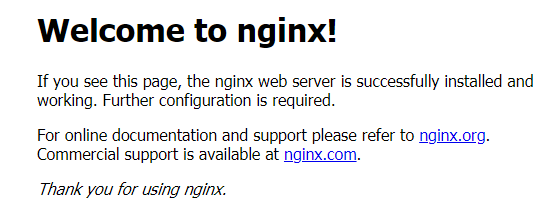
- Enter the URL in the address box of the browser, for example, 10.78.42.242:80. 10.78.42.242 indicates the IP address of the load balancer, and 80 indicates the access port displayed on the CCE console.
Nginx is accessible.
Figure 3 Accessing Nginx through the LoadBalancer Service
You can configure LoadBalancer Service access using kubectl when creating a workload. If no load balancer is available when you create a Service, perform the following operations to automatically create a load balancer and associate it with the Service:
- Use kubectl to access the cluster. For details, see Accessing a Cluster Using kubectl.
- Create and edit the nginx-deployment.yaml file to configure the sample workload. For details, see Creating a Deployment. nginx-deployment.yaml is an example file name. You can change the file name if you want to.
vi nginx-deployment.yaml
File content:apiVersion: apps/v1 kind: Deployment metadata: name: nginx spec: replicas: 1 selector: matchLabels: app: nginx template: metadata: labels: app: nginx spec: containers: - image: nginx:latest name: nginx imagePullSecrets: - name: default-secret - Create and edit the nginx-elb-svc.yaml file to configure Service parameters. nginx-elb-svc.yaml is an example file name. You can change the file name if you want to.
vi nginx-elb-svc.yaml
To enable sticky sessions, ensure anti-affinity is configured for the workload pods so that the pods are deployed onto different nodes. For details, see Configuring Workload Affinity or Anti-affinity Scheduling (podAffinity or podAntiAffinity).
Example of a Service using a public network shared load balancer:apiVersion: v1 kind: Service metadata: annotations: kubernetes.io/elb.class: union kubernetes.io/elb.autocreate: '{ "type": "public", "bandwidth_name": "cce-bandwidth-1551163379627", "bandwidth_chargemode": "bandwidth", "bandwidth_size": 5, "bandwidth_sharetype": "PER", "vip_subnet_cidr_id": "*****", "vip_address": "**.**.**.**", "eip_type": "5_bgp" }' kubernetes.io/elb.enterpriseID: '0' # ID of the enterprise project to which the load balancer belongs kubernetes.io/elb.lb-algorithm: ROUND_ROBIN # Load balancer algorithm kubernetes.io/elb.session-affinity-mode: SOURCE_IP # The sticky session type is source IP address. kubernetes.io/elb.session-affinity-option: '{"persistence_timeout": "30"}' # Stickiness duration, which is measured in minutes kubernetes.io/elb.health-check-flag: 'on' # Enable ELB health check. kubernetes.io/elb.health-check-option: '{ "protocol":"TCP", "delay":"5", "timeout":"10", "max_retries":"3" }' kubernetes.io/elb.tags: key1=value1,key2=value2 # ELB resource tags labels: app: nginx name: nginx spec: ports: - name: service0 port: 80 protocol: TCP targetPort: 80 selector: app: nginx type: LoadBalancerExample Service using a public network dedicated load balancer (only for clusters v1.17 and later):apiVersion: v1 kind: Service metadata: name: nginx labels: app: nginx namespace: default annotations: kubernetes.io/elb.class: performance kubernetes.io/elb.autocreate: '{ "type": "public", "bandwidth_name": "cce-bandwidth-1626694478577", "bandwidth_chargemode": "bandwidth", "bandwidth_size": 5, "bandwidth_sharetype": "PER", "eip_type": "5_bgp", "vip_subnet_cidr_id": "*****", "vip_address": "**.**.**.**", "elb_virsubnet_ids": ["*****"], "ipv6_vip_virsubnet_id": "*****", "available_zone": [ "" ], "l4_flavor_name": "L4_flavor.elb.s1.small" }' kubernetes.io/elb.enterpriseID: '0' # ID of the enterprise project to which the load balancer belongs kubernetes.io/elb.lb-algorithm: ROUND_ROBIN # Load balancer algorithm kubernetes.io/elb.session-affinity-mode: SOURCE_IP # The sticky session type is source IP address. kubernetes.io/elb.session-affinity-option: '{"persistence_timeout": "30"}' # Stickiness duration, which is measured in minutes kubernetes.io/elb.health-check-flag: 'on' # Enable ELB health check. kubernetes.io/elb.health-check-option: '{ "protocol":"TCP", "delay":"5", "timeout":"10", "max_retries":"3" }' kubernetes.io/elb.tags: key1=value1,key2=value2 # ELB resource tags spec: selector: app: nginx ports: - name: cce-service-0 targetPort: 80 nodePort: 0 port: 80 protocol: TCP type: LoadBalancerThe preceding example uses annotations to implement some advanced functions of load balancing, such as sticky session and health check. For details, see Table 7.
For more annotations and examples related to advanced functions, see LoadBalancer Service Annotations.
Table 7 annotations parameters Parameter
Mandatory
Type
Description
kubernetes.io/elb.class
Yes
String
Select a proper load balancer type. This parameter cannot be modified after the Service is created.
Options:
- union: shared load balancer
- performance: dedicated load balancer, which can be used only in clusters v1.17 and later. For details, see Differences Between Shared and Dedicated Load Balancers.
The default value is union.
kubernetes.io/elb.autocreate
Yes
elb.autocreate object
Whether to automatically create a load balancer for the Service. This parameter cannot be modified after the Service is created.
CAUTION:kubernetes.io/elb.id and kubernetes.io/elb.autocreate cannot be specified concurrently.
If both annotations are specified in a Service, CCE will use an existing load balancer instead of automatically creating one. If this Service is deleted, the existing load balancer is considered as an automatically created one. If no other resources are associated with the load balancer, the load balancer will also be deleted.
Example:
- Automatically created dedicated load balancer with an EIP bound:
'{"type":"public","bandwidth_name":"cce-bandwidth-1741230802502","bandwidth_chargemode":"bandwidth","bandwidth_size":5,"bandwidth_sharetype":"PER","eip_type":"5_bgp","available_zone":["*****"],"elb_virsubnet_ids":["*****"],"l7_flavor_name":"","l4_flavor_name":"L4_flavor.elb.pro.max","vip_subnet_cidr_id":"*****"}'
- Automatically created dedicated load balancer with no EIP bound:
'{"type":"inner","available_zone":["*****"],"elb_virsubnet_ids":["*****"],"l7_flavor_name":"","l4_flavor_name":"L4_flavor.elb.pro.max","vip_subnet_cidr_id":"*****"}'
- Automatically created shared load balancer with an EIP bound:
'{"type":"public","bandwidth_name":"cce-bandwidth-1551163379627","bandwidth_chargemode":"bandwidth","bandwidth_size":5,"bandwidth_sharetype":"PER","eip_type":"5_bgp","name":"james"}'
- Automatically created shared load balancer with no EIP bound:
- Automatically created dedicated load balancer with an EIP added to a shared bandwidth
'{"type":"public","bandwidth_id":"*****","bandwidth_sharetype":"WHOLE","eip_type":"5_bgp","available_zone":["*****"],"elb_virsubnet_ids":["*****"],"l7_flavor_name":"","l4_flavor_name":"L4_flavor.elb.pro.max","vip_subnet_cidr_id":"*****"}'
- Automatically created shared load balancer with an EIP added to a shared bandwidth
'{"type":"public","bandwidth_id":"*****","bandwidth_sharetype":"WHOLE","eip_type":"5_bgp","name":"james"}'
kubernetes.io/elb.subnet-id
N/A
String
ID of the subnet where the cluster is located. The value can contain 1 to 100 characters.
- Mandatory when a Service is automatically created in a Kubernetes cluster v1.11.7-r0 or earlier.
- Optional for clusters of a version later than v1.11.7-r0.
For details about how to obtain the value, see What Is the Difference Between the VPC Subnet API and the OpenStack Neutron Subnet API?
kubernetes.io/elb.enterpriseID
No
String
This parameter is available in clusters v1.15 or later. In clusters earlier than v1.15, load balancers are created in the default project by default.
This parameter specifies the ID of the enterprise project where a load balancer is created. It is applicable only to enterprise accounts with enterprise projects enabled. After an enterprise project ID is selected, resources can be created in the ELB enterprise project.
If this parameter is not specified or is set to 0, resources will be bound to the default enterprise project.
How to obtain:
Log in to the EPS console, click the name of the target enterprise project. On the enterprise project details page, find the ID field and copy the ID.
kubernetes.io/elb.lb-algorithm
No
String
Specifies the load balancing algorithm of the backend server group. The default value is ROUND_ROBIN.
Options:
- ROUND_ROBIN: weighted round robin algorithm
- LEAST_CONNECTIONS: weighted least connections algorithm
- SOURCE_IP: source IP hash algorithm
NOTE:If this parameter is set to SOURCE_IP, the weight setting (weight field) of backend servers bound to the backend server group is invalid, and sticky session cannot be enabled.
kubernetes.io/elb.session-affinity-mode
No
String
Source IP address-based sticky session means that access requests from the same IP address are forwarded to the same backend server.
- To disable sticky sessions, leave this parameter unconfigured.
- To enable sticky session, add this parameter and set it to SOURCE_IP, indicating that the sticky session is based on the source IP address.
NOTE:When kubernetes.io/elb.lb-algorithm is set to SOURCE_IP (source IP hash), sticky session cannot be enabled.
kubernetes.io/elb.session-affinity-option
No
Table 5 object
Sticky session timeout.
kubernetes.io/elb.health-check-flag
No
String
Whether to enable the ELB health check. If this annotation is not added, the health check is enabled by default.
- Enabling health check: Leave this parameter blank or set it to on.
- Disabling health check: Set this parameter to off.
kubernetes.io/elb.health-check-option
No
Table 6 object
ELB health check configuration option. This parameter is mandatory when the ELB health check is enabled. If this parameter is not set, the default value is used.
kubernetes.io/elb.tags
No
String
Whether to add resource tags to a load balancer. This function is available only when the load balancer is automatically created and the cluster version is v1.23.11-r0, v1.25.6-r0, v1.27.3-r0, or later.
A tag is in the format of "key=value". Use commas (,) to separate multiple tags.
Table 8 elb.autocreate data structure Parameter
Mandatory
Type
Description
name
No
String
Name of the automatically created load balancer.
The value can contain 1 to 64 characters. Only letters, digits, underscores (_), hyphens (-), and periods (.) are allowed.
Default: cce-lb+service.UID
type
No
String
Network type of the load balancer.
- public: public network load balancer
- inner: private network load balancer
Default: inner
bandwidth_id
No
String
Shared bandwidth ID, which must be specified when you use an existing shared bandwidth. The cluster version must be v1.30.14-r100, v1.31.14-r60, v1.32.13-r30, v1.33.12-r10, v1.34.8-r10, v1.35.5-r10, v1.36.2-r0, or later.
bandwidth_name
Yes for public network load balancers when no shared bandwidth ID is provided
String
Bandwidth name. The default value is cce-bandwidth-******.
The value can contain 1 to 64 characters. Only letters, digits, underscores (_), hyphens (-), and periods (.) are allowed.
bandwidth_chargemode
Yes for public network load balancers when no shared bandwidth ID is provided
String
Bandwidth billing mode.
- bandwidth: billed by bandwidth
- traffic: billed by traffic
bandwidth_size
Yes for public network load balancers when no shared bandwidth ID is provided
Integer
Bandwidth size. The value ranges from 1 Mbit/s to 2000 Mbit/s by default. Configure this parameter based on the bandwidth range allowed in your region.
The minimum increment for bandwidth adjustment varies depending on the bandwidth range.- The minimum increment is 1 Mbit/s if the allowed bandwidth does not exceed 300 Mbit/s.
- The minimum increment is 50 Mbit/s if the allowed bandwidth ranges from 300 Mbit/s to 1000 Mbit/s.
- The minimum increment is 500 Mbit/s if the allowed bandwidth exceeds 1000 Mbit/s.
bandwidth_sharetype
Yes for public network load balancers when no shared bandwidth ID is provided
String
Bandwidth sharing mode.
- PER: dedicated bandwidth
- WHOLE: shared bandwidth. This parameter is supported only in clusters v1.30.14-r100, v1.31.14-r60, v1.32.13-r30, v1.33.12-r10, v1.34.8-r10, v1.35.5-r10, v1.36.2-r0, and later versions. NOTE:
When set to WHOLE, the shared bandwidth ID must be specified.
eip_type
Yes for public network load balancers
String
EIP type.
- 5_telcom: China Telecom
- 5_union: China Unicom
- 5_bgp: dynamic BGP
- 5_sbgp: static BGP
The types vary by region. For details, see the EIP console.
vip_subnet_cidr_id
No
String
The ID of the IPv4 subnet where the load balancer resides. This subnet is used to allocate IP addresses for the load balancer to provide external services. The IPv4 subnet must belong to the cluster's VPC.
If this parameter is not specified, the load balancer and the cluster will be in the same subnet by default.
This field can be specified only for clusters v1.21 or later.
How to obtain:
Log in to the VPC console. In the navigation pane, choose Subnets. Filter the target subnet by the cluster's VPC name, click the subnet name, and copy the IPv4 Subnet ID on the Summary tab.
ipv6_vip_virsubnet_id
No
String
The ID of the IPv6 subnet where the load balancer is deployed. IPv6 must be enabled for the subnet.
This parameter is available only for dedicated load balancers.
How to obtain:
Log in to the VPC console. In the navigation pane, choose Subnets. Filter the target subnet by the cluster's VPC name, click the subnet name, and copy the Network ID on the Summary tab.
elb_virsubnet_ids
No
Array of strings
The network ID of the subnet where the load balancer is located. This subnet is used to allocate IP addresses for accessing the backend server. If this parameter is not specified, the subnet specified by vip_subnet_cidr_id will be used by default. Load balancers occupy varying numbers of subnet IP addresses based on their specifications. Do not use the subnet CIDR blocks of other resources (such as clusters or nodes) as the load balancer's CIDR block.
This parameter is available only for dedicated load balancers.
Example:
"elb_virsubnet_ids": [
   "14567f27-8ae4-42b8-ae47-9f847a4690dd"
 ]
How to obtain:
Log in to the VPC console. In the navigation pane, choose Subnets. Filter the target subnet by the cluster's VPC name, click the subnet name, and copy the Network ID on the Summary tab.
vip_address
No
String
Private IP address of the load balancer. Only IPv4 addresses are supported.
The IP address must be in the ELB CIDR block. If this parameter is not specified, an IP address will be automatically assigned from the ELB CIDR block.
This parameter is only available in clusters v1.23.11-r0, v1.25.6-r0, v1.27.3-r0, or later versions.
available_zone
Yes
Array of strings
AZ where the load balancer is located.
You can obtain all supported AZs by getting the AZ list.
This parameter is available only for dedicated load balancers.
l4_flavor_name
No
String
Flavor name of the Layer 4 load balancer. This parameter is mandatory when TCP, TLS, or UDP is used.
You can obtain all supported types by getting the flavor list.
This parameter is available only for dedicated load balancers.
l7_flavor_name
No
String
Flavor name of the Layer 7 load balancer. This parameter is mandatory when HTTP or HTTPS is used.
You can obtain all supported types by getting the flavor list.
This parameter is available only for dedicated load balancers. Its value must match that of l4_flavor_name, both of which must be either elastic or fixed.
- Create a workload.
kubectl create -f nginx-deployment.yaml
If information similar to the following is displayed, the workload has been created:
deployment/nginx created
Check the created workload.
kubectl get pod
If information similar to the following is displayed, the workload is running:
NAME                     READY     STATUS             RESTARTS   AGE
nginx-2601814895-znhbr   1/1       Running            0          15s
- Create a Service.
kubectl create -f nginx-elb-svc.yaml
If information similar to the following is displayed, the Service has been created:
service/nginx created
View the created Service.
kubectl get svc
If information similar to the following is displayed, the workload's access mode has been configured:
NAME         TYPE           CLUSTER-IP       EXTERNAL-IP   PORT(S)        AGE
kubernetes   ClusterIP      10.247.0.1       <none>        443/TCP        3d
nginx        LoadBalancer   10.247.130.196   10.78.42.242   80:31540/TCP   51s
- Enter the URL in the address box of the browser, for example, 10.78.42.242:80. 10.78.42.242 indicates the IP address of the load balancer, and 80 indicates the access port displayed on the CCE console.
Nginx is accessible.
Figure 4 Accessing Nginx through the LoadBalancer Service
Mapping Between Frontend and Backend Protocols for Load Balancing and Configuration Examples
When you create a load balancer, the backend protocol can only be the one that matches the frontend protocol of the listener. The following table describes the mapping between frontend and backend protocols.
| Frontend Protocol | Supported Backend Protocol | Global Configuration Example | Custom Configuration Example |
|---|---|---|---|
| UDP | UDP (defaulta) | Console configuration example:
Annotation configuration example: kubernetes.io/elb.security-pool-protocol: 'off' | Console configuration example:
Annotation configuration example: kubernetes.io/elb.pools-options: '[{"protocol":"UDP","lb_algorithm":"ROUND_ROBIN","target_service_port":"UDP:xx"}]' |
| QUIC | Console configuration example:
Annotation configuration example: kubernetes.io/elb.pools-options: '[{"protocol":"QUIC","lb_algorithm":"QUIC_CID","quic_cid_hash_strategy":{"len":3,"offset":1}}]' | Console configuration example:
Annotation configuration example: kubernetes.io/elb.pools-options: '[{"protocol":"QUIC","lb_algorithm":"QUIC_CID","quic_cid_hash_strategy":{"len":3,"offset":1},"target_service_port":"UDP:xx"}]' | |
| TCP | TCP | Console configuration example:
Annotation configuration example: kubernetes.io/elb.security-pool-protocol: 'off' | Console configuration example:
Annotation configuration example: kubernetes.io/elb.pools-options: '[{"protocol":"TCP","lb_algorithm":"ROUND_ROBIN","target_service_port":"TCP:xx"}]' |
| TLS | TCP (defaulta) | Console configuration example:
Annotation configuration example: kubernetes.io/elb.security-pool-protocol: 'off' | Console configuration example:
Annotation configuration example: kubernetes.io/elb.pools-options: '[{"protocol":"TCP","lb_algorithm":"ROUND_ROBIN","target_service_port":"TCP:xx"}]' |
| TLS | Console configuration example:
Annotation configuration example: kubernetes.io/elb.security-pool-protocol: 'on' | Console configuration example:
Annotation configuration example: kubernetes.io/elb.pools-options: '[{"protocol":"TLS","lb_algorithm":"ROUND_ROBIN","target_service_port":"TCP:xx"}]' | |
| HTTP | HTTP | Console configuration example:
Annotation configuration example: kubernetes.io/elb.security-pool-protocol: 'off' | Console configuration example:
Annotation configuration example: kubernetes.io/elb.pools-options: '[{"protocol":"HTTP","lb_algorithm":"ROUND_ROBIN","target_service_port":"TCP:xx"}]' |
| HTTPS | HTTP (defaulta) | Console configuration example:
Annotation configuration example: kubernetes.io/elb.security-pool-protocol: 'off' | Console configuration example:
Annotation configuration example: kubernetes.io/elb.pools-options: '[{"protocol":"HTTP","lb_algorithm":"ROUND_ROBIN","target_service_port":"TCP:xx"}]' |
| HTTPS | Console configuration example:
Annotation configuration example: kubernetes.io/elb.security-pool-protocol: 'on' | Console configuration example:
Annotation configuration example: kubernetes.io/elb.pools-options: '[{"protocol":"HTTPS","lb_algorithm":"ROUND_ROBIN","target_service_port":"TCP:xx"}]' | |
| QUIC | HTTP (defaulta) | Console configuration example:
Annotation configuration example: kubernetes.io/elb.pools-options: '[{"protocol":"HTTP","lb_algorithm":"ROUND_ROBIN"}]' | Console configuration example:
Annotation configuration example: kubernetes.io/elb.pools-options: '[{"protocol":"HTTP","lb_algorithm":"ROUND_ROBIN","target_service_port":"TCP:xx"}]' |
| HTTPS | Console configuration example:
Annotation configuration example: kubernetes.io/elb.pools-options: '[{"protocol":"HTTPS","lb_algorithm":"ROUND_ROBIN"}]' | Console configuration example:
Annotation configuration example: kubernetes.io/elb.pools-options: '[{"protocol":"HTTPS","lb_algorithm":"ROUND_ROBIN","target_service_port":"TCP:xx"}]' |


Helpful Links
- LoadBalancer Services provide Layer 4 network access. If you need Layer 7 network access, create an ingress.
- If workloads in a cluster cannot be accessed through a LoadBalancer Service, you can rectify the fault by referring to How Do I Resolve Issues with a LoadBalancer Service?
- To configure more advanced features, see LoadBalancer Service Annotations.
- For details about the Kubernetes Service API, see the Kubernetes documentation.
What is your overall rating for this page?
Thank you very much for your feedback. We will continue working to improve the documentation.See the reply and handling status in My Cloud VOC.
For any further questions, feel free to contact us through the chatbot.
Chatbot


