

Scaling CCE Pods to CCI
CCE Cloud Bursting Engine for CCI functions as a virtual kubelet, connecting Kubernetes clusters to third-party platform APIs. It extends Kubernetes APIs to serverless container services such as CCI.
This add-on enables scheduling Deployments, StatefulSets, jobs, and CronJobs from CCE clusters to CCI during traffic spikes. This reduces cluster scaling overhead.
Prerequisites
- You have granted CCI permissions to use CCE on the CCI console.
- VPC endpoints are required for using CCE Cloud Bursting Engine for CCI 2.0. For details, see Environment Configuration.
Constraints
- Only CCE standard and CCE Turbo clusters that use the VPC network model are supported.
- The CCE Cloud Bursting Engine for CCI add-on earlier than v1.5.37 cannot be used in clusters of the Arm architecture. The pods for the add-on will not be scheduled onto Arm nodes, if any, running in the cluster.
- The subnet where the cluster is located cannot overlap with 10.247.0.0/16, or the subnet conflicts with the Service CIDR block in the CCI namespace.
- Currently, Volcano Scheduler v1.17.10 or earlier cannot be used to schedule pods with cloud storage volumes mounted to CCI.
- If the bursting add-on is used to schedule workloads to CCI 2.0, dedicated load balancers can be configured for ingresses and Services of the LoadBalancer type. The bursting add-on of a version earlier than 1.5.5 does not support Services of the LoadBalancer type.
- DaemonSets are not supported.
- After the add-on is installed, a namespace named bursting-{cluster-ID} will be created in CCI and managed by the add-on. Do not use this namespace when manually creating pods in CCI.
- The following table lists the Kubernetes versions and their restrictions. The restrictions of a later version also apply to earlier versions.
Kubernetes Version
Constraint
1.35
- ContainerRestartRules is not supported.
- securityContext.supplementalGroupsPolicy is not supported.
- Volumes of the image type are not supported.
- EnvFiles is not supported.
- HostnameOverride is not supported.
1.34
- PodLevelResources is not supported.
- RelaxedDNSSearchValidation is not supported.
- RelaxedEnvironmentVariableValidation is not supported.
- AppArmor configurations in SecurityContext are not supported.
- CCI does not support the VolumeAttributesClass API. When using PVCs in auto scaling scenarios, do not configure the VolumeAttributesClassName field of the PVCs (in other words, do not bind the PVCs to the VolumeAttributesClass object), or the configuration will not be applied in CCI.
1.33
- InPlacePodVerticalScaling is not supported.
- User namespace support is not available.
1.32
- PodLifecycleSleepAction is not supported.
1.31
- DynamicResourceAllocation is not supported.
Installing the Add-on
- Log in to the CCE console.
- Click the name of the target CCE cluster to go to the cluster Overview page.
- In the navigation pane, choose Add-ons.
- Select the CCE Cloud Bursting Engine for CCI add-on and click Install.
- Select the add-on version. The latest version is recommended.
- On the Install Add-on page, configure the specifications as needed.
- If you select Preset, the system will configure the number of pods and resource quotas for the add-on based on the preset specifications. You can see the configuration on the console.
- If you select Custom, you can adjust the number of pods and resource quotas as needed. High availability is not possible with a single pod. If there is an error on the node where the add-on pod runs, the add-on will not function.

- The CCE Cloud Bursting Engine for CCI add-on v1.5.2 or later uses more node resources. You need to ensure that a sufficient number of pods can be created on a node before upgrading the add-on. For details about the number of pods that can be created on a node, see Maximum Number of Pods That Can Be Created on a Node.
- The resource usages of the add-on vary depending on the workloads scheduled to CCI. The resource requests and limits of the proxy, resource-syncer, and bursting-resource-syncer components are related to the maximum number of pods that can be scaled out. The resource requests and limits of the virtual-kubelet, bursting-virtual-kubelet, profile-controller, webhook, and bursting-webhook components are related to the maximum number of pods that can be created or deleted concurrently. For details about the recommended formulas for calculating the resource requests and limits of each component, see Table 1. P indicates the maximum number of pods that can be scaled out, and C indicates the maximum number of pods that can be created or deleted concurrently. You are advised to evaluate your service volume and select appropriate specifications.
Table 1 Formulas for calculating resource requests and limits of each component Component
CPU Request (m)
CPU Limit (m)
Memory Request (Mi)
Memory Limit (Mi)
virtual-kubelet/bursting-virtual-kubelet
(C + 400)/2,400 × 1,000
(C + 400)/600 × 1,000
(C + 400)/2,400 × 1,024
(C + 400)/300 × 1,024
profile-controller
(C + 1,000)/6,000 × 1,000
(C + 400)/1,200 × 1,000
(C + 1,000)/6,000 × 1,024
(C + 400)/1,200 × 1,024
proxy
(P + 2,000)/12,000 × 1,000
(P + 800)/2,400 × 1,000
(P + 2,000)/12,000 × 1,024
(P + 800)/2,400 × 1,024
resource-syncer/bursting-resource-syncer
(P + 800)/4,800 × 1,000
(P + 800)/1,200 × 1,000
(P + 800)/4,800 × 1,024
(P + 800)/600 × 1,024
webhook/bursting-webhook
(C + 400)/2,400 × 1,000
(C + 400)/600 × 1,000
(C + 1,000)/6,000 × 1,024
(C + 400)/1,200 × 1,024
- Network Connectivity (Optional): If this option is enabled, pods in the CCE cluster can communicate with pods in CCI through Services. The Proxy component will be automatically deployed upon add-on installation. For details, see Networking.
- Configure the add-on parameters.
- CCI Resource Pool Default Subnet: Pods running workloads scheduled to CCI use IP addresses in the selected subnet. Plan the CIDR block to ensure there are sufficient IP addresses.
- CCI 2.0 Resource Pool (bursting-node) Extended Subnet (Optional): You can select up to 19 extended subnets.
- Click Install.
Configuring a Profile to Schedule Pods to CCI
You can configure profiles to control pod scheduling to CCI using either the console or YAML files.
| Scenario | How to Schedule |
|---|---|
| Both a label and a ScheduleProfile are used to schedule the workloads to CCI 2.0. | The scheduling priority of the label is higher than that of the profile. For example, if the scheduling policy of the label is off and the scheduling policy of the ScheduleProfile is set to enforce, the workloads will not be scheduled to CCI 2.0.
|
| There are multiple profiles specified for a pod. | A pod can only have one profile. If a pod has multiple profiles, the profile that can associate the maximum of labels is used. If there are multiple profiles that can associate an equal number of labels, the profile whose name has the smallest alphabetical order is used. In this figure, the pod is finally associated with profile A.
|
| Pods are scheduled to CCI due to a rolling upgrade | Symptom: A profile has been created and the maximum number of local pods (local: maxNum) has been configured for a Deployment. However, during the rolling upgrade of the Deployment, some pods are unexpectedly running in CCI. Cause: During the rolling upgrade of the Deployment, the system creates new pods based on the maxSurge value. As a result, the total number of pods reaches the peak value (replicas + maxSurge) in a short period of time. If the total number of pods exceeds the maximum number of local pods (local: maxNum) configured in the profile, the excess pods will be running in CCI. If you do not want these pods to run in CCI during the rolling upgrade, configure the parameters as needed. For details, see Allowing the Number of Pods in the Cluster to Exceed the Limit During a Rolling Upgrade. Note: If you want to strictly control the number of pods, properly plan the maxSurge value or the local resource limits. |


- Log in to the CCE console.
- Click the cluster name to go to the Overview page.
- In the navigation pane, choose Policies > CCI Scaling Policies.
- Click Create CCI Scaling Policy and configure the parameters.
Table 3 Parameters for creating a CCI scaling policy Parameter
Description
Policy Name
Enter a policy name.
Namespace
Select the namespace where the scheduling policy applies. You can select an existing namespace or create a namespace. For details, see Creating a Namespace.
Workload
Enter a key and value or reference a workload label.
Scheduling Policy
Select a scheduling policy.
- Priority scheduling: Pods will be preferentially scheduled to nodes in the current CCE cluster. When the node resources are insufficient, pods will be scheduled to CCI.
- Forced scheduling: All pods will be scheduled to CCI.
Scale To
- Local: Set the current CCE cluster.
- CCI: Set the maximum number of pods that can run on CCI.
Maximum Pods
Enter the maximum number of pods that can run in the CCE cluster or on CCI.
CCE Scale-in Priority
Value range: –100 to 100. A larger value indicates a higher priority.
CCI Scale-in Priority
Value range: –100 to 100. A larger value indicates a higher priority.
CCI Resource Pool
- CCI 2.0 (bursting-node): next-generation serverless resource pool
- CCI 1.0 (virtual-kubelet): existing serverless resource pool, which will be unavailable soon.
- Click OK.
- In the navigation pane, choose Workloads. Then click Create Workload. In Advanced Settings > Labels and Annotations, add a pod label. The key and value must be the same as those for the workload in 4. For other parameters, see Creating a Workload.
- Click Create Workload.
- Log in to the CCE console.
- Click the cluster name to go to the Overview page.
- In the navigation pane, choose Policies > CCI Scaling Policies.
- Click Create from YAML to create a ScheduleProfile. Example 1: Configure local: maxNum and scaleDownPriority to limit the maximum number of pods for the workloads that can be scheduled to the CCE cluster.
apiVersion: scheduling.cci.io/v2
kind: ScheduleProfile
metadata:
  name: test-local-profile
  namespace: default
spec:
  objectLabels:
    matchLabels:
      app: nginx
  strategy: localPrefer
  virtualNodes:
    - type: bursting-node
  location:
    local:
      maxNum: 20 # maxNum can be configured either for local or cci.
      scaleDownPriority: 2
    cci:
      scaleDownPriority: 10
Example 2: Configure cci: maxNum and scaleDownPriority to limit the maximum number of pods that are allowed to run in CCI.apiVersion: scheduling.cci.io/v2 kind: ScheduleProfile metadata: name: test-cci-profile namespace: default spec: objectLabels: matchLabels: app: nginx strategy: localPrefer virtualNodes: - type: bursting-node location: local: {} cci: maxNum: 20 # maxNum can be configured either for local or cci. scaleDownPriority: 10Table 4 Key parameters Parameter
Type
Description
strategy
String
Policy for automatically scheduling the workload from a CCE cluster to CCI 2.0. The options are as follows:- enforce: The workload is forcibly scheduled to CCI 2.0.
- auto: The workload is scheduled to CCI 2.0 based on the scoring results provided by the cluster scheduler.
- localPrefer: The workload will be preferentially scheduled to a CCE cluster. If cluster resources are insufficient, the workload is elastically scheduled to CCI 2.0.
maxNum
Integer
Maximum number of pods.
The value ranges from 0 to int32.
scaleDownPriority
Integer
Scale-in priority. The larger the value, the earlier the associated pods are removed.
The value ranges from -100 to 100.
This capability is implemented based on the Pod Deletion Cost mechanism of Kubernetes. The larger the value, the earlier the associated pods are removed. However, the scale-in sequence is not guaranteed due to the cluster status and scheduling mechanism.
- In the location field, configure the local field for CCE and cci for CCI to control the number of pods and scale-in priority.
- maxNum can be configured either for local or cci.
- Scale-in priority is optional. If it is not specified, the default value is set to nil.
- Click OK.
- Create a Deployment, use the selector to select the pods labeled with app: nginx, and associate the pods with the ScheduleProfile.
kind: Deployment apiVersion: apps/v1 metadata: name: nginx spec: replicas: 10 selector: matchLabels: app: nginx template: metadata: labels: app: nginx spec: containers: - name: container-1 image: nginx:latest imagePullPolicy: IfNotPresent resources: requests: cpu: 250m memory: 512Mi limits: cpu: 250m memory: 512Mi imagePullSecrets: - name: default-secret - Click OK.
Creating a Workload
- Log in to the CCE console.
- Click the name of the target CCE cluster to go to the Overview page of the cluster.
- In the navigation pane, choose Workloads.
- Click Create Workload. For details, see Creating a Workload.
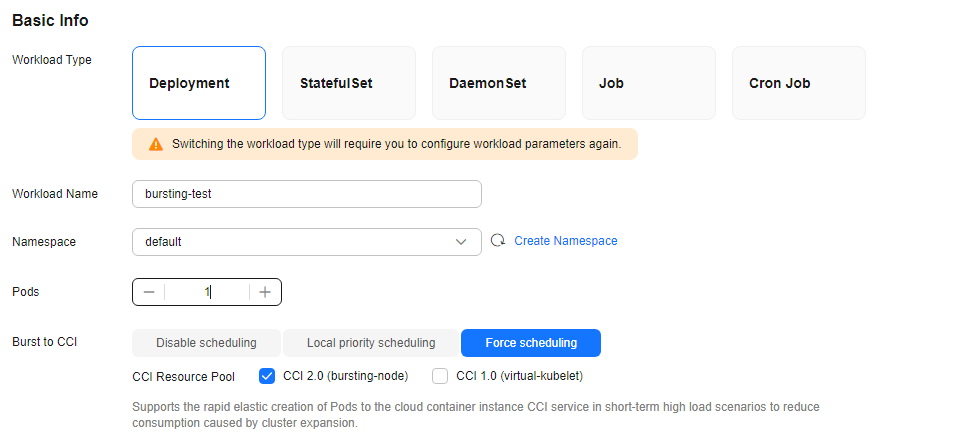
- Specify basic information. Select Force scheduling for Burst to CCI and then CCI 2.0 (bursting-node) for CCI Resource Pool. For more information about scheduling policies, see Scheduling Workloads to CCI.
- Configure the container parameters.
- Click Create Workload.
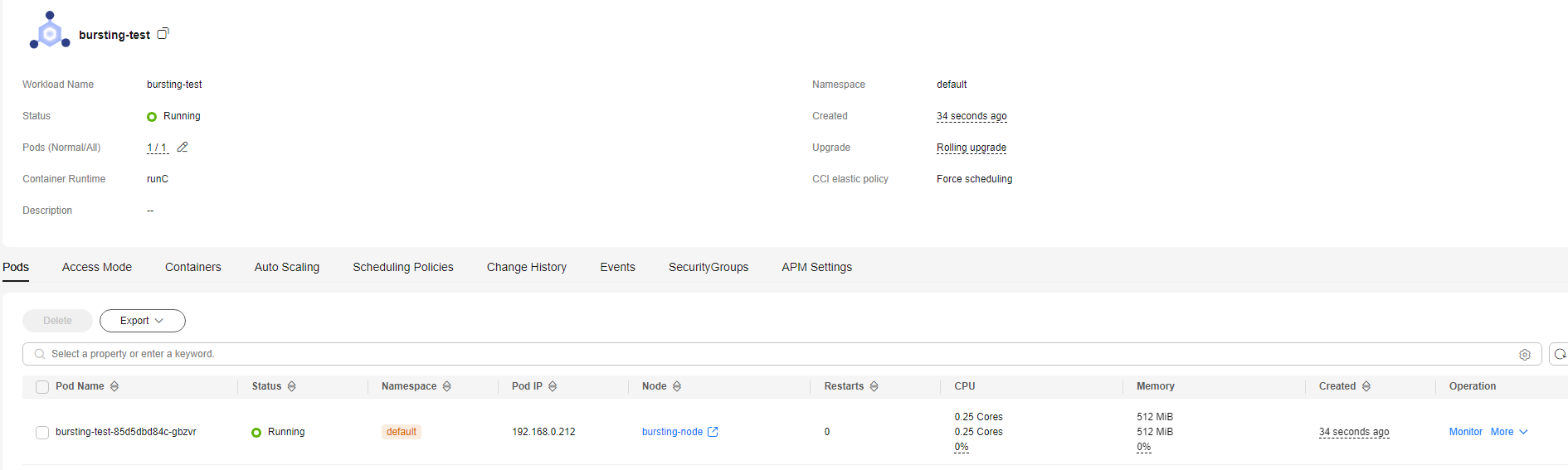
- On the Workloads page, click the name of the created workload to go to the workload details page.
- View the node where the workload is running. If the workload is running on bursting-node, it has been scheduled to CCI.
Uninstalling the Add-on
- Log in to the CCE console.
- Click the name of the target CCE cluster to go to the Overview page of the cluster.
- In the navigation pane, choose Add-ons.
- Select the CCE Cloud Bursting Engine for CCI add-on and click Uninstall.
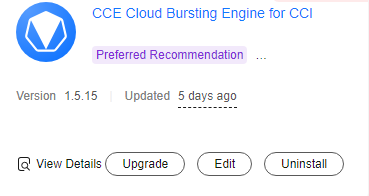
Table 5 Special scenarios for uninstalling the add-on Scenario
Symptom
Description
There are no nodes in the CCE cluster.
Failed to uninstall the add-on.
If the add-on is uninstalled from the cluster, a job for clearing resources will be started in the cluster. To ensure that the job can be started, there is at least one cluster node that can be scheduled.
The CCE cluster is deleted, but the add-on has not been uninstalled.
There are residual resources in the namespace of CCI. If the resources are not free, additional expenditures will be generated.
The cluster is deleted, but the resource clearing job is not executed. You can manually clear the namespace and residual resources to avoid additional expenditures.
For more information about the add-on, see CCE Cloud Bursting Engine for CCI.
What is your overall rating for this page?
Thank you very much for your feedback. We will continue working to improve the documentation.See the reply and handling status in My Cloud VOC.
For any further questions, feel free to contact us through the chatbot.
Chatbot


