

Cross-Account, Same-Region Replication Using OMS
Scenarios
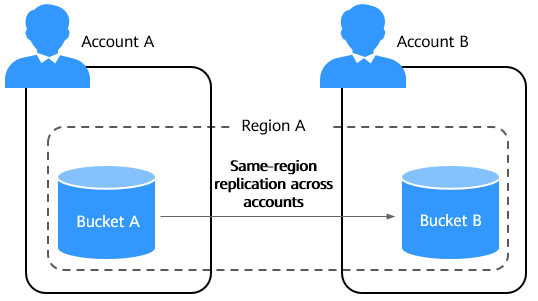
Same-region replication across accounts is to replicate data from a source bucket in one region of an account to a destination bucket in the same region of another account.
This section describes how to replicate data between buckets in the same region across accounts using the OMS console, OMS APIs, OBS APIs, OBS SDKs, or obsutil.
Replication scope: files/folders, object lists, objects matching a specified prefix, and objects modified after a specified time
Replication content: object content, metadata (object name, size, last modification time, creator, version ID, and user-defined metadata), ACLs (supported by OBS APIs and obsutil), WORM retention policies (supported by OBS APIs), object tags (supported by OBS APIs), and storage class

OBS helps you replicate your service data stored in OBS to another bucket in the same region. However, Huawei Cloud does not have visibility into your data and is not responsible for ensuring the legal compliance of your use of OBS.
Constraints
Billing for Same-Region Replication Across Accounts
- When you use the OMS console or APIs to migrate data, OBS APIs of both the source and destination ends are invoked to handle data upload and download. You will be billed for the API requests and data download traffic. For details, see OMS Billing. In addition, you will be billed for storing the objects in the destination bucket. For details, see Storage Costs.
- When you use OBS APIs, OBS SDKs, or obsutil to replicate data within the same region, you will be billed for requests and storage. For details, see Table 1.
Table 1 Billing for same-region replication Action
Billing Item
Description
Billing Mode
Replicate data in the same region
Requests
You are billed for the number of successfully replicated objects. Successfully replicating one object creates a copy request. For details, see Copying Objects.
Replicating an object generates a GET request to the source bucket and a PUT request to the destination bucket.
For details about request billing, see Requests.
Pay-per-use
Data transfer
Free, because data in the same region is replicated over an intranet.
N/A
Storage space
Storage space occupied by objects stored in the destination bucket.
If you have specified another storage class for object copies in the destination bucket, these copies are billed based on the new storage class.
Pay-per-use
Resource packages
Prerequisites
- There is a source bucket in a region of an account.
- There is a destination bucket in the same region of a different account. To create a bucket, see Creating a Bucket.
Procedure
Using the OBS CLI Tool - obsutil
When using obsutil to copy objects across accounts within the same region, do not enable cross-region replication. In other words, do not configure the crr parameter.
- Do not modify the source objects in the OBS bucket while copying a single object or objects in batches. Otherwise, the operation may fail or result in inconsistent data.
- If the objects to be copied are in the cold storage class, you must restore them first. Otherwise, the copy operation fails.
- Successful replication requires read permission on the source objects and write permission on the destination bucket.
- If the source is a POSIX-compatible parallel file system, the destination must also be a parallel file system.
Constraints
- The source and destination paths cannot be the same.
- The source and destination paths cannot be nested during a batch copy.
- If the destination path has the source path as its prefix, recursive copy may occur.
- If the source path has the destination path as its prefix, overwriting may occur.
Command Line Structure
- Windows
- Copying a single object
obsutil cp obs://srcbucket/key obs://dstbucket/[dest] [-dryRun] [-u] [-crr] [-vlength] [-vmd5] [-p=1] [-threshold=52428800] [-versionId=xxx] [-acl=xxx] [-sc=xxx] [-meta=aaa:bbb#ccc:ddd] [-ps=auto] [-cpd=xxx] [-fr] [-o=xxx] [-config=xxx] [-e=xxx] [-i=xxx] [-k=xxx] [-t=xxx]
- Copying objects in batches
obsutil cp obs://srcbucket[/key] obs://dstbucket[/dest] -r [-dryRun] [-f] [-flat] [-u] [-crr] [-vlength] [-vmd5] [-j=1] [-p=1] [-threshold=52428800] [-acl=xxx] [-sc=xxx] [-meta=aaa:bbb#ccc:ddd] [-ps=auto] [-include=*.xxx] [-exclude=*.xxx] [-timeRange=time1-time2] [-mf] [-o=xxx] [-cpd=xxx] [-config=xxx] [-e=xxx] [-i=xxx] [-k=xxx] [-t=xxx]
- Copying a single object
- macOS or Linux
- Copying a single object
./obsutil cp obs://srcbucket/key obs://dstbucket/[dest] [-dryRun] [-u] [-crr] [-vlength] [-vmd5] [-p=1] [-threshold=52428800] [-versionId=xxx] [-acl=xxx] [-sc=xxx] [-meta=aaa:bbb#ccc:ddd] [-ps=auto] [-cpd=xxx] [-fr] [-o=xxx] [-config=xxx] [-e=xxx] [-i=xxx] [-k=xxx] [-t=xxx]
- Copying objects in batches
./obsutil cp obs://srcbucket[/key] obs://dstbucket[/dest] -r [-dryRun] [-f] [-flat] [-u] [-crr] [-vlength] [-vmd5] [-j=1] [-p=1] [-threshold=52428800] [-acl=xxx] [-sc=xxx] [-meta=aaa:bbb#ccc:ddd] [-ps=auto] [-include=*.xxx] [-exclude=*.xxx] [-timeRange=time1-time2] [-mf] [-o=xxx] [-cpd=xxx] [-config=xxx] [-e=xxx] [-i=xxx] [-k=xxx] [-t=xxx]
- Copying a single object
Examples
- In Windows, run obsutil cp obs://bucket-test/key obs://bucket-test2 to copy a single object.
obsutil cp obs://bucket-test/key obs://bucket-test2
Start at 2024-09-30 08:30:09.0815415 +0000 UTC

Parallel:      3                   Jobs:          3
Threshold:     50.00MB             PartSize:      auto
CheckpointDir: xxxx

[=====================================================] 100.00% 6/s 0s
Waiting for the copied key to be completed on server side.
Copy successfully, 19B, obs://bucket-test/key --> obs://bucket-test2/key
ext.txt, cost [1708], status [200], request id [00000192420D227E4017336A12F1DC22]
- In Windows, run obsutil cp obs://bucket-test/temp/ obs://bucket-test2 -f -r to copy objects in batches.
obsutil cp obs://bucket-test/temp/ obs://bucket-test2 -r -f
Start at 2024-09-30 08:34:02.7819703 +0000 UTC

Parallel:      5                   Jobs:          5
Threshold:     50.00MB             PartSize:      auto
CheckpointDir: xxxx

Task id: 0476929d-9d23-4dc5-b2f8-0a0493f027c5
OutputDir: xxxx

[=============================================================] 100.00% 10/s 0s
Succeed count:   5         Failed count:    0
Metrics [max cost:298 ms, min cost:192 ms, average cost:238.00 ms, average tps:9.71, transferred size: 7.20MB]
Task id: 0476929d-9d23-4dc5-b2f8-0a0493f027c5
- In Windows, run obsutil cp obs://bucket-test/ obs://bucket-test2 -f -r to copy objects between buckets in batches.
obsutil cp obs://bucket-test/ obs://bucket-test2 -r -f

Start at 2026-10-08 02:36:42.5227544 +0000 UTC


Parallel:      5                   Jobs:          5
Threshold:     50.00MB             PartSize:      auto
CheckpointDir: C:\Users\Administrator\.obsutil_checkpoint

Task id: a559f79a-5db0-4911-9d96-4ff924624679
OutputDir: C:\Users\Administrator\.obsutil_output

[----------------------------------------------] 100.00% tps:31.16 29/29 1.132s
Succeed count:      29        Failed count:       0
Metrics [max cost:433 ms, min cost:117 ms, average cost:175.41 ms, average tps:25.62, transferred size:0B]

Task id: a559f79a-5db0-4911-9d96-4ff924624679
- For more examples, see Common Examples.
Parameter Description
| Parameter | Optional or Mandatory | Description |
|---|---|---|
| srcbucket | Mandatory | The source bucket name |
| dstbucket | Mandatory | The destination bucket name |
| dest | Optional | The destination object name when copying an object, or the name prefix of destination objects when copying objects in batches |
| key | Mandatory for copying an object. Optional for copying objects in batches. | The source object name when copying an object, or the name prefix of source objects when copying objects in batches The rules are as follows:
NOTE: For details about how to use this parameter, see Copy. |
| fr | Optional for copying an object (additional parameter) | Generates an operation result file when copying an object. |
| flat | Optional for copying objects in batches (additional parameter) | The name prefix of the parent object is excluded when copying objects in batches. |
| dryRun | Optional (additional parameter) | Conducts a dry run. |
| crr | Do not set this parameter for same-region replication across accounts. | Enables the client-side cross-region replication function. In this mode, data is directly copied to the destination bucket from the source bucket through data stream. The buckets can be any two OBS buckets.
NOTE: The configurations of the source bucket and destination bucket are respectively akCrr/skCrr/tokenCrr/endpointCrr and ak/sk/token/endpoint in the configuration file. |
| vlength | Optional (additional parameter) | Verifies whether the object size in the destination bucket is the same as that in the source bucket after the copy task completes. This parameter must be used together with crr. |
| vmd5 | Optional (additional parameter) | Verifies whether the MD5 value of the destination bucket is the same as that of the source bucket after the copy task completes.
|
| u | Optional (additional parameter) | Indicates incremental copy. If this parameter is set, each object can be copied only when it does not exist in the destination bucket, its size is different from the namesake one in the destination bucket, or it has the latest modification time. |
| p | Optional (additional parameter) | The maximum number of concurrent multipart copy tasks when copying an object. The default value is the value of defaultParallels in the configuration file. |
| threshold | Optional (additional parameter) | The threshold for enabling multipart copy. If the size of the object to be copied is smaller than the threshold, copy the object directly. If not, a multipart copy is required. The default value is the value of defaultBigfileThreshold in the configuration file. Unit: byte This parameter value can contain a unit, for example, 1MB (indicating 1,048,576 bytes). NOTE: If you copy an object directly, no part record is generated, and resumable transmission is not supported. |
| versionId | Optional for copying an object (additional parameter) | The source object version ID that can be specified when copying an object |
| acl | Optional (additional parameter) | The access control policies for destination objects that can be specified when copying objects. Possible values are:
|
| sc | Optional (additional parameter) | The storage classes of the destination objects that can be specified when copying objects. Possible values are:
|
| meta | Optional (additional parameter) | The standard or user-defined metadata that can be specified during object replication.
|
| fs | Optional (additional parameter) | Specifies whether the method of listing parallel file systems is applied. If you are listing parallel file systems, you are recommended to add this parameter.
|
| ps | Optional (additional parameter) | The size of each part in a multipart copy task
|
| cpd | Optional (additional parameter) | The folder where the part records reside. The default value is .obsutil_checkpoint, the subfolder in the home directory of the user who executes obsutil commands. A part record is generated during a multipart copy and saved to the upload subfolder. After the copy succeeds, its part record is deleted automatically. If the copy fails or is suspended, the system attempts to resume the task according to its part record when you perform the copy the next time. |
| r | Mandatory for copying objects in batches (additional parameter) | Copies objects in batches based on a specified name prefix of objects in the source bucket. |
| f | Optional for copying objects in batches (additional parameter) | Runs in force mode. |
| j | Optional for copying objects in batches (additional parameter) | The maximum number of concurrent tasks for copying objects in batches. The default value is the value of defaultJobs in the configuration file. NOTE: The value is ensured to be greater than or equal to 1. |
| exclude | Optional for copying objects in batches (additional parameter) | The matching patterns of source objects that are excluded. After this parameter is specified, if the name of the object to be copied matches the value of this parameter, the object is skipped. For example, if this parameter is set to *.txt, all files whose names end with .txt are skipped and not copied.
Constraints: This matching pattern applies only to objects whose names do not end with a slash (/). NOTE:
|
| include | Optional for copying objects in batches (additional parameter) | The included matching patterns of source objects. After this parameter is specified, if the name of the object to be copied matches the value of this parameter, the object is copied. For example, if this parameter is set to *.txt, all objects whose names end with .txt are copied.
Constraints:
Example: ./obsutil cp obs://src-bucket/ obs://target-bucket/ -include=/src-object/* -f -r This command copies files whose names start with src-object/ from the src-bucket bucket to the target-bucket bucket. NOTE:
|
| timeRange | Optional for copying objects in batches (additional parameter) | The time range matching pattern when copying objects. Only objects whose latest modification time is within the configured time range are copied. This pattern has a lower priority than the file matching patterns (exclude/include). That is, the time range matching pattern is executed after the configured file matching patterns.
This matching pattern applies only to objects whose names do not end with a slash (/). |
| mf | Optional (additional parameter) | Indicates that the name matching pattern (include or exclude) and the time matching pattern (timeRange) also take effect on objects whose names end with a slash (/). |
| o | Optional (additional parameter) | The folder that stores the result files. After the command is executed, result files (possibly success, failure, and warning files) will be created in the specified folder. The default value is .obsutil_output, a subfolder in the user's home directory where obsutil commands are executed.
|
| config | Optional (additional parameter) | The user-defined configuration file for executing the current command. To learn the parameters that can be configured in this file, see Configuration Parameters. |
| e | Optional (additional parameter) | The endpoint |
| i | Optional (additional parameter) | The user's AK |
| k | Optional (additional parameter) | The user's SK |
| t | Optional (additional parameter) | The user's security token |
Response
| Field | Description |
|---|---|
| Parallel | The parameter -p in the request |
| Jobs | The parameter -j in the request |
| Threshold | The parameter -threshold in the request |
| PartSize | The parameter -ps in the request |
| Exclude | The parameter -exclude in the request |
| Include | The parameter -include in the request |
| TimeRange | The parameter -timeRange in the request |
| VerifyLength | The parameter -vlength in the request |
| VerifyMd5 | The parameter -vmd5 in the request |
| CheckpointDir | The parameter -cpd in the request |
| OutputDir | The parameter -o in the request |
| ArcDir | The parameter -arcDir in the request |
| Succeed count | The number of successful tasks |
| Failed count | The number of failed tasks |
| Skip count | The number of tasks that are skipped during incremental upload, download, or copy, and synchronous upload, download, or copy. NOTE: Skipped tasks are recorded into successful tasks. |
| Warning count | The number of tasks that are executed successfully but contain warnings. NOTE:
|
| Succeed bytes | The number of bytes that are successfully uploaded |
| max cost | The maximum duration of all tasks, in ms |
| min cost | The minimum duration of all tasks, in ms |
| average cost | The average duration of all tasks, in ms |
| average tps | The average number of tasks completed per second |
| Task id | The unique ID of an operation, which is used to search for the result file generated for a batch task |
What is your overall rating for this page?
Thank you very much for your feedback. We will continue working to improve the documentation.See the reply and handling status in My Cloud VOC.
For any further questions, feel free to contact us through the chatbot.
Chatbot


