

Managing Functions Using KooCLI
FunctionGraph provides the command line interface (CLI) for you to manage functions, triggers, and aliases, and invoke functions.
Notes and Constraints
- When you access Huawei Cloud through an API, you must undergo access key–based identity authentication with the access request encrypted, and ensure that the access request is secret, complete, and correct. Properly keep the config.yaml file to prevent unauthorized use of your access key. Use temporary access keys (Access Key ID, Secret Access Key, and Token) to enhance security. For details about the temporary access keys, see Temporary Access Key (for Federated Users).
- If your access key is used by an unauthorized person (due to a loss or leakage), you can delete the access key or notify the administrator of resetting it and configure it again.
- Deleted access keys cannot be recovered.
KooCLI Download Links
KooCLI can run on a 64-bit Linux x86 operating system (OS), 64-bit Windows OS, or macOS. Table 1 provides the download links of KooCLI.
Using KooCLI
- Install KooCLI. For details, see Installing KooCLI in Linux.
- Obtain an access key (access key ID and secret access key, also called "AK/SK").
- Log in to the console and obtain the AK/SK on the My Credentials page. For details, see Creating an Access Key. An AK/SK file is downloaded. Generally, it is named credentials.csv. As shown in the following figure, the file contains a username, AK, and SK.Figure 1 Content of the credentials.csv file

- If your access key is lost or needs to be reset, contact the account administrator to generate a new access key in IAM and send it to you. For details, see Managing Access Keys for an IAM User.
- Log in to the console and obtain the AK/SK on the My Credentials page. For details, see Creating an Access Key. An AK/SK file is downloaded. Generally, it is named credentials.csv.
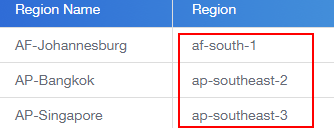
- Obtain a region name. For details, see Regions and Endpoints. Figure 2 Obtaining region information
- Initialize KooCLI.
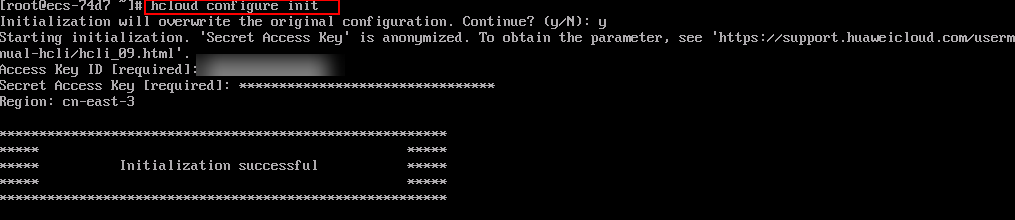
Run the following command to initialize KooCLI:
hcloud configure init
Enter an access key ID, secret access key, and region name. If the information shown in Figure 3 is displayed, the initialization is successful.
You can also configure authentication information using the temporary AK, SK, and token.
hcloud configure set --cli-profile=default --cli-access-key=your-ak --cli-secret-key=your-sk --cli-security-token=your-token
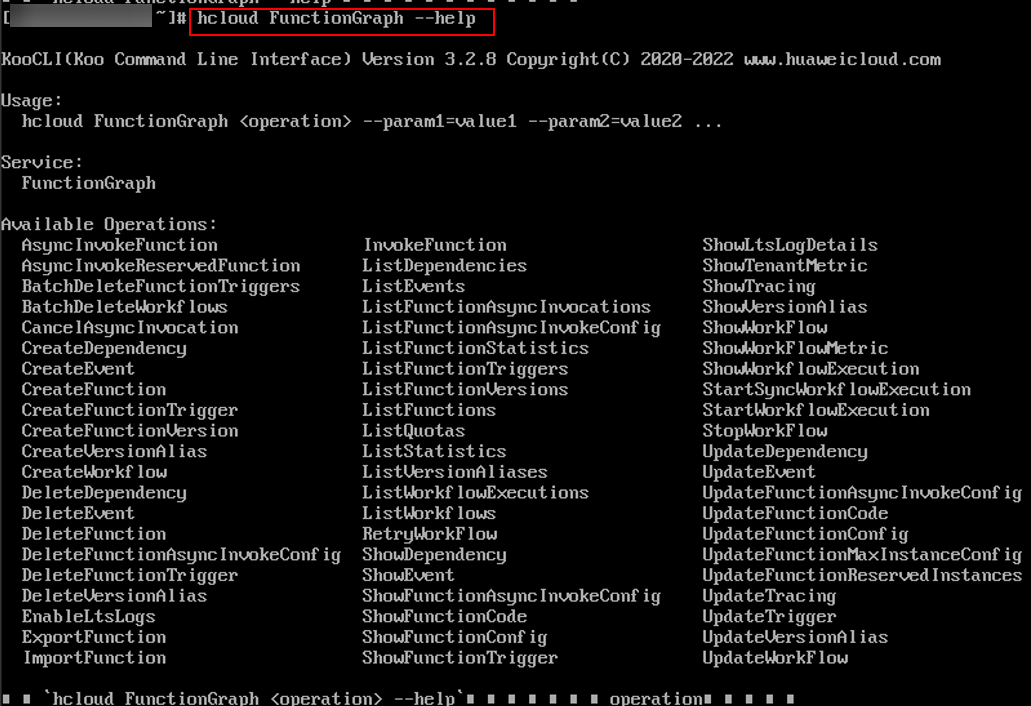
- Run the following command to view the commands supported by FunctionGraph. As shown in Figure 4, Available Operations lists the operations supported by FunctionGraph.
hcloud FunctionGraph --help
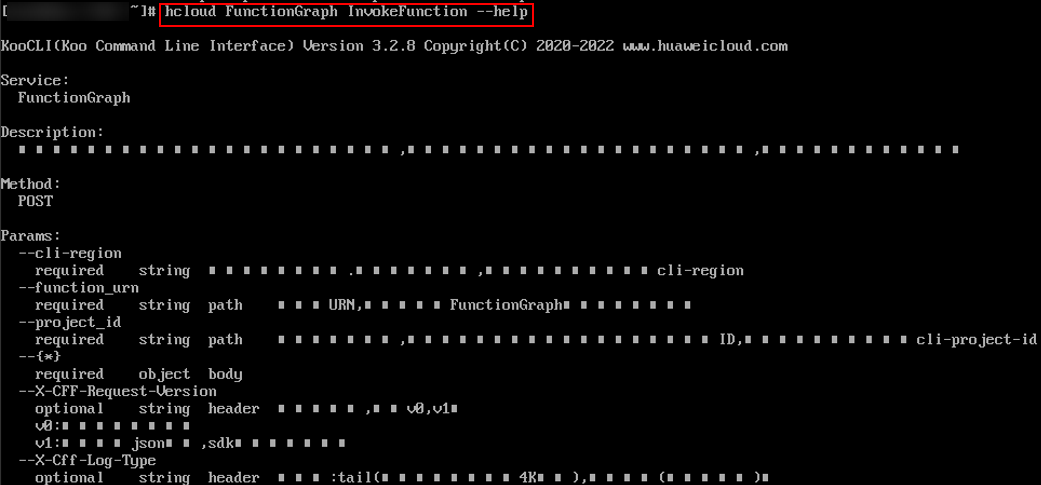
Run the following command to obtain help information about operation InvokeFunction. The information similar to that shown in Figure 5 is returned.
hcloud FunctionGraph InvokeFunction --help
Invoking a Function
Before invoking a function, obtain the URN, as shown in Figure 6.

- Synchronous invocation
The following is an example command for synchronous invocation. For details about the parameters, see Table 2.
hcloud FunctionGraph InvokeFunction --cli-region="ap-southeast-1" --X-Cff-Log-Type="tail" --X-CFF-Request-Version="v1" --function_urn="urn:fss:cn-east-3:******:function:default:hcloud-invoke:latest" --project_id="******" --key="value"
Table 2 Parameters Parameter
Mandatory
Description
--cli-region
Yes
Region where the target function is located.
--function_urn
Yes
Function URN.
--project_id
Yes
Project ID.
--X-Cff-Log-Type
No
Options: tail (4 KB logs will be returned in the header) and null (no logs will be returned).
X-CFF-Request-Version
No
Response body format. Options:
- v0: text format.
- v1: JSON format. Use this format when using an SDK.
Body
Yes
Request body in --key="value" format. The JSON structure is {"key":"value"}.
Figure 7 shows the output result. For details about the response parameters, see Table 3.
- Asynchronous invocation
The following is an example command for asynchronous invocation. For details about the parameters, see Table 4.
hcloud FunctionGraph AsyncInvokeFunction --cli-region="cn-east-3" --function_urn="urn:fss:cn-east-3:******:function:default:hcloud-invoke:latest" --project_id="******" --key="value"
Table 4 Parameters Parameter
Mandatory
Description
--cli-region
Yes
Region where the target function is located.
--function_urn
Yes
Function URN.
--project_id
Yes
Project ID.
Body
Yes
Request body in --key="value" format. The JSON structure is {"key":"value"}.
Figure 8 shows the output result. For details about the response parameters, see Table 3.
Table 5 Parameters in the response body Parameter
Type
Description
request_id
String
Request ID.


API Calling in the Non-configuration Mode
KooCLI allows you to can call cloud service APIs using a profile or do so in non-configuration mode, where you can specify temporary AK, SK, and token in the CLI. For details, see Non-configuration Mode Overview.
The following is an example command:
hcloud FunctionGraph InvokeFunction --cli-region="ap-southeast-1" --cli-access-key=your-ak --cli-secret-key=your-sk --cli-security-token=your-token --X-Cff-Log-Type="tail" --X-CFF-Request-Version="v1" --function_urn="urn:fss:cn-east-3:******:function:default:hcloud-invoke:latest" --project_id="******" --key="value"
Configuring a Network Proxy Using KooCLI
Run the following command to set a proxy:
export HTTP_PROXY="http://user:password@proxyIp:proxyPort"
For details, see Set/Export http_proxy With Special Characters In Password Under Unix / Linux.
What is your overall rating for this page?
Thank you very much for your feedback. We will continue working to improve the documentation.See the reply and handling status in My Cloud VOC.
For any further questions, feel free to contact us through the chatbot.
Chatbot


