

Buying a TaurusDB for PostgreSQL Instance
Scenarios
You can create a DB instance on the TaurusDB for PostgreSQL console.
TaurusDB for PostgreSQL only supports the pay-per-use billing mode. You can tailor your compute resources and storage space to your business needs.
Prerequisites
- You have created a Huawei ID and enabled Huawei Cloud services.
- You can create an IAM user or user group on the IAM console and grant it specific operation permissions, to perform refined management on Huawei Cloud. For details, see Creating a User and Granting TaurusDB for PostgreSQL Permissions.
Procedure
- Go to the Buy DB Instance page.
- On that page, click the Custom Config tab, select a billing mode, configure information about your instance, and click Next.
- Basic configuration
Table 1 Basic configuration Parameter
Description
Billing Mode
Select Pay-per-use.
Region
Region where an instance is deployed.
You cannot change the region of an instance once it is purchased.
- Resource selection Figure 1 Resource selection

Table 2 Basic information Parameter
Description
DB Engine Version
Select TaurusDB V2.0 (PostgreSQL-compatible).
DB Instance Type
- Single: uses a single-node architecture, which is less expensive than primary/standby DB instances. It is suitable for development and testing of microsites, and small- and medium-sized enterprises, or for learning about TaurusDB for PostgreSQL.
- Primary/Standby: uses an HA architecture with a primary DB instance and a synchronous standby DB instance. It is suitable for production databases of large- and medium-sized enterprises in the Internet, Internet of Things (IoT), retail e-commerce sales, logistics, gaming, and other sectors. When a primary instance is being created, a standby instance is provisioned along with it to provide data redundancy. The standby instance is invisible to you after being created.
AZ
An AZ is a physical region where resources have independent power supplies and networks. AZs are physically isolated but interconnected through an internal network. Some regions support both single-AZ and multi-AZ deployment and some only support single-AZ deployment.
To achieve high reliability, TaurusDB for PostgreSQL will automatically deploy your primary and standby instances in different physical servers even if you deploy them in the same AZ.
You can deploy your primary and standby instances in a single AZ or across AZs to achieve failover and high availability.
Storage Type
Determines the DB instance read/write speed. The higher the maximum throughput is, the higher the DB instance read/write speed can be.- Cloud SSD: cloud disks used to decouple storage from compute.
- Extreme SSD: uses 25GE network and RDMA technologies to provide you with up to 1,000 MB/s throughput per disk and sub-millisecond latency.
NOTE:- The cloud SSD and extreme SSD storage types are supported with general-purpose, dedicated, and Kunpeng general-enhanced DB instances.
- The IOPS supported by cloud SSD storage depends on the I/O performance of Elastic Volume Service (EVS) disks. For details, see the description about ultra-high I/O in Disk Types and Performance of Elastic Volume Service Service Overview.
- The IOPS supported by extreme SSD storage depends on the I/O performance of Elastic Volume Service (EVS) disks. For details, see the description about extreme SSD storage in Disk Types and Performance of Elastic Volume Service Service Overview.
- Instance options Figure 2 Specifications and storage
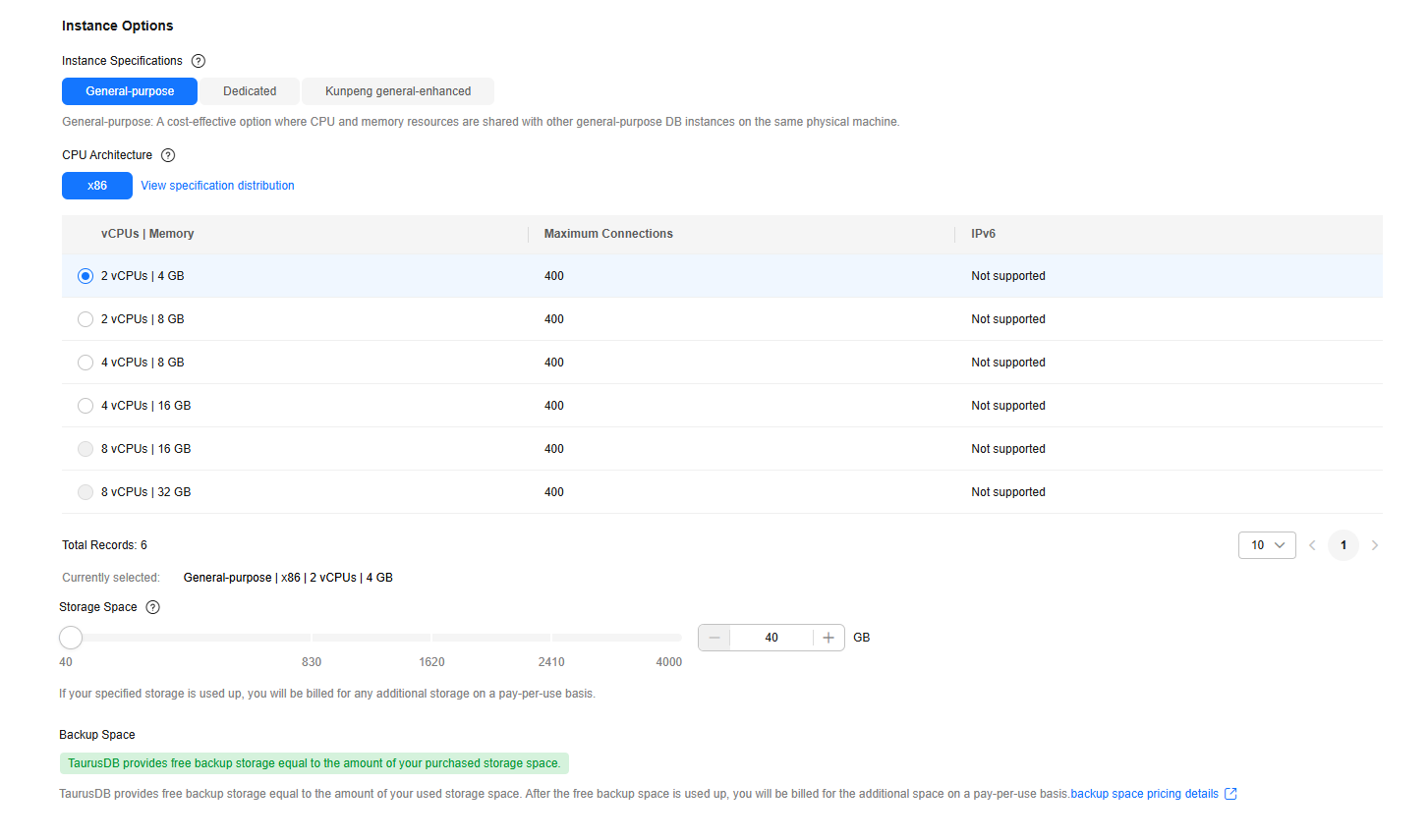
Table 3 Specifications and storage Parameter
Description
Instance Specifications
Refers to the vCPUs and memory of a DB instance. Different instance specifications support different numbers of database connections and maximum IOPS.
CPU Architecture
Only x86 is supported.
x86 instances use Intel® Xeon® Scalable processors and feature robust and stable computing performance. When working on high-performance networks, the instances provide the additional performance and stability that enterprise-class applications demand.
Storage Space
Contains the system overhead required for inodes, reserved blocks, and database operation. Storage space can range in size from 40 GB to 4,000 GB and can be scaled up only by a multiple of 10 GB.
After a DB instance is created, you can scale up its storage space. For details, see Scaling Up Storage Space Manually.
Backup Space
TaurusDB for PostgreSQL provides free backup space equal to the amount of your storage space. After the free backup space is used up, you will be billed for the additional space on a pay-per-use basis.
- Network settings Figure 3 Network settings

Table 4 Network Parameter
Description
VPC
The virtual network in which your TaurusDB for PostgreSQL instance is located. A VPC can isolate networks for different workloads. You can select an existing VPC or create a VPC. For details on how to create a VPC, see the "Creating a VPC" section in the Virtual Private Cloud User Guide.
If no VPC is available, TaurusDB for PostgreSQL allocates a VPC to you by default.
To use a shared VPC, select a VPC that another account shares with the current account from the drop-down list.
VPC owners can share the subnets in a VPC with one or multiple accounts through Resource Access Manager (RAM). Through VPC sharing, you can easily configure, operate, and manage multiple accounts' resources at low costs. For more information about VPC and subnet sharing, see VPC Sharing.
NOTICE:After a TaurusDB for PostgreSQL instance is created, the VPC cannot be changed.
Subnet
Improves network security by providing dedicated network resources that are logically isolated from other networks. Subnets are only valid within a specific AZ. Dynamic Host Configuration Protocol (DHCP) is enabled by default for subnets where you plan to create DB instances and cannot be disabled.
A private IPv4 address is automatically assigned when you create a DB instance. You can also enter an unused private IPv4 address in the subnet CIDR block. After the DB instance is created, you can change its private IP address.
Security Group
Controls the access that traffic has in and out of a DB instance. By default, the security group associated with the DB instance is authorized. In addition, a network access control list (ACL) can help control inbound and outbound traffic of subnets in your VPC.
A security group enhances security by controlling access to TaurusDB for PostgreSQL from other services. You need to add inbound rules to a security group so that you can connect to your DB instance.
If no security group is available, TaurusDB for PostgreSQL allocates a security group to you by default.
Figure 4 Setting an administrator password

Table 5 Database configuration Parameter
Description
DB Instance Name
The instance name must start with a letter and consist of 4 to 64 characters. Only letters (case-sensitive), digits, hyphens (-), and underscores (_) are allowed.
Administrator Password
The password must consist of 8 to 32 characters and contain at least three types of the following characters: uppercase letters, lowercase letters, digits, and special characters (~!@#$%^*-_=+?,). Enter a strong password and change it regularly to enhance security and prevent risks like brute-force attacks.
If the password you provide is considered weak, the system will prompt you to enter a stronger one.
Keep this password secure. The system cannot retrieve it if it is lost.
After a DB instance is created, you can reset this password. For details, see Resetting the Administrator Password to Restore root Access.
Confirm Password
Must be the same as Administrator Password.
- Advanced settings Figure 5 Advanced settings
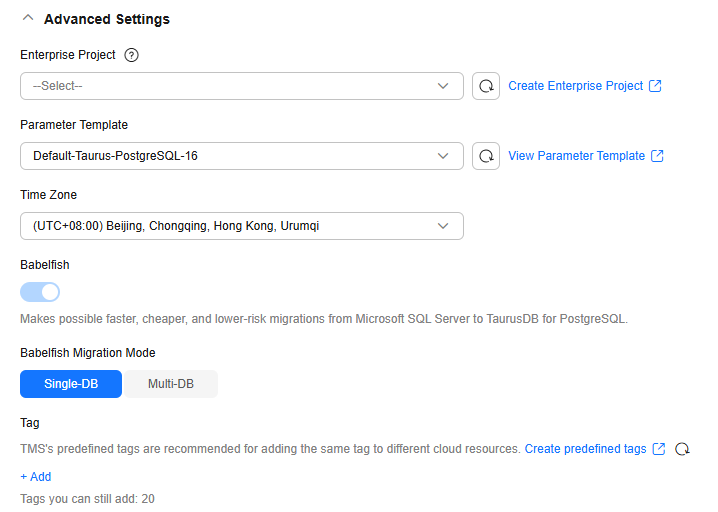
Table 6 Advanced settings Parameter
Description
Enterprise Project
If your account has been associated with an enterprise project, select the target project from the Enterprise Project drop-down list.
For more information about enterprise projects, see Enterprise Management User Guide.
Parameter Template
Contains engine configuration values that can be applied to one or more DB instances. If you intend to create primary/standby DB instances, they use the same parameter template. You can modify the instance parameters as required after the DB instance is created.
NOTICE:If you use a custom parameter template when creating a DB instance, the following specification-related parameters in the custom template are not delivered. Instead, the default values are used.
- maintenance_work_mem
- shared_buffers
- max_connections
- effective_cache_size
You can modify the instance parameters as required after the DB instance is created. For details, see Modifying Parameters of a TaurusDB for PostgreSQL Instance.
Time Zone
You need to select a time zone for your instance based on the region hosting your instance. You can select a time zone during instance creation and change it later as needed.
Babelfish
Provides a SQL Server syntax compatibility layer, enabling Transact-SQL (T-SQL) applications to run seamlessly in a PostgreSQL environment. This option is enabled by default. Currently, it cannot be disabled.
Babelfish Migration Mode
Babelfish supports Single-DB and Multi-DB migration modes.
- Single-DB: Only one T-SQL database can be created in Babelfish, and the T-SQL schema is created as a regular PostgreSQL schema in the Babelfish database.
- Multi-DB: Multiple T-SQL databases can be created in Babelfish (each database has its own schema). The T-SQL schema is created as a PostgreSQL schema (<database_name>_<schema_name>) to avoid name conflicts.
CAUTION:After an instance with Babelfish enabled is created, to ensure access to all previously created SQL objects, you are advised not to change the migration mode. If you need to change the migration mode, create a new instance.
Tag
Tags a DB instance. This parameter is optional. Adding tags helps you better identify and manage your DB instances. Up to 20 tags can be added for each DB instance.
If your organization has configured tag policies for TaurusDB for PostgreSQL, add tags to DB instances based on the policies. If a tag does not comply with the policies, DB instance creation may fail. Contact your organization administrator to learn more about tag policies.
If you have any questions about the price, click Pricing details at the bottom of the page.
- Basic configuration
- For pay-per-use instances, confirm the specifications. Figure 6 Confirming the specifications

- If you need to modify your settings, click Previous.
- If you do not need to modify your settings, click Submit.
- To view and manage DB instances, go to the Instances page.
- When your DB instance is being created, the status is Creating. The status changes to Available after the instance is created.
- The automated backup policy is enabled by default. You can change it after the DB instance is created. An automated full backup is immediately triggered once your DB instance is created.
- After a DB instance is created, you can enter a description for it.
- The default database port is 5432. You can change it after the DB instance is created. For details, see Changing a Database Port.
What is your overall rating for this page?
Thank you very much for your feedback. We will continue working to improve the documentation.See the reply and handling status in My Cloud VOC.
For any further questions, feel free to contact us through the chatbot.
Chatbot


