

Creating a User and Granting TaurusDB for PostgreSQL Permissions
This chapter describes how to use Identity and Access Management (IAM) for fine-grained permissions management for your TaurusDB for PostgreSQL resources. With IAM, you can:
- Use your Huawei Cloud account to create IAM users for employees based on your enterprise's organizational structure. Each employee has a unique identity credential for accessing TaurusDB for PostgreSQL resources.
- Assign different access permissions based on user roles to isolate their permissions.
- Entrust a Huawei Cloud account or cloud service to perform efficient O&M on your TaurusDB for PostgreSQL resources.
If your Huawei Cloud account does not require individual IAM users, skip this chapter.
This section describes the procedure for granting permissions (see Figure 1).
Prerequisites
Before assigning permissions to user groups, you should learn about TaurusDB for PostgreSQL system-defined policies and select the policies as required. For the system-defined policies of other services, see System-defined Policies/Roles.
Process Flow
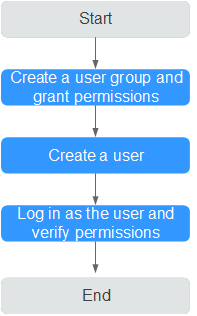
- Create a user group and assign permissions to it.
Create a user group on the IAM console and attach the TaurusDB FullAccess policy to the group.

To use some interconnected services, you also need to configure permissions of such services.
For example, to connect to your DB instance through the console, configure the DAS FullAccess permission of Data Admin Service (DAS) besides TaurusDB FullAccess.
- Create an IAM user and add it to the user group.
Create a user on the IAM console and add the user to the group created in 1.
- Log in and verify permissions.
Log in to the console as the created user, switch to the region where it is authorized, and verify the permissions.
Choose Service List > TaurusDB and click Buy DB Instance. If you can buy a TaurusDB for PostgreSQL instance, the required permission policy has already been applied.
What is your overall rating for this page?
Thank you very much for your feedback. We will continue working to improve the documentation.See the reply and handling status in My Cloud VOC.
For any further questions, feel free to contact us through the chatbot.
Chatbot


