

Device Reporting Messages
Introduction
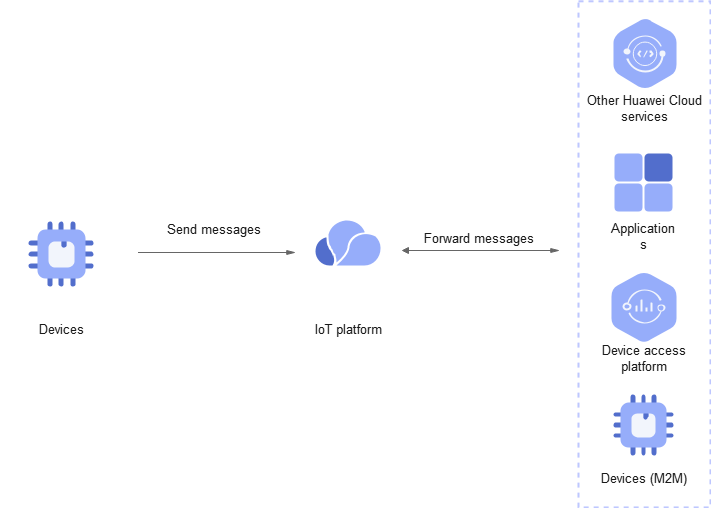
Message reporting is a method by which a device directly sends data to the cloud and forwards the data to applications or other Huawei Cloud services through data forwarding. The platform does not parse or store the messages reported by devices. In this case, a product model is not required.
Scenarios
IoTDA does not parse or store the data reported by devices. Instead, it forwards the data (see Data Forwarding Process) to other Huawei Cloud services for storage and processing.
Constraints
- Maximum size of a single message: 1 MB.
- Maximum bandwidth of a single MQTT connection: 1 Mbit/s.
- Maximum upstream messages for a single MQTT connection per second: 50 (one request is considered as one message).
Process

- Create a product and device by referring to Product Creation and Registering an Individual Device.
- Device authentication: The platform checks whether the device has the access permission.
- Device message reporting: Devices report messages through protocols such as MQTT and HTTPS.
Use different APIs for different protocols.
MQTT: Use the message reporting API (see MQTT Device Reporting a Message) to report data to the platform.
- Example topic of MQTT message reporting:
$oc/devices/{device_id}/sys/messages/up - Example format of MQTT message reporting:
{
    "content": {"hello":"123"}
}
HTTPS: Use the message reporting API (see HTTP Message Reporting) to report data to the platform. For details about how to obtain the access token, see HTTP Device Connection Authentication. The following is an example of HTTPS device message reporting.POST https://{endpoint}/v5/devices/{device_id}/sys/messages/up Content-Type: application/json access_token: ******** { "name": "name", "id": "id", "content": "messageUp" } - Example topic of MQTT message reporting:
- Data forwarding: With the data forwarding function (see Data Forwarding Process), data can be forwarded to applications or other Huawei Cloud services for further processing.

Message Reporting Using Java SDK
This section describes how to use Java SDKs for the development of message reporting. JDK 1.8 or later is used.
Configure the SDK on the device side:
- Obtain the SDK code by referring to SDK Download.
- Configure the Maven dependency of the SDK on devices.
<dependency>
	<groupId>com.huaweicloud</groupId>
	<artifactId>iot-device-sdk-java</artifactId>
	<version>1.1.4</version>
</dependency>
- Configure the SDK and device connection parameters on devices.
// Load the CA certificate of the platform. For details, see Certificates.
URL resource = BroadcastMessageSample.class.getClassLoader().getResource("ca.jks");
File file = new File(resource.getPath());

// The format is ssl://Access address:Port number.
// To obtain the access address, log in to the IoTDA console. In the navigation pane, choose Overview and check the access information in the Instance Information area. Select the access address corresponding to port 8883.
String serverUrl = "ssl://<localhost>:8883";
// Device ID created on the platform
String deviceId = "<deviceId>";
// Secret corresponding to the device ID
String deviceSecret = "<deviceSecret>";
// Create a device.
IoTDevice device = new IoTDevice(serverUrl, deviceId, deviceSecret, file);
if (device.init() != 0) {
    return;
}
- Report a device message.
device.getClient().reportDeviceMessage(new DeviceMessage("hello"), new ActionListener() {
    @Override
    public void onSuccess(Object context) {
        log.info("reportDeviceMessage success: ");
    }
    @Override
    public void onFailure(Object context, Throwable var2) {
        log.error("reportDeviceMessage fail: "+var2);
    }
});
Verification
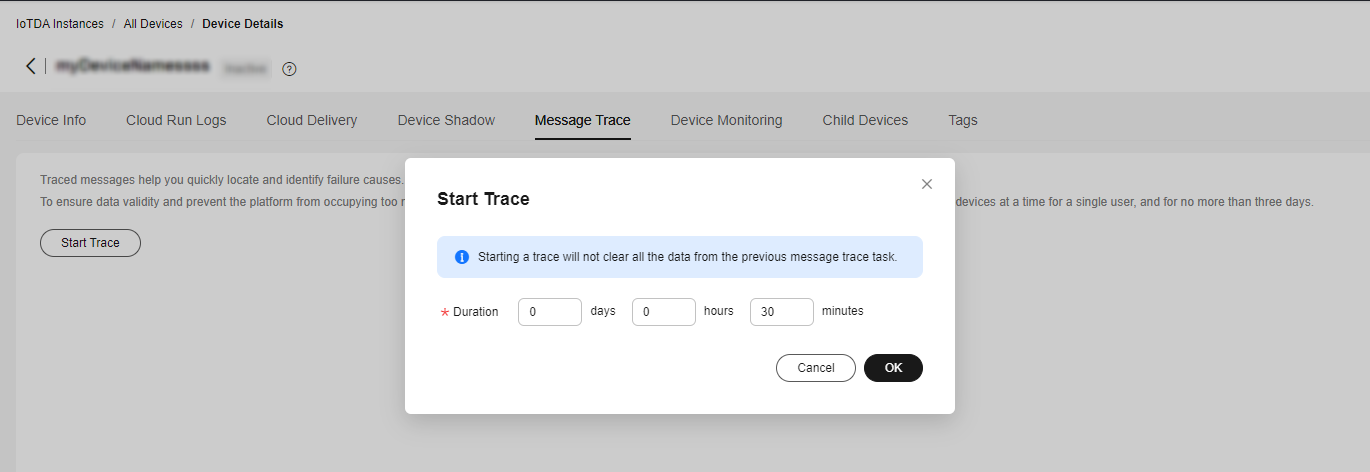
- On the IoTDA console, choose Devices > All Devices, select a device to access its details page, and click Start Trace on the Message Trace tab page. Figure 3 Message tracing - Starting message tracing
- Run the SDK code on the device. The following is an example of the log format when the device reports a message. Figure 4 Java SDK message reporting result log

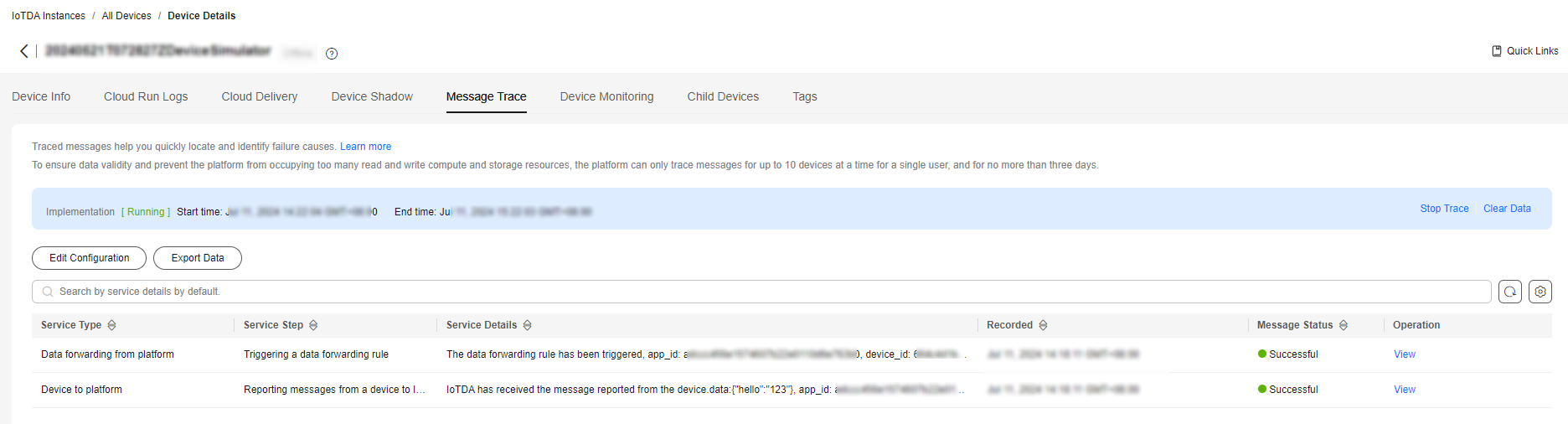
- Check the result on the Message Trace tab page, which indicates that the platform has received the message from the device and the forwarding rule has been triggered. Figure 5 Message tracing - Message reporting triggering a forwarding rule
What is your overall rating for this page?
Thank you very much for your feedback. We will continue working to improve the documentation.See the reply and handling status in My Cloud VOC.
For any further questions, feel free to contact us through the chatbot.
Chatbot


