

Controlling the Release Time with a Custom Extension
Overview
Define the input, script, and output for a custom extension to implement specific service logic in CodeArts Pipeline. A custom extension can be reused in multiple pipelines. CodeArts Pipeline provides many official extensions and allows you to customize extensions as needed. This section describes how to create a custom extension to control the release time. The process includes defining parameters, input, output, and applying the output to the pipeline pass conditions based on rules and policies.
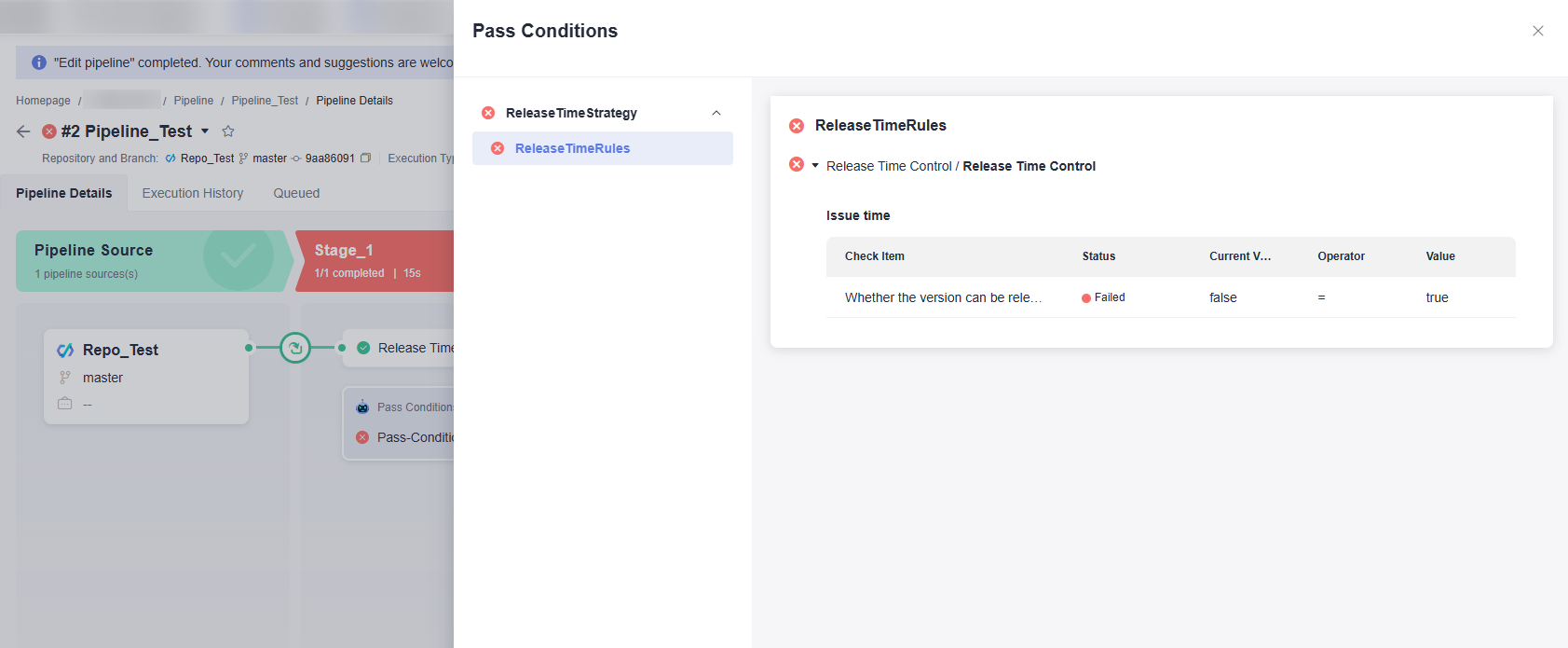
Pipeline gates are checkpoints set during pipeline execution. They ensure that a pipeline can proceed only when specific conditions are met. In this section, we use a custom extension and pipeline gate to control the release time. If you manually execute the pipeline earlier than the safe release time, the pipeline fails to pass the gate.
Preparations
- You have enabled and authorized CodeArts Pipeline.
- You have configured policies CloudPipeline Tenant Rules FullAccess, CloudPipeline Tenant Rule Templates FullAccess, and CloudPipeline Tenant Extensions FullAccess using IAM. For details, see Delegating Another Service for Resource Management.
- You have created a project. The following uses a Scrum project named Project_Test as an example.
- You have created a code repository. The following uses a repository named Repo_Test (created using the Java Maven Demo template) as an example.
- You have created a pipeline with the Repo01 repository. The following uses a pipeline named Pipeline-Test (created using the blank template) as an example.
Step 1: Create a Custom Extension
- Log in to the Huawei Cloud console.
- Click
 in the upper left corner of the page and choose from the service list.
 - Click Access Service.
- On the top navigation bar, choose Services > Extensions.
- Click
 . On the displayed page, enter basic information by referring to Table 1.
Table 1 Extension information Parameter
Example Value
Description
Icon
-
Icon of the extension. Upload an image in PNG, JPEG, or JPG format, with a file size no more than 512 KB (recommended: 128 x 128 pixels). If no image is uploaded, the system generates an icon.
Name
Release Time Control
Extension name displayed in the extension platform. Enter a maximum of 50 characters. Only spaces, letters, digits, underscores (_), hyphens (-), and periods (.) are allowed.
Unique Identifier
ReleaseTimeControl
Unique identifier of the extension. Once set, the value cannot be changed.
Type
Normal
Extension type, which can be Build, Check, Test, Deploy, or Normal. Once set, this parameter cannot be changed.
Description
-
Describes how to use the extension.
- After configuring the basic information, click Next. On the Version Info page, use the default version number.
- Click Next. The Input page is displayed. Drag the Single-line Text Box widget from the left side to the canvas. Configure the widget information by referring to Table 2.
Table 2 Widget information Type
Parameter
Description
Basic
Unique Identifier
Enter safe_release_time.
Title
Enter Safe release time.
Tips
Enter Earliest release time in 24-hour format, for example, 193000, indicating that the earliest release time is 19:30:00.
Placeholder
Enter Earliest release time in 24-hour format, for example, 193000.
Verification
Mandatory
Enabled
RegEx Validation
Enter ^\d{6}$.
- Click Next. On the displayed Orchestration page, add the ExecuteShellCommand extension. Enter the shell command by referring the following example to generate a tag name.
# Extract the hour, minute, and second of the safe release time. safe_hour="${safe_release_time:0:2}" safe_minute="${safe_release_time:2:2}" safe_second="${safe_release_time:4:2}" # Verify the time validity. if [[ "$safe_hour" -gt 23 || "$safe_minute" -gt 59 || "$safe_second" -gt 59 ]]; then echo "Error: safe_time contains invalid values." echo "ALLOW_RELEASE=false" exit 1 fi # Obtain the current time (24-hour format). current_time=$(date +%H%M%S) current_hour=$(date +%H) current_minute=$(date +%M) current_second=$(date +%S) echo "Current time: $current_time" echo "Safe time: $safe_time" # PIPELINE_TRIGGER_TYPE is a predefined variable. echo "Pipeline trigger type: $PIPELINE_TRIGGER_TYPE" # Judgment logic if [[ "$PIPELINE_TRIGGER_TYPE" != "Manual" ]]; then # Automatic trigger - Allow release echo "Automatic trigger. Allow release" ALLOW_RELEASE="true" else echo "Manual trigger. Check whether the current time is after the safe release time..." # Convert the time to seconds for comparison. current_total_seconds=$((10#$current_hour * 3600 + 10#$current_minute * 60 + 10#$current_second)) safe_total_seconds=$((10#$safe_hour * 3600 + 10#$safe_minute * 60 + 10#$safe_second)) if [[ $current_total_seconds -ge $safe_total_seconds ]]; then echo "Check passed: The current time is after the safe release time. Release is allowed." ALLOW_RELEASE="true" else echo "Check failed: The current time is before the safe release time. Release is not allowed." ALLOW_RELEASE="false" fi fi echo "ALLOW_RELEASE=$ALLOW_RELEASE" # Output the result to the task gate output of the extension. echo ::set-metrics var=ALLOW_RELEASE:$ALLOW_RELEASE - Click Next. The Output page is displayed. Click Add Configuration and set parameters by referring to Table 3.
Table 3 Configuration information Parameter
Example Value
Description
Key
ALLOW_RELEASE
Output of the script. The output variable is parsed through the key.
Type
metric
metric: displayed on the Others card. It outputs metric thresholds. The thresholds information can be referenced in an extension and finally applied to pipelines.
Description
Whether the version can be released
The description is displayed as a check item in the threshold configuration when you configure rules.
Group Name
Release time
Category name.
- Click Release Draft in the upper right corner. In the displayed window, click Release Draft.
- On the displayed Version Management page, click
 to officially release the draft.
Step 2: Create a Rule and Policy for the Custom Extension
- Click the avatar icon in the upper right corner and choose All Account Settings from the drop-down list.
- In the navigation pane on the left, choose Policy Management > Rules.
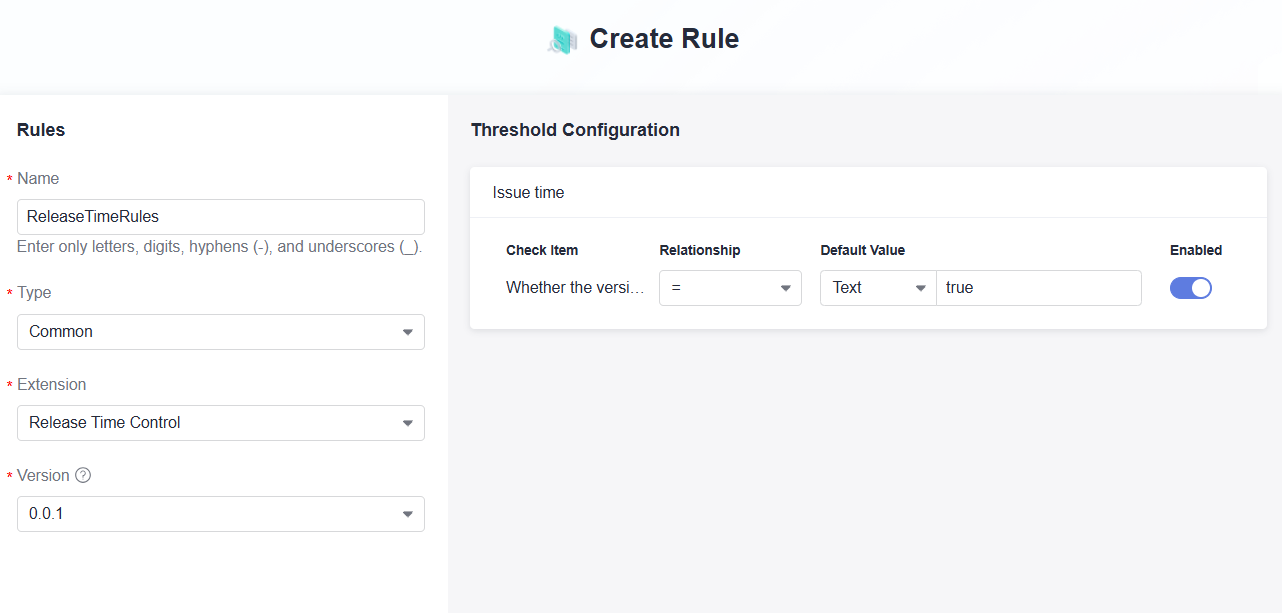
- Click Create Rule. On the displayed page, configure parameters by referring to the following figure.
- Click Confirm. A message is displayed, indicating that the rule is created.
- In the navigation pane on the left, choose Policy Management > Policies.
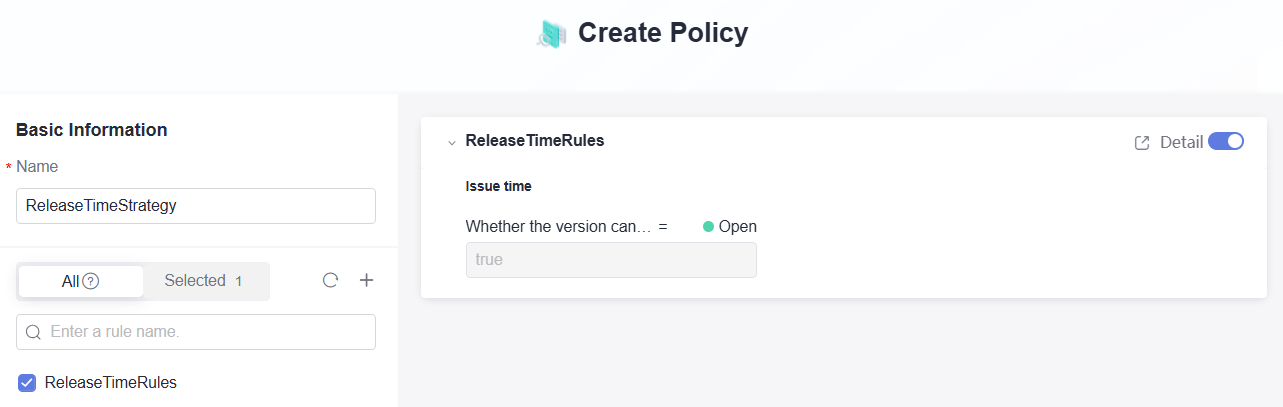
- Click Create Policy and set parameters by referring to the following figure.
- Click Confirm. A message is displayed, indicating that the policy is created.
Step 3: Use the Custom Extension and Release Policy in a Pipeline
- On the top navigation bar, click Homepage.
- Search for the project created in preparations and access the project.
- In the navigation pane on the left, choose CICD > Pipeline.
- Search for the pipeline created in Preparations, click
 in the Operation, and select Edit. The Task Orchestration page is displayed.
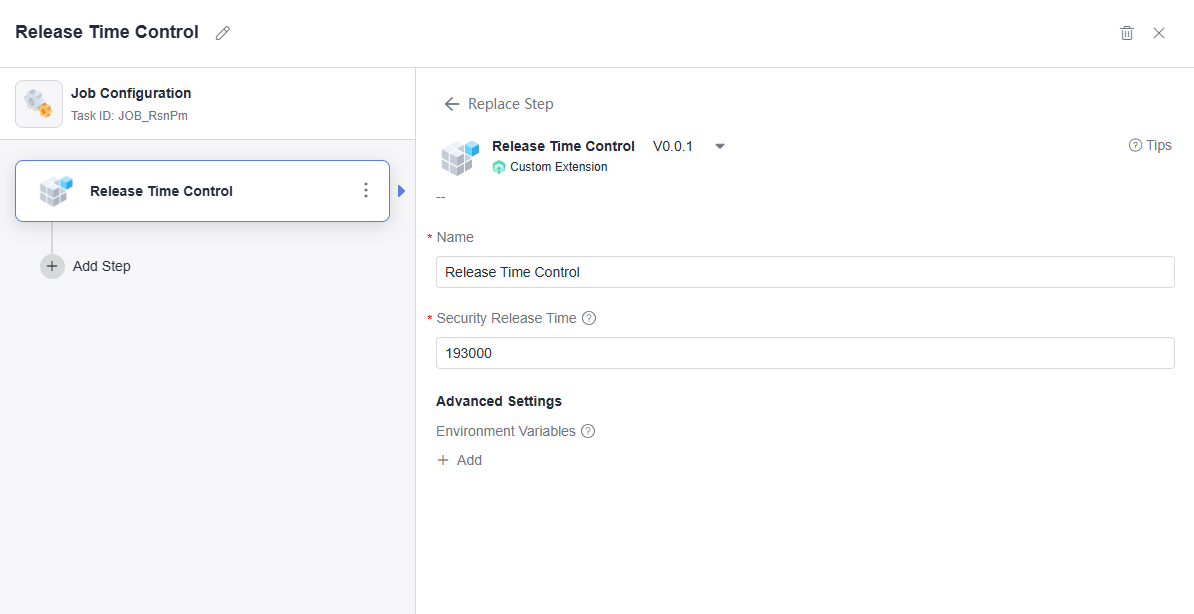
 - Click Create Job under Stage_1, search for and add the Release Time Control extension created in Step 1, set parameters by referring to the following figure, and click OK.
- Click Pass Conditions under Stage_1. In the displayed window, move the cursor to the Pass-Conditions-of-Standard-Policies card and click Add.
- Select the policy created in Step 3 and click OK.
- Click Save and Execute. In the displayed window, retain the default settings and click Execute.
- Verify the execution result.
Feedback
Was this page helpful?
Provide feedbackThank you very much for your feedback. We will continue working to improve the documentation.See the reply and handling status in My Cloud VOC.
For any further questions, feel free to contact us through the chatbot.
Chatbot


