

(Optional) Creating a Workspace in Enterprise Mode and Upgrading the Simple Mode to Enterprise Mode
Scenario
This section describes how to create a workspace in enterprise mode that can isolate the development and production environments, and how to upgrade the simple mode to enterprise mode for a workspace.
Restrictions
You can upgrade your workspace mode or create a workspace in enterprise mode only if you are assigned the DAYU Administrator or Tenant Administrator role.
Prerequisites
Before the creation and upgrade, ensure that:
- You have understood the differences between workspaces in simple mode and those in enterprise mode, such as the differences in the development process. For details, see Comparison Between Workspace Modes.
- You have configured workspace-level scheduling identities, including public agencies and public IAM accounts. For details, see Configuring a Public Agency and Configuring a Public IAM Account.
- You have prepared two sets of isolated data lake engines, one for the development environment and the other for the production environment. For details, see Configuring Environment Isolation. After the data lake service is created, prepare and synchronize data. For details, see Prepare and synchronize data..
Configuring Environment Isolation
For a workspace in enterprise mode, you need to configure data lake engines for the development and production environments to isolate them. Data development jobs in the development environment of a workspace that uses the enterprise mode are not scheduled by default. They can be scheduled only after released to the production environment. The configuration methods are as follows.

- Configure two sets of data lake services to isolate the development environment from the production environment.
For clustered data sources, such as MRS , RDS, MySQL, Oracle, DIS, ECS, and DWS, you can create data connections in Management Center to distinguish data lake services in the development environment from those in the production environment. The data lake is automatically switched during development and production. You need to prepare two sets of data lake services with the same version, specifications, components, region, VPCs, subnets, and other related configurations. For details, see Creating a DataArts Studio Data Connection.
When creating a data connection, you can select different clusters for the development environment and production environment to isolate them.Figure 2 Selecting different clusters during data connection creation

- Configure environment isolation for DLI.
Configure environment isolation in enterprise mode, including DLI queue configuration and DB configuration.
For serverless services (such as DLI), DataArts Studio configures the mapping between data lake services in the production environment and development environment through environment isolation in the management center. The corresponding data lake is automatically switched during the development and production processes. You need to prepare two sets of queues and database resources in the serverless data lake service and distinguish them by name suffix. For details, see Configuring Environment Isolation for a DataArts Studio Workspace in Enterprise Mode.
- Configure two databases in the same data lake service to isolate the development environment from the production environment. For DWS, MRS Hive, and MRS Spark, if you select the same cluster when creating a data connection (as shown in Figure 3), you must configure database mapping on the Configure Data Source Resource Mapping page shown in Figure 4 to isolate the development and production environments. For details, see DB Configuration.


Prepare and synchronize data.
After creating data lake services, you must create databases, database schemas (required only for DWS), and data tables in the data lake services of the development and production environments based on the project plan (for example, the databases and tables required for data development).
| Data Source Type | Naming Rule |
|---|---|
| Clustered data source (such as MRS, DWS, RDS, MySQL, Oracle, DIS, and ECS) | Two sets of cluster resources are used. The names of databases, database schemas (required only for DWS), and data tables in the two environments must be the same. |
| Serverless service (such as DLI) | You are advised to associate and distinguish the two queues and databases by name suffix (add suffix _dev to the names of the queues and databases in the development environment and add no suffix to those in the production environment). The names of data tables in the development environment must be the same as those in the production environment. |
| DWS, MRS Hive, and MRS Spark | If the same cluster is used for the development and production environments, use two databases to isolate the development and production environments (add suffix _dev to the database for the development environment and add no suffix to the database for the production environment). The names of database schemas (required only for DWS) and data tables in the development environment must be the same as those in the production environment. |
- Existing data in data lakes: Use data migration services such as CDM and DRS to synchronize data in batches between data lakes.
- Data to be migrated from the data source: Use peering jobs of data migration services such as CDM and DRS to synchronize data between the data lake service of the production environment and that of the development environment.
Upgrading the Simple Mode to Enterprise Mode
With the DAYU Administrator or Tenant Administrator role, you can upgrade a workspace in simple mode to one in enterprise mode.
- Pre-upgrade operations
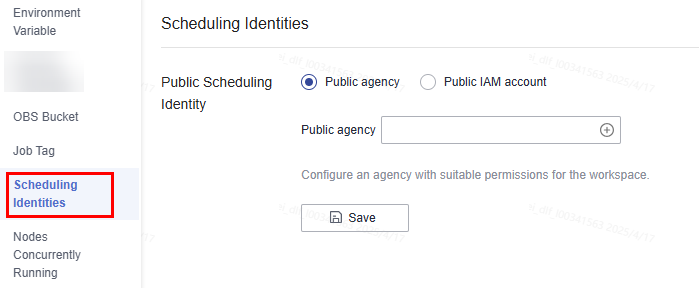
Configure a workspace-level public agency or public IAM account in DataArts Factory to avoid an upgrade failure.
For details about how to configure an agency, see Configuring a Scheduling Identity.
Figure 5 Configuring a workspace-level agency
- Upgrade operations
- Log in to the DataArts Studio console.
For details, see Accessing the DataArts Studio Instance Console.
- Locate a DataArts Studio instance and click Access. Then, click the Workspaces tab.
- Locate the workspace you want to upgrade and click Edit in Operation column.
- In the displayed Workspace Information dialog box, click Upgrade next to the Mode text box. In the displayed dialog box, click Upgrade. Figure 6 Upgrading to the enterprise mode

- Log in to the DataArts Studio console.
- Post-upgrade operations
After the upgrade is complete, you (as the admin) need to modify data connections, configure environment isolation, and define roles such as the admin, developer, deployer, and operator in the workspace.
- Modify data connections. For details, see Creating a DataArts Studio Data Connection.
- Configure environment isolation. For details, see Configuring Environment Isolation for a DataArts Studio Workspace in Enterprise Mode.
- Define workspace roles for other users. For details, see Adding Workspace Members and Assigning Roles.
Creating a Workspace in Enterprise Mode
If you have not used the simple mode before and do not need to inherit business data, you can directly create a workspace in enterprise mode.
- Create a workspace.
- Log in to the DataArts Studio console as the DAYU Administrator or Tenant Administrator account by referring to Accessing the DataArts Studio Instance Console.
- Locate an instance and click Access. Then click the Workspaces tab.
- Click Create Workspace. In the displayed dialog box, set parameters based on Table 1 and click OK. Figure 7 Creating a workspace
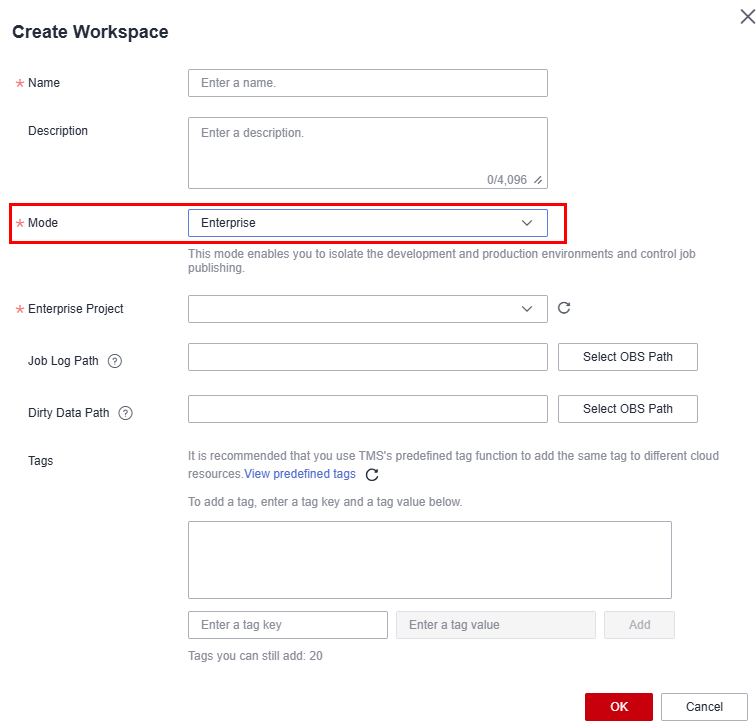
Table 1 Parameters for creating a workspace Parameter
Description
Name
Workspace name. It can contain a maximum of 32 characters, including only letters, digits, underscores (_), and hyphens (-). The workspace name must be unique in the current DataArts Studio instance.
Description
Workspace description. It can contain a maximum of 1,024 characters.
Mode
Select Enterprise.
Enterprise Project
You can select an enterprise project only if you have created one. If you want to connect the DataArts Studio instance to an instance of another cloud service (such as DWS, MRS, and RDS), ensure that the enterprise project of the DataArts Studio workspace is the same as that of the target cloud service instance.- You can buy only one DataArts Studio instance for an enterprise project.
- If you want to enable communication between the instance and another cloud service, ensure that the enterprise project of the instance is the same as that of the target cloud service.
NOTE:If the enterprise project function is not enabled, only one DataArts Studio instance can be created for each IAM project. To create multiple instances, enable the enterprise project function and create an enterprise project.
Job Log Path
OBS path for storing job logs and running data in the workspace, including job logs in DataArts Factory, reports in DataArts Quality, and dump logs of DataArts DataService clusters. Workspace members who want to use DataArts Factory, DataArts Quality, or DataArts DataService functions must have the read and write permissions of the job log OBS bucket. Otherwise, the system cannot read or write job logs and running data.
- Click Select OBS Path and select an OBS bucket and object. The selected OBS bucket applies to the workspace. You can only select an OBS object bucket, but not a parallel file system.
- If you do not set this parameter, job logs in DataArts Factory and reports in DataArts Quality are stored in the dlf-log-{projectId}/{workspaceId} directory by default. Dump logs of DataArts DataService clusters are stored in the dlm-{projectId} bucket by default. {projectId} indicates the project ID, which can be obtained in the following way:
- Register with and log in to the management console.
- Hover the cursor on the username in the upper right corner and select My Credentials from the drop-down list.
- On the API Credentials page, obtain the account name, account ID, IAM username, and IAM user ID, and obtain the project and its ID from the project list.
NOTE:After a job in DataArts Factory is executed, the execution result log is stored in the OBS bucket path in {Job ID}.log format. The log shows the historical execution records. Deleting the historical records of SQL statements does not affect services.
Dirty Data Path
OBS bucket for storing dirty data generated during DLI SQL execution in DataArts Factory of DataArts Studio. To use DataArts Factory to develop and execute DLI SQL statements, workspace members must have the read and write permissions on the OBS bucket where DLI dirty data is stored. Otherwise, the system cannot read or write the dirty data generated during DLI SQL execution.
- Click Select OBS Path. You can select a created OBS bucket and an object. The selected OBS bucket is globally configured in the current workspace.
- If you do not set this parameter, dirty data generated during DLI SQL execution is stored in the OBS bucket named dlf-log-{projectId}/{workspaceId} by default.
Tags
You can add resource tags to classify resources.NOTE:If your account belongs to an organization and the organization has configured DataArts Studio tag policies, you need to add tags based on these policies. If a tag does not comply with the tag policies, instance creation may fail. Contact your administrator to learn more about tag policies.
If you have multiple workspaces, you can add tags to classify them by user, operator, or purpose. On the workspace list page, you can search for workspaces by tag.
A tag consists of a key and a value. When adding a tag, you can select a predefined tag created in Tag Management Service (TMS) or enter a custom tag. Then click Add to the right of the text box to add the tag.NOTE:To select predefined tags, ensure that you have created predefined tags in TMS. You can click View predefined tags to enter the Predefined Tag page of TMS. Then, click Create Tag to create a predefined tag. For details, see Creating Predefined Tags in Tag Management Service User Guide.
A maximum of 20 tags can be added to a workspace. Each tag key must be unique and can only match one tag value.
- Perform follow-up operations.
After creating the workspace, you (as the admin) need to create data connections, configure environment isolation, and define roles such as the admin, developer, deployer, and operator in the workspace.
- Create data connections. For details, see Creating a DataArts Studio Data Connection.
- Configure environment isolation. For details, see Configuring Environment Isolation for a DataArts Studio Workspace in Enterprise Mode.
- Define workspace roles for other users. For details, see Adding Workspace Members and Assigning Roles.
- Configure a workspace-level public agency or public IAM account in DataArts Factory. For details about how to configure an agency, see Configuring a Scheduling Identity. Figure 8 Configuring a workspace-level agency

Related Operations
Related APIs
| API | Description |
|---|---|
| This API is used to create a workspace. | |
| This API is used to obtain the workspace list. | |
| This API is used to obtain information about a workspace. |
What is your overall rating for this page?
Thank you very much for your feedback. We will continue working to improve the documentation.See the reply and handling status in My Cloud VOC.
For any further questions, feel free to contact us through the chatbot.
Chatbot


