

Buying a TaurusDB for PostgreSQL Instance and Connecting to It Using a PostgreSQL Client
After a TaurusDB for PostgreSQL instance is purchased, you can log in to a Linux ECS, install a PostgreSQL client on it, and run psql commands to connect to the instance using the private IP address.
Operation Process
| Process | Description |
|---|---|
| Sign up for a Huawei Cloud Account, ensure that there is a valid payment method configured, and implement fine-grained permissions management on TaurusDB for PostgreSQL. | |
| Select required basic settings and additional options and buy a TaurusDB for PostgreSQL instance. | |
| If you want to use the PostgreSQL client to connect to a DB instance, you need to prepare a server, install the PostgreSQL client on the server, and run the connection command. Purchase a Linux ECS that is in the same region and VPC as your TaurusDB for PostgreSQL instance. | |
| Test the network connectivity between the ECS and the private IP address and port of the TaurusDB for PostgreSQL instance, and install the PostgreSQL client on the ECS. | |
| Step 4: Connect to the DB Instance Using a CLI (Non-SSL Connection) | Use a command-line interface (CLI) to connect to the TaurusDB for PostgreSQL instance using the private IP address and port. |
Preparations
- Sign up for a Huawei Cloud account.
- Before buying instances, ensure that your account balance is sufficient. Top up your account if required.
- For fine-grained permissions management on Huawei Cloud resources, use Identity and Access Management (IAM) to create a user or user group and grant it specific operation permissions.
Procedure
Step 2: Buy an ECS
- Go to the Elastic Cloud Server console.
- Check whether there is a Linux ECS that meets the requirements.

TaurusDB for PostgreSQL supports the following client installation methods:
- Download the PostgreSQL client installation package. This method is recommended for PostgreSQL 15 and earlier versions. It has requirements on ECS images. For details, see the official PostgreSQL documentation.
- Download the source code. This method has no requirements on PostgreSQL versions or ECS images.
- If yes, go to 3.
- If no, purchase an ECS and select Linux (for example, CentOS 7) as its OS.
To download a PostgreSQL client to the ECS, bind an EIP to the ECS. The ECS must be in the same region, VPC, and security group as the TaurusDB for PostgreSQL instance for mutual communications.
For details about how to purchase a Linux ECS, see Purchasing an ECS in Custom Config Mode in Elastic Cloud Server User Guide.
- Check whether the ECS and the TaurusDB for PostgreSQL instance are in the same region and VPC. Figure 1 ECS information
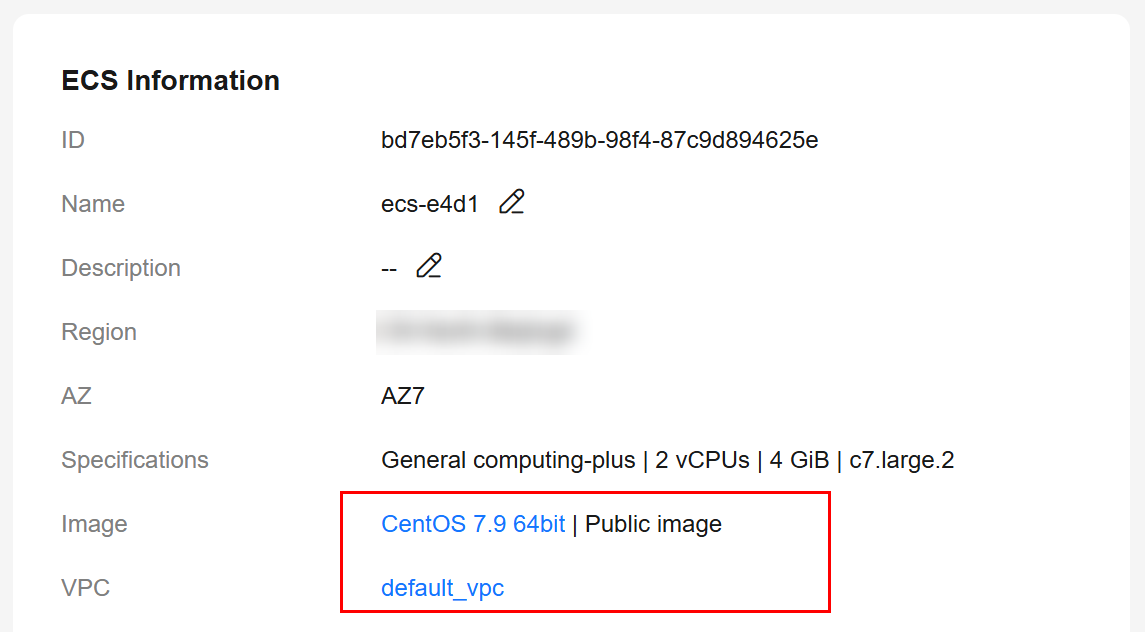 Figure 2 TaurusDB for PostgreSQL instance information

- If they are not in the same region, purchase another ECS. The ECS and DB instance in different regions cannot communicate with each other. To reduce network latency, deploy your DB instance in the region nearest to your workloads.
- If they are in different VPCs, change the VPC of the ECS to that of the DB instance. For details, see Changing a VPC.
Step 3: Test Connectivity and Install the PostgreSQL Client
- Log in to the ECS. For details, see Logging In to a Linux ECS Using VNC in Elastic Cloud Server User Guide.
- On the Instances page of the TaurusDB console, click the instance name to go to the Basic Information page.
- In the Network Information area, obtain the private IP address and database port.
- On the ECS, check whether the private IP address and database port of the DB instance can be connected.
curl -kv 192.168.0.7:5432
- If yes, network connectivity is normal.
- If no, check the security group rules.
- If in the security group of the ECS, there is no outbound rule with Destination set to 0.0.0.0/0 and Protocol & Port set to All, add an outbound rule for the private IP address and port of the DB instance.
- If in the security group of the DB instance, there is no inbound rule allowing the access from the private IP address and port of the ECS, add an inbound rule for the private IP address and port of the ECS.
- Install the PostgreSQL client.
Installation from source code: This installation method has no restrictions on TaurusDB for PostgreSQL instance versions and ECS OS types.
The following uses an ECS using the Huawei Cloud EulerOS 2.0 image as an example to describe how to install a PostgreSQL 16.4 client.
Figure 3 Checking the ECS image

- To use SSL, download OpenSSL to the ECS in advance.
sudo yum install -y openssl-devel
- Obtain the code download link, run wget to download the installation package to the ECS, or download the installation package to the local PC and then upload it to the ECS.
wget https://ftp.postgresql.org/pub/source/v16.4/postgresql-16.4.tar.gz
- Decompress the installation package.
tar xf postgresql-16.4.tar.gz
- Compile the source code and then install the client.
cd postgresql-16.4
./configure --without-icu --without-readline --without-zlib --with-openssl
make -j 8 && make install

If --prefix is not specified, the default path is /usr/local/pgsql. The client can be installed in the simplest way.
Figure 4 Compilation and installation

- Add the following code to the /etc/profile file to configure environment variables:
export PATH=/usr/local/pgsql/bin:$PATH
export LD_LIBRARY_PATH=/usr/local/pgsql/lib:$LD_LIBRARY_PATH
source /etc/profile
- Test whether the psql is available.
psql -V
Figure 5 Testing psql

- To use SSL, download OpenSSL to the ECS in advance.
What is your overall rating for this page?
Thank you very much for your feedback. We will continue working to improve the documentation.See the reply and handling status in My Cloud VOC.
For any further questions, feel free to contact us through the chatbot.
Chatbot


