

Applying for Issuing a Private Certificate
After you create and activate a private CA, you can apply for private certificates from the private CA and use them for identity authentication, data encryption, and data decryption of internal applications.
This topic walks you through how to apply for a private certificate. You can apply for a maximum of 100,000 certificates.
Application Scenarios
Private certificates are valid only within an enterprise's internal trust system and are not trusted by public network browsers by default. They are used for identity authentication and encrypted communication among intranets, devices, and service systems. Typical application scenarios are as follows:
- HTTPS encryption for internal web applications: You can use a private CA to quickly issue certificates for web services such as Nginx and Tomcat on the intranet to enable HTTPS encryption, preventing risks of plaintext transmission on the intranet.
- IoT device access authentication: You can use a private CA to issue certificates for devices at scale. When a device connects to the platform, two-way identity authentication is performed using its certificate to prevent unauthorized device access.
- Two-way authentication between services: For internal communication within a microservice cluster, private certificates are configured on both the server and client to enable two-way identity authentication and prevent man-in-the-middle (MITM) attacks.
- Internal user identity authentication: You can use private CAs to establish an internal certificate management system. You can issue and manage self-signed private certificates for identity authentication, data encryption and decryption, and secure data transmission within your organization.
- Code signature and email encryption: You can use a private CA to issue certificates for internal program code signing, email encryption, and email signing.
- IoV terminal authentication: In vehicle-cloud and vehicle-road communication scenarios, vehicles use private certificates for identity authentication.
Prerequisites
- You have purchased and activated a private CA. For details, see Purchasing a Private CA and Activating a Private CA.
- The remaining quota of the private CA is not 0.
Viewing the Remaining Quota of Private Certificates
- Log in to the CCM console.
- In the navigation pane on the left, choose .
- In the upper left corner of the page, view the total quota and remaining quota of private certificates. Figure 1 shows an example.

Applying for Issuing a Private Certificate
- Log in to the CCM console.
- In the navigation pane on the left, choose .
- In the upper right corner of the private certificate list, click Apply for Certificate. Figure 2 System generated CSR
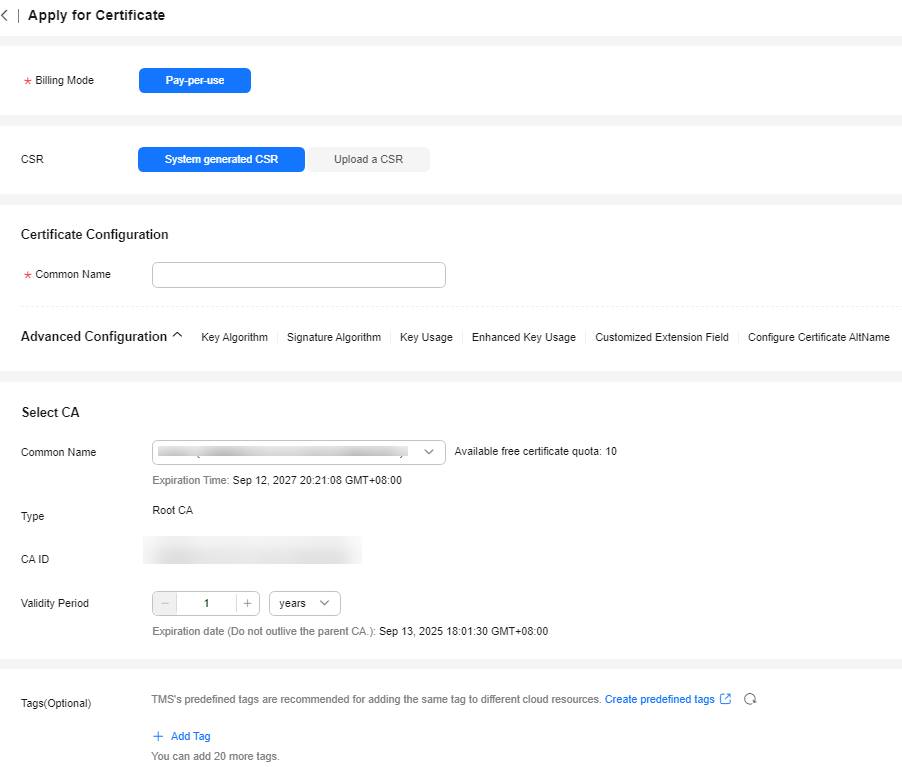 Figure 3 Upload a CSR
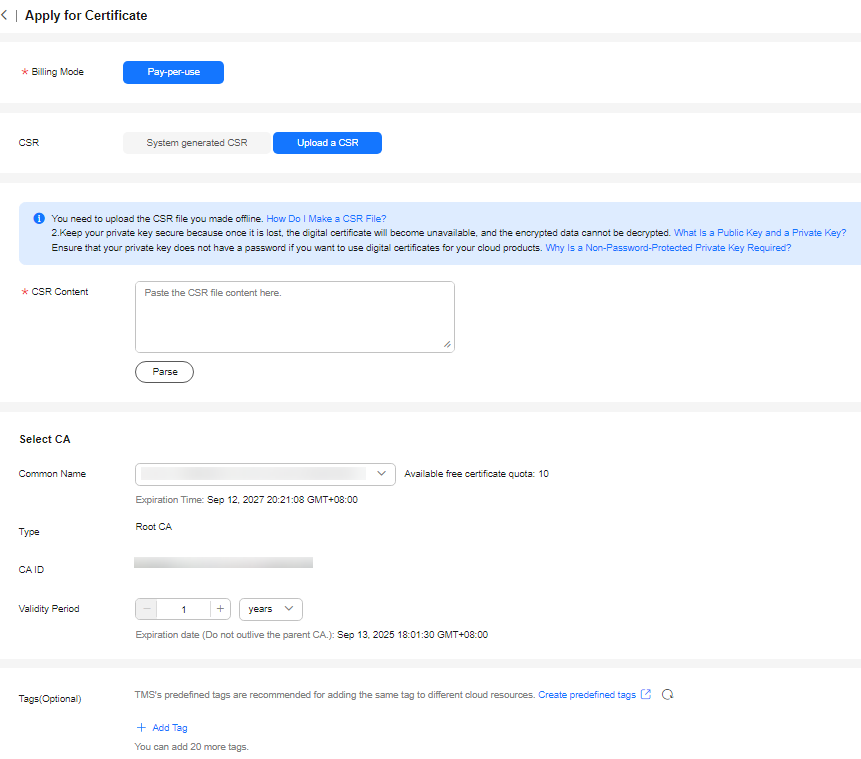
- Select the CSR file generation method.
To obtain a certificate, a CSR file needs to be submitted to the CA for review. A CSR contains a public key and a distinguished name (DN). Typically, a CSR is generated by a web server. A pair of public and private keys is created along with the CSR.
You can select System generated CSR or Upload a CSR. You are advised to select System generated CSR to avoid approval failure caused by incorrect content.- If you select System generated CSR:
The system automatically generates a certificate private key. Once the certificate is issued, you can download your certificate and private key on the certificate management page.
If you select System generated CSR for CSR, you need to configure Common Name and Advanced Configuration. When configuring Common Name, you can customize the name of the private certificate you are applying for. For details about the parameters in the Advanced Configuration area, see Table 1.Table 1 Advanced settings Parameter
Description
Example Value
Key algorithm
Key Algorithm: Select the key algorithm and key size for the private certificate.
You can select RSA2048, RSA3072, RSA4096, EC256, EC384, or ED25519.
RSA2048
Signature Algorithm
Select the signature hash algorithm for the private certificate.
You can select SHA-256, SHA384, SHA512, SHA-256_PSS, SHA384_PSS, or SHA512_PSS.
SHA256
Key Usage
Select the key usage of the certificate. You can select more than one option.
- digitalSignature: The key is used as a digital signature.
- nonRepudiation: The key can be used for non-repudiation.
- keyEncipherment: The key can be used for key encryption.
- dataEncipherment: The key can be used for data encryption.
- keyAgreement: The key can be used as a key-agreement protocol.
- keyCertSign: The key can be used to issue certificates.
- cRLSign: The key can be used for signing blacklists.
- encipherOnly: The key can be used for encryption only.
- decipherOnly: The key can be used for decryption only.
digitalSignature
Enhanced Key Usage
Select the enhanced key usage for the certificate. You can select more than one option.
- Server identity authentication
- Client identity authentication
- Code signature
- Secure email
- Timestamp
- Smart card login
Server identity authentication
Customized Extension Field
Enter customized information of the certificate.
None
Configure Certificate AltName
This field is optional. If you want to use the private certificate for multiple subjects, you can add more AltName records.
You can configure IP address, DNS, Email, URI, or UPN for AltName. When you configure AltName, enter the value according to the value type you select.
- IP address: Enter an IP address.
- DNS: Enter the domain name.
- Email: Enter an email address.
- URI: Enter the network address.
- UPN: user principal name
A maximum of 20 AltName records can be configured.
None
- If you select Upload a CSR:
A private key file will be generated when the CSR file is generated manually. Keep your private key files stored safely. A private key maps to a certificate. If a private key is lost, the corresponding certificate becomes invalid. Huawei Cloud is not responsible for keeping your private key. You need to purchase a new certificate if the private key is lost.
There are strict requirements on the key length of the CSR file. The key must be RSA and it must be 2,048 bits long.
You can use an existing CSR. The procedure is as follows:
- Manually generate a CSR file and paste the content of the CSR file into the text box.
- Click Parse.
- If you select System generated CSR:
- Select a CA.
Table 2 Parameters for selecting a CA Parameter
Description
Common Name
Select a common name of the private CA you want.
Type
The CA type is autofilled after you specify Common Name.
CA ID
The CA ID is autofilled after you specify Common Name.
Validity Period
Configure the validity period of the private certificate.
NOTE:- You can customize the validity period of a private certificate. The validity period cannot outlive the validity period of the activated private CA.
- A private CA can be valid for up to 30 years.
- Select the CSR file generation method.
- (Optional) Tags: Add a tag to the purchased certificate. For details, see Creating a Tag.
- Confirm the information and click OK.
After you submit your application, the system will return to the private certificate list page. Message "Certificate xxx applied for successfully." is displayed in the upper right corner of the page, indicating that the private certificate application is successful.
After you submit the certificate application, the private certificate will be issued immediately. After the certificate is issued, you can view the issued certificates on the Private Certificate page.
Follow-up Procedure
After a private certificate is issued, you can download it to your local PC. For details, see Downloading a Private Certificate.
Only the downloaded private certificate can be assigned to the corresponding certificate subject for installation and use. For details, see Installing a Private Certificate on a Client and Installing a Private Certificate on a Server.
Related Concepts
- AltName
Subject Alternative Name (AltName) is an extension field in an X.509 certificate. It stores multiple subject identities corresponding to a certificate. If you want to use a single common name (CN) field for multiple services, devices, domain names, or IP addresses, you can add information about all the subjects that need to use the certificate to AltName.
The following five types of subject identities are supported: IP address, DNS, Email, URI, and UPN. A maximum of 20 records can be configured.- DNS: multiple domain names, for example, app-inner-01.test.local and *.test.local.
- IP address: The certificate is bound to an internal IP address. Both IPv4 and IPv6 addresses are supported.
- Email: email address bound to the certificate. This type is mainly used for email security certificates.
- URI: resource access address.
- User Principal Name (UPN): Windows domain account format, for example, user01@company.local. It is mainly used for smartcard login in Windows domain environments and user identity certificates on Huawei Cloud.
- CSR
A certificate signing request (CSR) is a message sent from an applicant to a CA to apply for an SSL certificate. A CSR contains a public key and a distinguished name (DN). Typically, a CSR is generated by a web server. A pair of public and private keys is created along with the CSR. For details, see Creating a CSR.
FAQ
- Validity Periods of Private Certificates
- How Is PCA in CCM Billed?
- Can I Discontinue a Private CA After It Issues A Private Certificate?
- What Can I Do If the Message "The Certificate Validity Period Must Be Within the Validity Period of the Parent CA" Is Displayed During Switchover Between DST and Standard Time?
What is your overall rating for this page?
Thank you very much for your feedback. We will continue working to improve the documentation.See the reply and handling status in My Cloud VOC.
For any further questions, feel free to contact us through the chatbot.
Chatbot


