

Changing the vCPUs and Memory of a DB Instance or Node Manually
Scenarios
You can change the specifications (vCPUs and memory) of a DB instance or node that is billed on a yearly/monthly or pay-per-use basis. You can also change specifications of multiple instances in batches. You can change the specifications of the primary node and read replicas separately. The specifications of read replicas can be different from those of the primary node. When you change the specifications of the primary node separately, the specifications of synchronous read replicas are also changed.
You can upgrade or downgrade specifications of your TaurusDB instance or node. Instance specifications can only be changed from general-purpose to dedicated.
To scale up the storage space of a yearly/monthly DB instance, see Manually Changing the Storage Capacity of a DB Instance and Configuring Storage Autoscaling.
Serverless DB instances do not support specification changes. To adjust the compute configuration of a serverless DB instance, see Changing the Compute Range of a Serverless Instance.
Principles
When you change the specifications of a DB instance, read replicas with the new specifications are automatically created. The number of created read replicas is the same as that of the original nodes. For example, if you change the specifications of a cluster instance with one primary node and one read replica, two read replicas with the new specifications are automatically created. Once created, these read replicas will replace the original nodes. One of the read replicas is promoted to primary, and the original primary node is automatically deleted. The remaining read replica replaces the original read replica, which then is also automatically deleted.
Constraints
| Phase | Constraint |
|---|---|
| Before the change |
|
| During the change |
|
| After the change |
|
Billing
| Billing Mode | Operation | Impact on Price |
|---|---|---|
| Yearly/Monthly | Specification upgrade | After instance specifications are upgraded, the new instance specifications take effect in the original usage period. You need to pay for the difference in price based on the remaining period. The following prices are for reference only. The actual prices are displayed on the console. Suppose you purchased a one-month TaurusDB cluster instance (instance specifications: dedicated, 2 vCPUs | 8 GB, 2 nodes; storage: DL6, 10 GB) in CN-Hong Kong on April 1, 2025. The instance price was $296 USD per month. On April 15, 2025, you changed the instance specifications to 4 vCPUs | 8 GB. The instance price became $586 USD per month. Price difference = Price for the new instance specifications x Remaining period – Price for the original instance specifications x Remaining period The remaining period is the remaining days of each calendar month divided by the maximum number of days in each calendar month. In this example, the remaining period and price difference are calculated as follows: Remaining period = 15 (Remaining days in April)/30 (Maximum number of days in April) = 0.5. Price difference = $586 USD x 0.5 – $296 USD x 0.5 = $145 USD |
| Specification downgrade | After instance specifications are downgraded, the new instance specifications take effect in the original usage period. TaurusDB refunds the difference in price based on the remaining period. The following prices are for reference only. The actual prices are displayed on the console. Suppose you purchased a one-month TaurusDB cluster instance (instance specifications: general-purpose, 4 vCPUs | 8 GB, 2 nodes; storage: DL6, 10 GB) in CN-Hong Kong on April 1, 2025. The instance price was $257.52 USD per month. On April 15, 2025, you changed the instance specifications to 2 vCPUs | 4 GB. The instance price became $132.72 USD per month. Refund = Price for the original instance specifications x Remaining period – Price for the new instance specifications x Remaining period The remaining period is the remaining days of each calendar month divided by the maximum number of days in each calendar month. In this example, the remaining period and refunded fees are calculated as follows: Remaining period = 15 (Remaining days in April)/30 (Maximum number of days in April) = 0.5. Refund = $257.52 USD x 0.5 – $132.72 USD x 0.5 = $62.4 USD | |
| Pay-per-use | Specification upgrade | After instance specifications are changed, the new instance specifications are billed by the hour immediately. For details, see Product Pricing Details. |
| Specification downgrade |
Video Tutorial
Changing the Specifications of a DB Instance or Node
- Log in to the TaurusDB console.
- Click
 in the upper left corner and select a region.
 - On the Instances page, locate the DB instance whose specifications you want to change and choose in the Operation column.
You can also enter the page for changing instance specifications in either of the following ways:
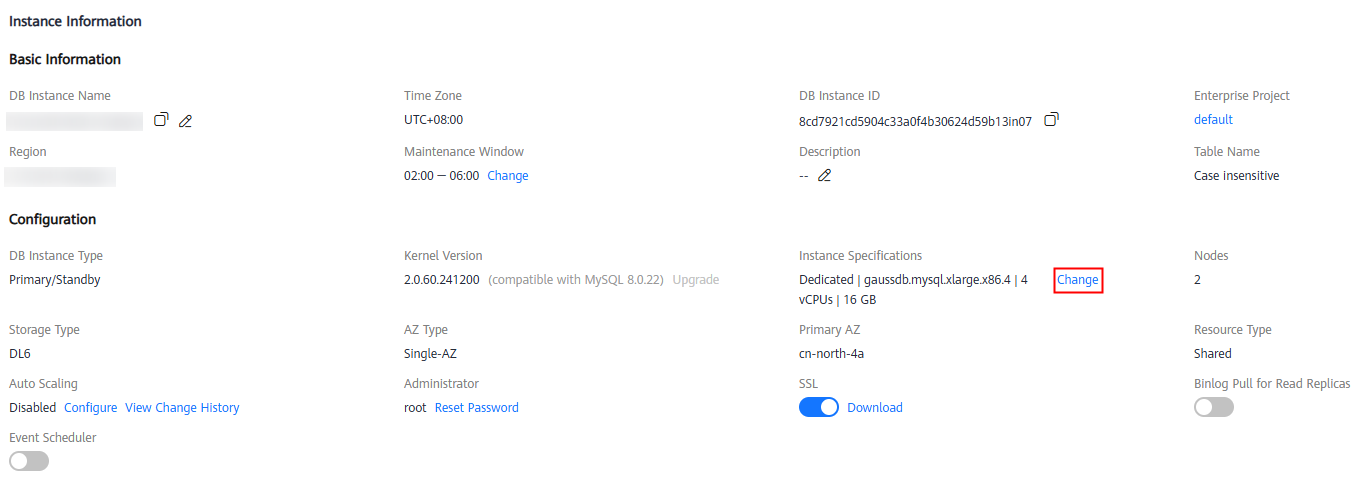
- Click the instance name to go to the Basic Information page. In the Configuration area, click Change under Instance Specifications. Figure 1 Changing specifications in the Configuration area
- Click the instance name to go to the Basic Information page. In the upper right corner of the page, click
 and choose Change Instance Specifications. Figure 2 Changing specifications on the Basic Information page

- Click the instance name to go to the Basic Information page. In the Configuration area, click Change under Instance Specifications.
- On the displayed page, select the desired specifications. You can scale up or down the specifications as required.
You can change the specifications immediately or during the maintenance window.
- Upon submission: The specifications will be changed immediately after the task is submitted.
- In maintenance window: The specifications will be changed during the maintenance window you specify.
- Click Next. On the displayed page, confirm the specifications.
- If you need to modify your settings, click Previous to go back to the page where you specify details.
- For pay-per-use instances, click Submit.
To view the cost incurred by the specifications change, access the Billing Center page and then choose Billing > Dashboard in the navigation pane.
- For yearly/monthly instances:
- If you intend to scale down the specifications, click Submit.
The refund is automatically returned to your account. You can access the Billing Center page and then choose Orders > My Orders in the navigation pane to view the details.
- If you intend to scale up the specifications, click Submit. The scaling starts only after the payment is successful.
- If you intend to scale down the specifications, click Submit.
- If you have enabled operation protection, click Send Code in the displayed Identity Verification dialog box and enter the obtained verification code. Then, click OK. The page closes automatically.
Two-factor authentication improves the security of your account. For details about how to enable operation protection, see Identity and Access Management User Guide.
- View the results.
On the Instances page, check that the status of the instance is Changing instance specifications. After 15–20 minutes, click the instance name to view the new instance specifications on the Basic Information page.
- Log in to the TaurusDB console.
- Click in the upper left corner and select a region.
- On the Instances page, click the target instance name.
- In the node list, locate the primary node and click Change Instance Specifications in the Operation column.
- On the displayed page, select the desired specifications. You can scale up or down the specifications as required.
You can change the specifications immediately or during the maintenance window.
- Upon submission: The specifications will be changed immediately after the task is submitted.
- In maintenance window: The specifications will be changed during the maintenance window you specify.
- Click Next. On the displayed page, confirm the specifications.
- If you need to modify your settings, click Previous to go back to the page where you specify details.
- For pay-per-use instances, click Submit.
To view the cost incurred by the specifications change, access the Billing Center page and then choose Billing > Dashboard in the navigation pane.
- For yearly/monthly instances:
- If you intend to scale down the specifications, click Submit.
The refund is automatically returned to your account. You can access the Billing Center page and then choose Orders > My Orders in the navigation pane to view the details.
- If you intend to scale up the specifications, click Submit. The scaling starts only after the payment is successful.
- If you intend to scale down the specifications, click Submit.
- View the results.
Check that the status of the primary node is Changing instance specifications. After 15–20 minutes, view its new specifications on the Basic Information page.
- Log in to the TaurusDB console.
- Click in the upper left corner and select a region.
- On the Instances page, click the target instance name.
- In the node list, locate a read replica and click Change Instance Specifications in the Operation column.
- On the displayed page, select the desired specifications. You can scale up or down the specifications as required.
You can change the specifications immediately or during the maintenance window.
- Upon submission: The specifications will be changed immediately after the task is submitted.
- In maintenance window: The specifications will be changed during the maintenance window you specify.
- Click Next. On the displayed page, confirm the specifications.
- If you need to modify your settings, click Previous to go back to the page where you specify details.
- For pay-per-use instances, click Submit.
To view the cost incurred by the specifications change, access the Billing Center page and then choose Billing > Dashboard in the navigation pane.
- For yearly/monthly instances:
- If you intend to scale down the specifications, click Submit.
The refund is automatically returned to your account. You can access the Billing Center page and then choose Orders > My Orders in the navigation pane to view the details.
- If you intend to scale up the specifications, click Submit. The scaling starts only after the payment is successful.
- If you intend to scale down the specifications, click Submit.
- View the results.
Check that the status of the read replica is Changing instance specifications. After 15–20 minutes, view its new specifications on the Basic Information page.
- Log in to the TaurusDB console.
- Click in the upper left corner and select a region.
- On the Instances page, select at least one instance (maximum: 50) and click Change Instance Specifications above the instance list.
- On the displayed page, select the required specifications. You can scale up or down the specifications as required.
For batch specification changes, only the Upon submission option is available for the maintenance window.
- Click Next. On the displayed page, confirm the specifications.
- If you need to modify the settings, click Previous.
- For pay-per-use instances, click Submit.
To view the cost incurred by the specifications change, access the Billing Center page and then choose Billing > Dashboard in the navigation pane.
- For yearly/monthly instances:
- If you intend to scale down the specifications, click Submit.
The refund is automatically returned to your account. You can access the Billing Center page and then choose Orders > My Orders in the navigation pane to view the details.
- If you intend to scale up the specifications, click Submit. The scaling starts only after the payment is successful.
- If you intend to scale down the specifications, click Submit.
- Check the result.
On the Instances page, you can see that the instance status is Changing instance specifications. The process takes 15–20 minutes. Then, go to the Basic Information page and view the instance specifications.
Follow-up Operations
- If you have selected Upon submission for Scheduled Time:
On the Instant Tasks page, search for Changing the specifications of a TaurusDB instance and check the execution progress. Instant tasks cannot be canceled.
- If you have selected Maintenance Window for Scheduled Time:
On the Scheduled Tasks page, search for the instance ID and check the execution status of the change task.
If the task is in the To be executed state, you can click Cancel to cancel the task.
For details, see Viewing a Task.
What is your overall rating for this page?
Thank you very much for your feedback. We will continue working to improve the documentation.See the reply and handling status in My Cloud VOC.
For any further questions, feel free to contact us through the chatbot.
Chatbot


