

Creating a User Group and Assigning Permissions
Scenarios
If your enterprise does not require every employee to register an individual account, you can use Identity and Access Management (IAM). Only the enterprise's administrator needs to create an account. The account can be used to create user groups and assign permissions. Then, the IAM users created for the enterprise personnel can be added to different user groups based on their job responsibilities. For the definitions of an account and IAM user, see Basic Concepts.
The following shows how an enterprise administrator uses IAM to create user groups and assign permissions.
Procedure
| Step | Description |
|---|---|
| Sign up for a Huawei Cloud account. | |
| Create a user group, which is the minimum authorization unit. | |
| Assign permissions defined by roles or policies to the user group. Users added to this group can inherit the assigned permissions. |
Preparations
If you already have a Huawei Cloud account, go to Step 1. If you do not have a Huawei Cloud account, perform the following steps to create one:
- Visit the Huawei Cloud official website and click Sign Up in the upper right corner.
- Sign up for a Huawei Cloud account.
After the signup, you will be redirected to your personal information page.
Step 1: Create a User Group
- Use your account to log in to Huawei Cloud. Figure 1 Logging in to Huawei Cloud

- Access the Huawei Cloud management console. Figure 2 Accessing the management console

- On the management console, hover the mouse pointer over the username in the upper right corner, and choose Identity and Access Management from the drop-down list. Figure 3 Accessing the IAM console

- In the navigation pane of the IAM console, choose User Groups and click Create User Group. Figure 4 Creating a user group

- In the displayed dialog box, enter a name, for example, Developer. Only letters, digits, spaces, hyphens (-), and underscores (_) are allowed.Figure 5 Setting user group details

Table 1 User group information Parameter
Example
Description
Name
developers
(Mandatory) Only letters, digits, spaces, hyphens (-), and underscores (_) are allowed.
Description
Skip
(Optional) The description field is optional and can be used to provide additional information about the user group.
- Click OK.
You will be redirected to the user group list, where the created developer user group is displayed.
Step 2: Assign Permissions to the User Group
Assume that developers in the enterprise need to use ECS and OBS, so the administrator needs to perform the following operations to assign the required permissions to the developer user group to enable access to these services. For details about the permissions of all cloud services, see System-defined Permissions.
- Determine the permissions required by the users in the user group.
Table 2 lists the required permissions. You can determine which permissions are required by referring to System-defined Permissions. The application scope is determined by geographic areas where services are deployed.
- Region-specific project-level services: If permissions are assigned for a region-specific project, the permissions are only applied in that project. For example, if you assign permissions only for CN-Hong Kong, IAM users have no permissions to access resources in other projects.
- Global services: Global services are deployed in all regions. You do not need to switch regions when accessing global services. For example, if you grant OBS permissions to an IAM user, the user can access OBS resources in all region-specific projects.
- In the user group list, click Authorize in the row containing the developer user group. Figure 6 Authorizing a user group

- Assign permissions to the user group for region-specific projects.
- Select the check boxes for the required ECS permissions (listed in Table 2), and click Next. Figure 7 Selecting required permissions

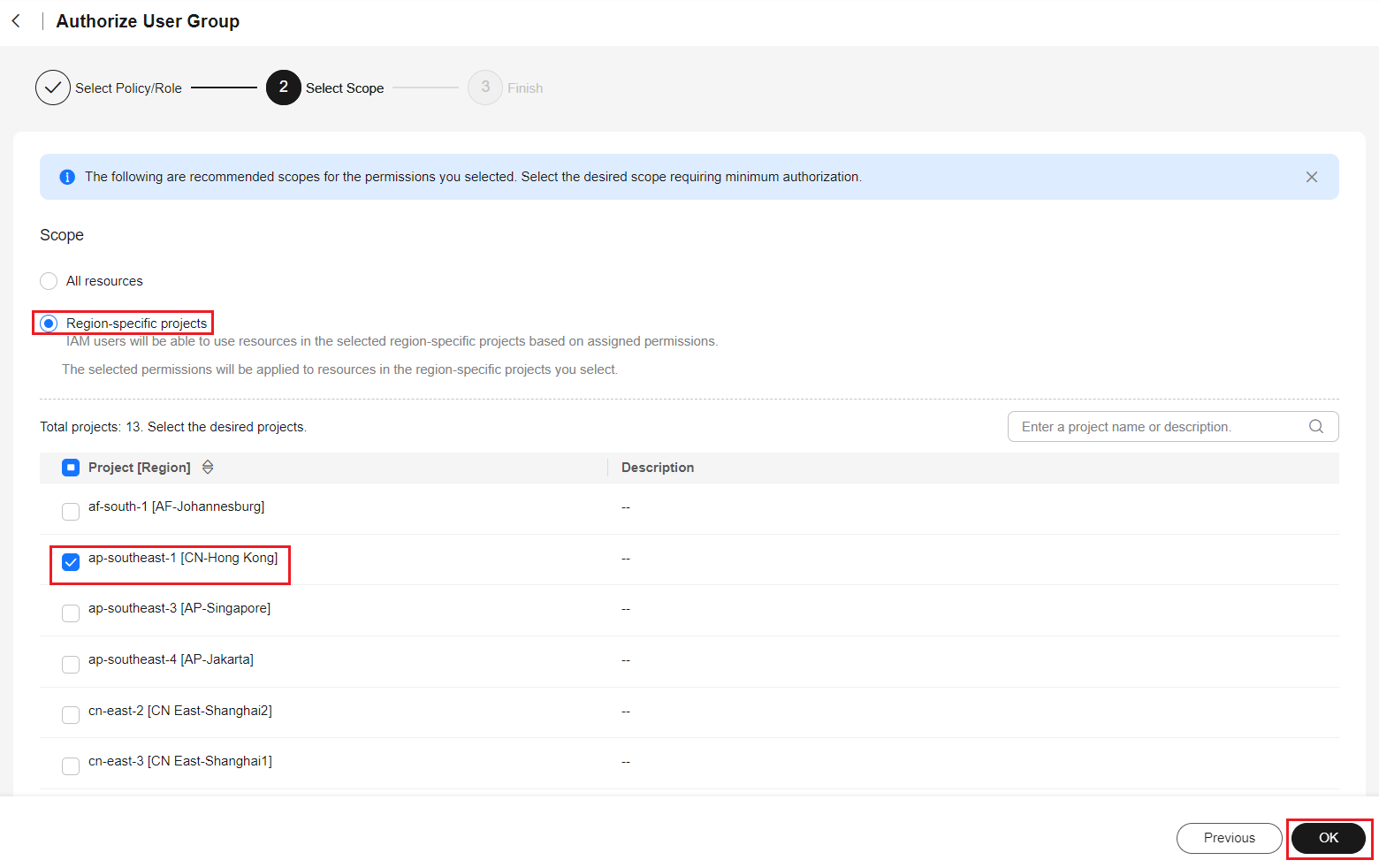
- Select Region-specific projects for Scope, select CN-Hong Kong, and click OK.
Then users in the developer user group can only access resources in CN-Hong Kong.
Figure 8 Specifying the permission scope
- Select the check boxes for the required ECS permissions (listed in Table 2), and click Next.
- In the user group list, click Authorize in the row containing the developer user group. Figure 9 Authorizing a user group

- Assign permissions to the user group for global services.
- Select OBS OperateAccess and click Next. Figure 10 Selecting OBS OperateAccess

- Select Global services for Scope and click OK. Figure 11 Specifying the permission scope

After the permissions are assigned, click the name of the developer user group to view the assigned permissions on the Permissions tab of the user details page.

OBS permissions take effect within 15 to 30 minutes after authorization is complete.
- Select OBS OperateAccess and click Next.
What is your overall rating for this page?
Thank you very much for your feedback. We will continue working to improve the documentation.See the reply and handling status in My Cloud VOC.
For any further questions, feel free to contact us through the chatbot.
Chatbot


