

Help Center/ TaurusDB/ User Guide/ Data Backup/ Backup Security/ Enabling or Disabling Encrypted Backup
Updated on 2026-09-16 GMT+08:00
Enabling or Disabling Encrypted Backup
Scenarios
TaurusDB can encrypt backups. After encrypted backup is enabled, a key is required, which is generated and managed by Data Encryption Workshop (DEW).
Prerequisites
- Using IAM role/policy-based authorization, you must have the kms:grant:create permission to enable encrypted backup. If you do not have these permissions, create a custom policy.
- Using IAM identity policy-based authorization, you must have the kms:cmk:createGrant permission to enable encrypted backup. If you do not have these permissions, create a custom identity policy.
Precautions
- Only the backups generated after backup encryption is enabled will be encrypted.
- After backup encryption is disabled, new backup files will not be encrypted for storage. Backup files created before backup encryption is disabled will not be decrypted.
- Currently, only the SM4 and AES-256 key algorithms are supported. After backup encryption is enabled, the key algorithm cannot be changed.
- The key cannot be disabled, deleted, or frozen while in use, or the encrypted backups cannot be used for restoration.
- Encrypted backups can be directly used to restore data on the management console. You do not need to manually decrypt backups.
- Once encrypted backup is enabled for your DB instance, data cannot be restored to an existing DB instance, even if encrypted backup is disabled later.
- Cross-region backup and encrypted backup cannot be both enabled.
- When encrypted backup is enabled for a DB instance, only the key of the corresponding enterprise project can be selected. To view keys in an enterprise project, see Viewing Key Details.
Enabling Encrypted Backup
- Log in to the TaurusDB console.
- Click
 in the upper left corner and select a region.
 - On the Instances page, click the instance name.
- Choose Backups in the navigation pane and click
 next to Encrypted Backup. Figure 1 Enabling encrypted backup

- In the displayed dialog box, select a key or enter a key ID.
Only the SM4 and AES-256 key algorithms are supported.
Figure 2 Selecting a key
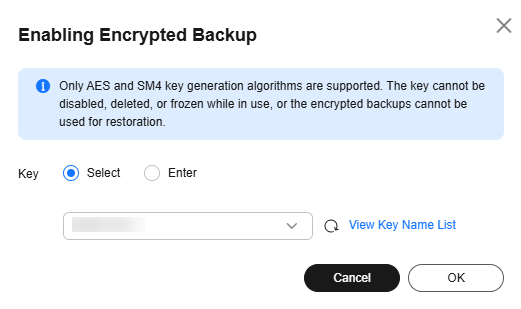
- Click OK.
- Refresh the page and check whether encrypted backup is enabled.
Disabling Encrypted Backup
- Log in to the TaurusDB console.
- Click in the upper left corner and select a region.
- On the Instances page, click the instance name.
- Choose Backups in the navigation pane and click
 next to Encrypted Backup.
 - In the displayed dialog box, click OK.
What is your overall rating for this page?
0
1
2
3
4
5
6
7
8
9
10
Very dissatisfiedVery satisfied
Thank you very much for your feedback. We will continue working to improve the documentation.See the reply and handling status in My Cloud VOC.
The system is busy. Please try again later.
For any further questions, feel free to contact us through the chatbot.
Chatbot


