

Configuring Storage Autoscaling
Scenarios
With storage autoscaling enabled, when RDS detects that you are running out of database space, it automatically scales up your storage.
Autoscaling up the storage space of a read replica does not affect that of the primary DB instance. Therefore, you can separately autoscale read replicas to meet service requirements. New storage space of read replicas after autoscaling up must be greater than or equal to that of the primary DB instance.
You can enable storage autoscaling in either of the following ways:
- Enable this function when you create a DB instance. For details, see Buying an RDS for PostgreSQL DB Instance.
- Enable this function after you create a DB instance. See the operations provided in this section.
Constraints
- You can enable storage autoscaling only when your account balance is greater than or equal to $0 USD.
- The storage space can be scaled up automatically only when your instance status is Available or Storage full.
- Storage autoscaling for RDS for PostgreSQL DB instances is supported only for cloud SSD and extreme SSD storage types. For details about storage types, see DB Instance Storage Types.
- The maximum allowed storage is 4,000 GB.
- For a primary/standby DB instance, autoscaling the storage for the primary node will also autoscale the storage for the standby node.
- Storage autoscaling is unavailable when the DB instance is in any of the following statuses: changing instance class, upgrading a minor version, migrating the standby DB instance, and rebooting.
- If a yearly/monthly DB instance has pending orders, it will not be autoscaled.
Procedure
- Log in to the management console.
- Click
 in the upper left corner and select a region.
 - Click
 in the upper left corner of the page and choose Databases > Relational Database Service.
 - On the Instances page, click the target DB instance or read replica name (click
 in front of a DB instance to locate its read replica) to go to the Summary page.
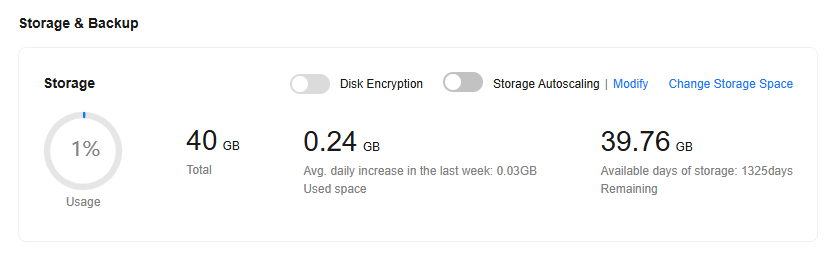
 - In the Storage & Backup area, enable Storage Autoscaling.
Figure 1 Storage space
- In the displayed dialog box, set the following parameters:
Figure 2 Configuring autoscaling
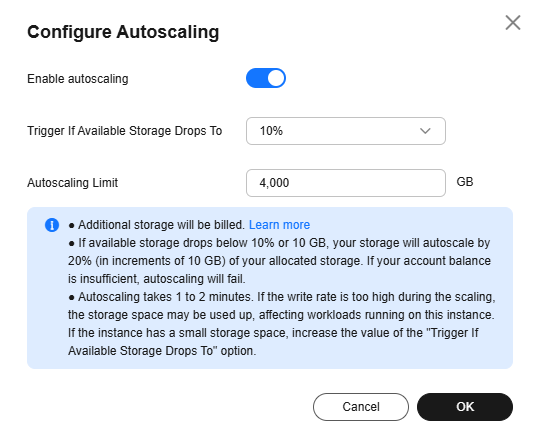
Table 1 Parameter description Parameter
Description
Enable autoscaling
If you select this option, autoscaling is enabled.
Trigger If Available Storage Drops To
If the available storage drops to a specified threshold (10%, 15%, or 20%) or 10 GB, autoscaling is triggered.
Autoscaling Limit
The default value range is from 40 GB to 4,000 GB. The limit must be no less than the storage of the DB instance.
- Click OK.
Feedback
Was this page helpful?
Provide feedbackThank you very much for your feedback. We will continue working to improve the documentation.See the reply and handling status in My Cloud VOC.
For any further questions, feel free to contact us through the chatbot.
Chatbot


