

Creating a Read Replica
Scenarios
Read replicas enhance the read capabilities of primary instances and reduce the load on them.
After an RDS instance is created, you can create read replicas for it as needed.
Constraints
- Up to five read replicas can be created for a primary instance.
- The specifications of a read replica must be at least equal to the specifications of the primary instance. If you want the specifications of a read replica to be smaller than those of the DB instance, submit a service ticket.
Procedure
- Log in to the RDS console.
- Click
 in the upper left corner and select a region.
 - On the Instances page, locate the target instance and choose More > Create Read Replica in the Operation column.
- On the displayed page, configure required information and click Buy. Figure 1 Basic information
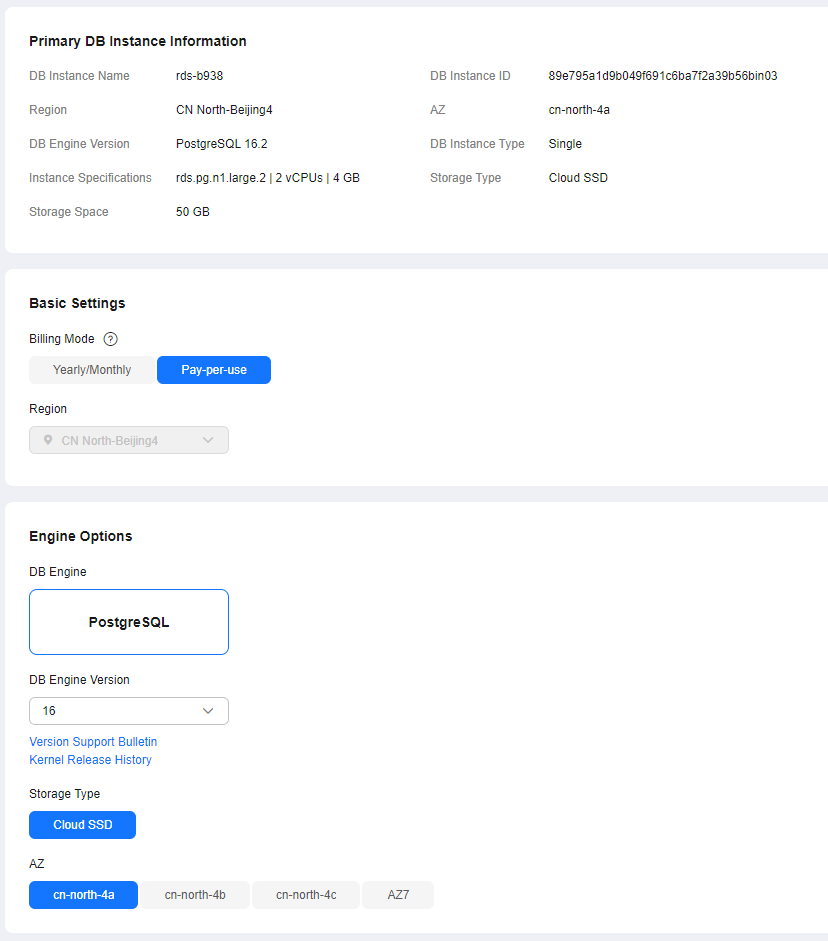
Table 1 Basic information Parameter
Description
Billing Mode
Yearly/monthly billing and pay-per-use billing are supported.
Region
By default, read replicas are in the same region as your DB instance.
DB Engine
Same as the DB engine of your DB instance by default and cannot be changed.
DB Engine Version
Same as the DB engine version of the primary DB instance by default and cannot be changed.
Storage Type
Determines the instance read/write speed. A higher maximum throughput enables faster I/O operations.- Cloud SSD
Provides cloud disks with elastic scaling. Storing data on cloud SSD storage helps decouple compute from storage. The maximum throughput is 350 MiB/s.
The supported IOPS depends on the I/O performance of the Elastic Volume Service (EVS) disk. For details, see the description about ultra-high I/O in Disk Types and Performance of the Elastic Volume Service Service Overview.
- Extreme SSD
Uses 25GE network and RDMA technologies to provide you with up to 1,000 MiB/s throughput per disk and sub-millisecond latency.
The supported IOPS depends on the I/O performance of the EVS disk. For details, see the description about extreme SSD storage in Disk Types and Performance of Elastic Volume Service Service Overview.
- Flexible SSD
Decouples capacity from performance and allows for tailored IOPS and throughput for your business requirements with fixed capacity. This storage type is ideal for mainstream interactive applications that require high performance and low latency.
- You can preconfigure an IOPS ranging from 3,000 to 128,000. This IOPS must also be less than or equal to 500 times the storage capacity. You can preconfigure a throughput ranging from 125 to 1,000 MiB/s. This throughput must also be less than or equal to the IOPS divided by 4. For details, see the description about general-purpose SSD V2 in Disk Types and Performance.
NOTE:To purchase instances with flexible SSD storage, submit a service ticket.
- If you select DSS for Resource Type, only the storage type that you have selected when buying the DSS service is displayed by default.
AZ
RDS allows you to deploy your DB instance and read replicas in a single AZ or across AZs to improve reliability.
Figure 2 Specifications
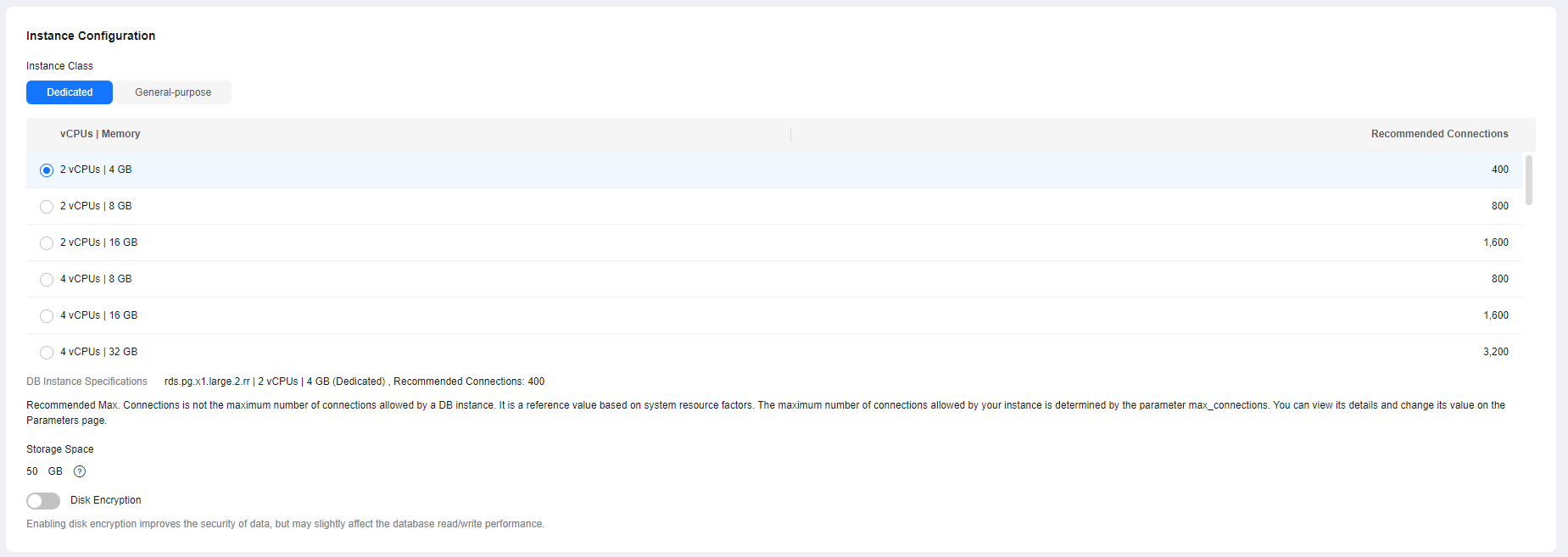
Table 2 Instance specifications Parameter
Description
Instance Class
Refers to the vCPUs and memory of a DB instance. Different instance classes have different numbers of database connections and maximum IOPS.
After a DB instance is created, you can change its instance class. For details, see Changing a DB Instance Class.
DB instances in a DCC only support the general-enhanced instance class.
Storage Space
Contains the system overhead required for inodes, reserved blocks, and database operation.
By default, storage space of a read replica is the same as that of the primary DB instance.
Disk Encryption
Enabling disk encryption improves data security, but slightly affects instance performance.
Key Name indicates the tenant key. Select one from the drop-down list.
By default, the disk encryption status and key of read replicas are the same as those of the primary instance. After disk encryption is enabled, the following restrictions apply:
- If you enable disk encryption when purchasing the instance, it cannot be disabled afterward but you can modify the key. For details, see Configuring Disk Encryption.
- If you did not enable disk encryption during the purchase, you can enable it after the instance is created. Once disk encryption is enabled, it cannot be disabled later. For details, see Configuring Disk Encryption.
- Keep the key secure. Once the key is disabled, deleted, or frozen, your instance will be inaccessible and its data may not be restored.
Figure 3 Instance and network settings

Table 3 Instance and network settings Parameter
Description
DB Instance Name
Different DB instances can have the same name. The instance name must start with a letter and consist of 4 to 64 characters. Only letters (case-sensitive), digits, hyphens (-), and underscores (_) are allowed.
Enterprise Project
If your account has been associated with an enterprise project, select the target project from the Enterprise Project drop-down list.
For more information about enterprise projects, see Enterprise Management User Guide.
Deletion Protection
Set this parameter as needed. Enabling deletion protection prevents instances from being accidentally deleted. If it is enabled, your instance cannot be deleted.
- If this function is enabled, users with the DELETE privilege cannot delete the instance after it is created.
- If this function is disabled, users with the DELETE privilege can delete the instance after it is created.
- Deletion protection is disabled for instances that fail to be created.
- After an instance is created, you can disable deletion protection for the instance on the Summary page if it is no longer needed. For details, see Enabling or Disabling Deletion Protection for a Read Replica.
VPC
Same as the primary DB instance's VPC.
Subnet
Select the same subnet as the primary DB instance or another subnet in the same VPC. For details about how to create a subnet, see Creating a Subnet for the VPC.
- IPv4 Address:
A floating IPv4 address is automatically assigned when you create a read replica. You can also enter an unused floating IPv4 address in the subnet CIDR block. After the read replica is created, you can change its floating IP address.
- IPv6 Address:
A read replica assigned a floating IPv6 address will be created only when the vCPUs and memory you selected support IPv6 addresses.
A floating IPv6 address is automatically assigned during read replica creation and cannot be specified. After the read replica is created, this floating IP address cannot be changed.
Security Group
Same as the primary DB instance's security group.
Table 4 Tag Parameter
Description
Tag
Optional. Tags help you easily identify and manage your read replicas. A maximum of 20 tags can be added for each read replica.
After a read replica is created, you can view its tag details on the Tags page. For details, see RDS for PostgreSQL Tags.
Table 5 Yearly/monthly read replicas Parameter
Description
Required Duration
The system will automatically calculate the configuration fee based on the selected required duration. The longer the required duration is, the larger discount you will enjoy.
Auto-renew
- By default, this option is not selected.
- If you select this option, the auto-renewal cycle is determined by the selected required duration.
- Cloud SSD
- Confirm specifications.
- If you need to modify your settings, click Previous.
- If you do not need to modify your settings, select the agreement and click Submit for pay-per-use read replicas.
- For yearly/monthly read replicas, select the agreement and click Pay Now.
- After a read replica has been created, you can view and manage it on the Instances page by clicking
 on the left of the DB instance to which it belongs.
 To view the detailed progress and result of the creation, go to the Task Center page. For details, see Task Center.
FAQ
Q: Does creating read replicas during peak hours increase the load on my primary instance when my primary instance's CPU usage is high?
A: Yes. When a read replica is created, it synchronizes data from the primary instance, which consumes I/O and CPU resources of the primary instance. To avoid this impact, you can create read replicas during off-peak hours.
Follow-up Operations
What is your overall rating for this page?
Thank you very much for your feedback. We will continue working to improve the documentation.See the reply and handling status in My Cloud VOC.
For any further questions, feel free to contact us through the chatbot.
Chatbot


