

Run Logs (New Version)
Overview
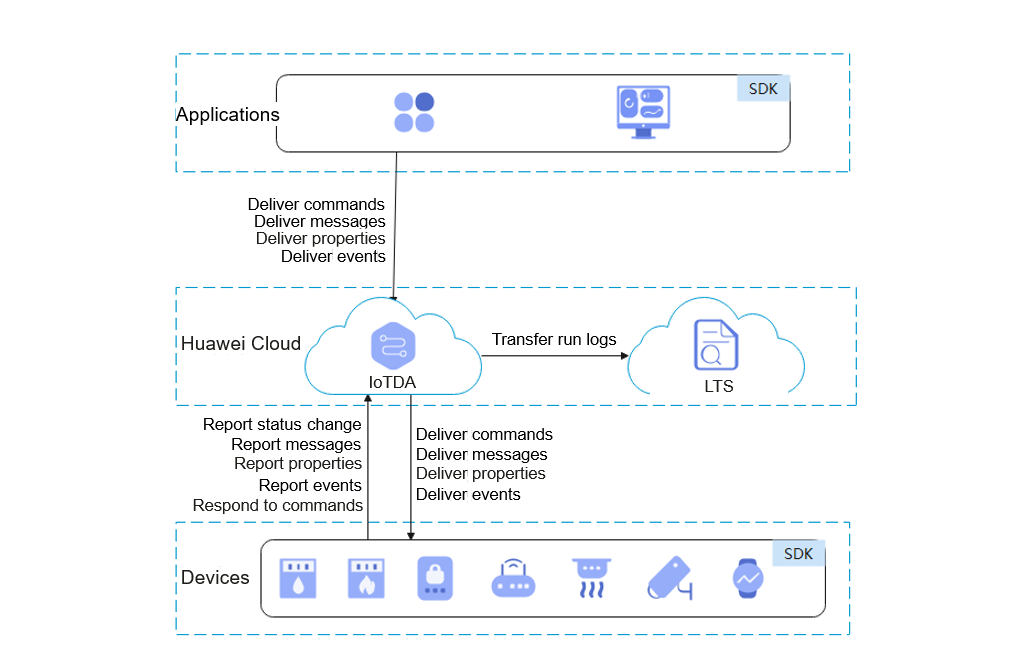
IoTDA records connections with devices and applications and reports them as logs to Log Tank Service (LTS). LTS provides real-time query, mass storage, structured processing, and visualized chart analysis.
You do not need to manually create log groups, log streams, and forwarding rule actions when using the new version of run logs. The platform automatically completes configurations for you. You can log in to the platform to view the run logs.
Constraints
Currently, only service run logs of MQTT devices can be recorded. For details, see Table 1.
| Service Type | Service Flow |
|---|---|
| Device status | Device going online: MQTT Device Connection Authentication |
| Device going offline | |
| Device message | Application requesting message delivery to devices: Delivering a Message to a Device |
| Platform delivering messages to devices: Platform Delivering a Message | |
| Device reporting messages: MQTT Device Reporting a Message | |
| Device command | Application requesting command delivery to devices: Delivering a Synchronous Command to a Device |
| Platform delivering commands to devices: Platform Delivering a Command | |
| Platform receiving device response to commands: Platform Delivering a Command | |
| Device property | Application requesting device property modification: Modifying Device Properties |
| Platform delivering property modification to devices: Platform Setting Device Properties | |
| Device reporting properties: MQTT Device Reporting Properties | |
| Gateway reporting device properties in batches: Gateway Reporting Device Properties in Batches | |
| Device event | Platform notifying a gateway of new child device connection: Platform Notifying a Gateway of New Child Device Connection |
| Platform notifying a gateway of child device deletion: Platform Notifying a Gateway of Child Device Deletion | |
| Gateway synchronizing child device information: Gateway Synchronizing Child Device Information | |
| Gateway updating child device statuses: Gateway Updating Child Device Status | |
| Gateway requesting for adding child devices: Gateway Requesting for Adding Child Devices | |
| Platform responding to a request for adding child devices: Platform Responding to a Request for Adding Child Devices | |
| Gateway requesting for deleting child devices: Gateway Requesting for Deleting Child Devices | |
| Platform responding to a request for deleting child devices: Platform Responding to a Request for Deleting Child Devices | |
| Gateway updating child device statuses: Gateway Updating Child Device Status | |
| Platform responding to a request for updating child device statuses: Gateway Responding to a Request for Updating Child Device Statuses | |
| Platform delivering a command to obtain version information: Platform Delivering an Event to Obtain Version Information | |
| Device reporting the software and firmware versions: Device Reporting the Software and Firmware Versions | |
| Platform delivering an upgrade command: Platform Delivering an Upgrade Event | |
| Device reporting the upgrade status: Device Reporting the Upgrade Status | |
| Device requesting a URL for file upload: Device Requesting a URL for File Upload | |
| Platform delivering a temporary URL for file upload: Platform Delivering a Temporary URL for File Upload | |
| Device reporting file upload results: Device Reporting File Upload Results | |
| Device requesting a URL for file download: Device Requesting a URL for File Download | |
| Platform delivering a temporary URL for file download: Platform Delivering a Temporary URL for File Download | |
| Device reporting file download results: Device Reporting File Download Results | |
| Device requesting time synchronization: Device Requesting Time Synchronization | |
| Platform responding to a request for time synchronization: Platform Responding to a Request for Time Synchronization | |
| Device reporting information: Device Reporting Information | |
| Platform delivering a log collection notification: Platform Delivering a Log Collection Notification | |
| Device reporting log content: Device Reporting Log Content | |
| Platform delivering a configuration notification: Platform Delivering a Configuration Notification | |
| Device reporting the configuration response: Device Reporting the Configuration Response | |
| Device downloading upgrade package | |
| Batch task | Execution result of a subtask in a batch task: Table 2 |
| Device self-registration | Device self-registration result: Performing Device Self-Registration |
| Device authentication | Custom device authentication result |
| Field | Description |
|---|---|
| appId | Application ID. |
| deviceId | Device ID. |
| categoryName | Log type: batch.task. |
| operation | Action. Set this parameter to the ID of a batch task. For details, see Creating a Batch Task. |
| request | Request content in JSON format. { "task_type": "createDevices", / / Task type "package_id": "f2303267a6e8f0053037c2a9", // Software/Firmware upgrade package "package_ids": ["65f3ebe2682b9f4bcc38baad"] // Software/Firmware upgrade package } NOTE: When the batch task type is softwareUpgrade or firmwareUpgrade, the package_id and package_ids parameters are supported. |
| response | Response content in JSON format. Success: { "output" : "xxxxxxxxxxxx" } Failure: { "error" : { "error_code" : "IOTDA.XXXXX", "error_msg" : "XXXXX." } } |
| status | Execution result. Subtask status. Options: Success, Fail, Stopped, or Removed. |
Configuration
- Access IoT Device Access and click Access Console. Click the target instance card.
- In the navigation pane, choose .
- If you are using run logs of an earlier version, you can click New Version in the upper right corner. The new Run Logs page is displayed. If you have used the new version, the new version page is auto displayed. Figure 2 Run logs - Going to new version
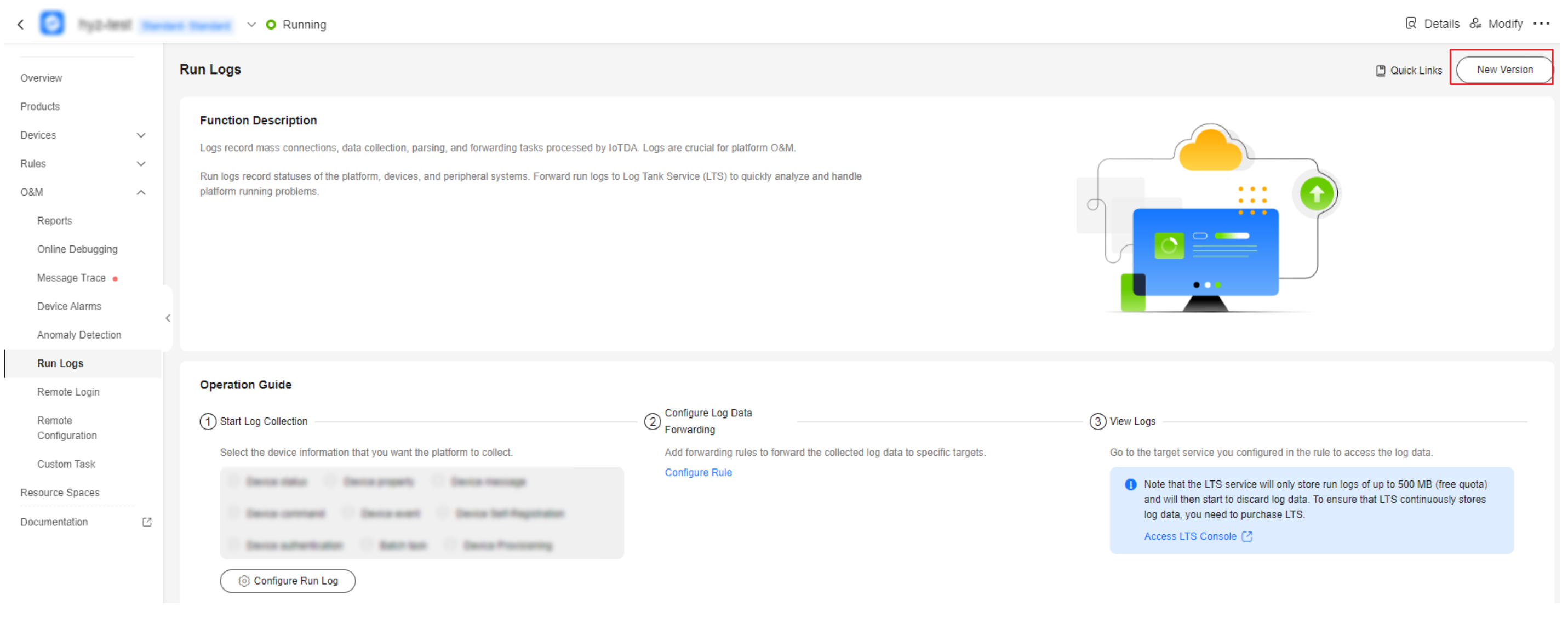
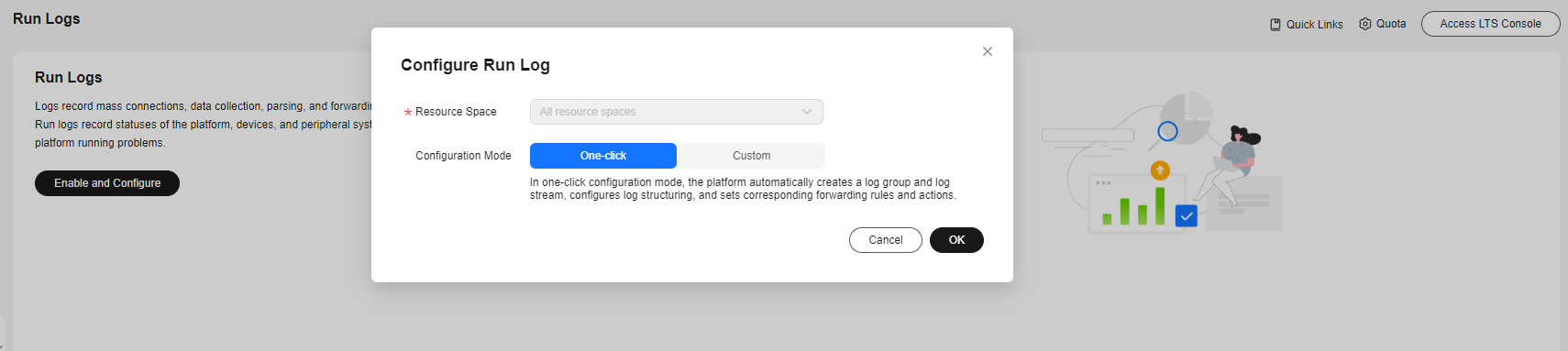
- If you use the function for the first time, you need to click Enable and Configure. Two configuration modes are available.
- One-click configuration:
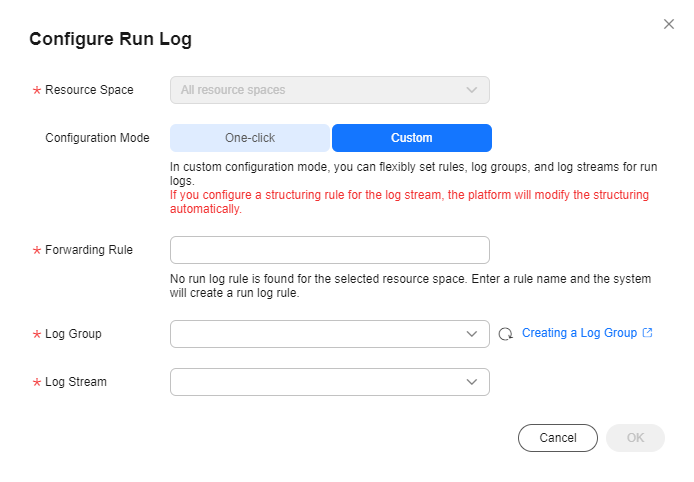
- Custom configuration
You can flexibly set rules, log groups, and log streams for run logs.
If you configure a structuring rule for the log stream, the platform will modify the structuring automatically.
Figure 4 Run log - Custom configuration

Deleting a forwarding rule whose Data Source is Run log may affect functions. Exercise caution.
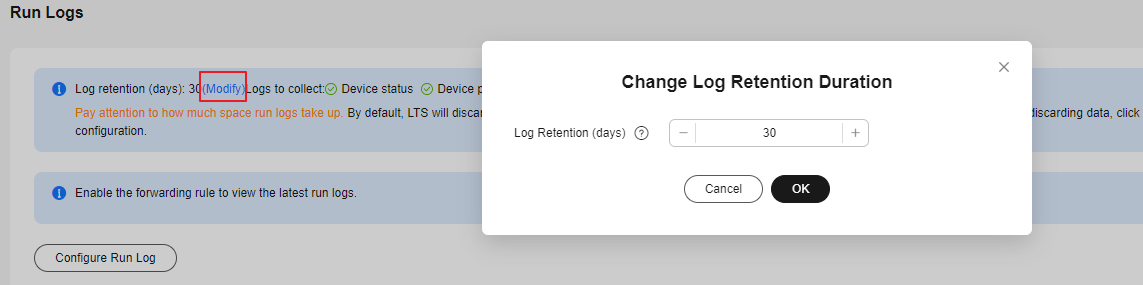
- After configuration, you can view or search for run logs (by time, log type, device ID, action, and request content) to analyze services. Run logs are stored in the LTS for 30 days by default. You can modify the retention duration to 365 days at most on the console. Figure 5 Run logs - Log data
 Figure 6 Run log - Modifying the storage time
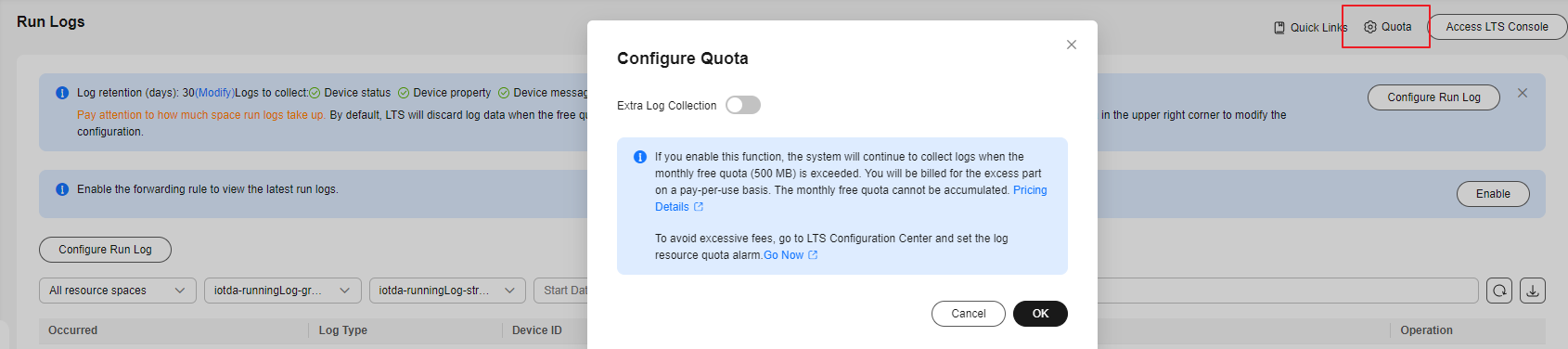
Run logs are stored in LTS. LTS provides a free quota of 500 MB per month. You can click Quota in the upper right corner to configure the Extra Log Collection function. You can also go to LTS Configuration Center and set the log resource quota alarm. For details about LTS, see Log Tank Service (LTS).
- If you enable Extra Log Collection, LTS will continue to collect log data when the monthly free quota (500 MB) is reached. You will be billed for the excess part on a pay-per-use basis. For details, see Price Calculator.
- If you disable Extra Log Collection, LTS will discard log data when the monthly free quota (500 MB) is reached. Figure 7 Run log - Quota setting
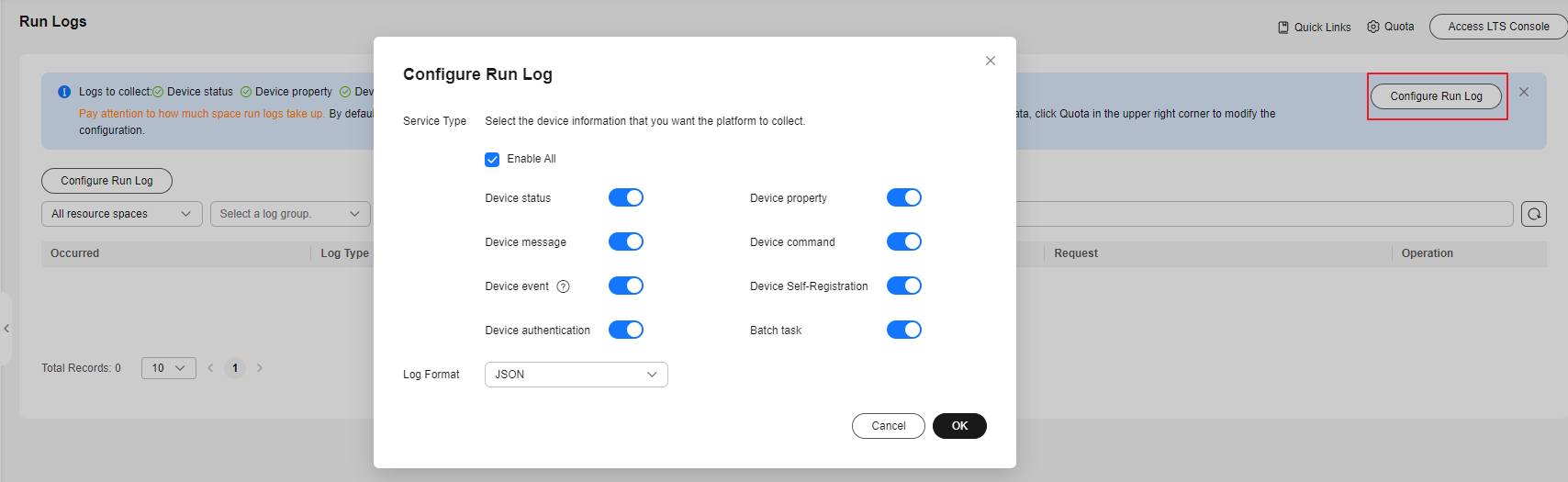
- One or more service types can be enabled for run logs. You can click Configure Run Log and change the log collection type in the displayed dialog box. If you do not select any type, the function of collecting logs is disabled. Figure 8 Run log - Configuring the log switch
SDK Usage
This section describes how to use the Java SDK to report messages, trigger run logs to be transferred to LTS, and check message reporting logs on IoTDA. JDK 1.8 or later is used.
Prerequisites:
- The device has been registered on IoTDA.
- The run logs of the new version have been enabled and configured, and the device message log switch has been enabled.
Configure the SDK on the device side:
- Configure the Maven dependency of the SDK on devices.
<dependency>
	<groupId>com.huaweicloud</groupId>
	<artifactId>iot-device-sdk-java</artifactId>
	<version>1.1.4</version>
</dependency>
- Configure the SDK and device connection parameters on devices. Note: Replace the domain name (domain), device ID (deviceId), and device secret (secret) in the actual code.
// Load the CA certificate of the platform. For details about how to obtain the certificate, see   Obtaining Resources.
URL resource = BroadcastMessageSample.class.getClassLoader().getResource("ca.jks");
File file = new File(resource.getPath());

// The format is ssl://Domain name:Port number.
// To obtain the domain name, log in to the IoTDA console. In the navigation pane, choose Overview and check the access information in the Instance Information area. Select the access domain name corresponding to port 8883.
String serverUrl = "ssl://{domain}:8883";
// Device ID created on the platform
String deviceId = "{deviceId}";
// Secret corresponding to the device ID
String deviceSecret = "{secret}";
// Create a device.
IoTDevice device = new IoTDevice(serverUrl, deviceId, deviceSecret, file);
if (device.init() != 0) {
    return;
}
- Report a message.
 1
 2
 3
 4
 5
 6
 7
 8
 9
10
11
device.getClient().reportDeviceMessage(new DeviceMessage("hello"), new ActionListener() {
    @Override
    public void onSuccess(Object context) {
        log.info("reportDeviceMessage ok");
    }

    @Override
    public void onFailure(Object context, Throwable var2) {
        log.error("reportDeviceMessagefail: "+ var2);
    }
});
Verify the setting:
- Run the SDK code on the device. If the following information is displayed on the console, the device goes online and reports messages successfully.
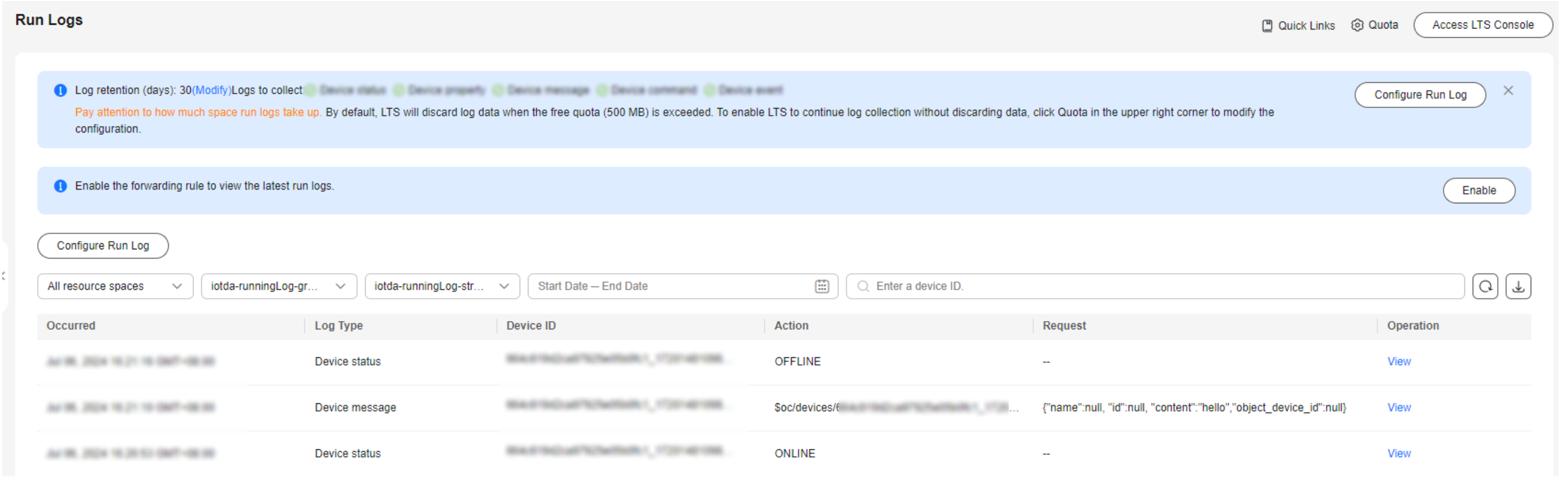
2023-04-27 17:05:26 INFO MqttConnection:88 - Mqtt client connected. address :ssl://{domain}:8883 2023-04-27 17:05:26 INFO MqttConnection:214 - publish message topic = $oc/devices/{deviceId}/sys/messages/up, msg = {"name":null,"id":null,"content":"hello","object_device_id":null} 2023-04-27 17:05:26 INFO MessageSample:43 - reportDeviceMessage ok - Check run logs on the console. You can check the records of device login and logout and messages reported by devices. Figure 9 Run logs - Log example
What is your overall rating for this page?
Thank you very much for your feedback. We will continue working to improve the documentation.See the reply and handling status in My Cloud VOC.
For any further questions, feel free to contact us through the chatbot.
Chatbot


