Managing Resources Associated with an Application
Managing application-related resources by group is a core resource governance capability for cloud native, distributed system, and multi-service line environments. It associates applications with their dependent compute, storage, network, and middleware resources, and classifies and aggregates the resources to implement refined and standardized resource management. This function allows you to create groups based on service attributes, deployment environments, and service levels. For example, you can create resource groups based on tags such as core transaction applications, edge computing nodes, and DR resource pools. It also supports cross-cluster and cross-region resource association to eliminate resource silos. Managing resources by group simplifies resource search and configuration, improves O&M efficiency, and implements unified resource monitoring, permission control, and cost accounting. O&M personnel can deliver policies and execute inspection tasks in batches by group, and management personnel can collect statistics on resource usage and service support by group. In addition, this capability can perfectly match scenarios such as emergency drills and DR switchovers. During a drill, resources in a specified group can be quickly invoked to ensure service continuity and help enterprises build an efficient and controllable resource management system.
Constraints
- In Elastic Load Balance (ELB), a listener is automatically associated with a load balancer. Manual association is not supported.
- Resources cannot be associated with groups across clouds.
Manually Associating Resources with an Application
- Log in to COC.
- In the navigation pane, choose Resources > Application and Resource Management.
- Click Applications.
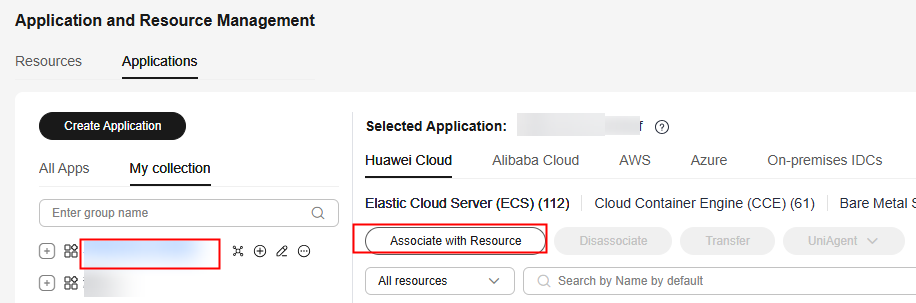
- In the application list on the left, locate and click the application to be associated with resources and click Associate with Resource. Figure 1 Manually associating resources with an application
- Set parameters for associating resources with an application.
Table 1 Parameters for associating resources with an application Parameter
Description
Example Value
Group
Select an application, component, and group from the drop-down list.
Test application/test component/test group
Resource Type
Select a cloud vendor and resource type from the drop-down lists.
Huawei Cloud/Elastic Cloud Server (ECS)/Cloud Server
Resource List
Please select the resources that need to be associated.
-
- Click OK. The selected resources are associated with the group.
Automatically Associating Resources with an Application
Pay attention to the following points when automatically associating resources with an application:
- Automatic association is supported for an application only when resources are automatically associated with the corresponding group. For details about how to change the resource association method, see Modifying a Group.
- After you automatically disassociate resources from a group by referring to Automatically Disassociating Resources from an Application, you can click Automatic Resource Association of the corresponding group to re-associate resources with the group.
- After automatic resource association is triggered, wait for the association task to be executed. The association duration depends on the total number of resources to be associated.
To automatically associate resources with groups, perform the following operations:
- Log in to COC.
- In the navigation pane, choose Resources > Application and Resource Management.
- Click Applications.
- In the application list on the left, locate the target application, expand the application, click the group to be associated with resources. On the right of the page, click Automatic Resource Association. Automatic resource association rules can be modified. Once the update is complete, future associations will seamlessly align with the updated rules. For details about modifying an automatic resource association rule, see Modifying a Group.Figure 2 Automatically associating resources with a group
Transferring Resources
Resources can be transferred only when the enterprise project to which the resources belong is the same as that to which the application belongs.
- Log in to COC.
- In the navigation pane, choose Resources > Application and Resource Management.
- Click Applications.
- In the application list on the left, locate the target application, expand the application, click the group to which you want to transfer resources. On the right of the page, select the resource to be transferred, and click Transfer. Figure 3 Transferring resources
- Select the group to which you want to transfer resources and click OK.
After the transfer is successful, the resource is not displayed in the original group. You can view the resource in the new group and perform O&M operations.
Viewing Resource Details
The resource list only displays some resource attributes. The following shows how to query more details about a resource instance under an application.
- Log in to COC.
- In the navigation pane, choose Resources > Application and Resource Management.
- Click Applications.
- In the application list on the left, locate and click the target application. On the right of the page, click the target resource instance name to go to the resource details page. Figure 4 Viewing resource details
- In the lower part of the details page, click View Resource Details to go to the resource details page.
View the resource details on the resource service details page.
Viewing Resource Capacity Details
You can use COC to view the capacity details of resources associated with an application, sub-application, component, or group. Core resource data and rankings are displayed by resource type.
- Log in to COC.
- In the navigation pane, choose Resources > Application and Resource Management.
- Click Applications.
- In the application list on the left, locate and click the target application, sub-application, component, or group. Click Capacity on the right of the page. View the capacity details of the associated resources.Figure 5 Viewing capacity rankings
Manually Disassociating Resources from an Application
If resources associated with a group are adjusted due to service requirements, you can manually disassociate them from the group.
- Log in to COC.
- In the navigation pane, choose Resources > Application and Resource Management.
- Click Applications.
- In the application list on the left, locate the target application, expand the application, and click the target group. On the right of the page, select the resources to be disassociated from the group in the resource list, and click Disassociate. Figure 6 Disassociating resources from an application group
- Click OK. The resources are automatically disassociated from the application.
Automatically Disassociating Resources from an Application
Pay attention to the following points when automatically disassociating resources from an application:
- Automatic disassociation is supported for an application only when Resource Association Method is set to Automatic association.
- This operation does not delete the rules for automatically associating resources with groups. To delete such a rule, modify the group.
To automatically disassociate resources from a group, perform the following operations:
- Log in to COC.
- In the navigation pane, choose Resources > Application and Resource Management.
- Click Applications.
- In the application list on the left, locate the target application, expand it, and click the group you want to perform operations on.
- Click Auto Disassociate. Figure 7 Automatically disassociating resources from a group
- In the dialog box that is displayed, set the rules for disassociating resources from a group. In an enterprise project, only resources that match all configured tags will be automatically disassociated from the target group.Figure 8 Setting a rule for disassociating resources from a group
- Click OK. The resources are automatically disassociated from the application.
Helpful Links
COC allows you to call APIs to associate resources with applications, transfer resources, unbind resources from applications, and query resources associated with an application. For details, see Associated Resources.
Feedback
Was this page helpful?
Provide feedbackThank you very much for your feedback. We will continue working to improve the documentation.See the reply and handling status in My Cloud VOC.
For any further questions, feel free to contact us through the chatbot.
Chatbot