

Resizing a Cluster
Scenario
| Method | Description | Use Case |
|---|---|---|
| Auto master node flavor upgrade | When enabled, CCE automatically upgrades the master node flavor if the cluster control plane is overloaded or the node count exceeds the current flavor's node limit. | Small and medium-sized clusters without burst high-concurrency services, where loads change dynamically and node counts keep increasing |
| Manual master node flavor upgrade | Manually upgrade the master node flavor. | Scenarios where service scale is predictable and must be planned in advance |
| Manual master node flavor downgrade | Manually downgrade the master node flavor. | Scenarios where service scale decreases and costs must be reduced |
Constraints
- The number of master nodes cannot be changed during cluster resizing.
- A single-master cluster supports only manual flavor upgrades. An HA cluster supports manual upgrades and downgrades, as well as auto upgrades.
- During cluster resizing, master nodes update in rolling fashion. Cluster management functions are temporarily restricted during this process. To minimize the impact on services, resize a cluster during off-peak hours. Do not perform other operations (such as creating workloads) during this period.
- When the master node flavor of an HA cluster is changed, a rolling update is used. Master nodes are preferentially distributed in the original AZ. If resources in the original AZ are insufficient, the nodes are scheduled to other AZs while ensuring that the DR specifications of the AZs are not degraded. If neither condition can be met, the flavor change may fail.
- If a cluster size is changed to 1,000 nodes or more, some parameters will be adjusted accordingly to ensure cluster performance. For details, see Modifying Cluster Configurations.
- After a cluster is resized, verify that installed add-ons have adequate resource quotas to meet workload requirements. For details, see How Do I Configure Add-on Resource Quotas Based on Cluster Scale?
Billing
Cluster management fees are adjusted according to the new flavor. For details, see CCE Price Calculator.
Increasing a Cluster Size
To increase CCE cluster size, upgrade the master node flavor manually or automatically.
Manually Upgrading the Master Node Flavor
- Log in to the CCE console. In the navigation pane, choose Clusters.
- In the cluster list on the right, locate the target cluster. Click
 and choose Modify Specifications from the drop-down list. Figure 1 Modifying specifications

- On the displayed page, select a larger cluster size.

For service availability, single-master clusters are limited to fewer than 1,000 worker nodes.
- Click Next to confirm the specifications and click OK. Resizing a cluster takes under 30 minutes, though the exact duration depends on cluster size.
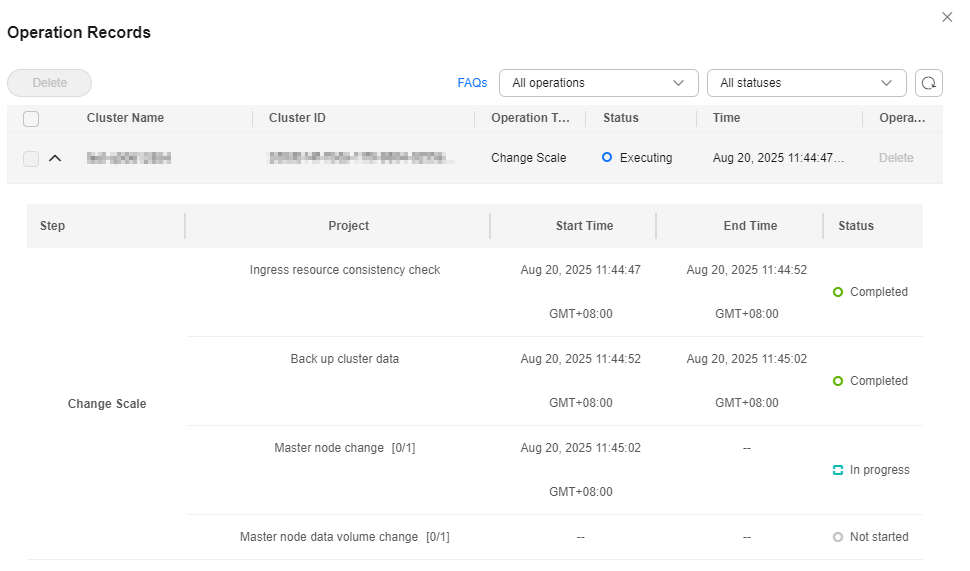
You can click Operation Records in the upper right corner to view the cluster change history. The status changes from Executing to Successful once the cluster size has been updated.
Figure 2 Operation records
CCE cluster auto flavor upgrade is a control plane auto scaling capability. Once enabled, CCE automatically increases the cluster size when any of the following conditions is met:
- Triggered by control plane metrics: when load metrics indicate that the cluster control plane is at risk of overloading, or the overload level is light or higher (The overload level is a key metric for determining control plane load pressure. For details, see Enabling Overload Control for a Cluster.)
The cluster control plane metric policy defines the following rules. If any rule is triggered, the master node flavor is automatically upgraded to mitigate overload. Custom thresholds are not supported.
- The average CPU usage of all master nodes exceeds 70% for 5 minutes.
- The average memory usage of all master nodes exceeds 70% for 5 minutes.
- The overload level of any master node reaches the minor level or higher.
- Triggered by node count: The number of worker nodes exceeds the maximum supported by the current master node flavor.


- Auto flavor upgrades are supported only for pay-per-use clusters v1.27 or later with three master nodes. Yearly/Monthly clusters are not supported. DeC clusters do not support auto master node flavor upgrades.
- After a flavor upgrade, automatic downgrade is disabled. If necessary, you can downgrade the flavor manually.
- Control plane metrics trigger gradual flavor upgrades, one level at a time, never skipping levels.
To enable or disable auto master node flavor upgrades, perform the following operations:
- Log in to the CCE console. In the navigation pane, choose Clusters.
- Click the cluster name. The Overview page is displayed.
- In the navigation pane, choose Settings. Then click the Dashboard tab. In Cluster Settings, enable or disable Auto Master Node Flavor Upgrade. In the displayed dialog box, confirm the operation. After this function is enabled or disabled, changes take effect in the next synchronization cycle.Figure 4 Enabling automatic master node flavor upgrade

Manually Downgrading the Master Node Flavor
- Manual flavor downgrades are supported only for clusters v1.27 or later with three master nodes. DeC clusters do not support manual master node flavor downgrades.
- After a flavor downgrade, the cluster's maximum worker node count and control plane capacity are reduced accordingly. Evaluate overload risks using master node monitoring data on the Overview page. For details, see Protecting a CCE Cluster Against Overload.
- Log in to the CCE console. In the navigation pane, choose Clusters.
- In the cluster list on the right, locate the target cluster. Click
 and choose Modify Specifications from the drop-down list.
 - On the page displayed, select a smaller cluster scale.
- Click Next to confirm the specifications and click OK. Resizing a cluster takes under 30 minutes, though the exact duration depends on cluster size.
You can click Operation Records in the upper right corner to view the cluster change history. The status changes from Executing to Successful once the cluster size has been updated.
- If coupons were applied to the original purchase, that portion is non-refundable. Only cash payments are eligible for refund. For details, see Pricing of a Changed Specification.
- When downgrading resources originally purchased with cash coupons, discount coupons, or promotional discounts, the remaining value may be insufficient, resulting in a zero refund.
FAQs
- Will enabling auto flavor upgrade immediately increase cluster size?
No. Enabling this function activates monitoring only. The master node flavor is upgraded automatically only when trigger conditions are met.
- What is the service impact during a master node flavor upgrade?
Master nodes are updated in rolling fashion. Cluster management operations, such as workload creation or updates, are temporarily restricted. Suspend these during the upgrade. Running workloads are not affected.
- Why does a flavor upgrade fail? How do I resolve it?
- The system validates ingress and ELB configuration consistency before upgrading to prevent service interruption. If this check fails, the upgrade is blocked. Refer to the cluster upgrade documentation to resolve configuration issues proactively. For details, see Ingress and ELB Configuration Consistency.
- Upgrades may also fail due to insufficient underlying resources. The system automatically retries with backoff. If failure persists, contact technical support.
- Can auto flavor upgrade be disabled?
Yes. Disable it by updating the cluster. Once disabled, automatic upgrades stop, but the current flavor is not automatically downgraded.
- Does auto flavor upgrade guarantee SLA in AI and large-scale high-concurrency scenarios?
No. Auto upgrades incur response delays due to metric collection cycles and upgrade execution time. In AI, high-concurrency, short-duration, strong-state, and large-scale scenarios, auto upgrade alone may not meet strict SLA requirements. Manually upgrade to an appropriately higher flavor in advance, reserve capacity headroom, and use auto upgrade as a fallback rather than the sole method.
- How do auto upgrades differ from manual upgrades and downgrades?
Category
Auto Upgrade
Manual Upgrade/Downgrade
Trigger
Automatic detection
User-initiated
Downgrade
Not supported
Supported
Metric-driven upgrade step
One level at a time
Cross-level supported
Capacity-driven upgrade step
Upgraded to the minimum flavor meeting node count requirements
Cross-level adjustment supported
Use case
Dynamic load changes requiring automatic response
Clear service planning requiring deterministic specifications
Fee impact
Unchanged
Unchanged
- Will the two auto-upgrade trigger mechanisms conflict?
No. Both triggers are coordinated through a cluster-level lock, ensuring only one flavor upgrade operation runs at a time.
- What capabilities do yearly/monthly clusters support?
Yearly/monthly clusters support manual flavor upgrades and downgrades, but not auto upgrades. All flavor changes must comply with yearly/monthly resource modification rules. For details, see Pricing of Changed Specifications.
Helpful Links
When a cluster scales to 1,000 or more worker nodes, certain parameters are automatically tuned for optimal performance. For details, see Modifying Cluster Configurations.
What is your overall rating for this page?
Thank you very much for your feedback. We will continue working to improve the documentation.See the reply and handling status in My Cloud VOC.
For any further questions, feel free to contact us through the chatbot.
Chatbot


