

Manual Renewal
Renewing a Subscription on the Console
- Log in to the console.
- Click
 in the left navigation tree and choose MacroVerse aPaaS > KooPhone.
 - On the Instance Management page, renew an instance in either of the following methods:
- Individual renewal: Choose More > Renew in the Operation column of the desired instance.
- Batch renewal: Select desired instances and click Renew in the upper left corner.
- In the displayed dialog box, click OK. The Renew page is displayed.
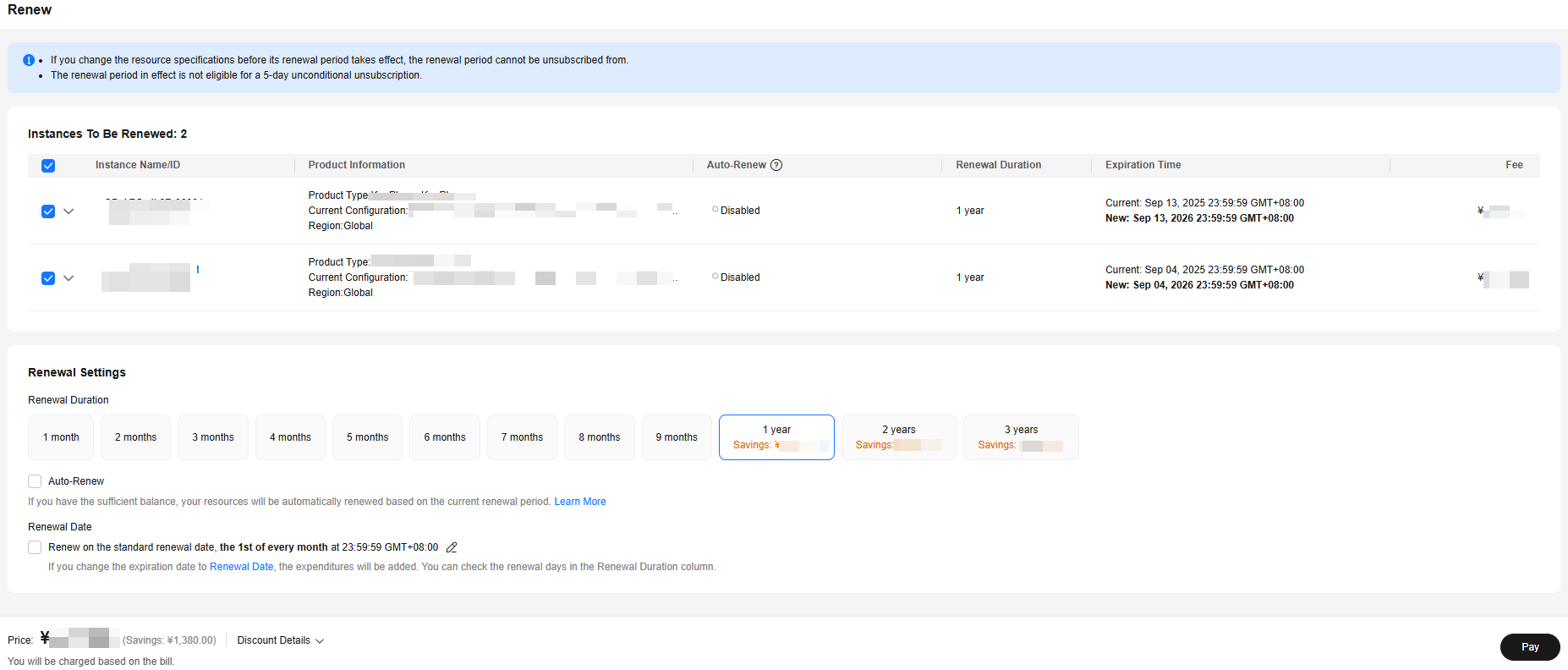
- Select a renewal duration and determine whether to select Renew on the standard renewal date. Confirm the price and click Pay.
Figure 1 Confirming renewal
- Select a payment method and make your payment. Once the order is paid, the renewal is complete.
Renewing a Subscription in Billing Center
- Log in to the console.
- On the top navigation bar, choose Billing > Renewal. The Renewals page is displayed.
- Set the search criteria.
On the Manual Renewals, Auto Renewals, Pay-per-Use After Expiration, and Renewals Canceled tabs, you can view the resources to be renewed.
You can move all resources that need to be manually renewed to the Manual Renewals tab. For details, see Enabling Manual Renewal.
- Manually renew resources.
- Individual renewal: Click Renew in the Operation column of the desired resource.
Figure 2 Individual renewal

- Batch renewal: Select the desired resources and click Batch Renew in the upper left corner.
Figure 3 Batch renewal

- Individual renewal: Click Renew in the Operation column of the desired resource.
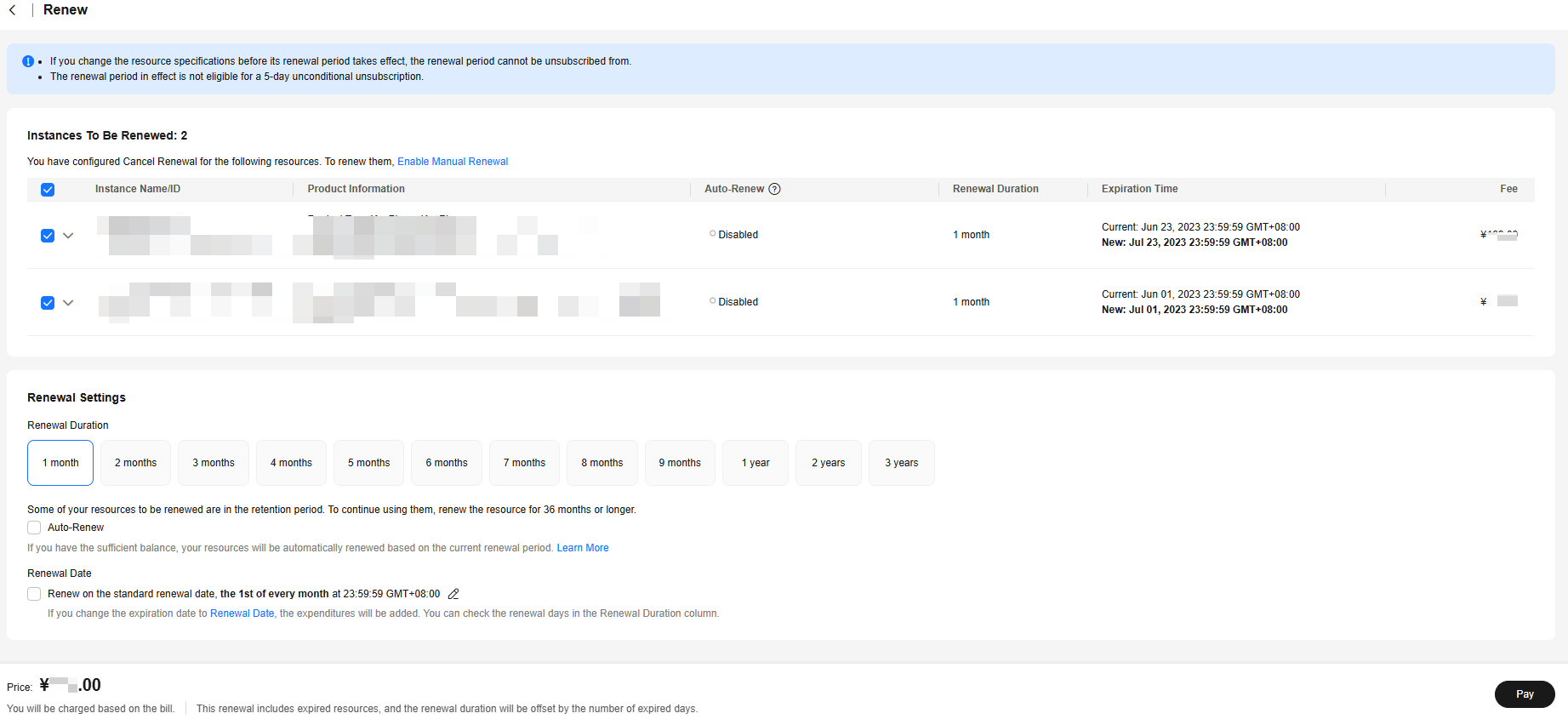
- Select a renewal duration and determine whether to select Renew on the standard renewal date. Confirm the price and click Pay.
Figure 4 Confirming renewal
- Select a payment method and make your payment. Once the order is paid, the renewal is complete.
Setting the Same Renewal Day for Yearly/Monthly Resources
If you have multiple instances with different expiration dates, you can set a fixed date to facilitate routine management and renewal.
In Figure 5, a user sets the same renewal day for two resources that will expire on different dates.
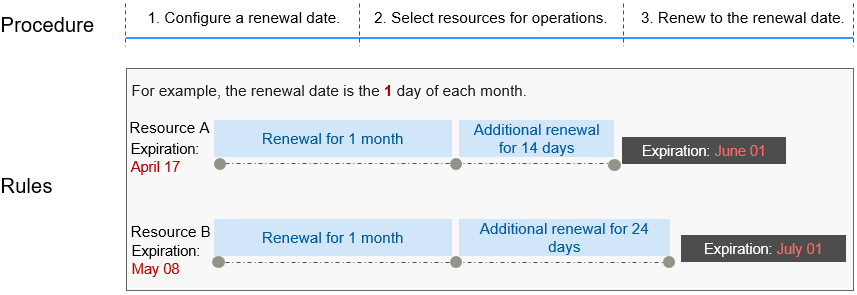
For details, see Setting a Renewal Date.
Feedback
Was this page helpful?
Provide feedbackThank you very much for your feedback. We will continue working to improve the documentation.See the reply and handling status in My Cloud VOC.
For any further questions, feel free to contact us through the chatbot.
Chatbot


