

Viewing the Modified Component Configuration Parameters of an MRS Cluster
MRS allows you to view service configuration parameter changes in a cluster with only a few clicks, helping you quickly locate faults and improve configuration management efficiency.
The MRS Manager page displays non-initial default values for each service, non-unified values for identical role instances, historical records of cluster configuration changes, and expired configuration parameters in the cluster.
On the MRS Manager page, O&M personnel can view node configuration file content, including environment variables and role configurations, to quickly verify configuration accuracy or access hidden configuration items.
Notes and Constraints
This section applies only to MRS 3.x or later.
Viewing the Modified Component Parameters
- Log in to FusionInsight Manager of the MRS cluster.
For details about how to log in to FusionInsight Manager, see Accessing MRS Manager.
- Choose Cluster > Configurations.
- Select an operation page based on the scenario.
- View all non-default values.
- Click All Non-default Values. The system displays the parameters whose values are different from the default values configured for each service, role, or instance in the current cluster.
You can click
 next to a parameter value to quickly restore the value to the default one. You can click
  to view the historical modification records of the parameter.
If there are a large number of parameters to configure, you can filter the parameters in the filter box in the upper right corner of the page or enter keywords in the search box.
- To change the values of the parameters, change the values according to the parameter description and click Save. In the dialog box that is displayed, click OK.
- Click All Non-default Values. The system displays the parameters whose values are different from the default values configured for each service, role, or instance in the current cluster.
- View all non-uniform values.
- Click All Non-uniform Values. The system displays parameters with different role, service, instance group, or instance configurations in the current cluster.
You can click
 next to a parameter value and view the differences in the dialog box that is displayed.
 - To change the value of a parameter, click
 to cancel the configuration difference or manually adjust the parameter value, click OK, and then click Save. In the dialog box that is displayed, click OK.
- Click All Non-uniform Values. The system displays parameters with different role, service, instance group, or instance configurations in the current cluster.
- View the expired configuration items.
- Click Expired Configurations. Expired configuration items in the current cluster are displayed.
- You can filter services using the service filter box in the upper part of the page to view expired configurations of different services. Alternatively, you can enter keywords in the search box.
- Expired configuration items do not take effect completely. Restart the services or instances whose configurations have expired in a timely manner.
- View historical configuration records.
- Click Historical Configurations. The historical configuration change records of the current cluster are displayed. You can view details about parameter value changes, including the service to which the parameter belongs, parameter values before and after the modification, and parameter files.
- To restore a configuration change, click Restore Configuration in the Operation column of the target record. In the dialog box that is displayed, click OK.
If the same configuration of the same service instance is modified for multiple times, the configuration can only be restored to the latest modification.
Some configuration items take effect only after the corresponding services are restarted. After saving the configurations, promptly restart the services or instances with expired configurations.
- View all non-default values.
Viewing the Role Instance Configuration File
- Log in to FusionInsight Manager of the MRS cluster.
For details about how to log in to FusionInsight Manager, see Accessing MRS Manager.
- Choose Cluster > Services.
- On the page that is displayed, click Instances.
- Click the name of the target instance. In the Configuration File area on the Instance Status page, the configuration file list of the instance is displayed. Figure 1 Viewing the instance configuration file
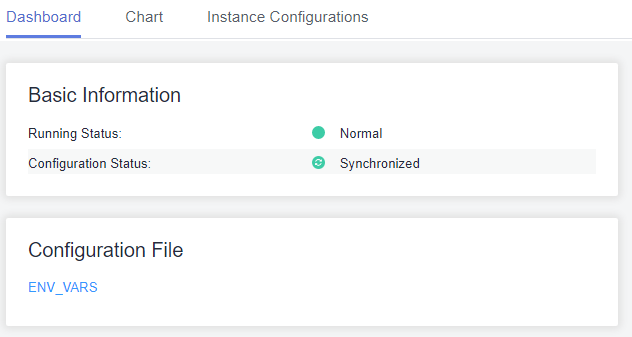
- Click the name of the configuration file to be viewed to view the parameter values in the configuration file.
To obtain the configuration file, download the configuration file to the local PC.
When a cluster node is faulty, the configuration file cannot be accessed. Rectify the fault before attempting to view the configuration file.


