

Managing Collection Channels
Scenarios
A collection channel is equivalent to a Logstash pipeline. Multiple pipelines can be configured in Logstash. Each pipeline consists of the input, filter, and output parts. Pipelines work independently and do not affect each other. You can deploy a pipeline for multiple nodes. A pipeline is considered one collection channel no matter how many nodes it is configured for. This section describes how to perform the following operations: Viewing Collection Channels, Enabling, Disabling, and Restarting a Collection Channel, and Deleting a Collection Channel.
Viewing Collection Channels
- Log in to the SecMaster console.
- Click
 in the upper left corner of the management console and select a region or project.
 - Click
 in the upper left corner of the page and choose Security & Compliance > SecMaster.
 - In the navigation pane on the left, choose Workspaces > Management. In the workspace list, click the name of the target workspace. Figure 1 Workspace management page

- In the navigation pane on the left, choose . Then, select the Collection Channels tab. Figure 2 Accessing the Collection Channels tab
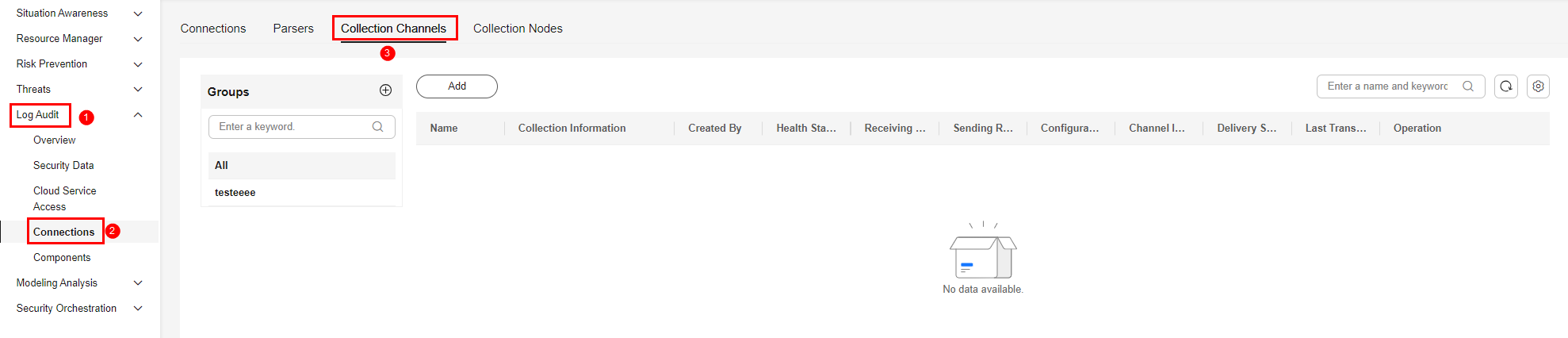
- On the Collection Channels page, view the detailed information about collection channels.
Table 1 Collection channel parameters Parameter
Description
Groups
List of collection channel groups and group names.
Name
Name of the collection channel.
Connection information
Collection channel connections. This area includes the source connection, parser name, and destination connection information of the collection channel.
Created By
Creator of the collection channel.
Health Status
Health status of the collection channel.
- Overloaded: The CPU or memory usage of the collector exceeds 80%. This is usually caused by incorrect collection channel configuration. As a result, the collector restarts repeatedly and is overloaded.
- Normal: The collection channel is running properly.
- Pending delivery: the configuration delivery status when the collection channel is configured for the first time.
- Abnormal: The same collection channel configuration is delivered to multiple nodes at the same time. If the configuration is successfully delivered to some nodes but fails to be delivered to other nodes, the Abnormal status is displayed. You are advised to restart the collection channel about 5 minutes later. If the fault persists after multiple restarts, further locate the root cause.
- Faulty: If the collection channel configuration is delivered to one or more nodes and fails to be delivered to all nodes, the Faulty status is displayed.
Receiving Rate
Data receiving rate of the collection channel.
Sending Rate
Data sending rate of the collection channel.
Configuration Status
Configuration status of the collection channel.
- Synchronized: If there are no changes to the source connector, destination connector, and parser parameters associated with the collection channel, the configuration is synchronized.
- Expired: If the source connector, destination connector, and parser parameters associated with the collection channel change and the latest configuration is not delivered to the collection channel, the collection channel configuration is expired. You need to restart the collection channel.
Channel Instance
Number of channel instances of the collection channel.
Delivery Status
Running status of the collection channel.
- Running
- Stopped
Last Transmitted
The time the latest data is transmitted.
Operation
Operations such as editing and disabling a collection channel.
Enabling, Disabling, and Restarting a Collection Channel
- Log in to the SecMaster console.
- Click in the upper left corner of the management console and select a region or project.
- Click in the upper left corner of the page and choose Security & Compliance > SecMaster.
- In the navigation pane on the left, choose Workspaces > Management. In the workspace list, click the name of the target workspace. Figure 3 Workspace management page
- In the navigation pane on the left, choose . Then, select the Collection Channels tab. Figure 4 Accessing the Collection Channels tab
- In the collection stream management list, locate the row that contains the target stream and click Enable, Stop, or Restart in the Operation column.
- In the displayed dialog box, click OK.
- In the navigation pane on the left, choose . Then, select the Collection Channels tab. You can:
- Enable a collection channel. If the Delivery Status of the collection channel changes from Delivering to Running, the collection channel has been successfully enabled.
- Stop a collection channel. If the Delivery Status of the collection channel changes from Delivering to Stopped, the collection channel has been stopped successfully.
- Restart a collection channel. If the Configuration Status of the collection channel changes to Expired, you need to restart the collection channel. If the Delivery Status of the collection channel is Delivering, the restart request is being executed. If the status changes to Running, the collection channel has been successfully restarted.
Deleting a Collection Channel
- Log in to the SecMaster console.
- Click in the upper left corner of the management console and select a region or project.
- Click in the upper left corner of the page and choose Security & Compliance > SecMaster.
- In the navigation pane on the left, choose Workspaces > Management. In the workspace list, click the name of the target workspace. Figure 5 Workspace management page
- In the navigation pane on the left, choose . Then, select the Collection Channels tab. Figure 6 Accessing the Collection Channels tab
- In the collection channel list, locate the row that contains the target channel, and click in the Operation column.

You can delete a collection channel only when it is stopped.
- In the displayed dialog box, click OK.


