
Developing Functions in Java (Using an IDEA Maven Project)
Perform the following procedure to develop a Java function:
- Create a function project.
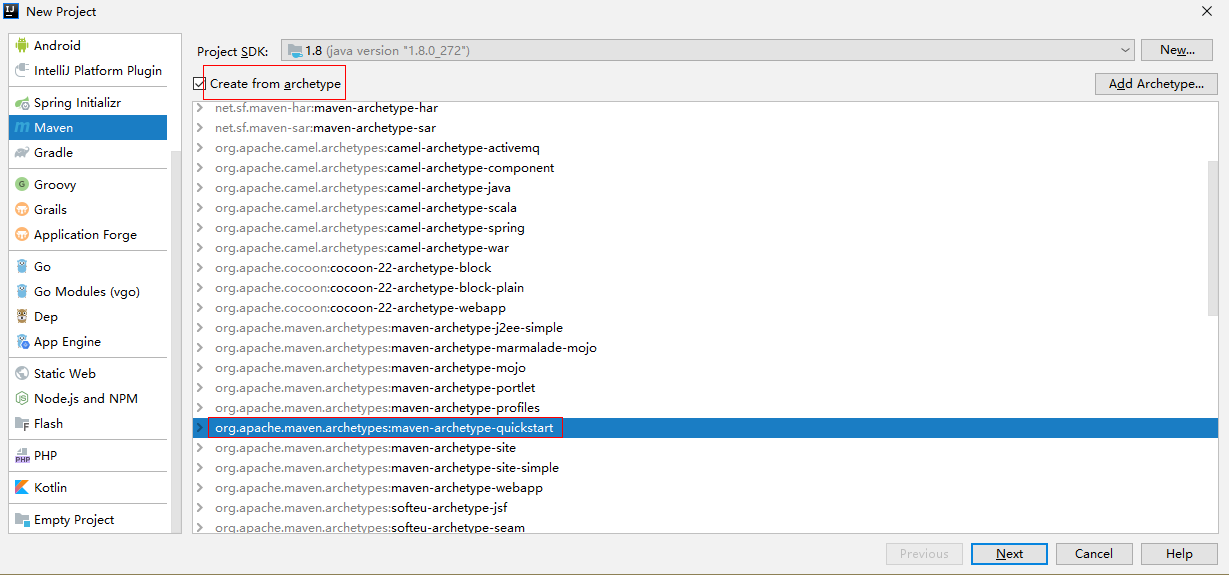
- Configure the IDEA and create a Maven project, as shown in Figure 1.
- Add dependencies to the project.
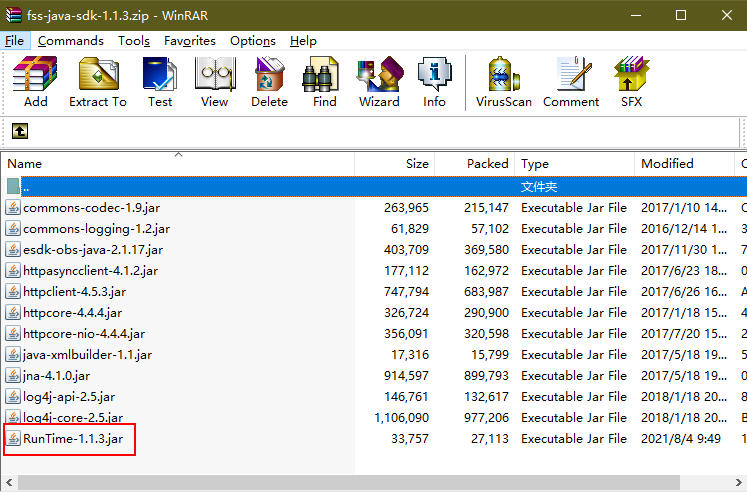
- Copy RunTime-1.1.3.jar in the package to a local directory, for example, d:\\runtime. Then, run the following command in the CLI to install the runtime to the local Maven repository:
mvn install:install-file -Dfile=d:\RunTime-1.1.3.jar -DgroupId=RunTime -DartifactId=RunTime -Dversion=1.1.3 -Dpackaging=jar
- Configure the dependency in the pom.xml file.
<dependency>
<groupId>Runtime</groupId>
<artifactId>Runtime</artifactId>
<version>1.1.3</version>
</dependency>
- Configure other dependencies. The following uses the OBS dependency as an example.
<dependency>
<groupId>com.huaweicloud</groupId>
<artifactId>esdk-obs-java</artifactId>
<version>3.21.4</version>
</dependency>
- Add a plug-in to pom.xml to pack the code and dependencies together.
<plugin>
<artifactId> maven-assembly-plugin </artifactId>
<configuration>
<descriptorRefs>
<descriptorRef>jar-with-dependencies</descriptorRef>
</descriptorRefs>
<archive>
<manifest>
<mainClass>com.huawei.demo.TriggerTests</mainClass>
</manifest>
</archive>
<finalName>${project.name}</finalName>
</configuration>
<executions>
<execution>
<id>make-assembly</id>
<phase>package</phase>
<goals><goal>single</goal>
</goals>
</execution>
</executions>
</plugin>
Replace mainClass with the actual class.
- Create a function.
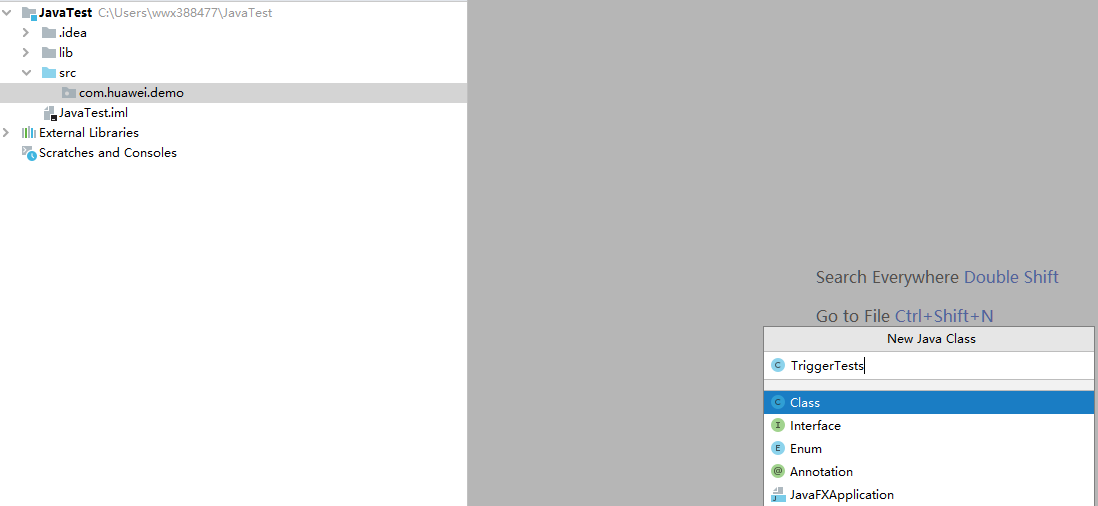
- Create a package named com.huawei.demo, and then create a class named TriggerTests under the package, as shown in Figure 3.
- Define the function handler in TriggerTests.java.
 1
 2
 3
 4
 5
 6
 7
 8
 9
10
11
12
13
14
15
16
17
18
19
20
21
22
23
24
25
26
27
28
29
30
31
32
33
34
35
36
37
38
39
40
41
42
43
44
45
46
47
48
49
50
51
package com.huawei.demo;

import java.io.UnsupportedEncodingException;
import java.util.HashMap;
import java.util.Map;

import com.huawei.services.runtime.Context;
import com.huawei.services.runtime.entity.apig.APIGTriggerEvent;
import com.huawei.services.runtime.entity.apig.APIGTriggerResponse;
import com.huawei.services.runtime.entity.dis.DISTriggerEvent;
import com.huawei.services.runtime.entity.dms.DMSTriggerEvent;
import com.huawei.services.runtime.entity.lts.LTSTriggerEvent;
import com.huawei.services.runtime.entity.smn.SMNTriggerEvent;
import com.huawei.services.runtime.entity.timer.TimerTriggerEvent;

public class TriggerTests {
    public APIGTriggerResponse apigTest(APIGTriggerEvent event, Context context){
        System.out.println(event);
        Map<String, String> headers = new HashMap<String, String>();
        headers.put("Content-Type", "application/json");
        return new APIGTriggerResponse(200, headers, event.toString());
    }

    public String smnTest(SMNTriggerEvent event, Context context){
        System.out.println(event);
        return "ok";
    }

    public String dmsTest(DMSTriggerEvent event, Context context){
        System.out.println(event);
        return "ok";
    }

    public String timerTest(TimerTriggerEvent event, Context context){
        System.out.println(event);
        return "ok";
    }

    public String disTest(DISTriggerEvent event, Context context) throws UnsupportedEncodingException{
        System.out.println(event);
        System.out.println(event.getMessage().getRecords()[0].getRawData());
        return "ok";
    }

    public String ltsTest(LTSTriggerEvent event, Context context) throws UnsupportedEncodingException {
        System.out.println(event);
        event.getLts().getData();
        System.out.println("raw data: " + event.getLts().getRawData());
        return "ok";
    }
}
- Compile and pack the project file.
Run the following command to compile and pack the project file:
mvn package assembly:single
After compilation is complete, the javaTest-jar-with-dependencies.jar file is generated in the target directory.
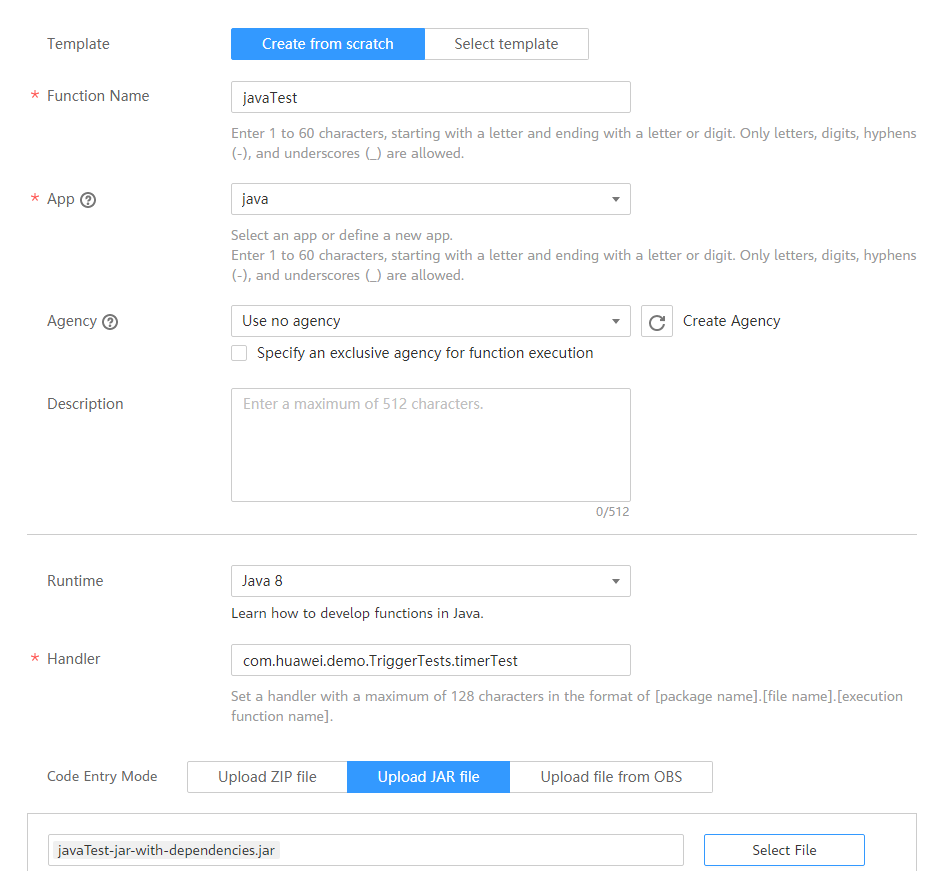
- Log in to the FunctionGraph console, create a Java function, and upload the JAR file, as shown in Figure 4.
- Test the function.
- Create a test event.
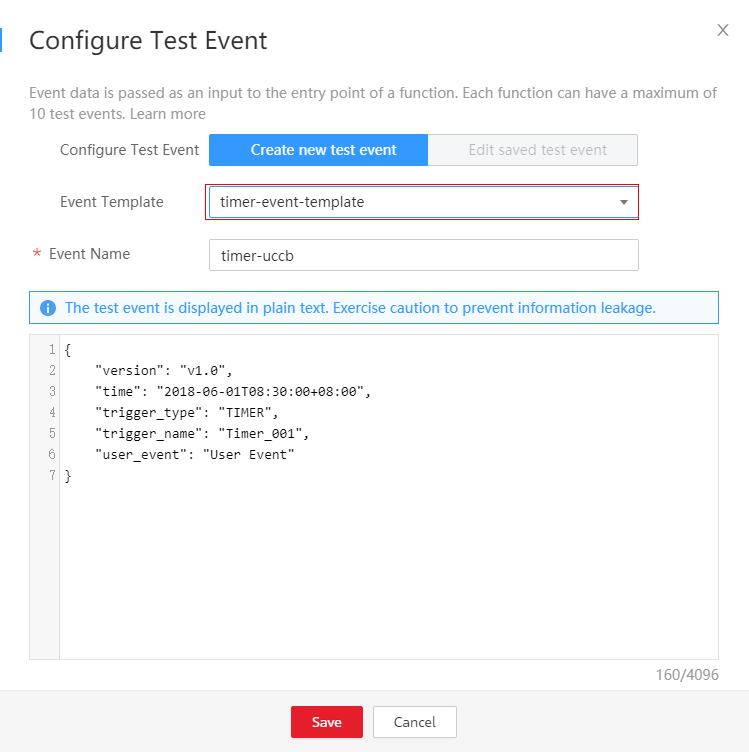
Select timer-event-template from the Event Template drop-down list and click Save, as shown in Figure 5.
- Click Test.
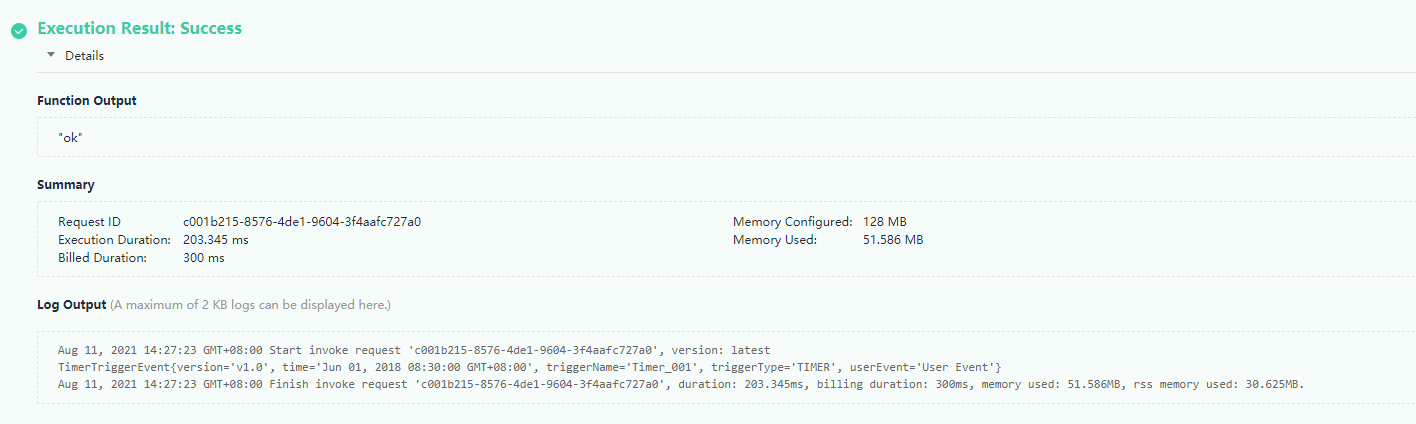
The function execution result consists of three parts: function output (returned by callback), summary, and log (output by using the console.log or getLogger() method), as shown in Figure 6.
- Create a test event.
Last Article: Developing Functions in Java (Using an IDEA Java Project)
Next Article: Developing Functions in Go 1.8.3

Did this article solve your problem?
Thank you for your score!Your feedback would help us improve the website.