


更新时间:2026-01-30 GMT+08:00
安装cloud-init
ARM_Ubuntu镜像
1、打开terminal,更新包列表;移除`cloud-init` 软件包
sudo apt-get update
sudo apt-get remove cloud-init
如图 1 所示。

图1
2、删除cloud-init相关文件
sudo rm -rf /var/lib/cloud/*;sudo rm -f /var/log/cloud-init*
sudo rm -rf /etc/cloud/cloud.cfg.d/*
如图 2 所示。

图2
3、安装Cloud-Init
sudo apt-get install cloud-init
如图 3 所示。

图3
4、创建目录
sudo install -d -m 755 /etc/cloud/cloud.cfg.d
如图 4 所示。

图4
5、配置 OpenStack 环境的元数据源
sudo tee /etc/cloud/cloud.cfg.d/99-openstack-datasource.cfg >/dev/null <<'EOF'
datasource_list: [ OpenStack ]
datasource:
  OpenStack:
    metadata_urls: ['http://169.254.169.254']
    max_wait: 120
    timeout: 5
    apply_network_config: false
EOF
如图 5 所示。

图5
6、 删除`cloud-init.disabled`文件
sudo rm /etc/cloud/cloud-init.disabled
如图 6 所示。

图6
7、 设置cloud-init相关服务为开机自启动
sudo systemctl enable cloud-init-local.service cloud-init.service cloud-config.service cloud-final.service
如图 7 所示。

图7
8、重启云主机,重新进入桌面
如图 8 所示。

图8
9、查看cloud-init 状态,必须为active才可用
sudo systemctl status cloud-init-local.service cloud-init.service cloud-config.service cloud-final.service
如图 9 所示。

图9
备注:以上为ARM-Ubuntu安装cloud-init步骤,执行完成关机,制作镜像后可进行分享操作
ARM_Euler镜像
- 清除所有yum缓存的数据后重新安装cloud-init软件包
sudo yum clean all
sudo yum makecache
sudo yum install cloud-init
sudo mv /etc/cloud/cloud.cfg /etc/cloud/cloud.cfg.bak
sudo install -d -m 755 /etc/cloud/
如图 10 和图 11 所示。
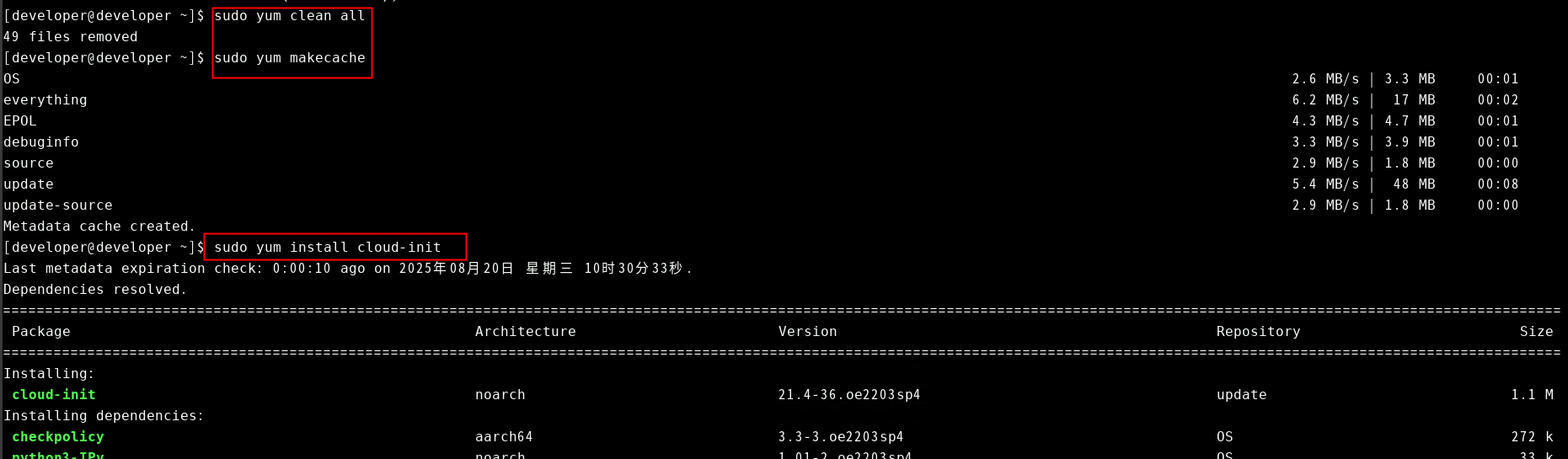
图10

图11
2、配置 OpenStack 环境的元数据源
命令如下(全部内容进行复制):
sudo tee /etc/cloud/cloud.cfg >/dev/null <<'EOF'
# The top level settings are used as module
# and system configuration.
# A set of users which may be applied and/or used by various modules
# when a 'default' entry is found it will reference the 'default_user'
# from the distro configuration specified below
users:
   - default


# If this is set, 'root' will not be able to ssh in and they
# will get a message to login instead as the default $user
disable_root: false

# mount_default_fields: [~, ~, 'auto', 'defaults,nofail', '0', '2']
# resize_rootfs_tmp: /dev
# ssh_pwauth:   0

# This will cause the set+update hostname module to not operate (if true)
preserve_hostname: true

# If you use datasource_list array, keep array items in a single line.
# If you use multi line array, ds-identify script won't read array items.
# Example datasource config
# datasource:
#    Ec2:
#      metadata_urls: [ 'blah.com' ]
#      timeout: 5 # (defaults to 50 seconds)
#      max_wait: 10 # (defaults to 120 seconds)
datasource_list: [ OpenStack ]
datasource:
  OpenStack:
    metadata_urls: ['http://169.254.169.254']
    max_wait: 120
    timeout: 5
    apply_network_config: false


# do not generate dsa
#ssh_genkeytypes:  ['rsa', 'ecdsa', 'ed25519']

# The modules that run in the 'init' stage
cloud_init_modules:
  - seed_random
  - bootcmd
  - write_files
  - growpart
  - resizefs
  - disk_setup
  - mounts
  - ca_certs
  - rsyslog
  - users_groups
  - set_passwords

# The modules that run in the 'config' stage
cloud_config_modules:
  - wireguard
  - snap
  - ssh_import_id
  - keyboard
  - locale
  - grub_dpkg
  - apt_pipelining
  - apt_configure
  - ntp
  - timezone
  - disable_ec2_metadata
  - runcmd
  - byobu

# The modules that run in the 'final' stage
cloud_final_modules:
  - package_update_upgrade_install
  - fan
  - landscape
  - lxd
  - ubuntu_drivers
  - write_files_deferred
  - puppet
  - chef
  - ansible
  - mcollective
  - salt_minion
  - reset_rmc
  - scripts_vendor
  - scripts_per_once
  - scripts_per_boot
  - scripts_per_instance
  - scripts_user
  - ssh_authkey_fingerprints
  - keys_to_console
  - install_hotplug
  - phone_home
  - final_message
  - power_state_change

# System and/or distro specific settings
# (not accessible to handlers/transforms)
system_info:
   # This will affect which distro class gets used
   distro: openeuler
   # Default user name + that default users groups (if added/used)
   default_user:
     name: openeuler
     lock_passwd: True
     gecos: openeuler Cloud User
     groups: [wheel, adm, systemd-journal]
     shell: /bin/bash
   # Other config here will be given to the distro class and/or path classes
   paths:
      cloud_dir: /var/lib/cloud/
      templates_dir: /etc/cloud/templates/
EOF
如图 12 所示。

图12
3. 设置cloud-init相关服务为开机自启动
sudo systemctl enable cloud-init-local.service cloud-init.service cloud-config.service cloud-final.service
如图 13 所示。

图13
4.重启云主机,重新进入桌面
如图 14 所示。
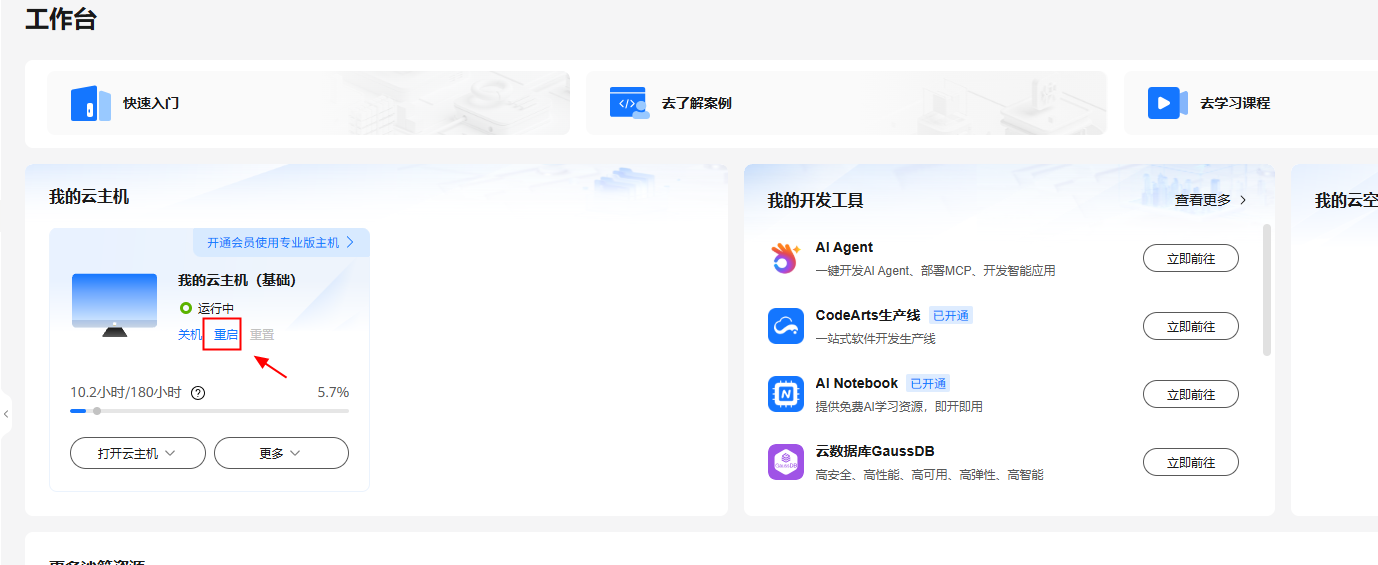
图14
5. 查看cloud-init 状态,必须为active才可用
sudo systemctl status cloud-init-local.service cloud-init.service cloud-config.service cloud-final.service
如图 15 所示。

图15
备注:以上为ARM-Euler安装cloud-init步骤,执行完成关机,制作镜像后可进行分享操作
父主题: 云主机


