

Updated on 2026-10-19 GMT+08:00
Managing Error Logs
TaurusDB error logs record runtime logs generated while instances are running, including error details and slow SQL queries. You can analyze system issues through these error logs or download them for workload analysis.
Viewing and Downloading Error Logs
- Log in to the TaurusDB console.
- Click
 in the upper left corner and select a region.
 - On the Instances page, click the instance name.
- In the navigation pane, choose Logs.
- On the page, view error logs of different nodes, at different log levels, and within a specified time range.
Click the drop-down list in the upper right corner, and select a node name and a log level as needed.
The levels of error logs include ALL, INFO, WARNING, ERROR, FATAL and NOTE.
Click
 and specify a time period.Figure 1 Viewing error logs

- Log in to the TaurusDB console.
- Click in the upper left corner and select a region.
- On the Instances page, click the instance name.
- In the navigation pane, choose Logs.
- On the Error Logs tab, click Download. Locate a log whose status is Preparation completed and click Download in the Operation column. Figure 2 Downloading an error log

- The system automatically loads the download preparation tasks. The loading duration is determined by the log file size and network environment.
- When the log is being prepared for download, the log status is Preparing.
- When the log is ready for download, the log status is Preparation completed.
- If the preparation for download fails, the log status is Abnormal.
Logs in the Preparing or Abnormal state cannot be downloaded.
- Only logs no more than 40 MB can be downloaded directly from this page. The time range is calculated from the time you download the logs back to the time when the accumulated file size reaches 40 MB.
- The download link is valid for 5 minutes. If the link expires, a message prompts you to download the log again. Click OK to download the log again, or Cancel to cancel the operation
- You can select the logs to be downloaded by node.
- The system automatically loads the download preparation tasks. The loading duration is determined by the log file size and network environment.
Reporting Error Logs to LTS
- Log in to the TaurusDB console.
- Click in the upper left corner and select a region.
- On the Instances page, click the instance name.
- In the navigation pane, choose Logs.
- On the Error Logs tab, click
 next to Report Error Logs to LTS.
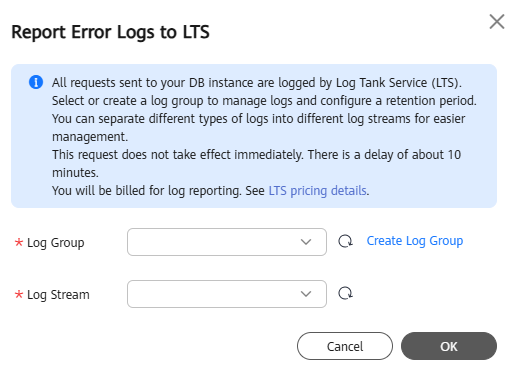
 - In the displayed dialog box, specify Log Group and Log Stream and click OK. Figure 3 Reporting error logs to LTS
APIs
What is your overall rating for this page?
0
1
2
3
4
5
6
7
8
9
10
Very dissatisfiedVery satisfied
Thank you very much for your feedback. We will continue working to improve the documentation.See the reply and handling status in My Cloud VOC.
The system is busy. Please try again later.
For any further questions, feel free to contact us through the chatbot.
Chatbot


