

Help Center/
Relational Database Service_RDS for MySQL/
User Guide/
Data Backups/
Managing Backups/
Configuring Backup Encryption
Updated on 2025-12-18 GMT+08:00
Configuring Backup Encryption
Scenarios
You can enable backup encryption for instances that do not have disk encryption enabled during instance purchase.
Constraints
- If you want to enable backup encryption for an instance with disk encryption enabled, see Will Backups Be Encrypted After Disk Encryption Is Enabled for My RDS for MySQL Instance?
- Only enabled KMS keys using the AES_256 algorithm can be used for backup encryption.
- After backup encryption is enabled, ensure that the selected key is enabled. If the selected key is disabled or deleted, encrypted backups will be unavailable and backups will fail.
- Enabling or disabling backup encryption only applies to new backups and does not affect the encryption status of existing backups.
Enabling Backup Encryption
- Click
 in the upper left corner and select a region.
 - Click
 in the upper left corner of the page and choose Databases > Relational Database Service.
 - On the Instances page, click the target instance name to go to the Summary page.
- In the navigation pane, choose Backups & Restorations.
- Toggle on the Backup Encryption switch to enable this function.
Figure 1 Backup encryption

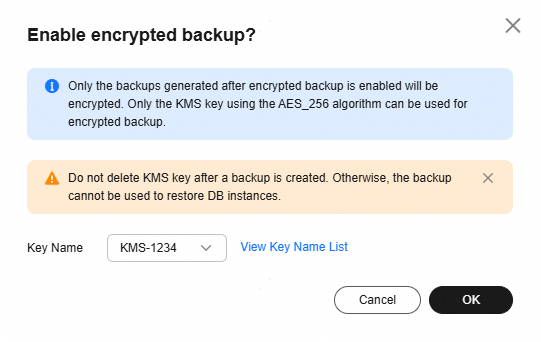
- In the displayed dialog box, select a key and click OK.
Figure 2 Selecting a key
- After backup encryption is enabled, check that the backup type of a new manual backup is displayed as Manual(encrypted).
Figure 3 Checking the result

Feedback
Was this page helpful?
Provide feedbackThank you very much for your feedback. We will continue working to improve the documentation.See the reply and handling status in My Cloud VOC.
The system is busy. Please try again later.
For any further questions, feel free to contact us through the chatbot.
Chatbot


