

Deploying an Application in Kubernetes (CCE Cluster) Using Manifest
This section introduces how to deploy an application in a Huawei Cloud CCE cluster with a manifest file defining Kubernetes objects.
Prerequisites
A CCE cluster is available. You may be charged during the process. For details, see CCE Billing.
Configuring Deployment Actions
- Create an application by referring to Creating an Application.
- On the Deployment Actions page, add this deployment action based on the service scenario.
- Configure the action using the parameters described in the table below.
Table 1 Parameters Parameter
Description
Action Name
Mandatory. This name will be displayed in the deployment action orchestration area.
The action name can contain 1 to 128 characters, including letters, digits, hyphens (-), underscores (_), commas (,), semicolons (;), colons (:), slashes (/), parentheses, and spaces. However, it cannot start or end with a space.
Manifest File Source
Mandatory. Artifact, Repo, and OBS can be selected.
Repo
Mandatory when Manifest File Source is set to Repo.
Branch
Mandatory when Manifest File Source is set to Repo.
Manifest file or folder
Mandatory.
- If Manifest File Source is set to Artifact, select a manifest file to be deployed. The file name must be suffixed with .yaml, .yml, or .json.
Click
 . On the file selection page that is displayed, select a manifest file to be deployed in Artifact. By default, the project cannot be changed. You can search for the manifest file by keyword or upload a local one to the repository, click
  to refresh repository files, and select the manifest file. Click
  .
. - If Manifest File Source is set to Repo, enter the relative path of the file or folder. The file name extension must be .yaml, .yml, or .json format. Click
 to edit the file.
 - If Manifest File Source is set to OBS, select a manifest file to be deployed. The file name must be suffixed with .yaml, .yml, or .json.
Tenant
Mandatory. There are two options:
- Current: The software package is deployed in a CCE cluster of the current tenant for release.
Select Current. The current tenant must have the CCE cluster operation permission. If not, enable IAM authorization to select an authorized user from the User drop-down list for deployment.
- Other: The software package is deployed and released in a CCE cluster of another tenant in IAM authorization mode.
After selecting Other, select an authorized tenant.
You are advised to configure the AK/SK of a member account that has the CCE cluster operation permission and not advised to configure the AK/SK of a tenant account.
IAM authorization
Optional. If you do not have the permission to call CCE APIs, enable this option to obtain the temporary AK/SK of an authorized user.
Region
Select the region to be deployed.
Cluster Name
Select the Kubernetes cluster applied for on CCE.
Namespace
Select the namespace of the Kubernetes cluster on CCE.
Java Probes
Locate workload issues and analyze performance bottlenecks. For details, see Configuring APM Settings for Performance Bottleneck Analysis.
Probe Type
- APM 2.0 Probe: Java probes will allocate 0.25-core CPU and 250-MiB memory to initialize containers.
- Disable: Probe-based fault locating is disabled.
When Probe Type is set to APM 2.0 Probe, configure the following parameters:
Probe Version: Select a probe version.
Probe Upgrade Policy: Select Automatic upgrade upon restart or Manual upgrade upon restart.
- Automatic upgrade upon restart: The system downloads the image upon each restart.
- Manual upgrade upon restart: If a local image is available, it will be used. If no local image is available, the system downloads the probe image.
APM Environment: (Optional) Enter the APM environment information.
APM Business: Select an APM application
APM Sub-Business: (Optional) Enter a sub-application.
Access Key Id: The system automatically obtains the relevant secret access key from APM. Go to the APM console to check the key details.
For details about the APM 2.0 parameters, see APM parameters.
Action Control
Continue the task even if this action fails.
Overtime
Maximum execution duration of the action, in minutes. If the duration exceeds the specified time before you stop the action, the action will be timed out. Value range: 1–30.
- If Manifest File Source is set to Artifact, select a manifest file to be deployed. The file name must be suffixed with .yaml, .yml, or .json.
Online Manifest File Editing
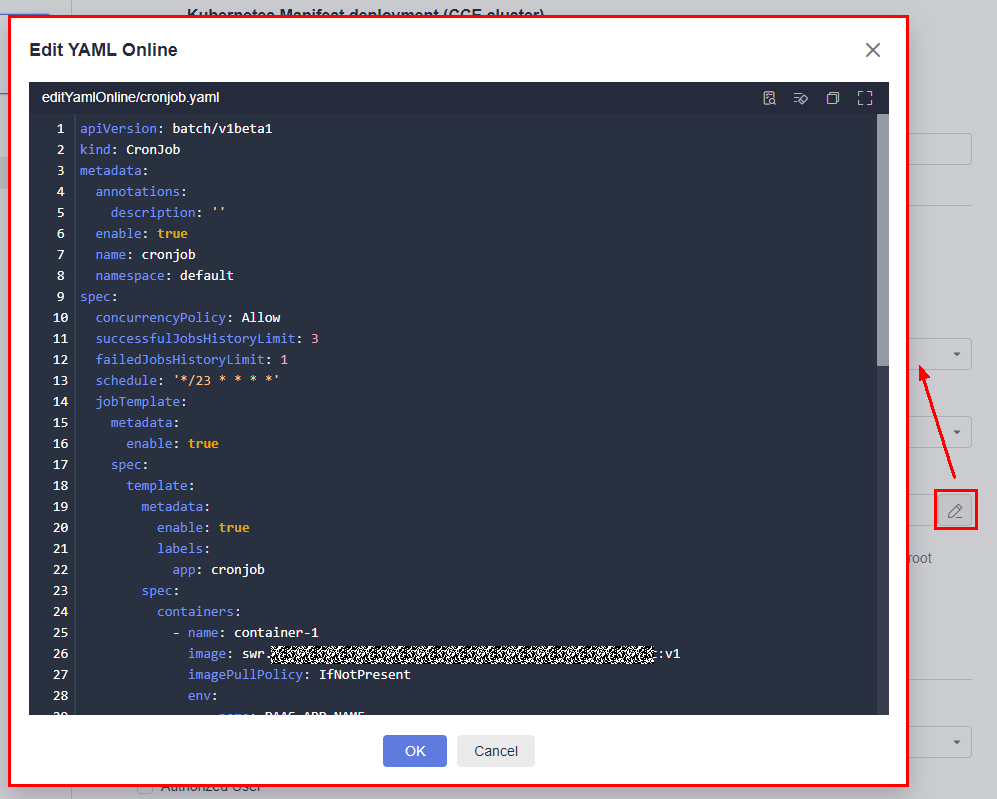
When Manifest File Source is set to Repo, you can edit the manifest file online. Click the  icon next to Manifest File to go to the online editing page.
- Click the
 icon to perform basic syntax verification on the content of the manifest file to better optimize your code.
 - Click the
 icon to optimize the manifest file format.
 - Click the
 icon to copy all content in the manifest file.
 - Click the
 icon to display the content of the manifest file in full screen to better browse the code.
To modify the manifest file in CodeArts Repo, you must have the corresponding permissions. For details, see Configuring Repo-Level Permissions of CodeArts Repo.
Helpful Links
If you encounter any problem during deployment, see FAQs About Kubernetes Deployment Tasks.
What is your overall rating for this page?
Thank you very much for your feedback. We will continue working to improve the documentation.See the reply and handling status in My Cloud VOC.
For any further questions, feel free to contact us through the chatbot.
Chatbot


