

Monitoring Instances
Each time a job is executed, a job instance record is generated. In the navigation pane of the DataArts Factory console, choose . On the Monitor Instance page, you can view the job instance information and perform more operations on instances as required.

Only data of the last six months can be displayed on the Monitor Instance page.
You can search for instances by Job Name, Created By, Owner, CDM Job, Node Type, and Job Tag. Search by CDM job is to search for job instances by node. In addition, you can filter job instances by status or scheduling mode.
On the Monitor Instance page, you can filter job instance data based on the successful status and running type.
Instance monitoring does not include the instance data of real-time jobs.
When a job is started on a specified start date, the job instance is in the initialized state. If the running status of a job instance on the instance monitoring page is initialized, Forcible First Execution is dimmed. If the job instance is in the waiting state, you can forcibly execute it first.
The following prefixes are supported for the names of job instances:
- The C_ prefix indicates one-off scheduling and a custom instance name.
- The N_ prefix indicates normal scheduling.
- The R_ prefix indicates job re-execution.
- The M_ prefix indicates manual scheduling.
- The P_ prefix indicates data patching.
- The S_ prefix indicates subjob scheduling.
- The O_ prefix indicates one-off scheduling triggered by an API.
When you search for instances by name, only exact search is supported. Fuzzy search is not supported.
You can click a job name to view its dependencies. After expanding the details, you can view the job attributes, job parameters, node list, and historical instances.
Performing Job Instance Operations
- Log in to the DataArts Studio console.
For details, see Accessing the DataArts Studio Instance Console.
- On the DataArts Studio console, locate a workspace and click DataArts Factory.
- In the navigation pane on the left of the DataArts Factory page, choose
- You can stop, rerun, continue to run, or forcibly run jobs in batches. For details, see Table 1.
When multiple instances are rerun in batches, the sequence is as follows:
- If a job does not depend on the previous schedule cycle, multiple instances run concurrently.
- If jobs are dependent on their own, multiple instances are executed in serial mode. The instance that first finishes running in the previous schedule cycle is the first one to rerun.
- Table 1 describes the operations that can be performed on the instance.
Table 1 Instance monitoring operations Operation
Description
Filtering jobs by job attribute or entering a keyword to search for the desired job
You can filter jobs by attribute, such as Job Name, Created By, Owner, Node Type, and Data Connection.
You can enter a keyword for fuzzy search, for example, the keyword of a job name.
Exact search
You can search for jobs by Planned Time, and select a time period (Today, Yesterday, or Custom) to search for jobs.
Stop
Stop an instance that is in the Waiting, Running, or Abnormal state.
Rerun > Rerun
Rerun a subjob instance that is in the Succeed or Canceled state.
For details, see Rerunning Job Instances.
NOTE:- Manually scheduled jobs cannot be rerun.
- In enterprise mode, developers cannot rerun job instances.
If instances need manual confirmation before they are executed, they are in waiting confirmation state when they are being rerun. When you click Execute, the instances are in waiting execution state.
Manual Retry
Only abnormal nodes can be manually retried. Manual retry is unavailable for a node in running, paused, waiting, or frozen state.
Execute > Continue
Continue to run subsequent nodes in instances which are in abnormal state.
Succeed
Change the statuses of instances in Abnormal, Canceled, or Failed state to Forcibly successful.
Execute > Confirm Execution
Confirm executing instances in pending confirmation state.
Execute > Execute Job Without Dependency
Select job instances that have dependency relationships and execute them.
More > Manual Retry
Retry abnormal instances.
More > View Waiting Job Instance
When the instance is in the waiting state, you can view the waiting job instance. Click Remove Dependency in the Operation column to remove dependency on an upstream instance.
More > Confirm Execution
Confirm executing instances in pending confirmation state.
More > Continue
If an instance is in the Abnormal state, you can click Continue to begin running the subsequent nodes in the instance.
NOTE:This operation can be performed only when Failure Policy is set to Suspend the current job execution plan. To view the current failure policy, click a node and then click Advanced Settings on the Node Properties page.
More > Succeed
Forcibly change the status of an instance from Abnormal, Canceled, or Failed to Succeed.
More > Execute Job Without Dependency
Execute job instances that have dependency relationships.
More > View
Go to the job development page and view job information.
More > History performance
You can view the historical performance of a job instance.
More > View Rerun History
You can view the job instance rerun records.
This is possible only if the job instance has rerun at least once.
More > Execute Preferentially
Preferentially execute job instances.
DAG
Display the DAG so that you can view the dependency between job instances and perform O&M operations on the DAG.
For details, see Viewing the DAG.
Export > Export All
Click Export and select Export All Data. In the displayed Export to OBS dialog box, select a path and click OK. After the export is complete, go to the Download Center page to view the exported data.
If the default storage path is not configured, you can set a storage path and select Set as default OBS path in the Export to OBS dialog box.
A maximum of 30 MB data can be exported. If there are more than 30 MB data, the data will be automatically truncated.
The exported job instances map job nodes. You cannot export data by selecting job names. Instead, you can select the data to be exported by setting filter criteria.
- Click
 in front of an instance. The running records of all nodes in the instance are displayed.
 You can view detailed logs of the nodes and manually retry those that are not running properly.
- Table 2 describes the operations that can be performed on the node.
Table 2 Operations (node) Operation
Description
View Log
View the log information of a node.
You can control access to the test run logs. For example, after user A performs a test, user A can view the test run logs on the Monitor Instance page, but user B cannot.
Manual Retry
Retry a failed node.
Retry an abnormal node.
NOTE:This operation can be performed only when Failure Policy is set to Suspend the current job execution plan. To view the current failure policy, click a node and then click Advanced Settings on the Node Properties page.
Succeed
Change the status of a node from Failed to Succeed.
NOTE:This operation can be performed only when Failure Policy is set to Suspend the current job execution plan. To view the current failure policy, click a node and then click Advanced Settings on the Node Properties page.
More > Skip
To skip a node that is to be run or that has been paused, click Skip.
NOTE:Instance with only one node cannot be skipped. Only instances with multiple nodes can be skipped.
More > Pause
When a job instance is in running state and a node is in waiting execution state, you can pause the node. Subsequent nodes will be blocked.
More > Resume
To resume a paused node, click Resume.
More > History performance
You can view the historical performance of a job node.
Rerunning Job Instances
In enterprise mode, developers cannot rerun job instances.
You can rerun a job instance that is successfully executed or fails to be executed by setting its rerun position.
- Log in to the DataArts Studio console.
For details, see Accessing the DataArts Studio Instance Console.
- On the DataArts Studio console, locate a workspace and click DataArts Factory.
- In the navigation pane on the left of the DataArts Factory page, choose
- Locate a job and click Rerun in the Operation column to rerun a job instance. Alternatively, select the check boxes to the left of job names and click Rerun above the job list and select Rerun to rerun multiple job instances. Figure 1 Rerunning a job instance
 Figure 2 Rerunning job instances

When rerunning multiple job instances, you only need to set Rerun From, Ignore OBS Listening, and Parameters to Use.
Table 3 Parameters for rerunning a job Parameter
Description
Rerun Type
Type of the instance that you want to rerun.
- Rerun selected instance
- Rerun instances of selected job and its upstream and downstream jobs
Instances to Rerun
This parameter is required only when Rerun Type is set to Rerun instances of selected job and its upstream and downstream jobs.
- All downstream jobs
- Select from the dependency graph
Time Range
This parameter is required only when Rerun Type is set to Rerun instances of selected job and its upstream and downstream jobs and Instances to Rerun is set to All downstream jobs.
It indicates the planned time range of a job instance on a specified day Jobs that are scheduled by the minute or hour, or hourly jobs driven by upstream jobs within the configured time range will be re-executed. For other jobs, instances generated from 00:00 to 23:59 on the current day will be re-executed.
Start Time
This parameter is required only when Rerun Type is set to Rerun instances of selected job and its upstream and downstream jobs and Instances to Rerun is set to Select from the dependency graph.
After you set the start time and end time, the system will rerun all the job instances in the specified period.
NOTE:If no job instance can be rerun in the specified period, error message "Job xxx have no instances to rerun" will be displayed.
List of Rerun Job Instances
This parameter is required only when Rerun Type is set to Rerun instances of selected job and its upstream and downstream jobs and Instances to Rerun is set to Select from the dependency graph.
You can select Display the current job and its directly connected jobs or Display complete dependency graphs in the Scheduling-State Job Dependency View dialog box.
The job dependency view is displayed. You can enter a job name to query the job dependency.
Figure 3 Job Dependency page

Select the job to rerun and its upstream and downstream jobs. You can select multiple jobs at a time.
NOTE:If you hover over the question mark on the right of Scheduling-State Job Dependency View, the following information is displayed:
- When you hover your cursor on a job, its upstream and downstream jobs will be marked blue and yellow, respectively.
- Drag the blank area to view the complete relationship graph.
- Click a job in the relationship graph to select all the instances within the duration of the job. Figure 4 Rerunning all instances

- Right-click the job to view its instances, and select and run them again. Figure 5 Rerunning some instances

- If no job instance is selected, No instance selected is displayed. Figure 6 No instance selected

For detailed operations on the job dependency graph, see Batch Job Monitoring: Viewing a Job Dependency Graph.
Rerun From
Start position from which the job instance reruns.
- Error node: When a job instance fails to be run, it reruns since the error node of the job instance.
- The first node: When a job instance fails to be run, it reruns since the first node of the job instance.
- Specified node: When a job instance fails to run, it reruns since the node specified in the job instance. This option is available only if Rerun Type is set to Rerun selected instance.
- Specified node: Only a specified node will be rerun.
NOTE:A job instance reruns from its first node if either of the following cases occurs:
- The quantity or name of a node in the job changes.
- The job instance has been successfully run.
Job Content
- Latest job content and parameters of the last instance
- Latest job content and parameters
Concurrent Instances
This parameter is required only when Rerun Type is set to Rerun instances of selected job and its upstream and downstream jobs.
It indicates the number of job instances that can be concurrently processed. The value cannot be less than 1. The default value is 1.
Ignore OBS Listening
The default value is Yes.
- Yes: The system does not listen to the OBS path when rerunning the job instance.
- No: The system listens to the OBS path when rerunning the job instance. NOTE:
If this parameter is not used, ignore it.
Viewing the DAG
Two display styles are supported: DAG view and list view.
DAG
On the DAG page, you can view the dependencies between job instances and perform O&M operations.
- Log in to the DataArts Studio console.
For details, see Accessing the DataArts Studio Instance Console.
- On the DataArts Studio console, locate a workspace and click DataArts Factory.
- In the navigation pane on the left of the DataArts Factory page, choose
- Locate a job and click DAG in the Operation column. On the displayed Dependencies page, select DAG. Figure 7 DAG
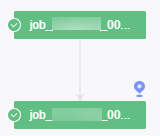
By default, the DAG displays the current job instance and its upstream and downstream job instances. It supports the following operations:
- Click
 in the upper right corner of the DAG to restore the DAG to the initial state, and click
  to close the DAG. You can adjust the view width.
 - Click a job instance to select it. Figure 8 Selecting a job instance
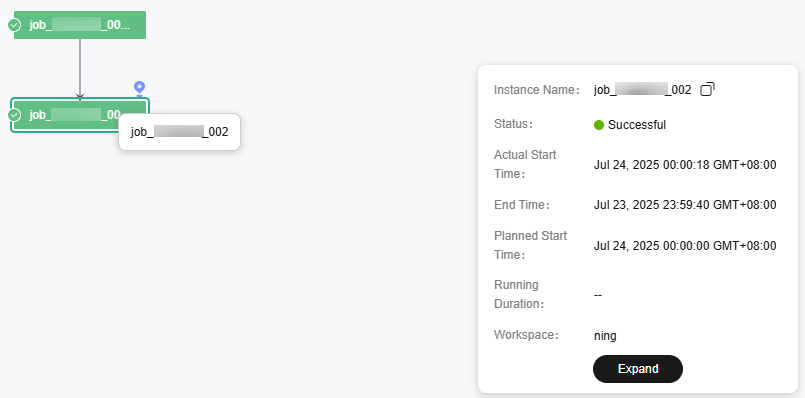
- When you select a node, the job instance name is displayed.
- Brief information about the instance is displayed in the lower right corner of the DAG. The instance name can be directly copied.
- Click Show Details to open the details panel, which displays information such as the instance attributes, job parameters, node list, and historical instances. You can adjust the height of the panel or close it.
- Click the blank area to deselect the job instance.
- Latest path: When you select a node, the latest path time of the upstream instance of the node instance is distinguished by color.
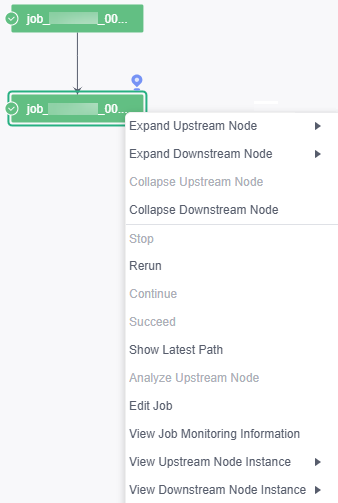
- Right-click a job instance to expand its upstream and downstream job instances. You can stop, rerun, continue to execute instances, forcibly make instances succeed, analyze the upstream node, and edit the job. You can view a maximum of five layers of upstream and downstream node instances. You can expand and collapse upstream and downstream nodes.
Right-click a job instance and select Rerun to set the parameters for reruning the job instance. For details, see Rerunning Job Instances.
Figure 9 Performing operations on job instances
- Click
List view
On the List View page, you can view the dependencies between job instances and perform O&M operations.
- In the left navigation pane on the DataArts Factory console, choose .
- Locate a job and click DAG in the Operation column. On the displayed Dependencies page, select List View. Figure 10 List View

- View details of the current job instance. In the Operation column, you can click Edit to edit the job and click View Job Monitoring to view monitoring information of the job.
- View the upstream and downstream instances on which the current job instance depends. When viewing upstream and downstream instances, you can click Back to Initial Instance to return to the current instance.
Job Instance Statuses
| Status | Description |
|---|---|
| Waiting | A job instance is in waiting state if the execution of its dependent job instances is not complete, for example, no instance has been generated, instances are waiting to be executed, or instances fail to be executed. |
| Running | A job is running. All of its dependent jobs have been executed successfully. |
| Successful | The service logic of a job is successfully executed (including the success of retry upon failure). Successful execution statuses include Successful, Forcibly successful, and Failure ignored. |
| Forcibly successful | A job instance in failed or canceled state is made successful. |
| Failure ignored | As shown in the following figure, a failure handling policy is configured to skip node B and continue to execute node C if node B fails. When the job is executed successfully, the job instance is in Failure ignored state. Figure 11 Failure handling policy – Go to the next node  |
| Abnormal | There are few scenarios where this status is displayed. As shown in the following figure, a failure handling policy is configured to suspend the job instance immediately without continuing to execute node C. In this case, the job instance is in Abnormal state. Figure 12 Failure handling policy – Suspend current job execution plan  |
| Paused | There are few scenarios where this status is displayed. When a running job instance is suspended by the test personnel, the instance is in Paused state. If node a of a job is running and node b of the job is waiting, when you click Pause, the job instance will be paused, node a will continue to run until it is complete, and node b will be paused. |
| Canceled |
|
| Frozen | If a job instance is expected to be generated in the future, the job instance is in frozen state after being frozen. |
| Failed | A job fails to be executed. If a job fails to be executed, you can view the failure cause, for example, a node of the job fails to be executed. |
What is your overall rating for this page?
Thank you very much for your feedback. We will continue working to improve the documentation.See the reply and handling status in My Cloud VOC.
For any further questions, feel free to contact us through the chatbot.
Chatbot


