

Configuring Environment Variables
Environment variables are parameters set in the system or user applications. You can obtain the values of environment variables by calling APIs. During deployment, parameters are specified through environment variables instead of in the code, which makes the deployment flexible.
Adding an Environment Variable
- Log in to CAE.
- Choose Component Configurations.
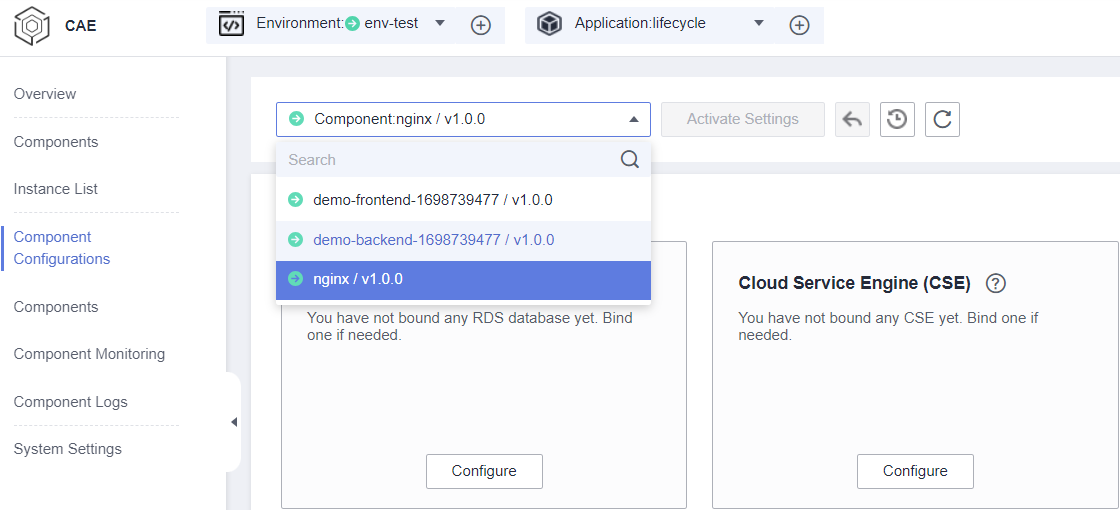
- Select the target component from the drop-down list in the upper part of the page. Figure 1 Selecting a component
- Click Edit in the Environment Variables module. On the right, click Add Environment Variable.
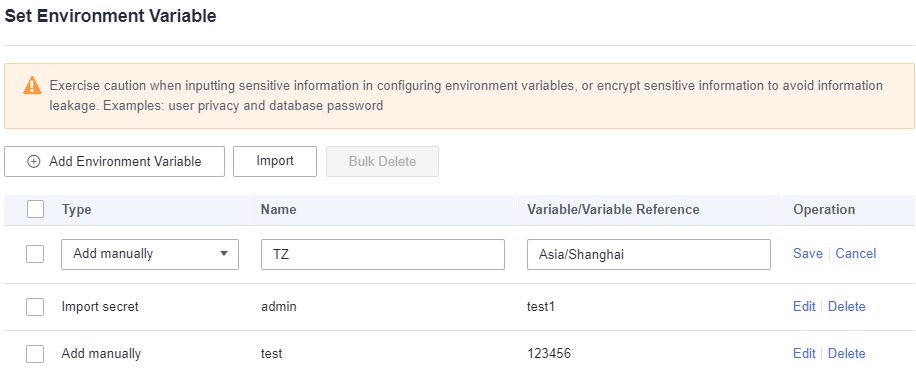
- Set the parameters by referring to Table 1.
Table 1 Configuring an environment variable Parameter
Description
Type
Select Add manually or Import secret.
Name
Name of an environment variable. It is the retrieval key used by an application to obtain the environment variable value from the API in the code. The name must be unique.
Use letters, digits, underscores (_), hyphens (-), or periods (.). Do not start with a digit or leave this parameter empty.
Variable/Variable Reference
Value of the environment variable.
- If Type is set to Add manually, enter the value of the variable name. Do not leave this parameter empty.
- If Type is set to Import secret, select a created credential configuration from the drop-down list. For details, see Adding a Secret.
If the value is sensitive information (such as a password or key), do not manually enter the value. Select Import secret or encrypt the value to prevent information leakage.
The following table shows how to set Name and Variable/Variable Reference. When the program code reads the environment variables, the corresponding environment variable value is obtained. The actual execution effect depends on the code.
When configuring CAE environment variables, design variable names and values by considering the service architecture, runtime environment, and functions of your services.
Type
Name
Variable/Variable Reference
Description
Add manually
DB_PORT
3306
Database port.
Add manually
DB_NAME
cae_business_db
Service database name.
Import secret
DB_USERNAME
${secret:db-account:username}
Database username in the referenced secret.
Import secret
DB_PASSWORD
${secret:db-account:password}
Database password in the referenced secret.
Add manually
TZ
Asia/Shanghai
Time zone.
Add manually
LOG_PATH
/var/log/cae-app/business/
Log storage path.
Add manually
PHP_MEMORY_LIMIT
256M
PHP application memory limit.
Figure 2 Configuring an environment variable
- (Optional) Click Import to import the custom environment variable file.

The file to import must be a key-value pair in character string format. Upload up to 200 environment variables at a time (JSON and YAML formats only). Example: {"key1": "value1", "key2": "value2"...}.
- Click Save in the Operation column. On the Set Environment Variable page, click OK.
- Make the configurations take effect.
- If the component has been deployed, click Activate Settings in the upper part of the page. In the dialog box displayed on the right, confirm the configurations and click OK for the configurations to take effect.
- If the component has not been deployed, click Set and Deploy Component in the upper part of the page. In the dialog box displayed on the right, click OK. After the deployment is complete, the configurations take effect.
Updating an Environment Variable
- Log in to CAE.
- Choose Component Configurations.
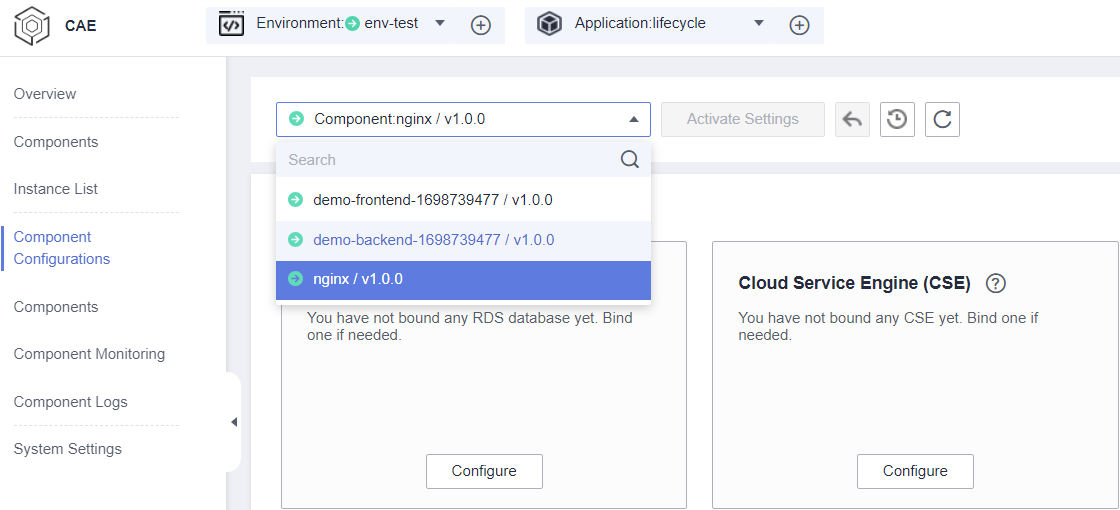
- Select the target component from the drop-down list in the upper part of the page. Figure 3 Selecting a component
- Click Edit in the Environment Variables module.
- Select the target configuration and click Edit in the Operation column. Update the environment variable by referring to Table 2.
Table 2 Configuring an environment variable Parameter
Description
Type
Select Add manually or Import secret.
Name
Name of an environment variable. It is the retrieval key used by an application to obtain the environment variable value from the API in the code. The name must be unique.
Use letters, digits, underscores (_), hyphens (-), or periods (.). Do not start with a digit or leave this parameter empty.
Variable/Variable Reference
Value of the environment variable.
- If Type is set to Add manually, enter the value of the variable name. Do not leave this parameter empty.
- If Type is set to Import secret, select a created credential configuration from the drop-down list. For details, see Adding a Secret.
If the value is sensitive information (such as a password or key), do not manually enter the value. Select Import secret or encrypt the value to prevent information leakage.
- Click Save in the Operation column. On the Set Environment Variable page, click OK.
- Make the configurations take effect.
- If the component has been deployed, click Activate Settings in the upper part of the page. In the dialog box displayed on the right, confirm the configurations and click OK for the configurations to take effect.
- If the component has not been deployed, click Set and Deploy Component in the upper part of the page. In the dialog box displayed on the right, click OK. After the deployment is complete, the configurations take effect.
Deleting an Environment Variable
- Log in to CAE.
- Choose Component Configurations.
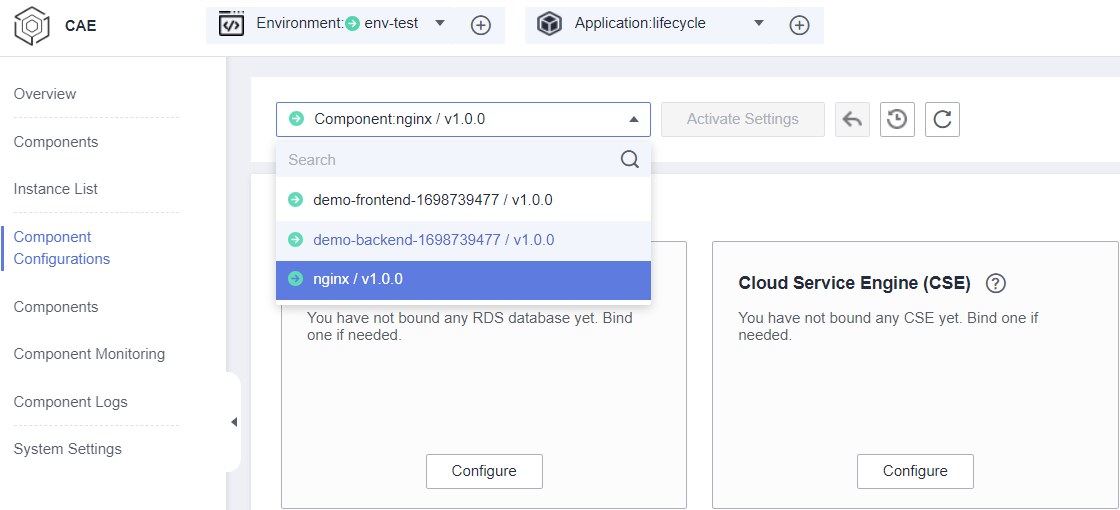
- Select the target component from the drop-down list in the upper part of the page. Figure 4 Selecting a component
- Click Edit in the Environment Variables module.
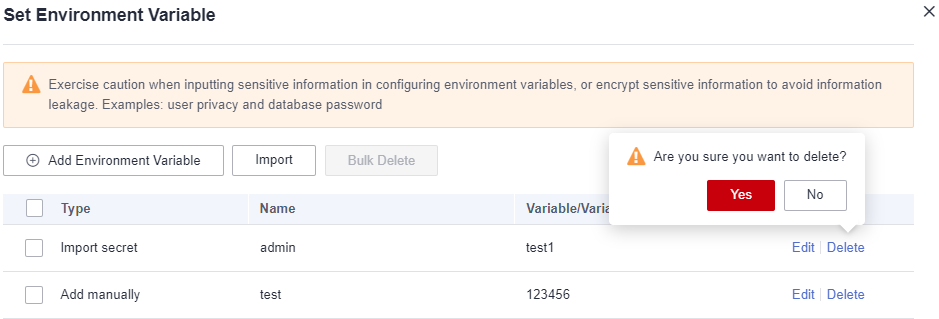
- Select the target configuration and click Delete in the Operation column. In the displayed dialog box, click Yes. Figure 5 Deleting an environment variable
- On the Set Environment Variable page, click OK.
- Make the configurations take effect.
- If the component has been deployed, click Activate Settings in the upper part of the page. In the dialog box displayed on the right, confirm the configurations and click OK for the configurations to take effect.
- If the component has not been deployed, click Set and Deploy Component in the upper part of the page. In the dialog box displayed on the right, click OK. After the deployment is complete, the configurations take effect.
What is your overall rating for this page?
Thank you very much for your feedback. We will continue working to improve the documentation.See the reply and handling status in My Cloud VOC.
For any further questions, feel free to contact us through the chatbot.
Chatbot


