

Updated on 2026-11-11 GMT+08:00
Auto-Renewing a DB Instance
Auto-renewal can prevent DB instances from being automatically deleted if you forget to manually renew them. The auto-renewal rules are as follows:
- The first auto-renewal date is based on when the DB instance expires and the billing cycle.
- The auto-renewal period of a DB instance depends on the subscription term.
- Monthly subscriptions renew each month.
- Yearly subscriptions renew each year.
- You can enable auto-renewal any time before a DB instance expires. By default, the system will make the first attempt to charge your account for the renewal at 03:00 seven days before the expiry date. If this attempt fails, it will make another attempt at 03:00 every day until the subscription is renewed or expires.
- After auto-renewal is enabled, you can still renew the DB instance manually if you want to. After a manual renewal is complete, auto-renewal is still valid, and fees start to be deducted seven days before the new subscription expires.
- By default, the renewal fee is deducted from your account seven days before the new expiry date. You can change this auto-renewal payment date as required.
For more details, see Auto-Renewal Rules.
Prerequisites
The yearly/monthly DB instance has not expired.
Enabling Auto-Renewal
- Log in to the TaurusDB console.
- On the Instances page, select the target instances and choose More > Enable Auto-Renewal.
- In the displayed side panel, confirm the instance information and click OK.
- On the auto-renewal page, confirm information about the instances to be renewed, set the renewal period, and determine whether to reset the number of renewals as required. Figure 1 Enabling auto-renewal

- Click OK to enable auto-renewal.
You can enable auto-renewal on the Buy DB Instance page, as shown in Figure 2. For details, see Buying a DB Instance.
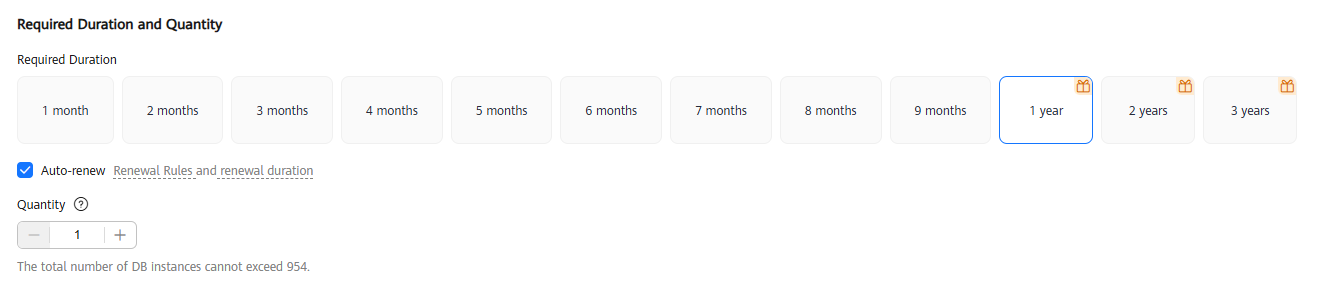
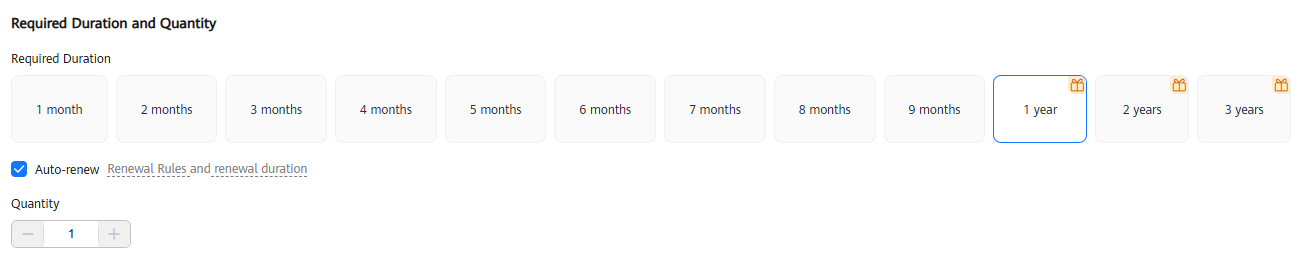
Figure 3 Enabling auto-renewal for a standard HTAP instance
- Log in to the console.
- On the top menu bar, choose Billing > Renewal.
The Renewals page is displayed.
- Select the search criteria.
- On the Auto Renewals page, you can view the DB instances for which auto-renew has been enabled.
- You can enable auto-renewal for DB instances on the Manual Renewals, Pay-per-Use After Expiration, and Renewals Canceled pages.
Figure 4 Manual Renewals
 Figure 5 Auto Renewals

- Enable auto-renewal for yearly/monthly DB instances.
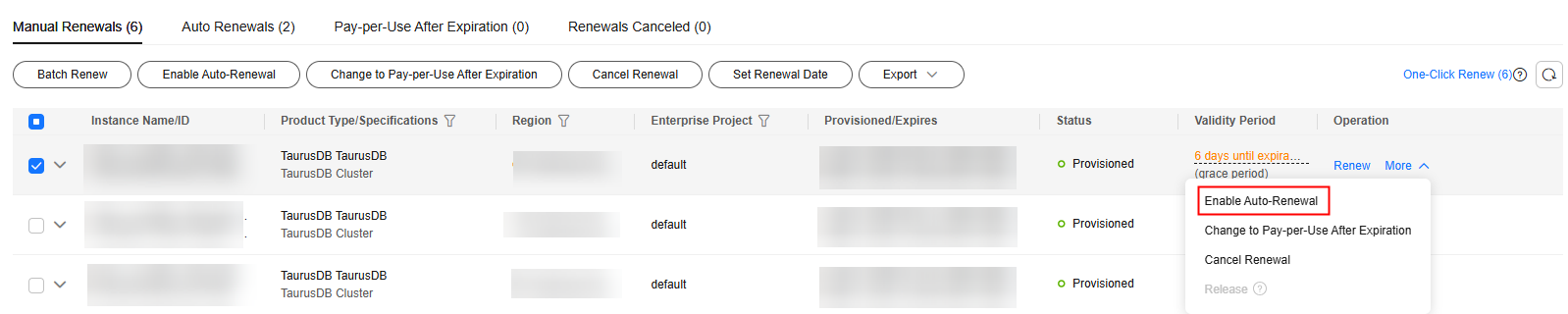
- Enabling auto-renewal for a single DB instance: Locate the instance that you want to enable auto-renewal for and choose More > Enable Auto-Renewal in the Operation column. Figure 6 Enabling auto-renewal for a single DB instance
- Enabling auto-renewal for multiple DB instances at once: Select the instances that you want to enable auto-renewal for and click Enable Auto-Renewal above the list. Figure 7 Enabling auto-renewal for multiple DB instances

- Enabling auto-renewal for a single DB instance: Locate the instance that you want to enable auto-renewal for and choose More > Enable Auto-Renewal in the Operation column.
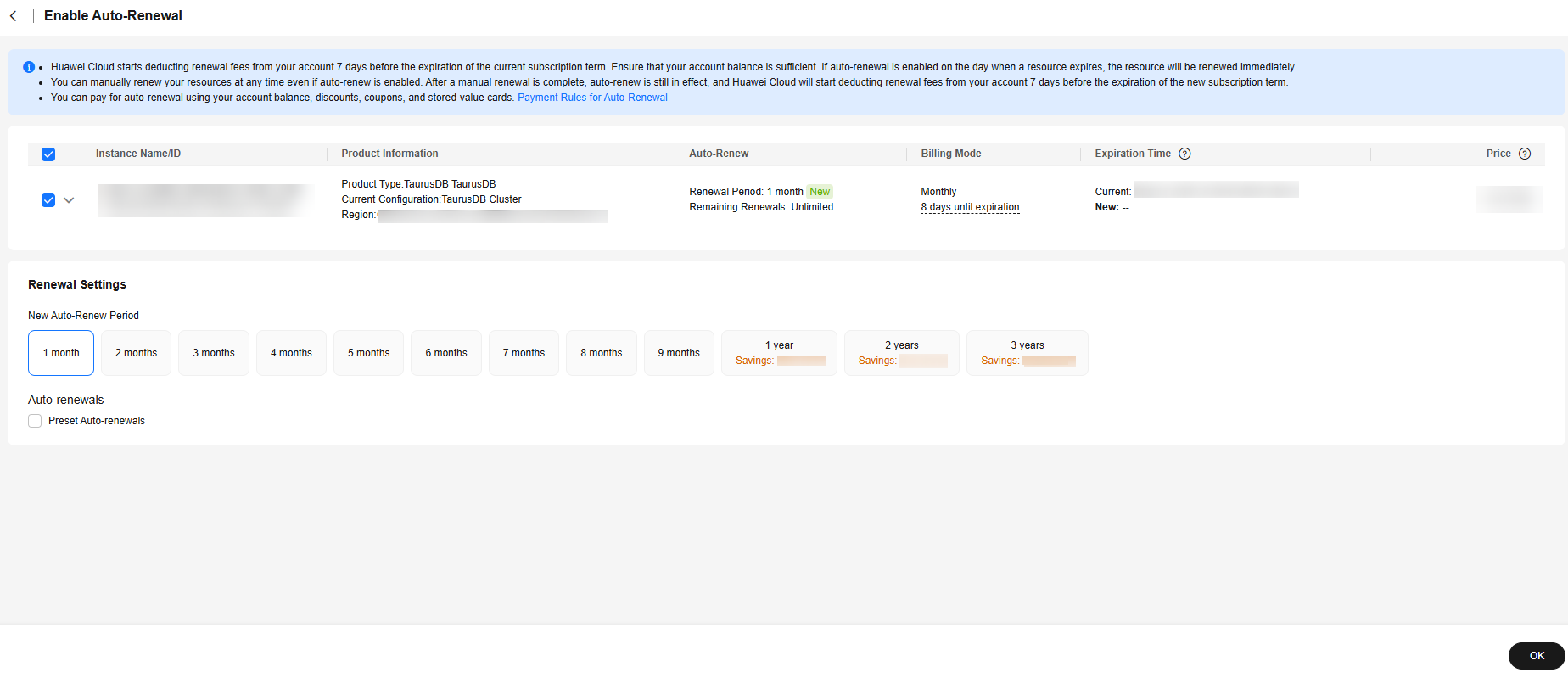
- Select a renewal period, specify the auto-renewal times, and click OK. Figure 8 Enabling auto-renewal
Modifying Auto-Renewal Settings for Multiple Instances
- Log in to the TaurusDB console.
- On the Instances page, select the target instances and choose More > Configure Auto-Renewal.
- In the displayed dialog box, confirm the instance information and click OK.
- On the Modify Auto-Renew page, set Renewal Option to Automatic, confirm information about the instances to be renewed, select a renewal period, and click OK. Figure 9 Modifying auto-renewal settings

If you want to disable auto-renewal, set Renewal Option to Manual and click OK.
Figure 10 Disabling auto-renewal

What is your overall rating for this page?
0
1
2
3
4
5
6
7
8
9
10
Very dissatisfiedVery satisfied
Thank you very much for your feedback. We will continue working to improve the documentation.See the reply and handling status in My Cloud VOC.
The system is busy. Please try again later.
For any further questions, feel free to contact us through the chatbot.
Chatbot


