

Help Center/ Identity and Access Management/ User Guide/ MFA Authentication/ Configuring a Security Key
Updated on 2026-03-26 GMT+08:00
Configuring a Security Key
This section describes how to add and unbind a security key. For details, see Adding a Security Key and Unbinding a Security Key.
Constraints
- Security keys added to IAM users can only be used for login protection.
- An IAM user can have a maximum of eight security keys added.
- Security keys can only be added to Huawei Cloud accounts and IAM users. HUAWEI IDs do not support security keys. For more information, see How Do I Know Whether I Am Logged In with a HUAWEI ID or Huawei Cloud Account?
Adding a Security Key
- Log in to the IAM console as the administrator.
- Click a username to go to the user details page.
- Click the Security Settings tab and find Multi-factor Authentication (MFA).
- Click Add MFA Device.
- Enter an MFA device name. Only letters, digits, hyphens (-), and underscores (_) are allowed.
- Select an MFA device. Select Security key for Device Type.
- Click Next.
- Select an authentication method for Windows Hello, such as PIN, face, or fingerprint. Figure 1 Setting up Windows Hello


If your Windows device does not support enabling facial recognition and fingerprint, options such as Face and Fingerprint will not appear. FIDO2 will show you the options according to the authentication types supported by your device.
- Enter the PIN (or recognize the face or fingerprint). After the system authentication is successful, a dialog box is displayed, indicating that the binding is successful. Click OK. The security key will be displayed in the MFA device list. Figure 2 MFA device added

- To set up a FIDO2 security key, select Use another device in the dialog box and plug the security key into the USB port of your computer. Figure 3 Using another device

- In the displayed dialog box, select Security key and click Next. Figure 4 Setting the security key

- Click OK to confirm the settings. Figure 5 Confirming the settings

- Click OK to install the security key. Figure 6 Installing the security key

- Enter the PIN of the security key and click OK. Figure 7 Entering the PIN

- Touch the security key. Figure 8 Touching the security key

- After the verification is successful, a dialog box is displayed, indicating that the MFA device is added. Click OK. The security key will be displayed in the MFA device list. Figure 9 MFA device added

Unbinding a Security Key
- Log in to the IAM console as the administrator.
- In the user list, click a username or click Security Settings in the Operation column to access the user details page.
- Click the Security Settings tab.
- Click Unbind in the Operation column of the target security key.
- In the displayed dialog box, enter YES in the text box. Figure 10 Confirming unbinding
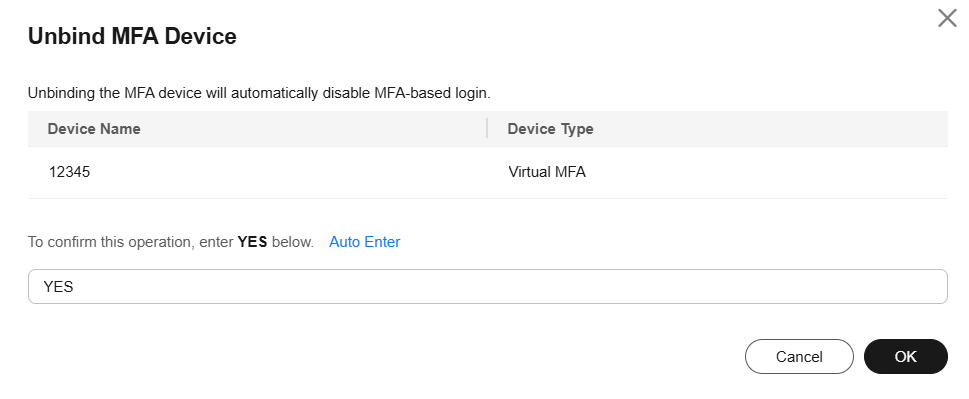
- Click OK.
Parent topic: MFA Authentication
What is your overall rating for this page?
0
1
2
3
4
5
6
7
8
9
10
Very dissatisfiedVery satisfied
Thank you very much for your feedback. We will continue working to improve the documentation.See the reply and handling status in My Cloud VOC.
The system is busy. Please try again later.
For any further questions, feel free to contact us through the chatbot.
Chatbot


