

Configuring Timeout for a LoadBalancer Service
LoadBalancer Services allow you to configure timeout, which is the maximum duration for keeping a connection if no request is received from the client. If no request is received during this period, the load balancer closes the connection and establishes a new one with the client when the next request arrives.

After timeout is configured, if you delete the timeout configuration on the CCE console or delete the target annotation from the YAML file, the configuration on the ELB will be retained.
Constraints
| Timeout Type | Load Balancer Type | Constraint | Supported Cluster Version |
|---|---|---|---|
| Idle timeout | Dedicated | None |
|
| Idle timeout | Shared | UDP is not supported. |
|
| Request timeout | Dedicated and shared | Only HTTP and HTTPS are supported. | |
| Response timeout | Dedicated and shared | Only HTTP and HTTPS are supported. |
Creating a LoadBalancer Service and Configuring Timeout Durations
Use one of the following methods.
- Log in to the CCE console and click the cluster name to access the cluster console.
- In the navigation pane, choose Services and Ingresses. In the upper right corner, click Create Service.
In this example, only mandatory parameters for configuring SNI are listed. Retain the default settings for other parameters. For details, see Using the CCE Console.
- Configure basic parameters.
Parameter
Description
Example
Service Type
Select LoadBalancer.
None
Service Name
Enter a name, which can be the same as the workload name.
nginx
Namespace
Select the namespace that the workload belongs to.
default
Selector
Add the key and value of a pod label. The Service will be associated with the workload pods based on the label and direct traffic to the pods with this label.
You can also click Reference Workload Label to use the label of an existing workload. In the dialog box displayed, select a workload and click OK.
app:nginx

- Configure load balancer parameters.
Parameter
Description
Example
Load Balancer
Select a load balance type and how the load balancer will be created. To enable HTTP/HTTPS on the listener port of a dedicated load balancer, the type of the load balancer must be Application (HTTP/HTTPS) or Network (TCP/UDP/TLS) & Application (HTTP/HTTPS).- Use existing: Only the load balancers in the same VPC as the cluster can be selected. If no load balancer is available, click Create Load Balancer to create one on the ELB console.
- Auto create: The load balancer will be created in the VPC that the cluster belongs to. For details, see Table 1.
An existing Dedicated load balancer of the Network (TCP/UDP/TLS) & Application (HTTP/HTTPS) type

- Configure access parameters.
Parameter
Description
Example
Service Affinity
Whether to route external traffic to a local node or a cluster-wide endpoint. For details, see Service Affinity (externalTrafficPolicy).- Cluster-level: The IP addresses and ports of all nodes in a cluster can access the workload associated with the Service. However, accessing the Service may result in performance deterioration due to route redirection, and the client's source IP address may not be obtainable.
- Node-level: Only the IP address and port of the node where the workload is located can access the workload associated with the Service. Accessing the Service will not result in performance deterioration due to route redirection, and the client's source IP address can be obtained.
Cluster-level
Port
- Protocol: the protocol used by the Service. According to the Kubernetes implementation, if a Service uses a load balancer with a non-UDP protocol, this parameter must be set to TCP and the corresponding listener frontend protocol must be selected. For details, see Protocols for Services.
- Container Port: the port that the workload listens on. For example, Nginx uses port 80 by default.
- Service Port: the port used by the Service.
- Listen on a port: The port ranges from 1 to 65535.
- Listen on ports: ELB allows you to create listeners that listen on ports within specified ranges. Each listener can support up to 10 non-overlapping port ranges.
To configure port ranges for load balancer listeners, ensure the following conditions are met:
- The cluster version must be v1.23.18-r0, v1.25.13-r0, v1.27.10-r0, v1.28.8-r0, v1.29.4-r0, v1.30.1-r0, or later.
- A dedicated load balancer must be used with TCP/UDP/TLS selected.
- This function requires ELB. Before using this function, check whether ELB supports full-port listening and forwarding for layer-4 protocols in the current region.
- Frontend Protocol: specifies the protocol for the load balancer listener used to establish connections with clients. When a dedicated load balancer is selected, HTTP/HTTPS can be configured only when Application (HTTP/HTTPS) is selected and TLS can be configured only when Network (TCP/UDP/TLS) is selected.
NOTE:When a LoadBalancer Service is created, a random node port number (NodePort) is automatically generated.
- Protocol: TCP
- Container Port: 80
- Service Port: 80
- Frontend Protocol: HTTP

- Configure listener parameters.
Parameter
Description
Constraint
Example
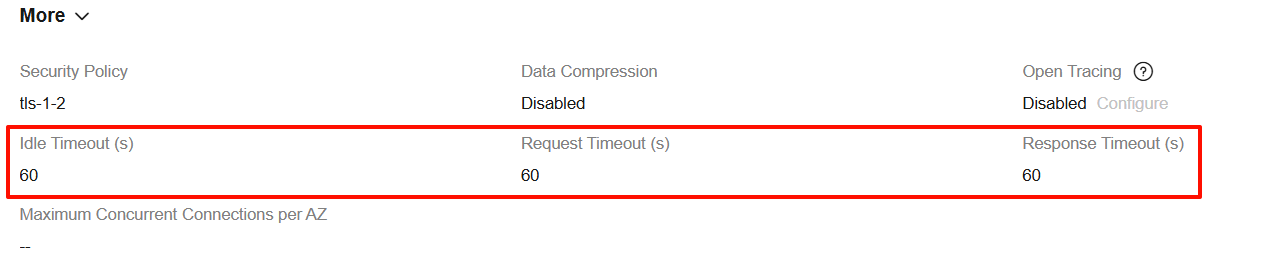
Idle Timeout
The duration for which a client connection can remain idle before being terminated. If there are no requests reaching the load balancer during this period, the load balancer will disconnect the connection from the client and establish a new connection when there is a new request.
Value:- For TCP listeners, the value ranges from 10 to 4000 (in seconds). The default value is 300.
- For HTTP, TERMINATED_HTTPS, or HTTPS listeners, the value ranges from 0 to 4000 (in seconds). The default value is 60.
- For UDP listeners (supported only by dedicated load balancers), the value ranges from 10 to 4000 (in seconds). The default value is 300.
This configuration is not supported when UDP is used on a shared load balancer.
60s
Request Timeout
The duration within which a request from a client must be received. There are two cases:
- If the client fails to send a request header to the load balancer during this period, the request will be interrupted.
- If the interval between two consecutive request bodies reaching the load balancer exceeds this period, the connection will be disconnected.
The value ranges from 1 to 300 (in seconds). The default value is 60.
This parameter is available only when the listener frontend protocol is HTTP or HTTPS.
60s
Response Timeout
Timeout for backend server response. If the backend server does not respond within this period after receiving a request, the load balancer will stop waiting and return an HTTP 504 error.
The value ranges from 1 to 300 (in seconds). The default value is 60.
This parameter is available only when the listener frontend protocol is HTTP or HTTPS.
60s

- Click Create.
apiVersion: v1
kind: Service
metadata:
  annotations:
    kubernetes.io/elb.id: <your_elb_id>    # In this example, an existing dedicated load balancer is used. Replace its ID with the ID of your dedicated load balancer.
    kubernetes.io/elb.class: performance  # Load balancer type
    kubernetes.io/elb.protocol-port: http:80 # The HTTP port 80 is used.
    kubernetes.io/elb.keepalive_timeout: '300'  # Timeout setting for client connections
    kubernetes.io/elb.client_timeout: '60'      # Timeout for waiting for a request from a client
    kubernetes.io/elb.member_timeout: '60'      # Timeout for waiting for a response from a backend server
  name: nginx
spec:
  ports:
  - name: service0
    port: 80
    protocol: TCP
    targetPort: 80
  selector:
    app: nginx
type: LoadBalancer | Parameter | Mandatory | Type | Description |
|---|---|---|---|
| kubernetes.io/elb.keepalive_timeout | No | String | Timeout for client connections. If there are no requests reaching the load balancer during this period, the load balancer will disconnect the connection from the client and establish a new connection when there is a new request. Value:
|
| kubernetes.io/elb.client_timeout | No | String | Timeout for waiting for a request from a client. There are two cases:
The value ranges from 1 to 300 (in seconds). The default value is 60. |
| kubernetes.io/elb.member_timeout | No | String | Timeout for backend server response. After a request is forwarded to the backend server, if the backend server does not respond within the duration specified by member_timeout, the load balancer will stop waiting and return HTTP 504 Gateway Timeout. The value ranges from 1 to 300 (in seconds). The default value is 60. |
Verifying Configuration
- Log in to the CCE console and click the cluster name to access the cluster console.
- In the navigation pane, choose Services and Ingresses. Locate the row that contains the created Service and click the load balancer name to go to the ELB console.
- Switch to the Listeners tab, click the listener name of the created port, and check whether the options are enabled.
What is your overall rating for this page?
Thank you very much for your feedback. We will continue working to improve the documentation.See the reply and handling status in My Cloud VOC.
For any further questions, feel free to contact us through the chatbot.
Chatbot


