

Replicating a Backup Across Regions
Scenarios
If data is stored in a single region, there is no geographical redundancy. In this case, it becomes difficult to ensure data security and service continuity in the event of misoperations or network attacks. If there is an incident, enterprises face the risk of data loss and service interruption. Additionally, regulatory policies in industries such as finance and healthcare are becoming increasingly stringent, requiring key data to be backed up across regions.
With the replication function, you can quickly deploy services across regions. The resources created from replicated backups retain the same state as the original resources at the time the backup was taken. With cross-region replication, backups can be automatically or manually replicated to geographically distributed storage nodes in different regions, mitigating security risks while ensuring regulatory compliance. It is a fundamental safeguard for enterprise data management.
You can replicate backups in either of the following methods on the CBR console:
- Select a backup from the backup list and manually replicate it. This method is inefficient, as it requires manual operation and can replicate only one backup at a time. It is suitable for temporary emergency backup or single-point test verification.
- Select a backup vault and manually replicate it. Alternatively, you can configure a replication policy to periodically replicate backups that have not been replicated or failed to be replicated to the destination region. A vault can contain multiple backups. You can manually replicate the vault to replicate its backups at a time, which is suitable for batch replication. You can also configure a replication policy to replicate backups on a scheduled basis. This method is suitable for periodic replication, such as periodic compliance backup or service continuity assurance.
This section uses the first method to describe how to replicate a backup. For details about the second method, see Replicating a Vault Across Regions.
How Cross-Region Replication Works
Cross-region replication of server backup vaults and SFS Turbo backup vaults allows you to replicate backups from one region to another in the same account.
Replicas of server backups can be used to create images and provision servers in another region. Replicas of SFS Turbo backups can be used to create file systems in another region.
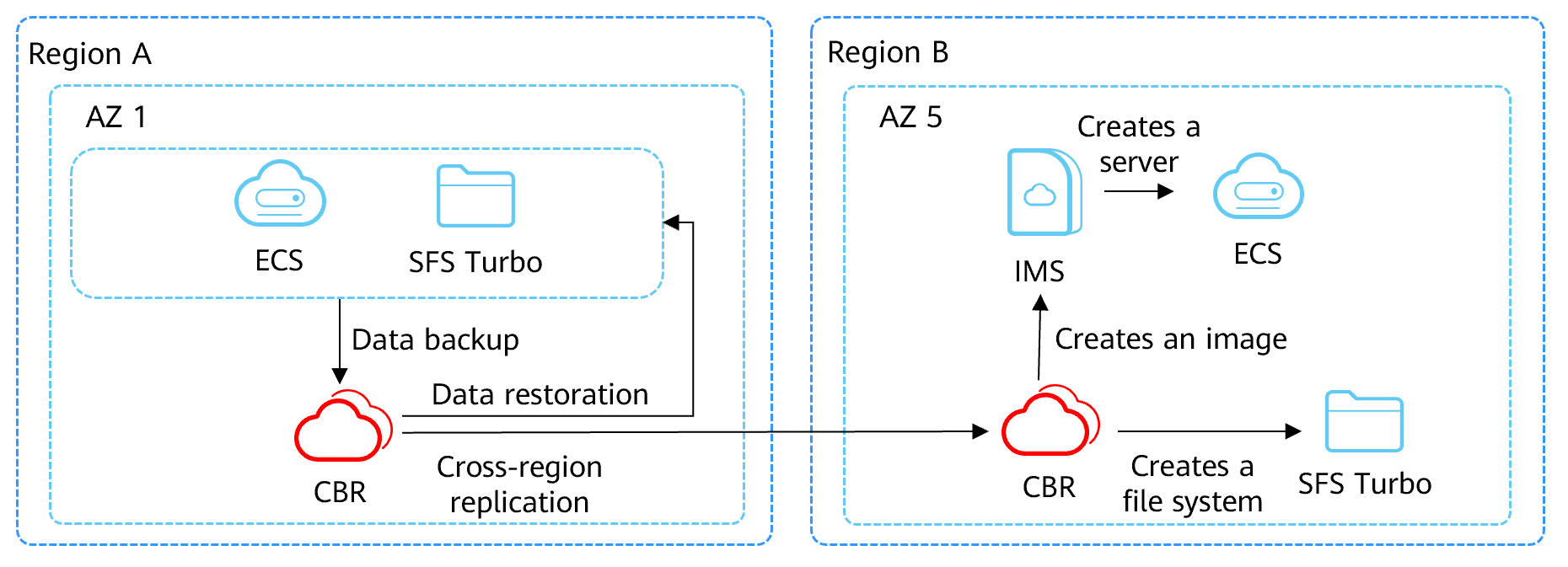
As shown in the figure, you can back up resources in region A, replicate the backups to region B, and use the replicas to create images or SFS Turbo file systems in region B.
Billing
- When you use the cross-region replication function, the replication vault purchased in the destination region is billed. For details about storage billing, see Cloud Backup and Recovery Billing Items.
- Cross-region replication of backups or vaults incurs traffic charges in the source region. The traffic charges are determined based on the replicated backup size. For details about traffic billing, see Cloud Backup and Recovery Billing Items.
- You are advised to purchase yearly/monthly packages and traffic packages. The longer the purchase period, the greater the discount. For details about billed items, see CBR Billing. For details about pricing, see CBR pricing details.
Prerequisites
You have purchased a replication (cross-region) vault in the destination region.
Constraints
- Database server backups can be replicated across regions.
- A server backup can be replicated only when it meets all the following conditions:
- It is an ECS backup. You can check the server type in the Server Type column of the backup list.
- It contains system disk data. You can check the disk backup in the backup details.
- It is in the Available state. You can check the backup status in the backup list.
- Replication is supported only for backups or vaults created in the source region. Replicated backups and vaults cannot be re-replicated. Backups replicated from other regions can only be used to create images or SFS Turbo file systems.
- A backup can be replicated to multiple regions, but only one replica is allowed in each destination region. The number of times you can replicate to a destination region varies depending on the replication method.
Manual replication of a single backup: A backup can be manually replicated again if its replica in the destination region has been deleted.
Manual vault replication or policy‑based backup replication: The replication can be performed only once. It cannot be performed again, even if the backups in the destination region have been deleted.
- Only replication-supported regions can be selected as destination regions. For details about replication-supported regions, see Table 1.
- Certain regions, such as LA-Buenos Aires1, cannot receive encrypted backups.
- Only vaults of the same backup type can be used as replication vaults. For example, if you want to replicate a server backup vault to a different region, select a server backup vault (with Protection Type set to Replication (cross-region)) in that region.
- Received shared backups do not support cross-region replication.
(Optional) Create a Replication Vault in the Destination Region
If there is at least one vault with the cross-region replication protection type in the destination region, skip this step.
- Go to the Buy Server Backup Vault page.
- Specify mandatory parameters for the server backup vault. For parameters not included in the following table, retain the default values.
Complete Basic Settings and select a Protection Type.

Parameter
Example Value
Description
Billing Mode
Pay-per-use
- Pay-per-use is a postpaid billing mode. You are billed based on your resource usage. You can buy or delete vaults anytime. Fees are deducted from your account.
- Yearly/Monthly is a prepaid billing mode. You are billed based on the subscription duration you specify. This mode provides lower prices and is ideal when the resource use duration is predictable.
Region
AP-Bangkok
Target region where the backups will be replicated to. Resources in different regions cannot communicate with each other over internal networks.
Only replication-supported regions can be selected as destination regions. For details about replication-supported regions, see Table 1.
After a vault is purchased, the region cannot be changed.
Protection Type
Replication (cross-region)
A replication vault will be created to store server backup replicas.
For example, if you want to back up a server, select Backup for the vault protection type. If you want to replicate backups of a server from one region to another, select Replication (cross-region) for the vault in this other region.
Set the Backup Capacity.

Parameter
Example Value
Description
Vault Capacity
100G
Specify the vault capacity. The capacity ranges from 10 GB to 10,485,760 GB.
You need to plan the vault capacity in advance. The capacity of the replication vault cannot be less than the size of the backups to be replicated.
As the vault's used space grows, you can expand the vault capacity if it becomes insufficient.
Auto Capacity Expansion
Skip
- If you select Configure, the vault capacity will be automatically expanded to 1.25 times the original capacity when the capacity is used up.
- If you select Skip, the vault capacity will not be expanded automatically. If the vault capacity is used up, you can manually expand it. For details, see Expanding Vault Capacity.
Configure Enterprise Project and Advanced Settings.

Parameter
Example Value
Description
Enterprise Project
default
Add the vault to an existing enterprise project.
This parameter is only available for enterprise users who have enabled enterprise project management.
NOTE:If IAM users have been assigned the CBR FullAccess permissions but cannot choose enterprise projects when they create a vault, the administrator needs to go to the Enterprise Project Management console to assign the permissions to the IAM user groups.
Vault Name
vault-317a
Name of the vault to be created.
The name can contain 1 to 64 characters. Only letters, digits, underscores (_), and hyphens (-) are allowed. You can also use the default name vault_xxxx.
- Select CBR Cross-Region Replication Disclaimer.
- Click Next.
- Click Submit. Confirm the order details. Wait for the vault to be created.
- Go back to the Cloud Server Backups page. You can view the created vault in the vault list. The vault is in the Available state.
Create a Cross-region Backup Replication Task
- Click
 in the upper left corner of the management console and select the region where the backups to be replicated are located.
 - Click the Backups tab. Locate the desired backup. For details, see Viewing a Backup.
- Choose More > Create Replica in the Operation column of the backup. Figure 1 Creating a replica

- In the displayed dialog box, configure the parameters as described in Table 1.
Table 1 Parameter description Parameter
Description
Name
Replica name. You can enter a custom name or use the default name resource name_xxxx.
The name can contain 1 to 64 characters. Only letters, digits, underscores (_), and hyphens (-) are allowed.
Description
Replica description. This parameter is optional.
It cannot exceed 255 characters.
Destination Region
Region where the backup will be replicated to. Select the region where the replication vault is located.
Only the regions that support replication will be displayed. For details about the supported regions, see Table 1.
- If the selected region contains only one project, you can directly select the region name.
- If the selected region has multiple projects, the default project of the region is preselected, but you can still select another project if needed.
Destination Vault
A replication vault in the destination region. Select the replication vault created in the previous step.
If no replication vault is found in the destination region, purchase a vault for cross-region replication in the destination region by referring to Creating a Server Backup, and then select the vault.
You can replicate backups to vaults in multiple regions. Once replication is successful, the replicated backups will occupy the required storage capacity.
- Select CBR Cross-Region Replication Disclaimer.
- Click OK.
- After the replication is complete, you can switch to the destination region to view generated replicas. For details, see Viewing a Backup. You can then use the replicas to create images or SFS Turbo file systems.
What is your overall rating for this page?
Thank you very much for your feedback. We will continue working to improve the documentation.See the reply and handling status in My Cloud VOC.
For any further questions, feel free to contact us through the chatbot.
Chatbot


