

What Can I Do If I Cannot Find My Resources?
Scenarios
If you log in to the management console as an IAM user, you may not have the permissions required to view or search for resources. In this case, the account administrator will need to grant the required permissions.

Permissions required by different modules on the management console are different. Grant required permissions to IAM users as prompted. For details about all the permission policies supported by IAM, see System-defined Permissions. For details about how to assign permissions, see Creating a User Group and Assigning Permissions.
You (account administrator) can grant the RMS ReadOnlyAccess permissions to IAM users so that they can view resources displayed on the Service View and Resource View tabs.
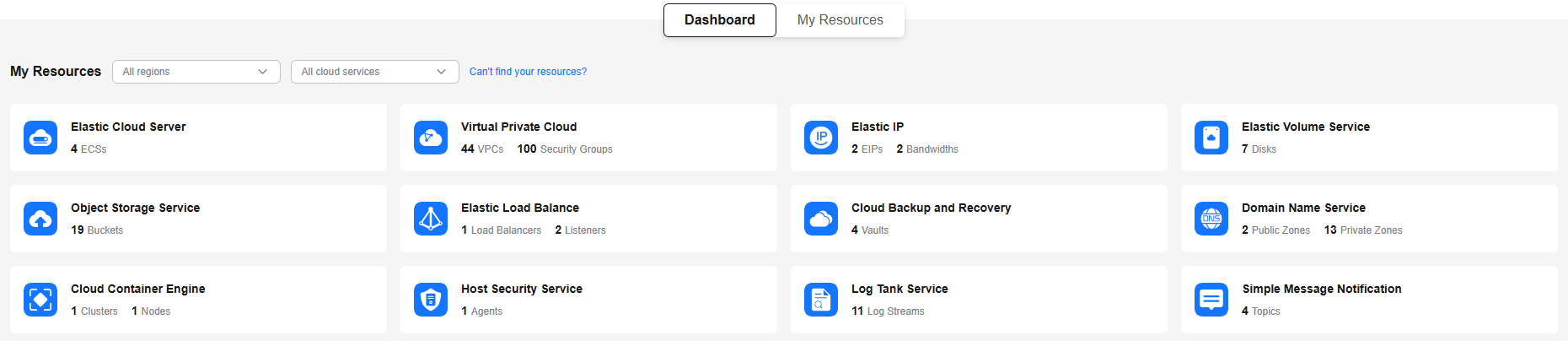
If IAM users do not have the required permissions, information shown in Figure 1 will be displayed.

You can also create custom policies to grant required permissions. The following policies are required for viewing resources:
- rms:resources:get: Grants permissions to view a single resource.
- rms:resources:list: Grants permission to view all resources of a specified resource type.
For details about how to create a custom policy to grant required permissions to an IAM user, see the following sections:
The following uses the RMS ReadOnlyAccess permissions as an example to describe how to grant permissions to an IAM user.
Prerequisites
You have logged in to the Huawei Cloud management console using the HUAWEI ID to which the IAM user belongs. For details, see Logging In to the Management Console.
Granting RMS ReadOnlyAccess Permissions to an IAM User
- Access the Identity and Access Management console.
- In the displayed page, click the username of the target IAM user. The user details page is displayed. Figure 2 User details
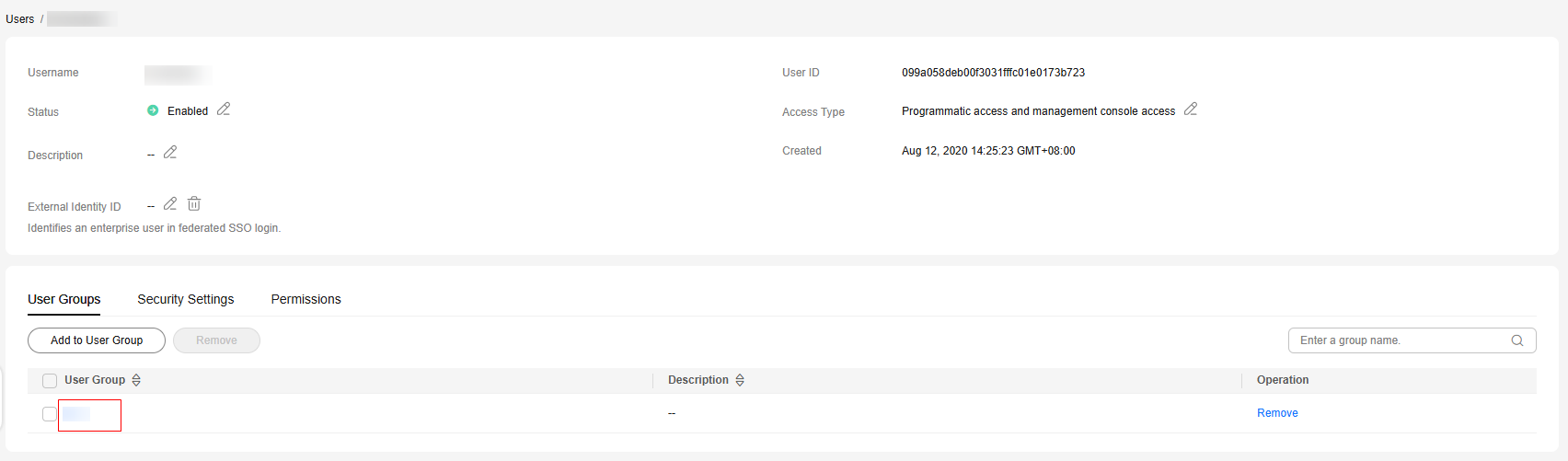
- On the User Groups tab page, click the user group name. The user group details page is displayed. Figure 3 User group details
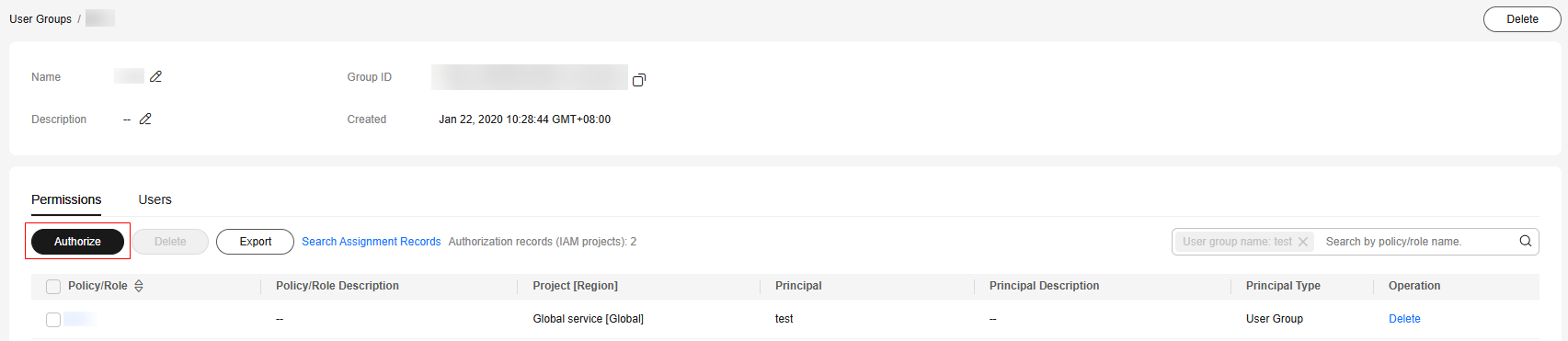
- On the Permissions tab page, click Authorize above the list.
- In the search box on the Authorize User Group page, enter RMS ReadOnlyAccess to search for it. Figure 4 Authorize User Group

- Select RMS ReadOnlyAccess and click Next.
- Select the desired scope requiring minimum authorization. Select the default value All resources here.
- Click OK.
- Log in to the management console as the IAM user.
What is your overall rating for this page?
Thank you very much for your feedback. We will continue working to improve the documentation.See the reply and handling status in My Cloud VOC.
For any further questions, feel free to contact us through the chatbot.
Chatbot


