

Full Restoration Using Backups
Scenarios
RDS allows you to use an automated or manual backup to restore data of the entire instance.
Function Description
| Item | Description |
|---|---|
| Restoration scope | The entire instance |
| Restoration type |
|
| Instance data after restoration | The instance data after restoration is consistent with that in the full backup used for the restoration.
|
| Time required | The time required depends on how much data there is in the instance. The average restoration speed is 40 MB/s. |
Constraints
- You can restore to new DB instances from backups only when your account balance is greater than or equal to $0 USD. You will pay for the new instance specifications.
- RDS for PostgreSQL supports restoration to the original DB instance from backups. To use this function, submit a service ticket.
- Constraints on restoring data to an existing DB instance (other than the original instance):
- If the target existing DB instance has been deleted, data cannot be restored to it.
- Restoring to an existing DB instance will overwrite data on it and cause the existing DB instance to be unavailable.
- To restore backup data to an existing DB instance, the selected DB instance must be in the same VPC as the original DB instance and must have the same DB engine and DB engine version as the original DB instance. For example, a backup of PostgreSQL 16.5 can be restored only to an existing instance running PostgreSQL 16.5 instead of 16.6.
Procedure
- Log in to the RDS console.
- Click
 in the upper left corner and select a region.
 - On the Backups page, select the backup to be restored and click Restore in the Operation column.
Alternatively, click the target DB instance on the Instances page. On the displayed page, choose Backups & Restorations. On the displayed page, select the backup to be restored and click Restore in the Operation column.
- Select a restoration method and click OK.
- Create New Instance: Select this option if you want to restore the backup to a new instance. Figure 1 Restoring to a new instance
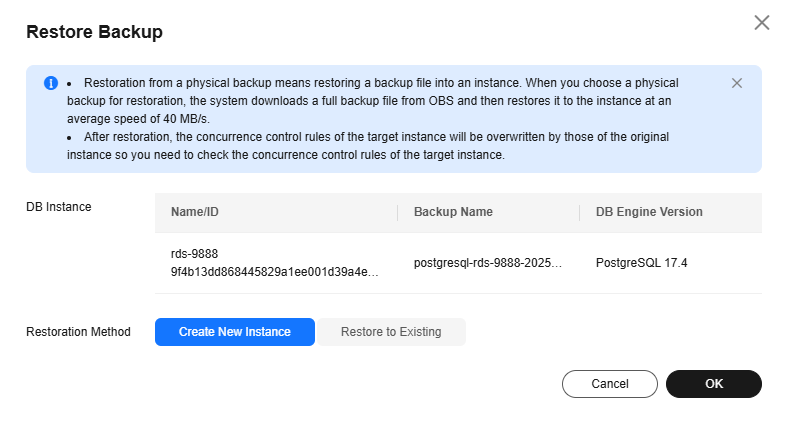
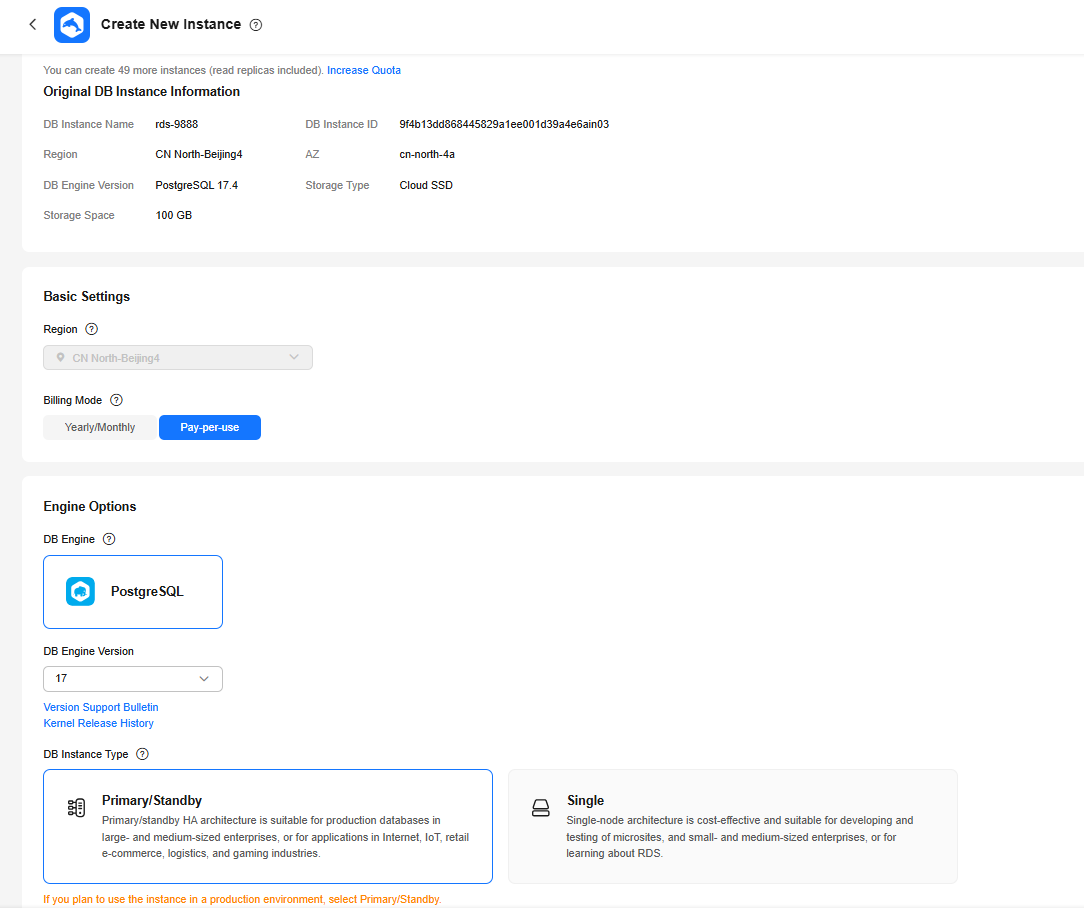
The Create New Instance page is displayed. Set the required parameters.
- Keep the new instance's DB engine the same as that of the original instance.
- When a newly created backup is restored to a new instance, the DB version of the new instance matches that of the original instance at the time the backup was created. However, backups created before May 2026 do not record the instance version. When such a backup is restored to a new instance, the DB version of the new instance will match the version of the current instance.
- By default, the disk encryption status and key of the new instance are the same as those of the original instance. You can modify them as required.
- The new instance must have at least the same storage space as the original instance.
- Other settings are the same as those of the original DB instance by default and can be modified. For details, see Buying an RDS for PostgreSQL DB Instance.
Figure 2 Creating a new instance
- Restore to Existing: Select this option if you want to restore the backup to an existing instance.
- Select "I acknowledge that restoring to an existing DB instance will overwrite data on the instance and will cause the existing DB instance to be unavailable during the restoration. Only DB instances that can be used as target instances for the restoration are displayed here. Eligible instances must have the same DB engine type, version, and at least as much storage as the instance being restored." and click Next.
- Confirm the information and click OK.
- If you have enabled operation protection, click Send Code in the displayed Identity Verification dialog box and enter the obtained verification code. Then, click OK.
- Two-factor authentication improves the security of your account and cloud product. For details about how to enable operation protection, see Identity and Access Management User Guide.
- Create New Instance: Select this option if you want to restore the backup to a new instance.
- View the restoration result. The result depends on which restoration method was selected:
- Create New Instance
A new DB instance is created using the backup data. The status of the DB instance changes from Creating to Available.
The new DB instance is independent of the original one. If you need read replicas to offload read pressure, create one or more read replicas for the new DB instance.
A full backup is triggered after the new DB instance is created.
- Create New Instance
Follow-up Operations
After the restoration is successful, you can log in to the DB instance for verification.
Backup data cannot be restored to original RDS for PostgreSQL DB instances. If you need to restore data to your original DB instance, restore backup data to a new DB instance and then migrate the data to the original instance using DRS or change the floating IP address of the new DB instance to that of the original instance.
What is your overall rating for this page?
Thank you very much for your feedback. We will continue working to improve the documentation.See the reply and handling status in My Cloud VOC.
For any further questions, feel free to contact us through the chatbot.
Chatbot


