

Help Center/ Relational Database Service_RDS for PostgreSQL/ User Guide/ Problem Diagnosis and SQL Analysis/ SQL Analysis/ Viewing Slow Query Logs of a DB Instance
Updated on 2026-09-08 GMT+08:00
Viewing Slow Query Logs of a DB Instance
Scenarios
Slow Query Log displays a chart of SQL statements that are taking too long to execute and allows you to sort slow SQL statements by multiple dimensions, such as by user, client IP address, or SQL template. It helps you quickly identify bottlenecks and improve instance performance.
Procedure
- Log in to the RDS console.
- Click
 in the upper left corner and select a region.
 - On the Instances page, click the target instance name to go to the Summary page.
- In the navigation pane, choose SQL Analysis and Tuning under DBA Assistant.
- Click the Slow Query Logs tab.

Slow Query Logs needs to be purchased separately. To use this function, subscribe to Intelligent O&M first.
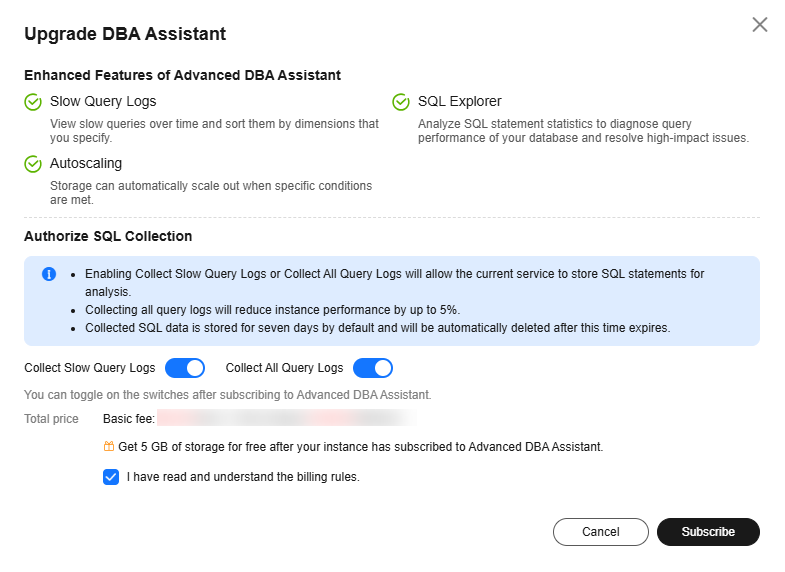
- Click Upgrade DBA Assistant. In the displayed dialog box, you can learn about the enhanced features and billing rules. Figure 1 Upgrading DBA Assistant
- After the upgrade is complete, view slow queries over time of your instance.
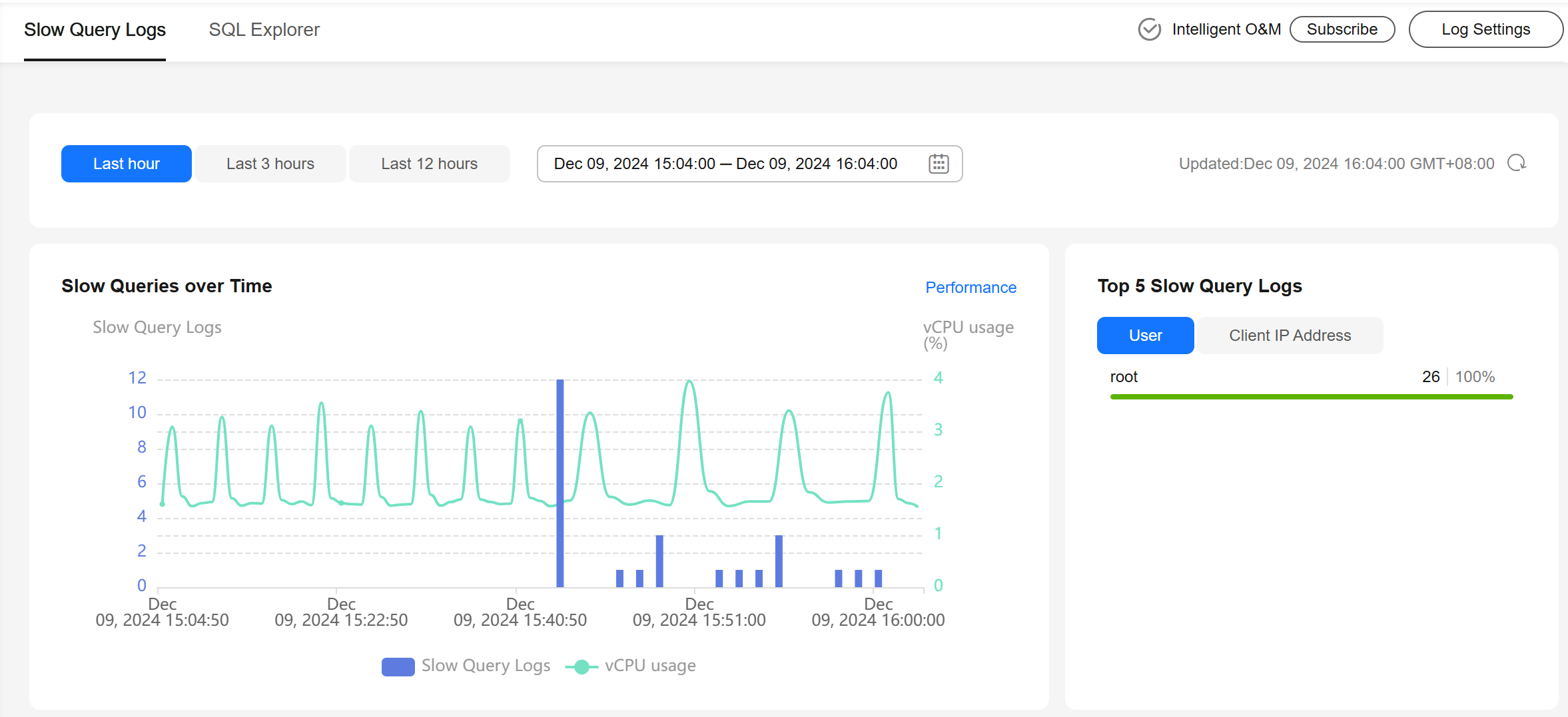
- Check slow queries over time and archived slow query logs in the last 1 hour, last 3 hours, last 12 hours, or a custom time period (spanning no more than one day). Figure 2 Viewing slow queries over time
- View slow query log details and template statistics.
- To export slow query log information, click Export.
- To view log export history, click View Export List.
What is your overall rating for this page?
0
1
2
3
4
5
6
7
8
9
10
Very dissatisfiedVery satisfied
Thank you very much for your feedback. We will continue working to improve the documentation.See the reply and handling status in My Cloud VOC.
The system is busy. Please try again later.
For any further questions, feel free to contact us through the chatbot.
Chatbot


