

Scaling Up Storage Space
Scenarios
If the storage space is not enough for your workloads, you can scale up storage space of your DB instance. The backup space will also increase with the storage.
You can configure an alarm rule for the storage space usage, so you are alerted if the threshold is reached. For details, see Setting Alarm Rules.
For details about the causes and solutions of insufficient storage space, see What Should I Do If My Data Exceeds the Available Storage of an RDS Instance?
Workloads are not interrupted during storage scale-up.If you need to change the storage type, refer to Changing a Storage Type.
Storage Full Conditions for Causing Instances to Be Read-Only
| Storage Size | Condition |
|---|---|
| Less than 1 TB |
|
| Greater than or equal to 1 TB |
|
How to Disable Read-Only
Locate the instance in the Storage full state, click Disable Read-only. In the displayed dialog box, specify how long the read-only status is disabled for (from 5 to 10 minutes), and click OK.
Disabling the read-only status will cause application downtime when the storage is full. Exercise caution when performing this operation.

Constraints
- You can scale up storage space only when your account balance is greater than or equal to $0 USD.
- You can scale up storage space only when your instance status is Available or Storage full.
- The maximum storage size is 10,000 GB.
- When storage space is being scaled up, the DB instance is in Scaling up state and the backup tasks of the instance are not affected.
- For primary/standby DB instances, scaling up the primary DB instance will cause the standby DB instance to also be scaled up.
- Reboot is not required during scale-up.
- You cannot reboot or delete a DB instance that is being scaled up.
- Storage space can only be scaled up, not down.
- If you scale up a DB instance with disk encryption enabled, the expanded storage space will also be encrypted using the original encryption key.
Billing
| Billing Mode | Operation | Impact on Fees |
|---|---|---|
| Yearly/Monthly | Storage scale-up | You need to pay for the difference in price based on the remaining period. Example (The prices below are for reference only. The actual prices are displayed on the console.) Suppose you purchased a one-month RDS for MySQL 5.7 single-node DB instance (instance class: general-purpose, 2 vCPUs | 8 GB; storage: cloud SSD, 40 GB) in CN-Hong Kong on June 1, 2023. The unit price of storage space is $0.214 USD/GB per month. On June 15, 2023, you scaled up the storage by 60 GB. The total storage after scale-up is 100 GB. Price difference = Scale-up volume x Unit price x Remaining period The remaining period is the remaining days of each calendar month divided by the maximum number of days in each calendar month. In this example, the remaining period and price difference are calculated as follows: Remaining period = 15 (Remaining days in June)/30 (Maximum number of days in June) = 0.5 Price difference = 60 GB × $0.214 USD × 0.5 = $6.42 USD |
| Pay-per-use | Storage scale-up | The new storage space is billed by hour. For details, see Product Pricing Details. |
Procedure
- Log in to the RDS console.
- Click
 in the upper left corner and select a region.
 - On the Instances page, locate the target DB instance and choose More > Scale Storage Space in the Operation column.
You can also perform the following operations to scale up storage space:
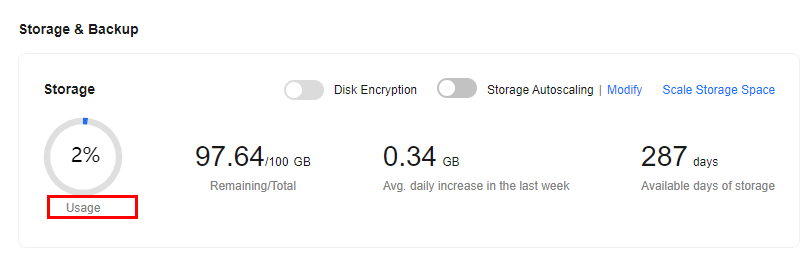
- Click the target instance name to enter the Overview page. In the Storage & Backup area, click Scale Storage Space.
- If the storage space is full, locate the target DB instance on the Instances page and click Scale in the Status column.
- On the displayed page, specify the new storage space and click Next.
The minimum increment for each scale-up is 10 GB. The selected capacity must be an integer multiple of 10.
- Confirm specifications.
- If you need to modify your settings, click Previous.
- If you do not need to modify the settings, click Submit for a pay-per-use or yearly/monthly instance.
- View the scale-up result.
Scaling up storage takes 3-5 minutes. During this process, the instance status initially shows Scaling up on the Instances page and later changes to Available. To verify the scale-up, click the DB instance name and check its new storage capacity on the Summary page.
To view the detailed progress and result, go to the Task Center page. For details, see Task Center.
Scaling up the storage space of a read replica does not affect that of the primary DB instance. Therefore, you can separately scale up read replicas to meet service requirements. New storage space of read replicas after scale-ups must be greater than or equal to that of the primary DB instance.
- Log in to the RDS console.
- Click in the upper left corner and select a region.
- On the Instances page, locate the target DB instance and click
 in front of it. Locate the read replica to be scaled and choose More > Scale Storage Space in the Operation column.
 You can also perform the following operations to scale up storage space:
- Click the read replica name to enter the Overview page. In the Storage & Backup area, click Scale Storage Space.
- If the storage space is full, locate the read replica on the Instances page and click Scale in the Status column.
- On the displayed page, specify the new storage space and click Next.
The minimum increment for each scale-up is 10 GB. The selected capacity must be an integer multiple of 10.
- Confirm specifications.
- If you need to modify your settings, click Previous.
- If you do not need to modify the settings, click Submit for a pay-per-use read replica.
- View the scale-up result.
Scaling up storage takes 3-5 minutes. During this process, the instance status initially shows Scaling up on the Instances page and later changes to Available. To verify the scale-up, click the DB instance name and check its new storage capacity on the Summary page.
To view the detailed progress and result, go to the Task Center page. For details, see Task Center.
What is your overall rating for this page?
Thank you very much for your feedback. We will continue working to improve the documentation.See the reply and handling status in My Cloud VOC.
For any further questions, feel free to contact us through the chatbot.
Chatbot


