

Developing a PHP Event Function
You can develop a PHP event function locally and upload the code file, or create a function on the FunctionGraph console and edit code online.
For details about the syntax and SDK APIs of PHP functions, see Function Development Overview.
Constraints
- FunctionGraph can return only the following types of values:
- Null: The HTTP response body is empty.
- string: The content in this string is the body of an HTTP response.
- Other: FunctionGraph returns a value for JSON encoding, and uses the encoded object as the body of an HTTP response. The Content-Type header of the HTTP response is set to text/plain.
- For details about the constraints for the APIG event source, see Base64 Decoding and Response Structure.
- In this example, the function project files are saved under the ~/Code/ directory. Select and package all files under the directory to ensure that the index.php file, the handler of your FunctionGraph function, is under the root directory when the fss_examples_php7.3.zip file is decompressed.
Developing a PHP Function
- Create a function.
- Write code for printing text helloworld.
Open the text editor, compile a HelloWorld function, and save the code file as helloworld.php. The code is as follows:
1
2
3
4
<?php
function printhello() {
echo 'Hello world!';
}
- Define a FunctionGraph function.
Open the text editor, define a function, and save the function file as index.php under the same directory as the helloworld.php file. The function code is as follows:
1
2
3
4
5
6
7
8
<?php
include_once 'helloworld.php';

function handler($event, $context) {
    $output = json_encode($event);
    printhello();
    return $output;
}
- Write code for printing text helloworld.
- Package the project files. After creating the function project, you get the following directory. Select all files under the directory and package them into the fss_examples_php7.3.zip file, as shown in Figure 1.
- Create a FunctionGraph function and upload the code package. Log in to the FunctionGraph console, create a PHP function, and upload the fss_examples_php7.3.zip file, as shown in Figure 2.
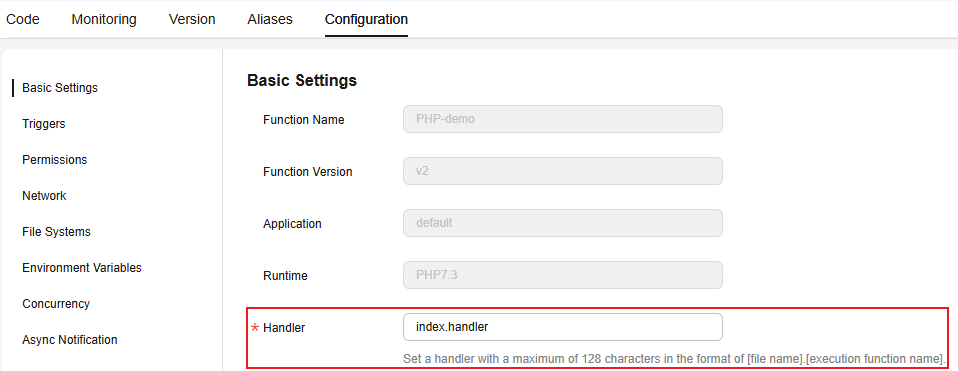
- The index of the handler must be consistent with the name of the file created in 1.b, because the file name will help to locate the function file.
- The handler is a function name, which must be the same as that in the index.php file created in 1.b.
After you upload the fss_examples_php7.3.zip file to OBS, when the function is triggered, FunctionGraph decompresses the file to locate the function file through index and locate the function defined in the index.php file through handler, and then executes the function.

Modifying the function handler:
In the navigation pane on the left of the FunctionGraph console, choose Functions > Function List. Click the name of the function to be set. On the function details page that is displayed, choose Configuration > Basic Settings and set the Handler parameter, as shown in Figure 3. - Test the function.
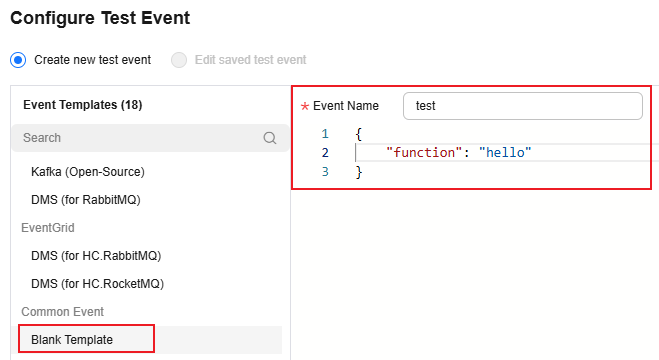
- Create a test event. On the function details page that is displayed, click Configure Test Event. Configure the test event information, as shown in Figure 4, and then click Create.
- On the function details page, select the configured test event, and click Test.
- Create a test event.
- View the function execution result.
The function execution result consists of three parts: function output (returned by return), summary, and logs (output by using the echo method).


Execution Result
The execution result consists of the function output, summary, and log output.
| Parameter | Successful Execution | Failed Execution |
|---|---|---|
| Function Output | The defined function output information is returned. | A JSON file that contains errorMessage, errorType, and stackTrace is returned. The format is as follows: {
"errorMessage": "",
"errorType": "",
"stackTrace": {}
} errorMessage: Error message returned by the runtime. errorType: Error type. stackTrace: Stack error information returned by the runtime. |
| Summary | Request ID, Memory Configured, Execution Duration, Memory Used, and Billed Duration are displayed. | Request ID, Memory Configured, Execution Duration, Memory Used, and Billed Duration are displayed. |
| Log Output | Function logs are printed. A maximum of 4 KB logs can be displayed. | Error information is printed. A maximum of 4 KB logs can be displayed. |
What is your overall rating for this page?
Thank you very much for your feedback. We will continue working to improve the documentation.See the reply and handling status in My Cloud VOC.
For any further questions, feel free to contact us through the chatbot.
Chatbot


