

Collecting Volcano Scheduling Metrics and Setting Up a Grafana Dashboard
Application Scenarios
The Volcano Scheduler add-on provides a wide range of monitoring metrics. These metrics help you understand Volcano's scheduling of workloads. For details, see Default Volcano Monitoring Metrics. Using these metrics, you can set up dashboards at different levels to stay informed about cluster information in real-time.
The Cloud Native Cluster Monitoring add-on does not automatically collect these metrics. To view them on Grafana dashboards, manually configure data collection in the Cloud Native Cluster Monitoring add-on and set up dashboards. This section describes how to collect Volcano monitoring metrics and set up a dashboard.
Prerequisites
- The Volcano Scheduler add-on has been installed in the cluster. For details about the installation procedure, see Volcano Scheduler.
- The Cloud Native Cluster Monitoring add-on and Grafana add-on have been installed in the cluster, and public access has been enabled for Grafana. For details about how to install these add-ons, see Cloud Native Cluster Monitoring and Grafana.
- To use AOM data sources (Configuring an AOM Data Source), enable Report Monitoring Data to AOM in the Cloud Native Cluster Monitoring add-on and Interconnect with AOM in the Grafana add-on. In addition, make sure to use the same AOM instance for both add-ons.
- To use Prometheus data sources (Configuring a Prometheus Data Source), enable Local Data Storage in the Cloud Native Cluster Monitoring add-on.
Step 1: Collect Volcano Monitoring Metrics
The Cloud Native Cluster Monitoring add-on does not automatically collect Volcano monitoring metrics. To view these metrics in the monitoring center, manually configure data collection in the add-on.
- Log in to the CCE console and click the cluster name to access the cluster console.
- In the navigation pane, choose Cluster > Settings. In the right pane, click the Monitoring tab. Choose Monitoring Settings > Collection Settings > PodMonitor Policies and click Manage. In the window that slides out from the right, search for volcano-scheduler and enable collection. Figure 1 Enabling collection

- In the Monitoring Settings area, locate Metric Settings and click Refresh to obtain data. In the Targets area, click View Details and verify that the collection record of volcano-scheduler is normal. Figure 2 Viewing collection records

Step 2: Configure a Data Source for Grafana
Grafana supports:
- AOM data sources: Grafana automatically creates a prometheus-aom data source. Make sure this data source can be properly connected to Grafana.
- Prometheus data sources: You can use the preset prometheus data source in Grafana. Make sure this data source can be properly connected to Grafana.
To use an AOM data source, ensure that Report Monitoring Data to AOM has been enabled for the Cloud Native Cluster Monitoring add-on, Interconnect with AOM has been enabled for the Grafana add-on, and the two add-ons are connected to the same AOM instance. After you enabled Interconnect with AOM for the Grafana add-on, the prometheus-aom data source is automatically generated on the Grafana GUI. Ensure that the data source can be properly connected to Grafana. After the connectivity test has been passed, you can start using the AOM data source.
- In the navigation pane, choose Cluster > Add-ons. In the right pane, find the Grafana add-on and click Access to go to the Grafana GUI.
- Enter the username and password when you access the Grafana GUI for the first time. The default username and password are both admin. After entering the username and password, reset the password following instructions.
- In the upper left corner, click
 , click
  on the left of Connections, and click Data sources to access the Data sources page.
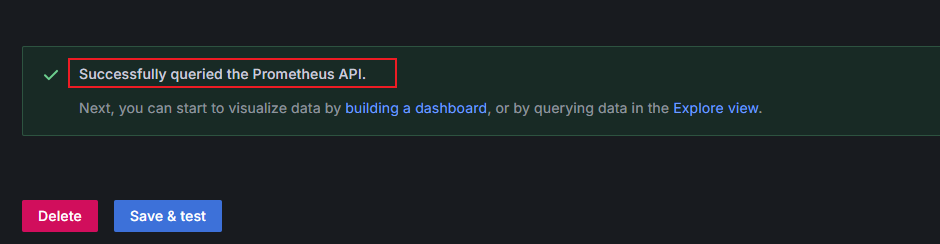
 - In the data source list, click prometheus-aom. Click Save & test at the bottom of the prometheus-aom data source page to check the data source connectivity. If "Successfully queried the Prometheus API" is displayed, the connectivity test has been passed. Figure 3 Connectivity test passed
Before using a Prometheus data source, ensure that Local Data Storage has been enabled for the Cloud Native Cluster Monitoring add-on. The Grafana prometheus data source can connect directly to the local Prometheus data source after Local Data Storage is enabled. Ensure that the data source can be properly connected to Grafana. After the connectivity test has been passed, you can start using the Prometheus data source.
- In the navigation pane, choose Cluster > Add-ons. In the right pane, find the Grafana add-on and click Access to go to the Grafana GUI.
- Enter the username and password when you access the Grafana GUI for the first time. The default username and password are both admin. After entering the username and password, reset the password following instructions.
- In the upper left corner, click , click on the left of Connections, and click Data sources to access the Data sources page.
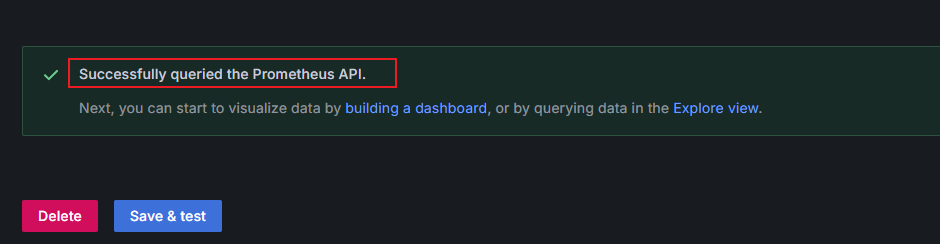
- In the data source list, click prometheus. Click Save & test at the bottom of the prometheus data source page to check the data source connectivity. If "Successfully queried the Prometheus API" is displayed, the connectivity test has been passed. Figure 4 Connectivity test passed
Step 3: Set Up a Grafana Dashboard
Grafana dashboards are essential for centralized monitoring and visualizing data from various data sources. They provide real-time insights into system statuses and service metrics using charts, graphs, and alarms. Based on Volcano monitoring metrics, you can set up a Grafana dashboard to visualize scheduling performance.
Volcano provides JSON templates for Grafana dashboards that cover several common monitoring scenarios. You can copy these templates and use them directly. This section uses volcano-scheduler-internal-dashboard as an example to describe how to configure a Grafana dashboard. For details about other JSON templates, see https://github.com/volcano-sh/volcano/blob/8aba772412bed8bdd9c20b599f97ff7835e8f422/installer/volcano-monitoring.yaml#L499-L508.
- Import the Grafana dashboard of Volcano to show Volcano monitoring metrics.
- On the Grafana GUI, click
 to open the menu bar on the left and click Dashboards. In the upper right corner of the Dashboards page, click New and choose Import from the drop-down list. Figure 5 Setting up a dashboard

- Copy the JSON template of volcano-scheduler-internal-dashboard, paste it in the dashboard box, click Load, and then click Import. Figure 6 Importing a JSON template

- On the Grafana GUI, click
- After the import is complete, the Volcano monitoring panel is displayed. Select the Prometheus or AOM data source based on the Grafana data source configured in Step 2: Configure a Data Source for Grafana. Figure 7 Selecting a data source

The panel data similar to that shown below is displayed.
Figure 8 Observing a panel

- Edit a panel and adjust the PromQL statement. E2E Job Scheduling Duration By JobName is used as an example. The Edit Panel page is displayed. Figure 9 Editing a panel

You can view the PromQL statement of the current panel. The statement can be adjusted as required.
Figure 10 Viewing the PromQL statement

For example, change the statement to avg by (queue) (volcano_e2e_job_scheduling_duration) and click Run queries.
Figure 11 Modifying the PromQL statement

Click Save or Apply in the upper right corner of the panel to save the change.
Figure 12 Saving the change

- Add a panel to the current panel.
- On the right, click Add and choose Visualization from the drop-down list to create a panel. Figure 13 Adding a panel

- On the Query tab in the lower left corner of the Edit panel page, select the data source configured in Step 2: Configure a Data Source for Grafana for Data source. Click
 on the left of A, click Code on the right of the expanded content, and enter the corresponding PromQL statement in Metrics browser to collect data. Figure 14 Editing the panel parameters

- In the upper right corner of the Edit panel page, switch the panel type to Table and enter a panel title in Panel options > Title. In this example, the title is set to Task Latency P95. You can use another title. Figure 15 Configuring a panel title

- Click Save in the upper right corner. On the Save dashboard page displayed, click Save again. In the upper right corner, click Apply to go to the dashboard page. The Task Latency P95 panel has been created. Figure 16 Saving a panel

- On the right, click Add and choose Visualization from the drop-down list to create a panel.
Default Volcano Monitoring Metrics
| Metric | Type | Description |
|---|---|---|
volcano_e2e_scheduling_latency_milliseconds | Histogram | End-to-end scheduling latency of the scheduler (in ms), which includes the scheduling algorithm and pod binding |
volcano_e2e_job_scheduling_latency_milliseconds | Histogram | Scheduling latency for each job, in ms |
volcano_e2e_job_scheduling_duration | GaugeVec | Total scheduling duration of a job (in ms), which includes the job_name, queue, and namespace labels |
volcano_e2e_job_scheduling_start_time | GaugeVec | Time when a job begins scheduling, in the Unix format |
volcano_e2e_job_scheduling_last_time | GaugeVec | Time when a job makes the last scheduling attempt |
volcano_plugin_scheduling_latency_milliseconds | HistogramVec | Scheduling latency of each plug-in, which includes the plugin and OnSession labels |
volcano_action_scheduling_latency_milliseconds | HistogramVec | Execution latency of each scheduling action, which includes the action label |
volcano_task_scheduling_latency_milliseconds | Histogram | Scheduling latency of an individual task, in ms |
volcano_pod_preemption_victims | Gauge | Number of pods that were preempted. The scheduler reclaims resources based on priority. |
volcano_total_preemption_attempts | Counter | Total number of preemption attempts |
volcano_unschedule_task_count | GaugeVec | Number of tasks that cannot be scheduled, which includes the job_id label |
volcano_unschedule_job_count | Gauge | Total number of jobs that cannot be scheduled |
PromQL Statements Related to Volcano Metrics
Performance-related metrics
- Overall scheduling latency (E2E)
Panel Name
PromQL Statement
Metric Description
Scheduler E2E Scheduling Latency P95
histogram_quantile(0.95, sum(rate(volcano_e2e_scheduling_latency_milliseconds_bucket[5m])) by (le))
The P95 end-to-end scheduling latency of Volcano Scheduler. This measures the time from when a job begins scheduling to when the scheduling is completed. It helps identify long-tail latency issues in overall scheduling performance.
Scheduler E2E Scheduling Latency Heatmap
sum(rate(volcano_e2e_scheduling_latency_milliseconds_bucket[5m])) by (le)
Histogram distribution of end-to-end scheduling latency. This visualization helps detect jitter and long-tail behavior across the latency distribution.
- Job-level scheduling latency
Panel Name
PromQL Statement
Metric Description
E2E Job Scheduling Duration By JobName (Latest)
avg by (job_name) (volcano_e2e_job_scheduling_duration)
Average job scheduling duration, which is used to identify slow-scheduling jobs. You can also change the dimension to queue or job_namespace.
E2E Job Scheduling Latency Heatmap (Latest)
sum(rate(volcano_e2e_job_scheduling_latency_milliseconds_bucket[5m])) by (le)
Distribution of job-level scheduling latency, which is used to determine whether overall job scheduling latency is increasing or whether latency spikes are occurring
- Preemption-related metrics
Panel Name
PromQL Statement
Metric Description
Preemption Attempts Rate
rate(volcano_total_preemption_attempts[5m])
Number of preemption attempts triggered by Volcano within a given time window. An increase in this value indicates resource shortages or intensified queue competition.
Current Preemption Victims
volcano_pod_preemption_victims
Number of pods marked as preemption victims, which reflects the impact of resource preemption
- Plug-in–level scheduling latency
Panel Name
PromQL Statement
Metric Description
Plugin Scheduling Latency P95 By Plugin / OnSession
histogram_quantile(0.95, sum(rate(volcano_plugin_scheduling_latency_milliseconds_bucket[5m])) by (le, plugin, OnSession))
P95 scheduling plug-in execution latency measured by plug-in and OnSession. It is used to identify slow plug-ins or abnormal scheduling sessions.
- Action-level scheduling latency
Panel Name
PromQL Statement
Metric Description
Action Scheduling Latency P95 By Action
histogram_quantile(0.95, sum(rate(volcano_action_scheduling_latency_milliseconds_bucket[5m])) by (le, action))
P95 execution latency of each scheduling action, such as allocate, preempt, and reclaim. It serves as a core metric for identifying the root causes of slow scheduling.
- Job scheduling in a cluster
Panel Name
PromQL Statement
Metric Description
-
volcano_unschedule_job_count
Number of Volcano jobs that fail to be scheduled in a cluster
-
volcano_unschedule_task_count
Number of pods that remain unscheduled in a cluster
Queue-related metrics (collected only after the capacity plug-in is enabled)
- Requested, allocated, and deserved CPU cores of a queue
Panel Name
PromQL Statement
Metric Description
Queue CPU Request
volcano_queue_request_milli_cpu
Total CPUs requested by all pods in a queue, in millicores
Queue CPU Allocated
volcano_queue_allocated_milli_cpu
Number of CPU cores allocated to and used by a queue
Queue CPU Deserved
volcano_queue_deserved_milli_cpu
Number of CPU cores deserved by a queue
- Requested, allocated, and deserved memory of a queue
Panel Name
PromQL Statement
Metric Description
Queue Memory Request
volcano_queue_request_memory_bytes
Total memory requested by all pods in a queue
Queue Memory Allocated
volcano_queue_allocated_memory_bytes
Amount of memory allocated to and used by a queue
Queue Memory Deserved
volcano_queue_deserved_memory_bytes
Amount of memory deserved by a queue
- Requested, allocated, and deserved extended resources, for example, GPUs, in a queue
Panel Name
PromQL Statement
Metric Description
Scalar Request
volcano_queue_request_scalar_resources{resource="nvidia.com/gpu"}Total number of GPUs requested by all pods in a queue
Scalar Allocated
volcano_queue_allocated_scalar_resources{resource="nvidia.com/gpu"}Number of GPUs allocated to and used by a queue
Scalar Deserved
volcano_queue_deserved_scalar_resources{resource="nvidia.com/gpu"}Number of GPUs deserved by a queue
- Queue capacity and real capacity (CPUs)
Panel Name
PromQL Statement
Metric Description
CPU Capacity
volcano_queue_capacity_milli_cpu
Theoretical CPU upper limit configured for a queue
CPU Real Capacity
volcano_queue_real_capacity_milli_cpu
Actual available CPU upper limit that a queue can use
- Queue capacity and real capacity (memory)
Panel Name
PromQL Statement
Metric Description
Memory Capacity
volcano_queue_capacity_memory_bytes
Theoretical memory upper limit configured for a queue
Memory Real Capacity
volcano_queue_real_capacity_memory_bytes
Actual available memory upper limit that a queue can use
- Queue capacity and real capacity (extended resources; GPUs used as an example)
Panel Name
PromQL Statement
Metric Description
Scalar Capacity
volcano_queue_capacity_scalar_resources{resource="nvidia.com/gpu"}Theoretical GPU upper limit configured for a queue
Scalar Real Capacity
volcano_queue_real_capacity_scalar_resources{resource="nvidia.com/gpu"}Actual available GPU upper limit that a queue can use
- Queue Share
Panel Name
PromQL Statement
Metric Description
Queue share
volcano_queue_share
Actual queue usage (allocated or deserved). For queues without a configured deserved value, the share is always 1.
What is your overall rating for this page?
Thank you very much for your feedback. We will continue working to improve the documentation.See the reply and handling status in My Cloud VOC.
For any further questions, feel free to contact us through the chatbot.
Chatbot


