

Configuring Fine-Grained Permissions for a Graph
GES graph instances offer fine-grained permission control, allowing you to set traverse, read, and write permissions for specific properties under particular labels. You can configure these granular permissions at both the label and property levels for the graphs you manage and assign them to user groups.
- Traverse: A common operation when working with data structures (such as arrays, linked lists, trees, or graphs), traversal involves accessing each element in a structured order to perform specific actions on them.
- For more details on labels and properties, refer to Static Graph.

- Supported versions for fine-grained permissions:
- Memory edition groups of version 2.2.21 or later.
- Database edition graphs of version 2.4.0 or later. Starting from version 2.4.9, you can configure fine-grained permissions for database edition subgraphs.
You can upgrade a graph of an earlier version to any of the above versions and then configure fine-grained permissions for the upgraded graph.
- To configure fine-grained permissions, ensure you have IAM user view access and GES Manager permissions or higher. If IAM user view access is unavailable, follow the instructions in Viewing Graph Permissions in GES to import IAM users.
Configuring Permissions
- Before setting up fine-grained permissions, ensure that user groups are properly configured. Refer to Configuring a GES User Group for detailed instructions.
- In the navigation pane on the left, choose Granular Permissions > Permission Configuration.
- On the Permission Configuration page, you will see a list of graphs currently in the Running state. For each graph, the following details are displayed: graph name, fine-grained permission status, last time permissions were enabled, available actions. Figure 1 Configuring granular permissions

- Only graphs with a Running state will appear on this page.
- You can filter graphs by name in the upper right corner of the page.
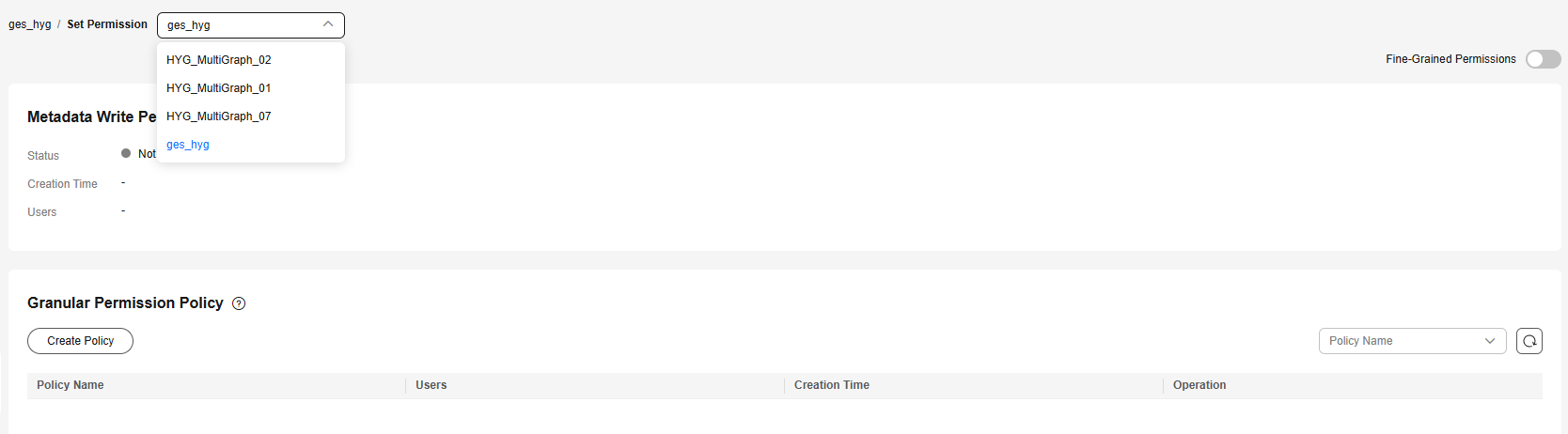
- Select the graph for which you want to configure permissions. In its Operation column, click Set Permission to access the Set Permission page (refer to Figure 2). Here, you can create metadata permissions and fine-grained graph permissions. Figure 2 Permission configuration (page for memory edition and database edition graphs of versions earlier than 2.4.9)
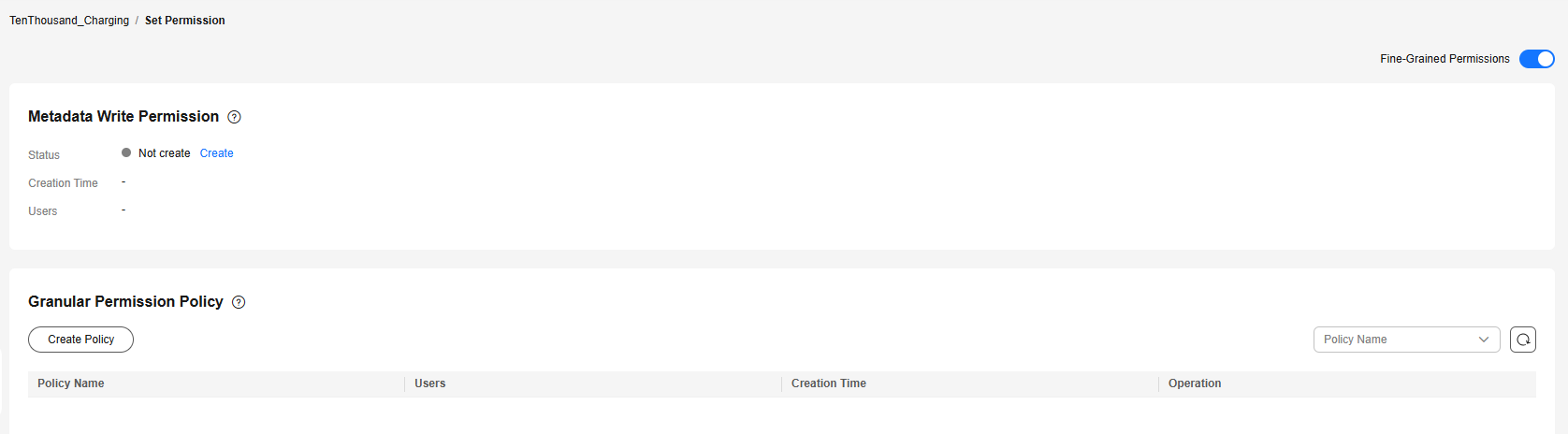 Figure 3 Permission configuration (page for memory edition and database edition graphs of version 2.4.9 or later)
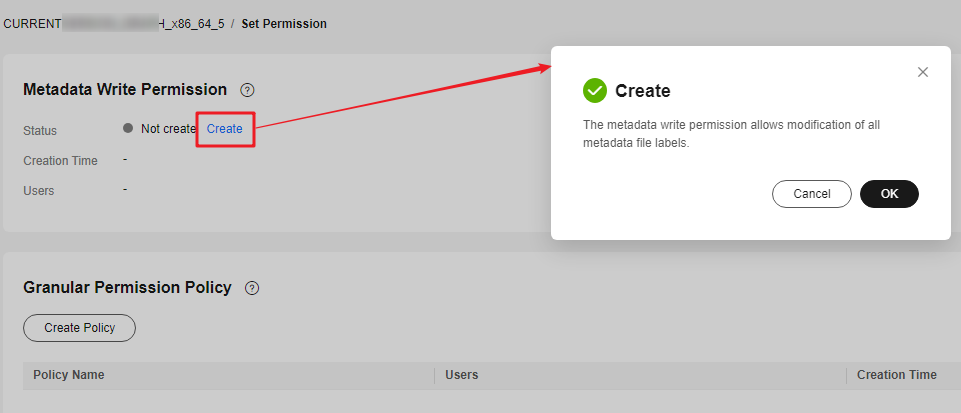
- Create write permissions for metadata.
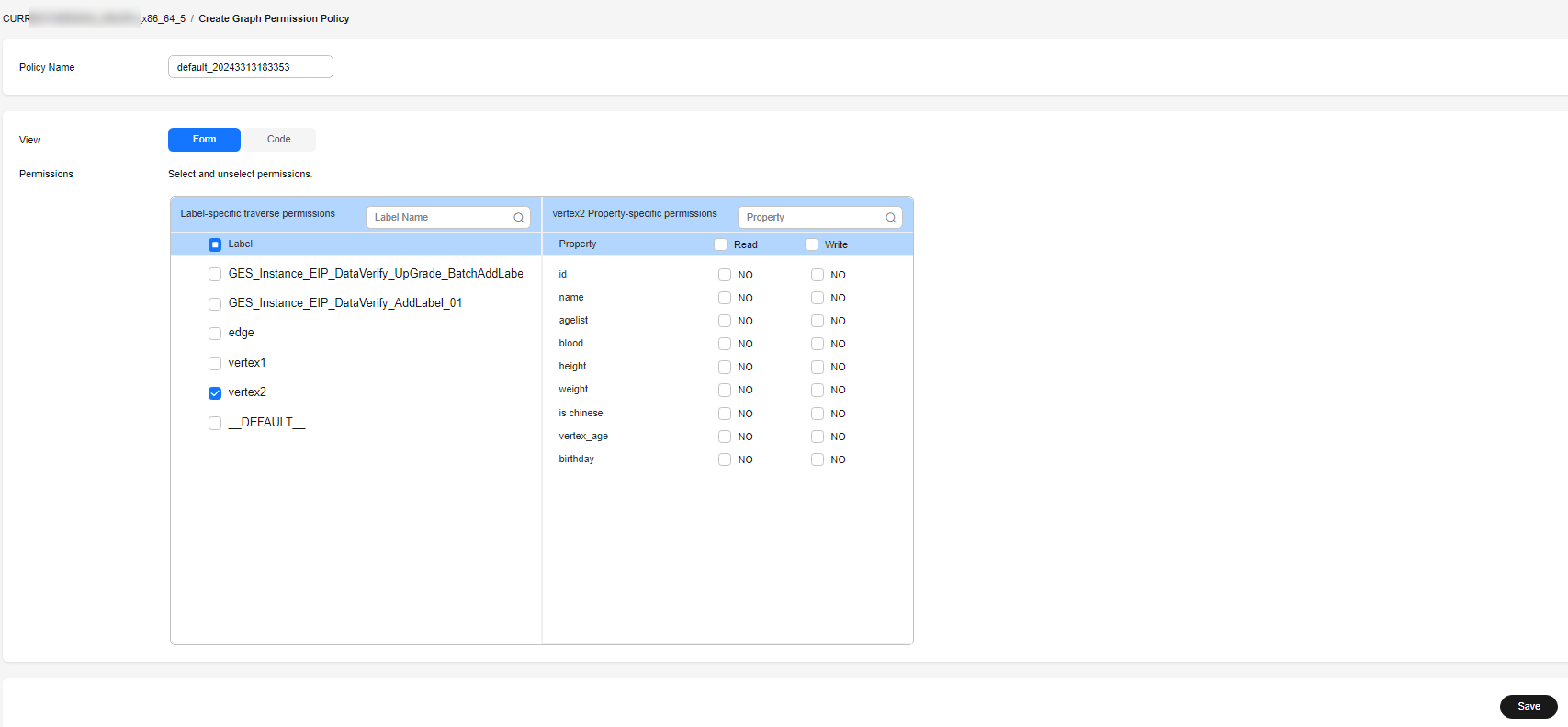
- Create fine-grained graph permissions. Click Create Policy under Granular Permission Policy and configure the following parameters:
- Policy Name: Enter a custom name or use the default.
- View: Choose between Form or Code.
- Form is ideal for intuitive, visual configuration.
- Code is recommended for precise settings.
- Permissions: Assign access rights to selected labels for graph resources. You can also configure read and write permissions for specific label properties.
To enable Cypher query function, both metadata permissions must be created and all labels (including the default __DEFAULT__ label) must have read and write permissions assigned during graph permission setup.
Figure 5 Configuring permissions
- Click Save. The system will redirect you back to the Set Permission page, where the newly created permissions will be listed under the Granular Permission Policy pane. Figure 6 Created policies

Associating Permissions with a User Group
Associate the created permissions with specific user groups, ensuring that group members can access graph resources based on the assigned permissions.
- On the Set Permission page, select the newly created graph permission and click Associate User Group in its Operation column.
- Choose the user group you want to grant permissions to. Figure 7 Associating with a user group

- Click OK. On the Granular Permission Policy pane, you can view the number of users currently authorized with this permission. Figure 8 Users granted the permission

Enabling Fine-Grained Permissions
- In the upper right corner of the Set Permission page, enable Fine-Grained Permissions.

- Return to the previous page. On the Granular Permissions page, you will see that granular permissions for the graph are now enabled.
What is your overall rating for this page?
Thank you very much for your feedback. We will continue working to improve the documentation.See the reply and handling status in My Cloud VOC.
For any further questions, feel free to contact us through the chatbot.
Chatbot


