

Switching Between Hot and Cold Data
- Hot data: frequently accessed data, low latency required, stored using high-performance hardware (such as SSDs) to ensure fast write and query performance.
- Cold data: rarely accessed data, cost-optimized storage (such as HDDs).
If your cluster stores data used for different purposes, such as real-time analytics, log analytics, and monitoring data archives, you can switch between hot and cold storage for specified indexes to balance performance and costs.
How the Feature Works

- Node labels:
- Data node (hot): Stores real-time data (hot data) by default and supports high-concurrency read/write requests.
- Cold data node (cold): Stores historical data (cold data). Cold data nodes use less expensive hardware and deliver lower query performance than regular data nodes.
- Index allocation: You can configure index templates or directly specify index names to allocate specific indexes to data nodes or cold data nodes.
Procedure: Enable cold data nodes, and configure an index template or specific index settings to allocate index data storage. The cluster automatically allocates data based on your settings.

In comparison with data nodes, cold data nodes deliver lower query performance. Determine which type of node to use based on your service needs.
Switching Over Between Hot and Cold Storage
- Check whether cold data nodes are enabled in the target cluster.
- Log in to the CSS management console.
- In the navigation pane on the left, choose Clusters > Elasticsearch.
- In the cluster list, click the name of the target cluster. The cluster information page is displayed.
- On the Overview tab, check whether the Node Information area contains cold data node information. Figure 2 Cold data node information
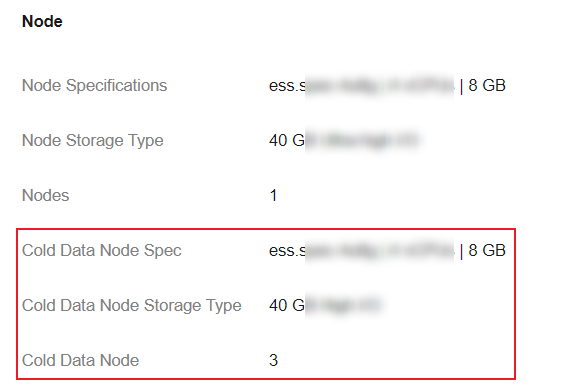
- If there is information about cold data nodes, the cluster has cold data nodes. Go to the next step.
- If not, the cluster does not have cold data nodes. Add cold data nodes for the cluster and then go to the next step. For details about how to add cold data nodes, see Adding New Node Types.
- Log in to the Kibana console.
- On the cluster information page, click Kibana in the upper-right corner to log in to Kibana.
- In the left navigation pane, choose Dev Tools.
The left part of the console is the command input box, and the triangle icon in its upper-right corner is the execution button. The right part shows the execution result.
- On the Kibana page, configure index allocation policies.
You can configure index templates or directly specify index names to allocate specific indexes to data nodes or cold data nodes.
- Configuring an index template
Configure an index template to allocate matching indexes to cold or hot data nodes. For example, run the following command to store newly created indexes whose name starts with myindex to cold data nodes. (The command varies slightly depending on the Elasticsearch version.)
- For Elasticsearch 6.x or later:
PUT _template/{template_name} { "order": 1, "index_patterns": "myindex*", "settings": { "refresh_interval": "30s", "number_of_shards": "3", "number_of_replicas": "0", "routing.allocation.require.box_type": "cold" } } - For Elasticsearch earlier than 6.x:
PUT _template/{template_name}
{
    "order": 1,
    "template": "myindex*",
    "settings": {
        "index": {
            "refresh_interval": "30s",
            "number_of_shards": "3",
            "number_of_replicas": "0",
            "routing.allocation.require.box_type": "cold"
        }
    }
}
Table 1 Key parameters Parameter
Type
Description
index_patterns
String
Defines the index name matching pattern.
The wildcard (*) can be used to match multiple indexes. For example, myindex* indicates all indexes whose name starts with myindex.
routing.allocation.require.box_type
String
Specifies the data node type for shard allocation.
The value can be:
- cold: Shards are allocated to cold data nodes.
- hot: Shards are allocated to regular data nodes.
If this parameter is not specified, shards will be evenly and randomly distributed among cold and hot data nodes.
- For Elasticsearch 6.x or later:
- Configuring specific indexes
To change the node type for an existing index, run the following command:
PUT {index_name}/_settings
{
        "index.routing.allocation.require.box_type": "cold"
}
Table 2 Parameter description Parameter
Type
Description
index_name
String
Specifies one or more indexes.
- Single index: Enter the index name, for example, my_index.
- Multiple indexes: Enter multiple index names and use a comma (,) to separate them, for example, my_index1,my_index2.
- Wildcard: Use the wildcard (*) to match multiple indexes. For example, myindex* indicates all indexes whose name starts with myindex.
routing.allocation.require.box_type
String
Specifies the data node type for shard allocation.
The value can be:
- cold: Shards are allocated to cold data nodes.
- hot: Shards are allocated to regular data nodes.
If this parameter is not specified, shards will be evenly and randomly distributed among cold and hot data nodes.
- Configuring an index template
- Verify the switchover between hot and cold storage. Run the following command to check the distribution of index shards:
GET _cat/shards/{index_name}?vWhen the data volume is large, the switchover may take a long time. There may be an intermediate state where the data of an index resides on both cold data nodes and data nodes.
As shown in the following figure, all shards of the myindex index are stored on the cold data node css-e668-ess-cold-esn-1-1.
index    shard prirep state       docs  store ip             node
myindex 1     p      STARTED 14085446 17.8gb 192.168.91.188 css-e668-ess-cold-esn-1-1
myindex 2     p      STARTED 14094005 17.9gb 192.168.91.188 css-e668-ess-cold-esn-1-1
myindex 0     p      STARTED 14094742 17.8gb 192.168.91.188 css-e668-ess-cold-esn-1-1
- Roll back the cold-hot switchover configuration.
To cancel the cold-hot switchover configuration, run the following command:
PUT {index_name}/_settings
{
        "index.routing.allocation.require.box_type": null
}
After the rollback, index data will be evenly and randomly allocated to both cold data nodes and data nodes.
Related Operations
- You can scale cold data nodes by adding or reducing nodes or their storage capacity, or adding cold data nodes dynamically. For details, see Managing Cluster Changes.
- If your cluster does not have cold data nodes but you wish to cut storage costs, you can try using decoupled storage and compute. For details, see Configuring Decoupled Storage and Compute.
What is your overall rating for this page?
Thank you very much for your feedback. We will continue working to improve the documentation.See the reply and handling status in My Cloud VOC.
For any further questions, feel free to contact us through the chatbot.
Chatbot


