

Configuring a Private Zone for an ECS
Scenarios
If you have deployed ECSs and other cloud services in a VPC, you can configure private zones for the ECSs for them to communicate with each other using private domain names.
This section uses ECSs as an example to describe how to create a private zone and add a record set for it.
Video Tutorial
This video shows how to configure private zones for ECSs in a VPC for them to communicate with each other using private domain names.
Preparations
This section uses a Huawei Cloud ECS as an example. Before configuring a private zone for it, log in to the ECS console to check the private IP address of your ECS.
Step 1: Create a Private Zone
Before using a private domain name (for example, example.com) to access an ECS, you need to create a private zone.
- Go to the Private Zones page.
- Click
 in the upper left corner and select the desired region and project.
 - In the upper right corner of the page, click Create Private Zone.
- On the Create Private Zone page, set parameters as instructed.

- Click OK.
Step 2: Add an A Record Set
Add an A record set for the created private zone.
- In the private zone list, click Manage Record Sets in the Operation column of the target private zone.

- On the Record Sets tab, click Add Record Set.
- Configure the parameters as follows:
- Name: Leave it blank.
- Type: Select A – Map domains to IPv4 addresses.
- Value: Enter the private IP address of the ECS.
Retain the default values of other parameters.

- Click OK.
- Switch back to the Record Sets tab.
The added record set is in the Normal state.
Step 3: Change the DNS Servers for the VPC Subnet
To ensure that a private zone and its record sets are properly applied within a VPC, configure the VPC subnet associated with the ECS to use the private DNS server addresses provided by the DNS service.
- View the DNS server addresses for the VPC subnet associated with the ECS.
- Go to the ECS list page.
- In the ECS list, click the name of the target ECS.
- On the Summary tab of the ECS details page, click the name of the VPC subnet associated with the ECS NIC.
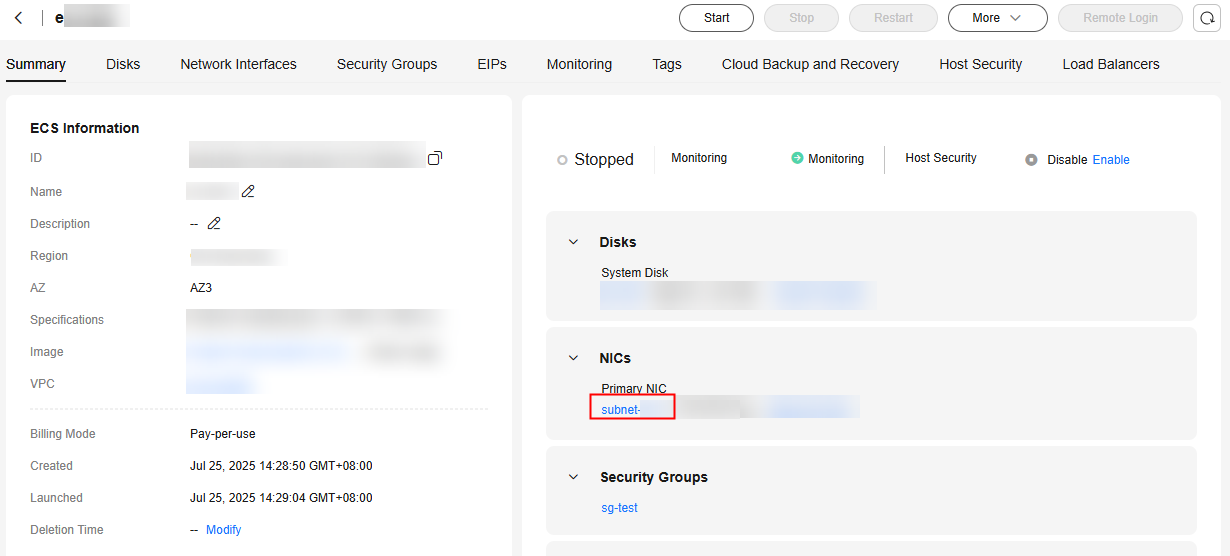
- In the Gateway and DNS Information area, view the DNS server addresses used by the ECS.
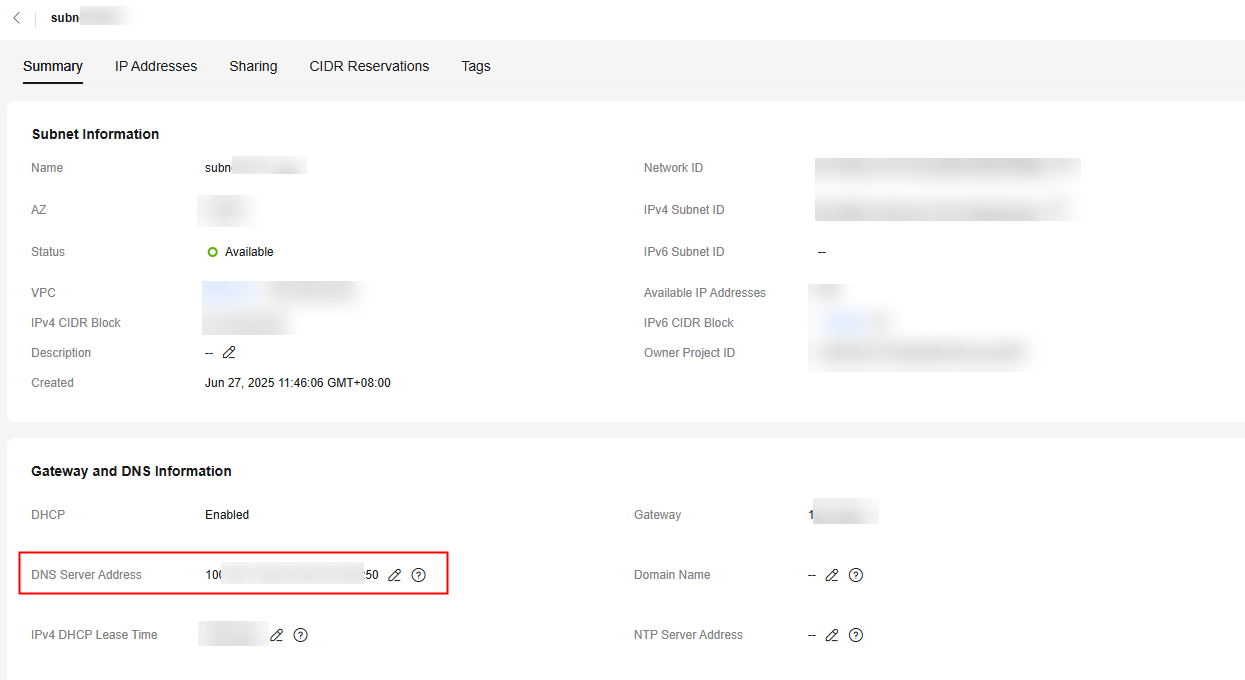
- View the private DNS server addresses provided by the DNS service.
- Method 1 (recommended): View the private DNS server addresses on the management console.
- Go to the Private Zones page.
- Click in the upper left corner and select the desired region and project.
- In the private zone list, locate the private zone and click the domain name.
View the private DNS server addresses on the top of the record set list.

- Method 2: View the private DNS server addresses for each region by referring to What Are Huawei Cloud Private DNS Server Addresses?
Check whether the private DNS server addresses are the same as the DNS server addresses for the VPC subnet obtained in 1. If they are different, go to 3.
- Method 1 (recommended): View the private DNS server addresses on the management console.
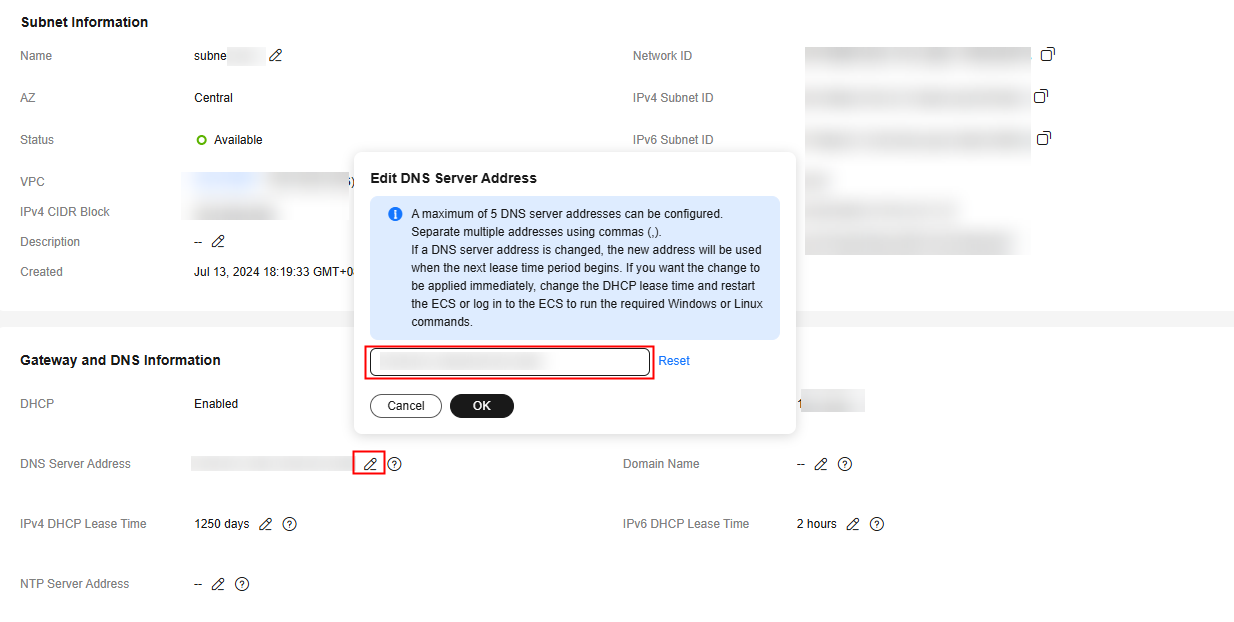
- Change the DNS server addresses for the VPC subnet.
Return to the VPC subnet summary page in 1.d and click
 next to DNS Server Address.
Change the DNS server address of the VPC subnet to the private DNS server address of Huawei Cloud as instructed.
Step 4: Check Whether the Record Set Has Been Applied
Log in to the ECS and check whether the record set has been applied:
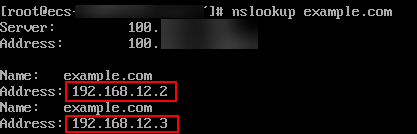
nslookup Domain name
Example: nslookup example.com
As shown in the following figure, when the displayed IP address is the same as the IP address configured in the A record set, the record set has been applied.
What is your overall rating for this page?
Thank you very much for your feedback. We will continue working to improve the documentation.See the reply and handling status in My Cloud VOC.
For any further questions, feel free to contact us through the chatbot.
Chatbot


