

Help Center/ Cloud Eye/ Best Practices/ Alarm Configuration Method/ Masking Alarms by Multiple Metrics or Objects
Updated on 2026-07-24 GMT+08:00
Masking Alarms by Multiple Metrics or Objects
You can configure masking rules to minimize invalid and non-urgent alarms for O&M personnel, improving alarm validity.
Scenarios
If you have configured alarm rules to monitor various metrics of both production and test resources on the cloud, you can set up masking rules for test resources to avoid receiving alarms for such resources.
Creating an Alarm Masking Rule
- Log in to the Cloud Eye console.
- In the navigation pane, choose Alarm Management > Alarm Handling.
- Click the Alarm Masking tab.

In some regions, the path is Alarm Management > Alarm Masking.
- In the upper right corner of the page, click Create Masking Rule.
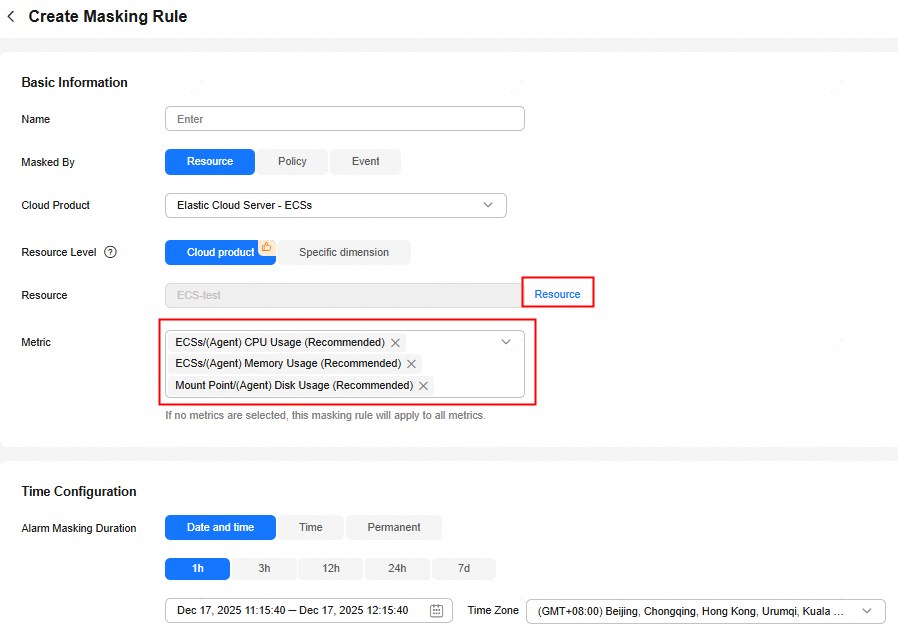
- On the Create Masking Rule page, set parameters as prompted. For details, see Creating a Masking Rule.
- Set Masked By to Resource.
- Set Cloud Product to the name of the target cloud service.
- Click Resource. On the displayed page, select one or more resources to be masked.
- In the drop-down list next to Metric, select one or more metrics to be masked. Leaving this blank applies the masking rule to all metrics.
Figure 1 Creating an alarm masking rule
- Click Create.
Parent topic: Alarm Configuration Method
What is your overall rating for this page?
0
1
2
3
4
5
6
7
8
9
10
Very dissatisfiedVery satisfied
Thank you very much for your feedback. We will continue working to improve the documentation.See the reply and handling status in My Cloud VOC.
The system is busy. Please try again later.
For any further questions, feel free to contact us through the chatbot.
Chatbot


