

Configuring Resource Groups for Event Alarms
When configuring alarm rules for event alarms, some services do not support resource groups. Currently, you can configure rules by resource group only for event alarms of ECS (only supported in some regions, subject to the console), DDS, RDS, DCS, and GeminiDB. In this case, you are advised to configure alarm rules by setting Monitoring Scope to Specified resources or All resources. When selecting Specified resources, you can select specified resources from existing resource groups for better efficiency.
Prerequisites
Before creating an alarm rule for specified resources, ensure that the resources have been added to a resource group. For details, see Creating a Resource Group.
Creating an Alarm Rule for Specified Resources
- Log in to the Cloud Eye console.
- In the upper left corner, select a region and a project.
- Choose Service List > Cloud Eye.
- In the navigation pane, choose Event Monitoring.
- Click Create Alarm Rule in the upper right corner and set parameters.
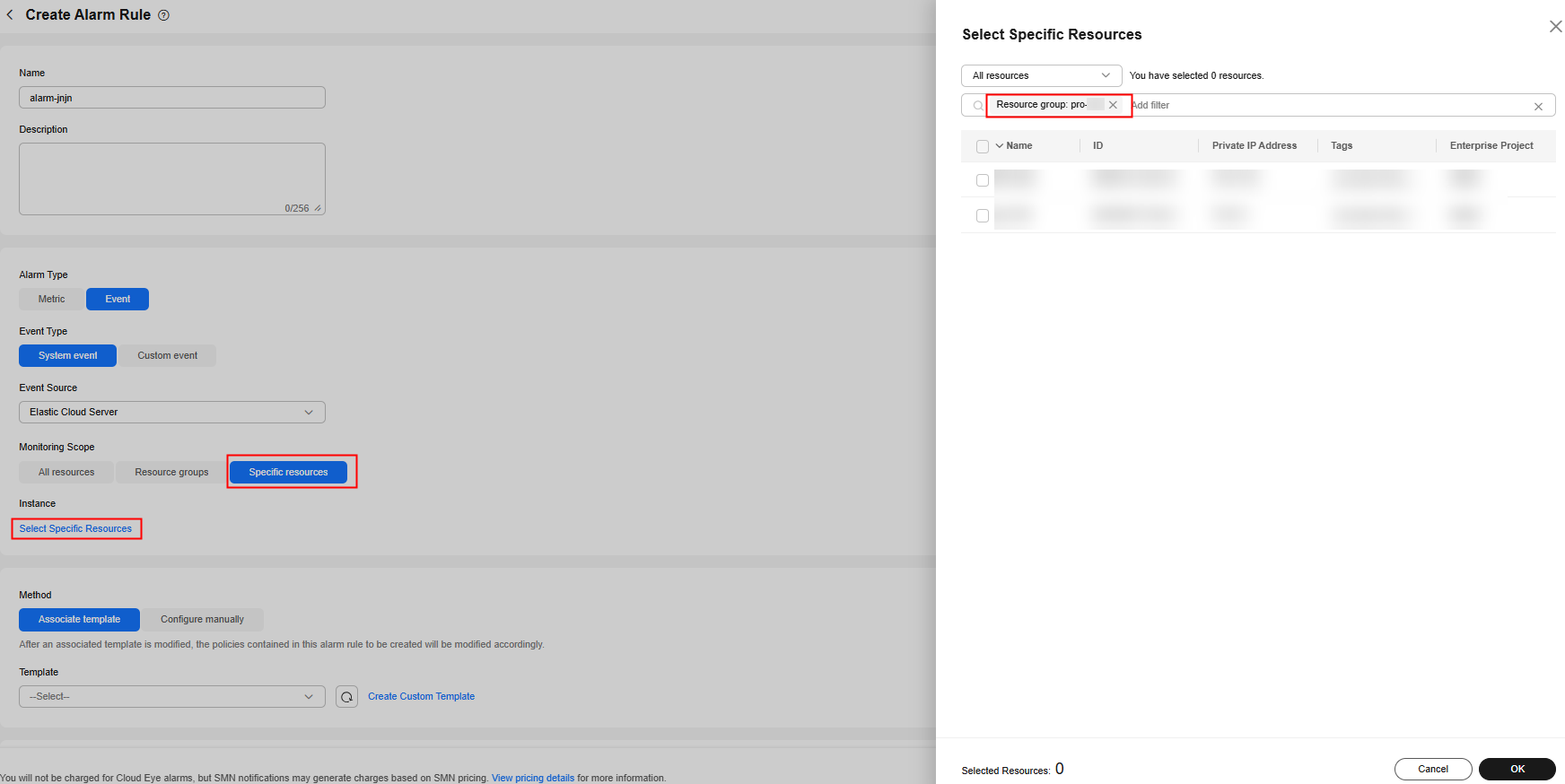
- Set Monitoring Scope to Specified Resources and click Select Specified Resources next to Instance.
- In the resource list, filter resources by resource group and select resources as needed.
For parameter details, see Creating an Alarm Rule and Notification for Event Monitoring.
Figure 1 Creating an alarm rule
- Click Create.
If the resources in a resource group change, you need to manually update the resources for the event alarm rule. For details, see Modifying an Alarm Rule.
Creating an Alarm Rule for All Resources
- Log in to the Cloud Eye console.
- In the upper left corner, select a region and a project.
- Choose Service List > Cloud Eye.
- In the navigation pane, choose Event Monitoring.
- Click Create Alarm Rule in the upper right corner and set parameters.
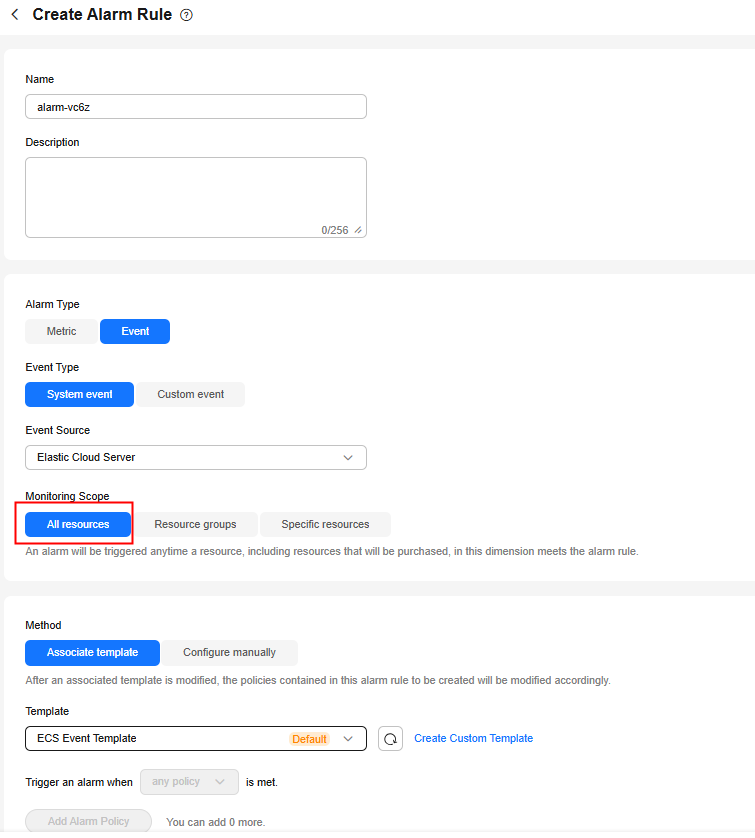
If Monitoring Scope is set to All resources, an alarm will be triggered if any resource of the current cloud product meets the alarm policy. For parameter details, see Creating an Alarm Rule and Notification for Event Monitoring.
Figure 2 Creating an alarm rule
- Click Create.
What is your overall rating for this page?
Thank you very much for your feedback. We will continue working to improve the documentation.See the reply and handling status in My Cloud VOC.
For any further questions, feel free to contact us through the chatbot.
Chatbot


