

Help Center/ Relational Database Service_RDS for PostgreSQL/ User Guide/ Instance Management/ Instance Lifecycle/ Stopping an Instance
Updated on 2026-09-08 GMT+08:00
Stopping an Instance
Scenarios
If you use DB instances only for routine development, you can temporarily stop pay-per-use instances to save money. You can stop an instance for up to 15 days.
Billing
After a DB instance is stopped, the VM where the DB instance is located is no longer billed. Other resources, including EIPs, storage resources, and backups, are still billed.
Constraints
- Only cloud SSD and extreme SSD pay-per-use instances can be stopped. RDS instances in a DCC cannot be stopped.
- If you stop a primary instance, read replicas (if there are any) will also be stopped. They are stopped for up to 15 days by default. You cannot stop a read replica without stopping the primary instance.
- A stopped instance cannot be deleted through the console.
- Stopping a DB instance will also stop its automated backups. After a DB instance is started, a full backup is automatically triggered.
- If you do not manually start your DB instance within 15 days after it is stopped, the instance will automatically start during the next maintenance window. For details about the maintenance window, see Changing the Maintenance Window. To start an instance, see Starting an Instance.
- A stopped pay-per-use instance may fail to start due to insufficient ECS resources. If this happens, try again later. If you need assistance, submit a service ticket.
Procedure
- Log in to the RDS console.
- Click
 in the upper left corner and select a region.
 - On the Instances page, locate the primary instance that you want to stop and choose in the Operation column.
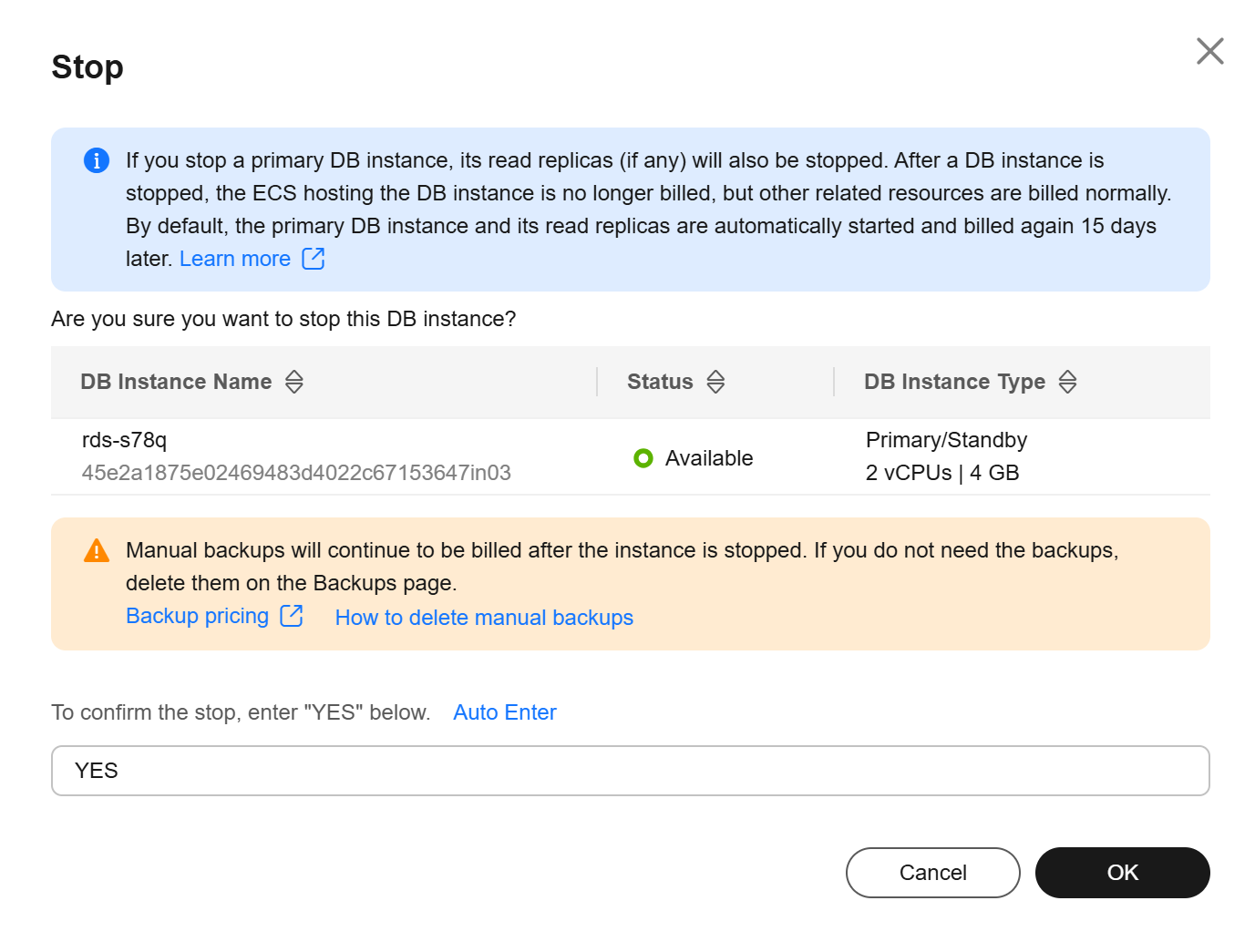
- In the displayed dialog box, enter YES and click OK. Figure 1 Stopping an instance
- Refresh the instance list and view the status of the instance. If the status is Stopped, the instance is stopped successfully.
Related APIs
What is your overall rating for this page?
0
1
2
3
4
5
6
7
8
9
10
Very dissatisfiedVery satisfied
Thank you very much for your feedback. We will continue working to improve the documentation.See the reply and handling status in My Cloud VOC.
The system is busy. Please try again later.
For any further questions, feel free to contact us through the chatbot.
Chatbot


