

Creating a SQL Throttling Rule
Scenarios
You can create rules to control concurrent execution of SQL statements by specifying original SQL statements or query ID. When the number of matched SQL statements exceeds the maximum number of concurrent SQL statements allowed, the DB instance rejects the SQL statements to ensure stability. SQL throttling of RDS for PostgreSQL is implemented using the Huawei-developed extension rds_pg_sql_ccl.
It can be used in the following scenarios:
- When workloads increase sharply, the instance stability is ensured by limiting the execution of a certain type of SQL statements.
- When there are not enough resources, the success of core tasks is ensured by limiting the execution of other SQL statements to reduce resource consumption.
Supported Versions
SQL throttling is available in the following versions:
- All versions of RDS for PostgreSQL 15 and above
- RDS for PostgreSQL 14: 14.8 and later
- RDS for PostgreSQL 13: 13.11 and later
- RDS for PostgreSQL 12: 12.15 and later
- RDS for PostgreSQL 11: 11.20 and later
Constraints
- SQL statements executed by built-in users (rdsAdmin, rdsMetric, rdsRepl, and rdsBackup) are not affected by SQL throttling rules.
- To use SQL throttling, the rds_pg_sql_ccl extension (an in-house kernel-level throttling extension developed for RDS for PostgreSQL) must be installed. For details, see Installing and Uninstalling an Extension on the RDS Console.
Checking Recommended Rules
Check recommended rules first. The system analyzes ongoing sessions based on your selected recommendation factor and lists recommended SQL throttling rules for top sessions. You can then add SQL throttling rules by referring to these recommended rules.
- Log in to the RDS console.
- Click
 in the upper left corner and select a region.
 - On the Instances page, click the target instance name to go to the Summary page.
- In the navigation pane, choose SQL Analysis and Tuning under DBA Assistant.
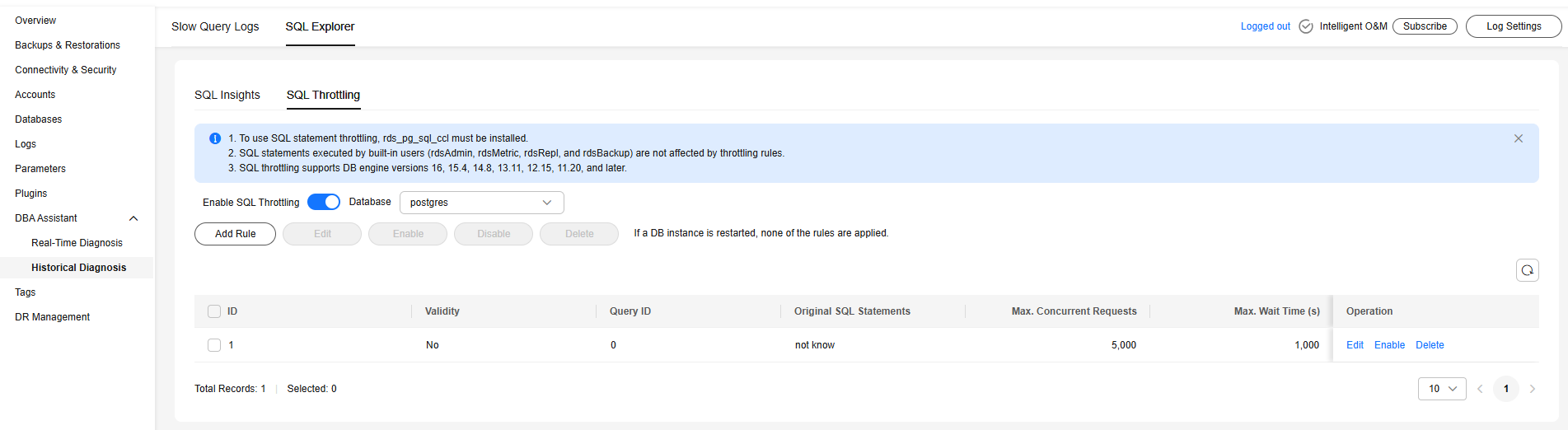
- Click the SQL Throttling tab.
- Click Recommended Rule. In the displayed dialog box, set Query By to All, Avg. Duration, Max. Duration, or Executions. The system will retrieve top sessions, group them with the same keywords, and list recommended rules for top SQL statements. Figure 1 Recommended rules

The system retrieves the top 1,000 sessions based on the recommendation factor and filters for SELECT statements only. It extracts keywords from each session and groups sessions with identical keywords. Recommendation rules are generated based on the following strategies:
- All: Session groups are sorted in descending order by average execution duration (Avg. Duration), maximum execution duration (Max. Duration), and execution count (Executions). The system then generates recommended rules for the top N groups in each category.
- Avg. Duration: Session groups are sorted in descending order by average execution duration. The system then generates recommended rules for the top N groups.
- Max. Duration: Session groups are sorted in descending order by maximum execution duration. The system then generates recommended rules for the top N groups.
- Executions: Session groups are sorted in descending order by execution count. The system then generates recommended rules for the top N groups.
Adding a SQL Throttling Rule
- Log in to the RDS console.
- Click in the upper left corner and select a region.
- On the Instances page, click the target instance name to go to the Summary page.
- In the navigation pane, choose SQL Analysis and Tuning under DBA Assistant.
- Click the SQL Throttling tab.
- Toggle on the SQL throttling switch
 .
. 
SQL throttling rules take effect only after SQL throttling is enabled.
- Click Add Rule. Configure the parameters listed in Table 1.
Configure SQL throttling rules based on workloads and resource usage.
Figure 2 Adding a rule (generating keywords from a SQL statement)
 Figure 3 Adding a rule (entering keywords)

Table 1 Parameter description Parameter
Description
Mode
- Original SQL Statements
A rule created using SQL statements cannot be applied to SQL statements with bind variables.
- Query ID
In any given database, each rule must have a unique query ID, but rules in different databases can have the same query ID.
- Keyword Rate Limiting: Take select~a as an example. select and a are two keywords contained in a SQL throttling rule, separated by a tilde (~). If an executed SQL statement contains both select and a, it matches this rule.
Max. Concurrent Requests
The maximum allowed number of concurrent SQL statements that match the rule. SQL statements exceeding this upper limit will not be executed.
The value ranges from 0 to 50000. The value 0 indicates that the maximum concurrency of SQL statements is not limited.
Max. Wait Time
Wait time before the SQL statements can be executed. The value ranges from 0 to 1000000000.
- Original SQL Statements
- Confirm the settings and click OK.
- A created SQL throttling rule does not take effect immediately. Click Enable to make it effective.
If the instance reboots, all rules will become invalid. You must enable them again for them to take effect.
Follow-up Operations
If a SQL throttling rule is not required, you can disable or delete it in the Operation column.
- To disable a rule, click Disable.
- To delete a rule, click Delete. After a SQL throttling rule that is enabled is deleted, the rule is not applied anymore.
What is your overall rating for this page?
Thank you very much for your feedback. We will continue working to improve the documentation.See the reply and handling status in My Cloud VOC.
For any further questions, feel free to contact us through the chatbot.
Chatbot


