

Creating a DR Relationship
Scenarios
After a cross-region DR relationship is created, if the region where the primary instance is located encounters a natural disaster and the primary instance cannot be connected, you can promote the DR instance in another region to primary. To connect to the new primary instance, you only need to change the connection address on the application side.
How Cross-Region DR Works
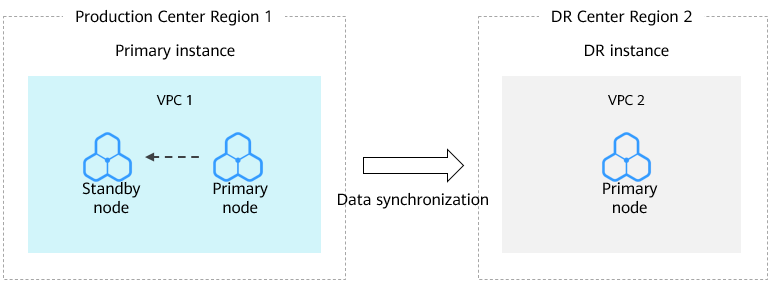
Two RDS for PostgreSQL instances are deployed in two data centers, one in the production center and the other in the DR center. The RDS DR function replicates data from the primary instance in the production center to the DR instance in the DR center, keeping data synchronous across the regions.
Supported Versions
RDS for PostgreSQL 12 and later versions support cross-region DR.
Constraints
| Phase | Constraints |
|---|---|
| Before setup |
|
| During setup |
|
| After setup |
|
Procedure
- Log in to the RDS console.
- Click
 in the upper left corner and select a region.
 - Paste the information of the DR instance to the primary instance and configure DR for the primary instance.
- On the Instances page, click the name of an instance (to act as the DR instance) that you want to create a DR relationship for to go to the Summary page.
- Click DR Information.
- In the displayed dialog box, click Copy. Figure 2 DR information

- On the Instances page, select another instance (to act as the primary instance) and choose More > View DR Details.
- On the displayed page, confirm the information and click Create DR Relationship.
- In the displayed dialog box, paste the information you copied from 3.c into the input box and click OK.
- Check the task execution result on the Task Center page. If the task status is Completed, the DR settings are configured for the primary instance. Perform subsequent operations only after this task is successful.
- Paste the information of the primary instance to the DR instance and configure DR for the DR instance.
- On the Instances page, click the name of the primary instance to go to the Summary page.
- Click DR Information.
- In the displayed dialog box, click Copy.
- On the Instances page, select the DR instance and choose More > View DR Details.
- On the displayed page, confirm the information and click Create DR Relationship.
- In the displayed dialog box, paste the information you copied from 4.c into the input box and click OK.
- Check the task execution result on the Task Center page. If the task status is Completed, the DR settings are configured for the DR instance. After this task is successful, the DR relationship is created.
- On the Instances page, click the name of the DR instance to go to the Summary page.
- In the navigation pane on the left, choose DR Management. The DR replication status of the DR instance is displayed.
What is your overall rating for this page?
Thank you very much for your feedback. We will continue working to improve the documentation.See the reply and handling status in My Cloud VOC.
For any further questions, feel free to contact us through the chatbot.
Chatbot


