

Creating a SQL Insights Task
Scenarios
SQL Insights allows you to query all executed SQL statements, analyze and search for the tables that are accessed and updated most frequently, and identify SQL statements that have the longest lock wait. This function helps you quickly detect exceptions.
Constraints
- You need to enable Collect All Query Logs before using SQL Insights.
- After Collect All Query Logs is disabled, new SQL statements will not be collected anymore and the collected SQL data will be deleted.
- Full SQL is restricted by the memory buffer. Under heavy workloads, if the buffer runs out of space, there is a low probability that some SQL records will be dropped.
- Any SQL statement that exceeds 4,096 bytes will not be recorded by default.
In RDS for MySQL 5.7.33.3 and later minor versions, you can set the rds_sql_tracer_reserve_big_records parameter to ON (which indicates that SQL statements containing more than 4,096 bytes are still recorded) on the Parameters page to remove this constraint. For details, see Modifying Parameters of an RDS for MySQL Instance. RDS for MySQL 5.6 and 8.0 do not support this parameter. For details about how to query the instance version, see Query the RDS Instance Version.
Procedure
- Log in to the RDS console.
- Click
 in the upper left corner and select a region.
- On the Instances page, click the target instance name to go to the Summary page.
- In the navigation pane, choose SQL Analysis and Tuning under DBA Assistant.
- Click the SQL Insights tab.
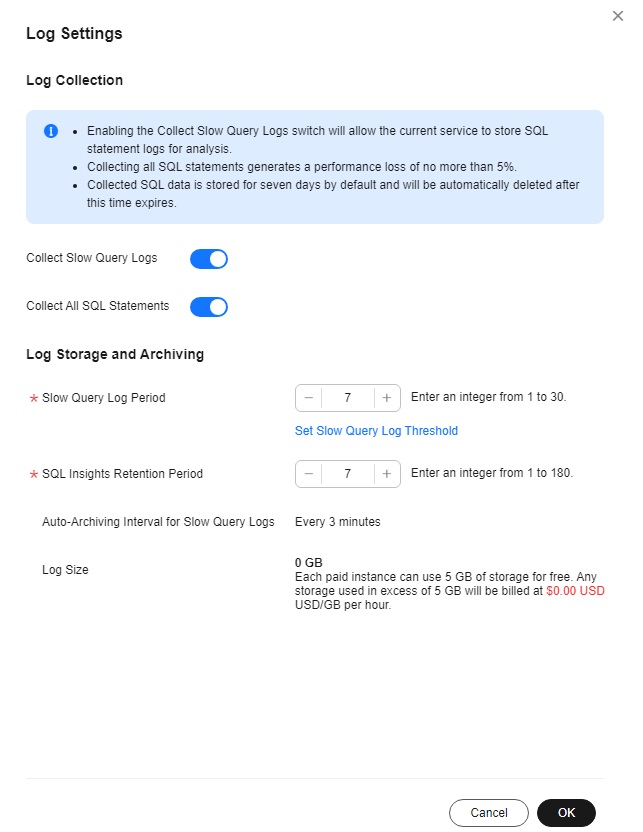
- If Collect All Query Logs is disabled, RDS cannot obtain full SQL data for analysis. To use this feature, click
 to enable it.
To disable this function, click Log Settings in the upper right corner, toggle off the Collect All Query Logs switch, and click OK.

Collecting all SQL statements generates a performance loss of no more than 5%.
After Collect All Query Logs is enabled, the SQL text following FROM in prepared statements is omitted (the statements are displayed as PREPARE xxx FROM ...).
Figure 1 Log settings
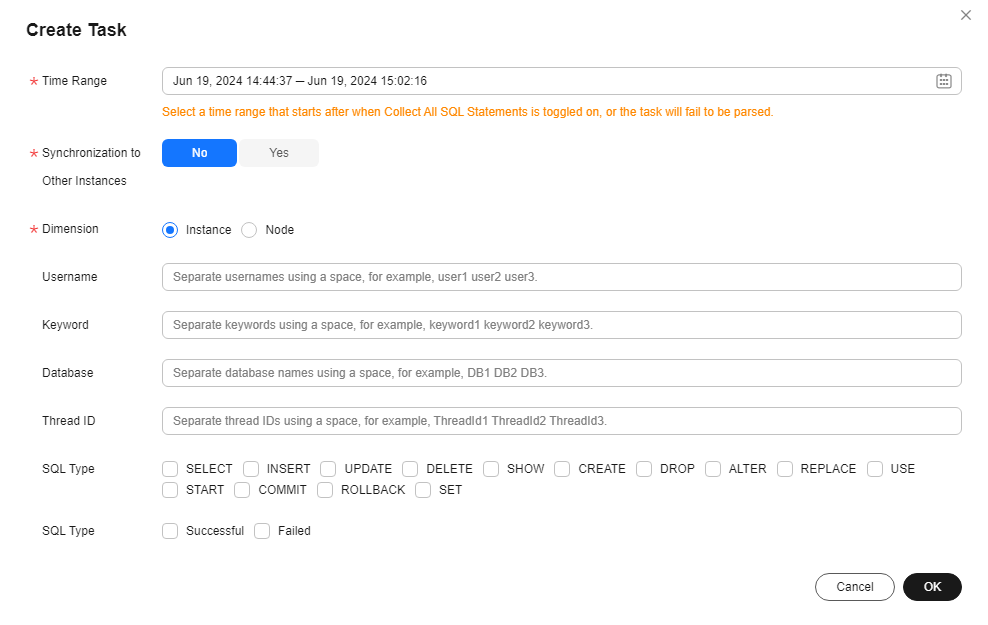
- Click Create Task. In the displayed dialog box, specify Time Range, Dimension, and other configuration items, and click OK. Figure 2 Creating a SQL Insights task
- In the task list, click Details in the Operation column to view task details.
What is your overall rating for this page?
Thank you very much for your feedback. We will continue working to improve the documentation.See the reply and handling status in My Cloud VOC.
For any further questions, feel free to contact us through the chatbot.
Chatbot


